

Available in🇮🇳 India
After the integration is complete, Razorpay will appear as a payment option on your web page/app. You need to click the button and make a test transaction to ensure that the integration is working as expected. You can start accepting actual payments from your customers once the test is successful.
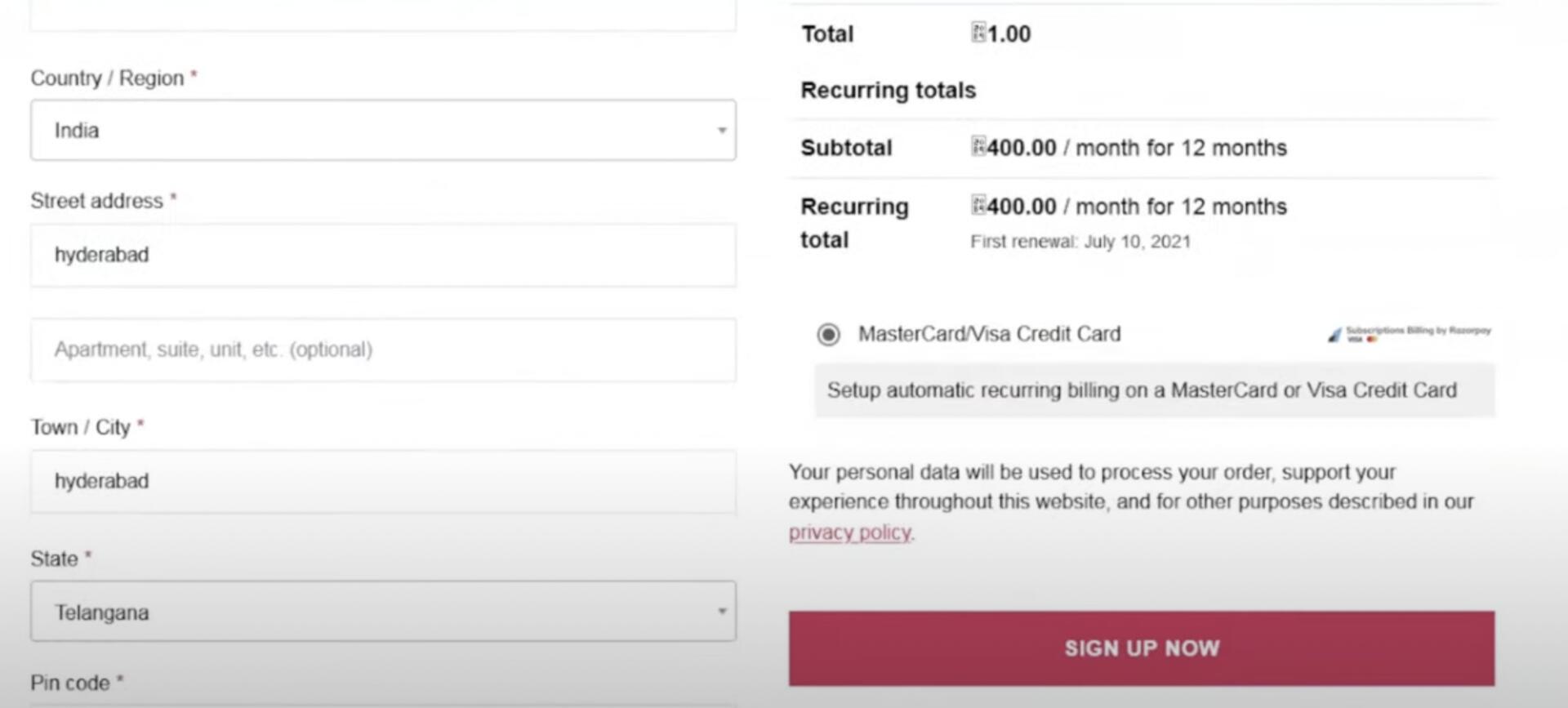 You can make test payments using one of the payment methods configured at the Checkout.
- No money is deducted from the customer’s account as this is a simulated transaction.
- Ensure you have entered the API keys generated in the test mode in the Checkout code.
UPI
You can enter one of the following UPI IDs:success@razorpay: To make the payment successful.failure@razorpay: To fail the payment.
Handy TipsYou can use Test Mode to test UPI payments, and Live Mode for UPI Intent and QR payments.