

Available in🇮🇳 India
On the Payroll Dashboard, you can dismiss employees at the end of their tenure at your organisation, or allow them to resign. After receiving a resignation request, you can process the Full and final settlement and successfully dismiss the employee.
Handy TipsBoth the administrator and the employee’s manager can approve resignations.
Enable Resignation
To allow employees to resign, you must enable it.- Log in to the Payroll Dashboard.
- Go to Settings → Employee Resignation Setup → EDIT.
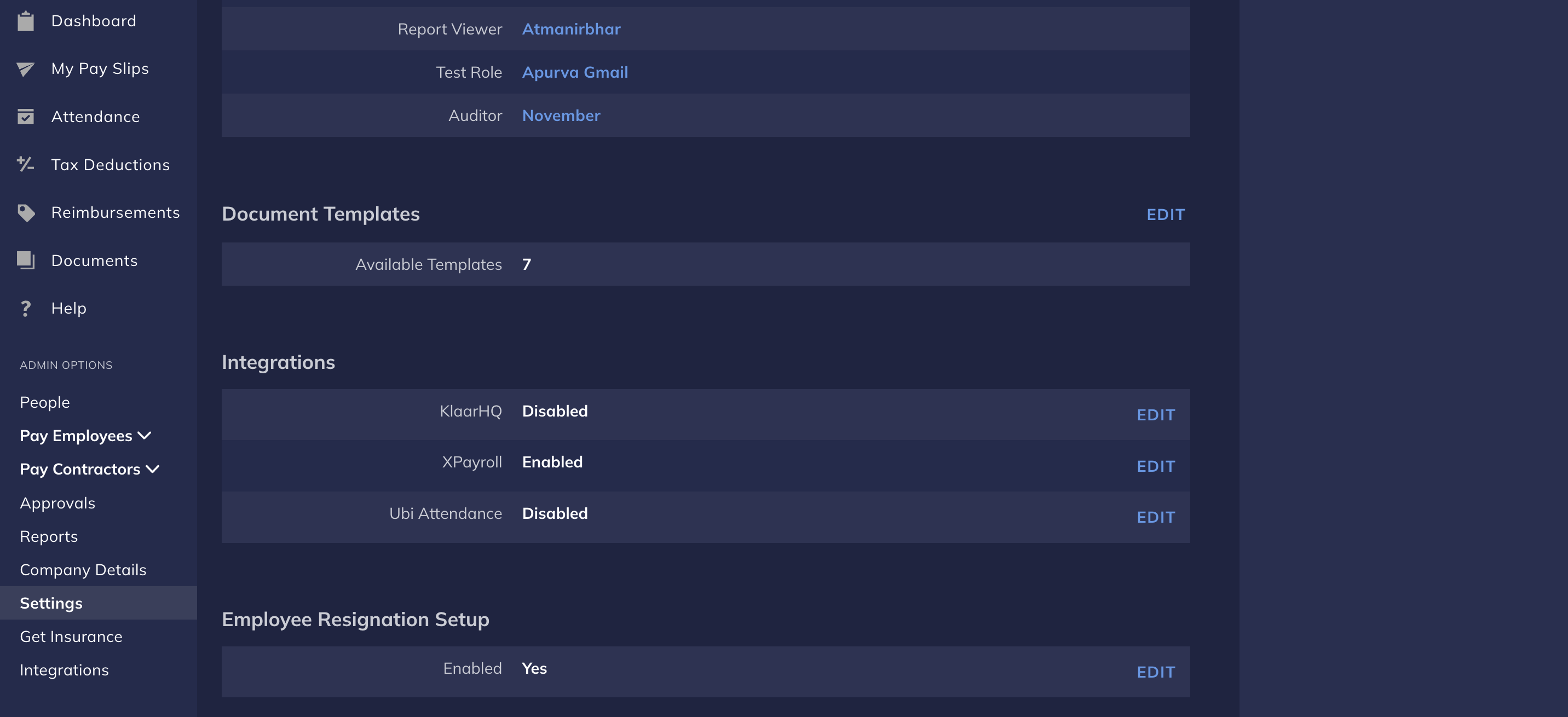
- Select the Enable resignations feature check box.
Pending Requests
After an employee submits their resignation, you can view the request and take action on it.- Log in to the Payroll Dashboard.
- Click either of the following. The Resignation reports page opens.
- Resignation Report
- Dashboard Reminders
- Navigate to ADMIN OPTIONS → Reports.
- Click Resignations.
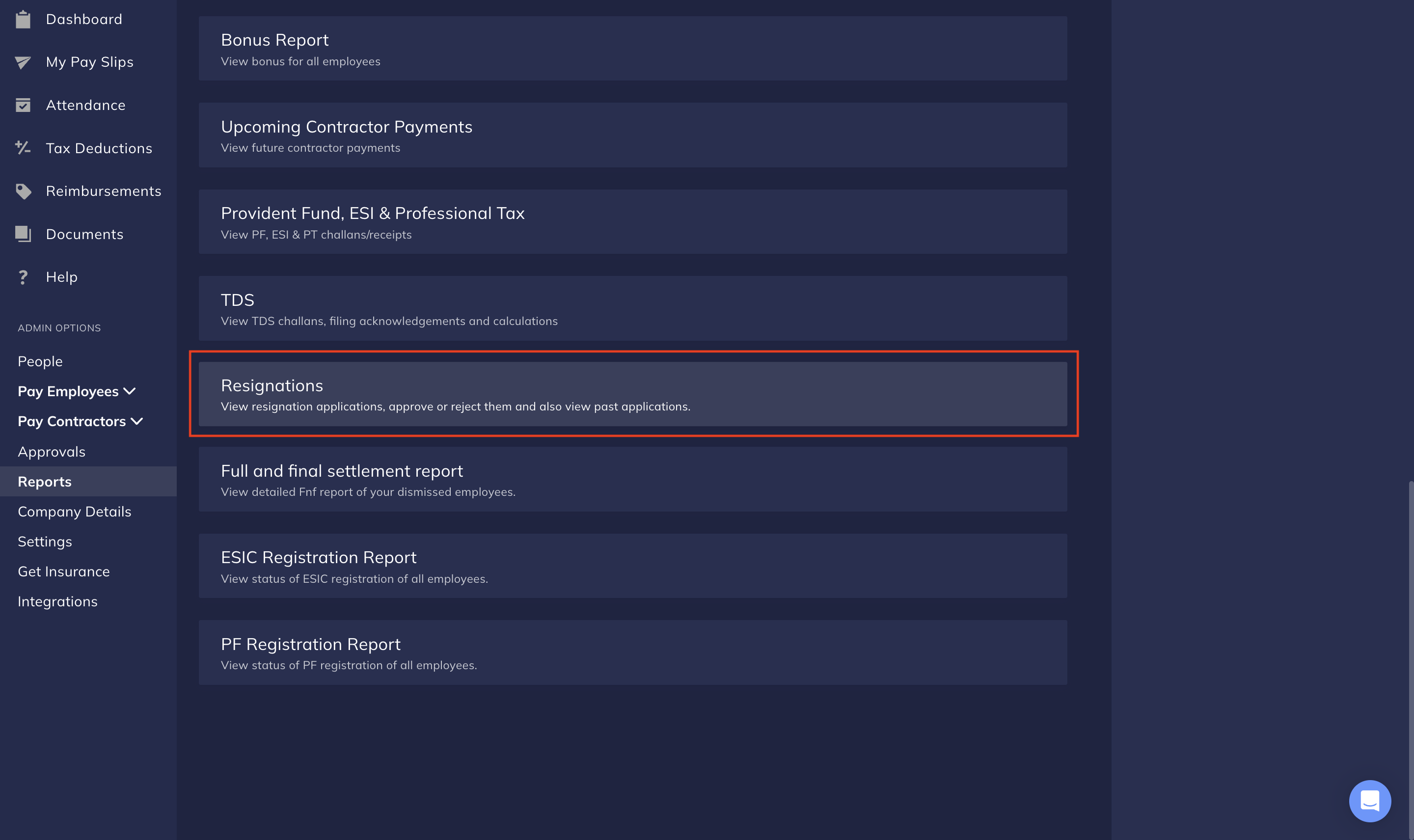
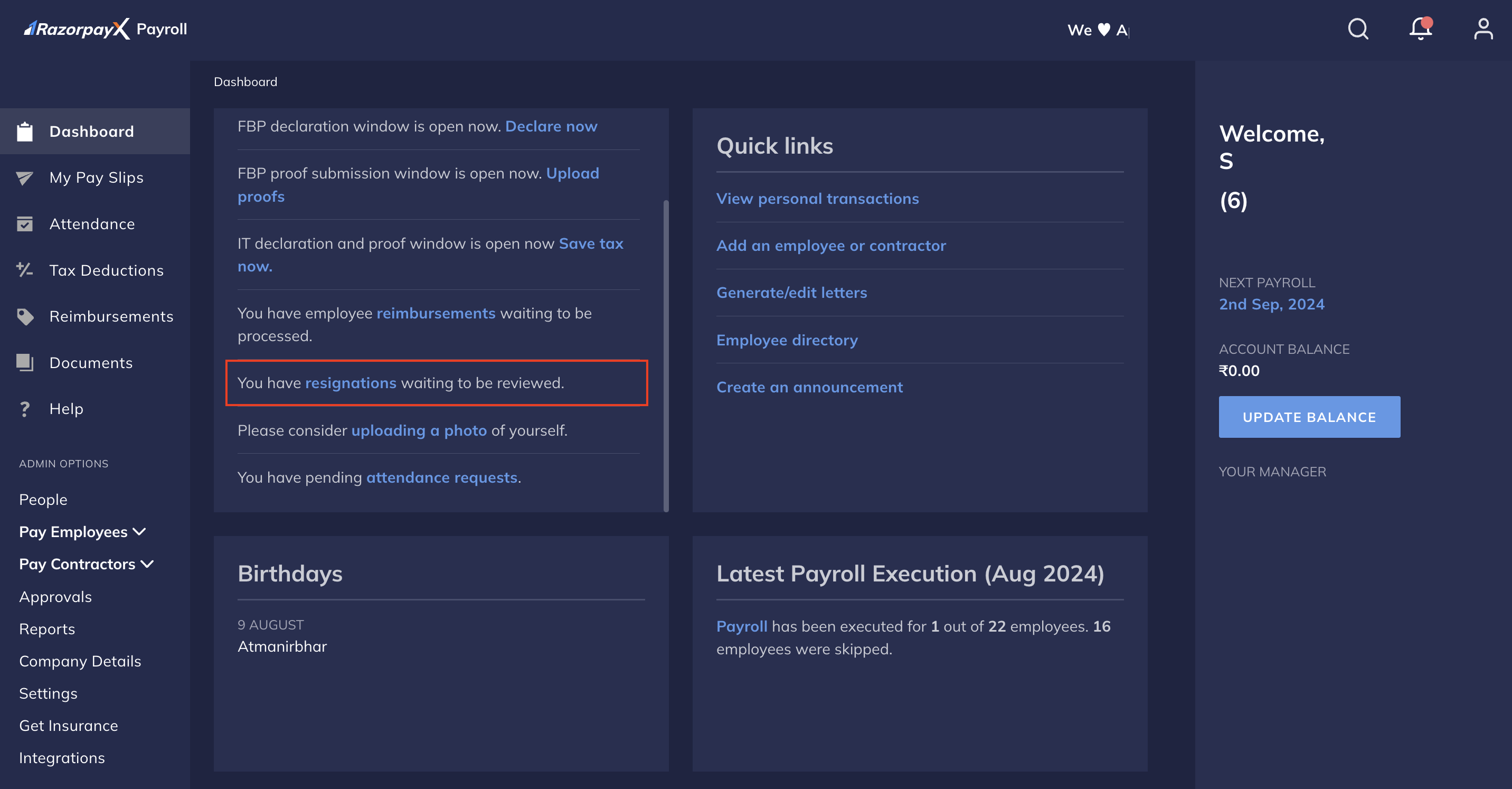
- View the resignation requests pending your review. Select the employee and click REVIEW RESIGNATION. You can only review one request at a time.
- In the Update Resignation Request pop-up modal, you can:
- Change the employee’s Last Working Day.
- Provide Remarks on the resignation request.
- Click UPDATE to make changes to the employee’s resignation. Then, click APPROVE.
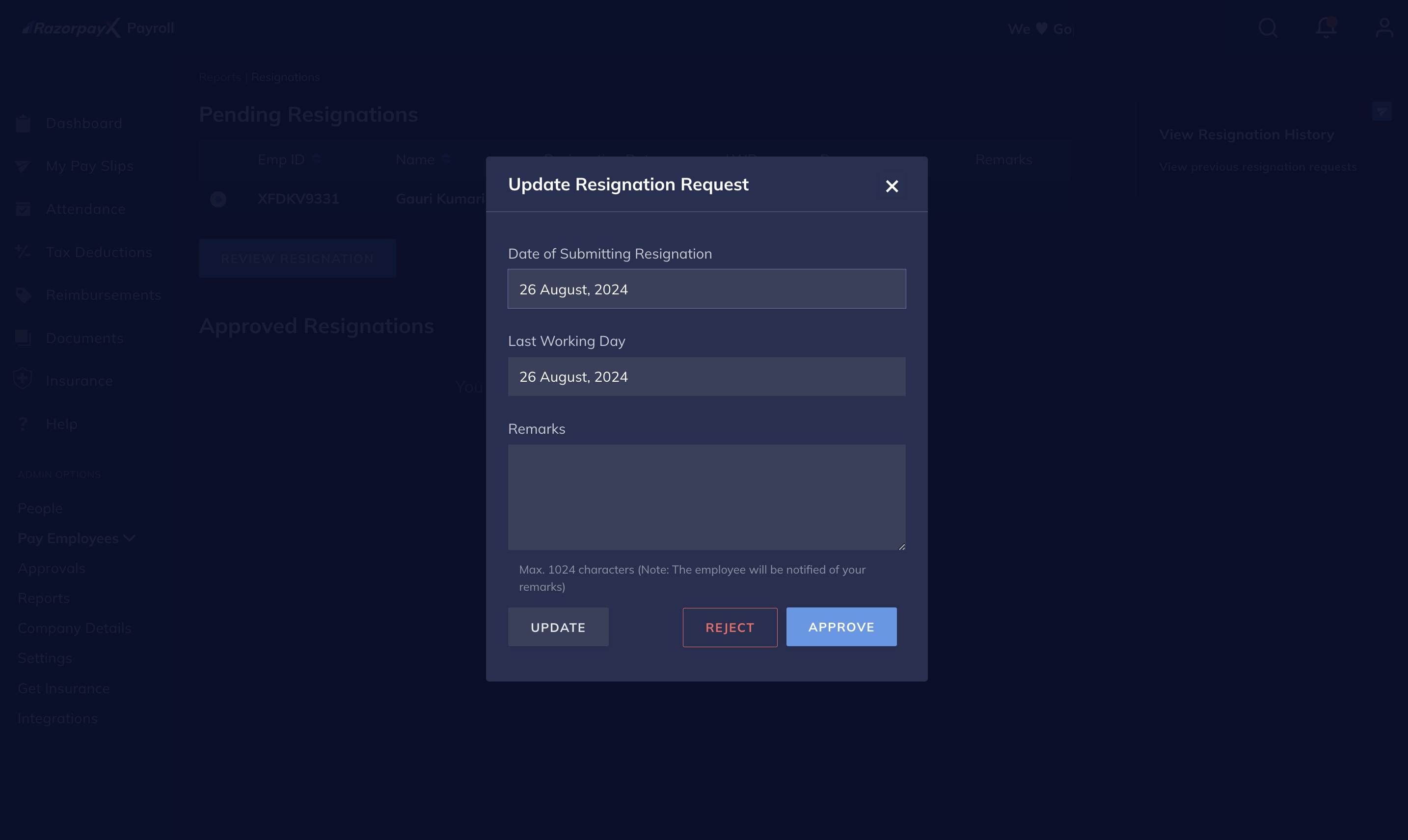
- To reject the request, click REJECT.
- Click View Resignation History on the right pane to view older requests.
- You can filter the older requests using the Resignation Status and duration.
- Click DOWNLOAD CSV to download the resignation data.
Process Full & Final Settlement
Once you approve the resignation request, you can process the employee’s full and final settlement.- On the Resignations report page, select the employee to process the FnF for. Click PROCESS FNF SETTLEMENT. This opens the Full and final settlement page.
- On the Full and final settlement page:
- Provide the leave encashment details. You can either enter the number of leaves to encash or the total leave encashment amount.
-
Enter any additions or deductions to the employee’s salary. You can also enter the Loss of Pay days, or the Jibble Integration to sync the LOP data automatically.
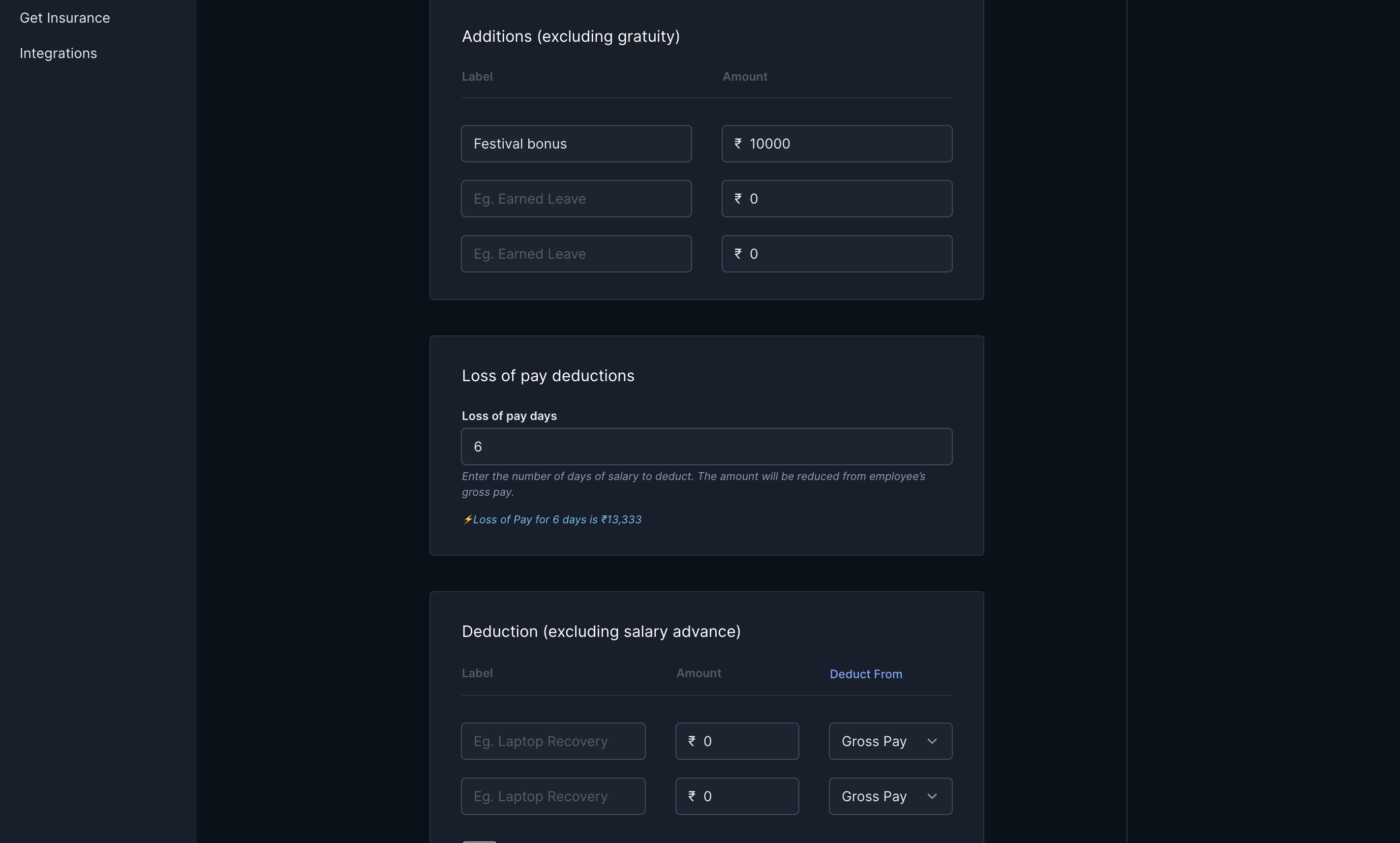
- Select whether the deductions happen from the employee’s gross or net pay.
What is the difference between Gross Pay and Net Pay?
What is the difference between Gross Pay and Net Pay?
- Gross Pay
- Net Pay
Gross pay is the total amount an employee earns before any relevant deductions, including taxes, benefits, bonuses, reimbursements and more. This also includes the basic, ad hoc and the allowance components of an employee’s salary.Examples of gross pay deductions include loss of pay, bonus recovery after clawback and more, depending on the employee’s performance. Gross pay deductions are mandatory and affect compliance payments (TDS, PF).
- Enter the employee’s personal email address for further communication. If Payroll had been handling the employee’s Form 16s, the employee receives it on their personal email address at the end of the financial year.
- Click Add to Payment.
Maintain Employee Directory
After dismissing employees, you can choose to:- DELETE EMPLOYEE from the employee directory.
- DISABLE LOGIN for the employee during the notice period, if necessary.