Available in🇮🇳 India
Income tax declarations and proof submission is a critical payroll activity. Employees declare the investments they have planned for the year and towards the end of the financial year, organisations collect proofs of the declarations and adjust the amounts on which the tax is calculated and deducted.
With Tax Deductions Setup on the Payroll Dashboard, you can set up:
General Settings
Setup verification settings for your organisation. Explore the tax verification process.
Declaration Window
Set up declaration windows for your organisation.
Proof Upload Window
Set up a proof upload window for employees in your organisation.
Custom Window
Set up a custom window for specific employees in your organisation.
Meaning of Windows
Meaning of Windows
Declaration and Proof Upload windows refer to a duration where employees can perform declaration or proof upload activites on the Dashboard.It also creates a buffer period for your payroll team to finalise the monthly payroll and tax deductions.
How it Works
To set up tax deductions for your organisation:- Enable tax deductions.
- Define the tax verifications settings under General Settings.
- Set up Declaration and Proof Upload windows.
- Create custom windows as necessary.
Enable & Set Up
To set up the IT Declaration windows:- Log in to the Payroll Dashboard.
- Navigate to ADMIN OPTIONS → Settings.
- Go to the Tax Deductions Setup section. Click Edit. This opens the General settings page of Tax Declaration & Proof Upload Settings.
- Toggle the setting against Allow employees to update their tax deductions. We usually enable this by default.
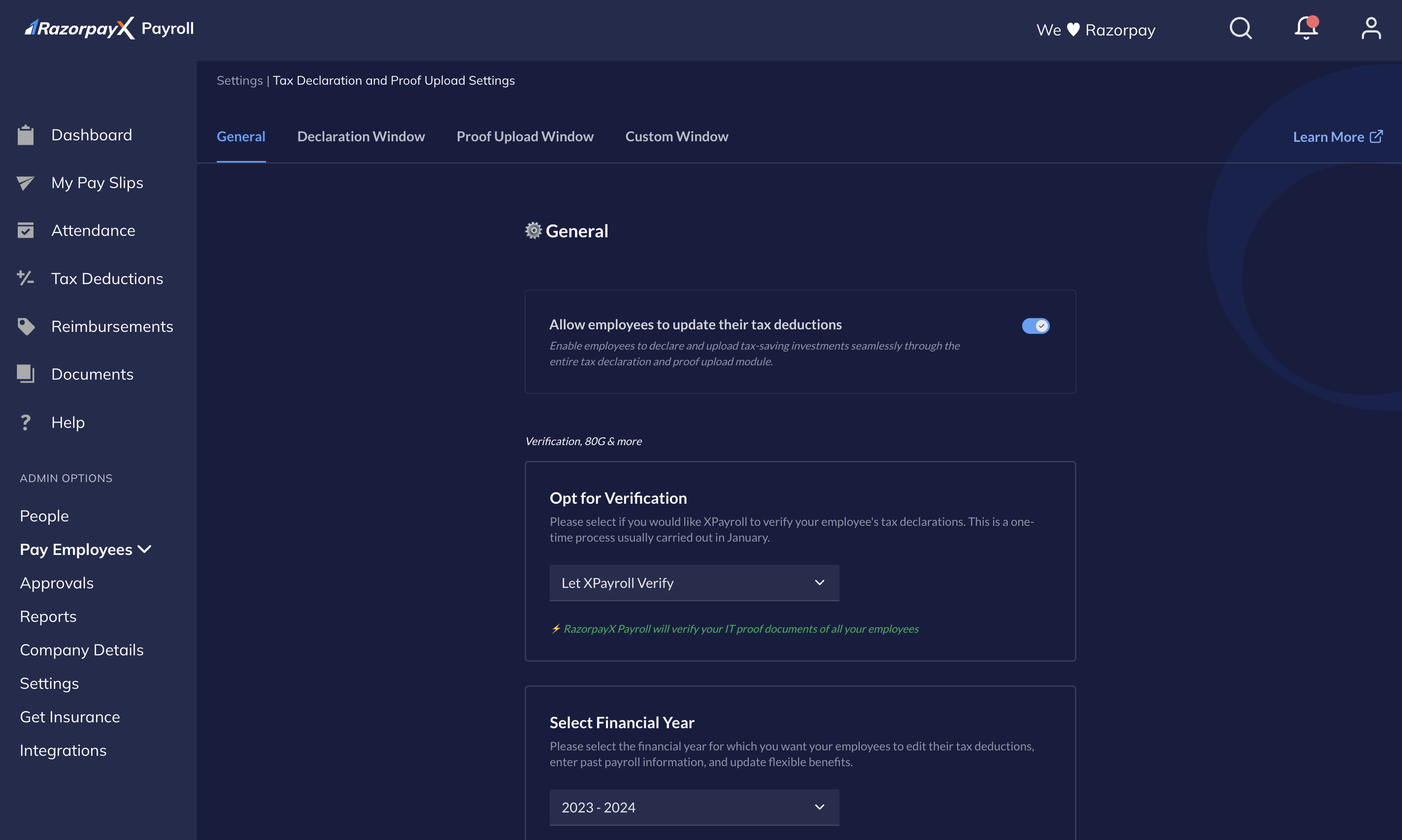
General Settings
After you enable the declaration settings, you can further modify the following:Verification Settings
You can modify the following verification settings on the Payroll Dashboard.Opt for Verification
Opt for Verification
You can verify the investment proofs your employees submit in two ways. From the drop-down menu, you can select either:
- Let XPayroll Verify to allow Payroll to verify your proofs.
- Let Organisation Verify to carry out the verification by yourself.
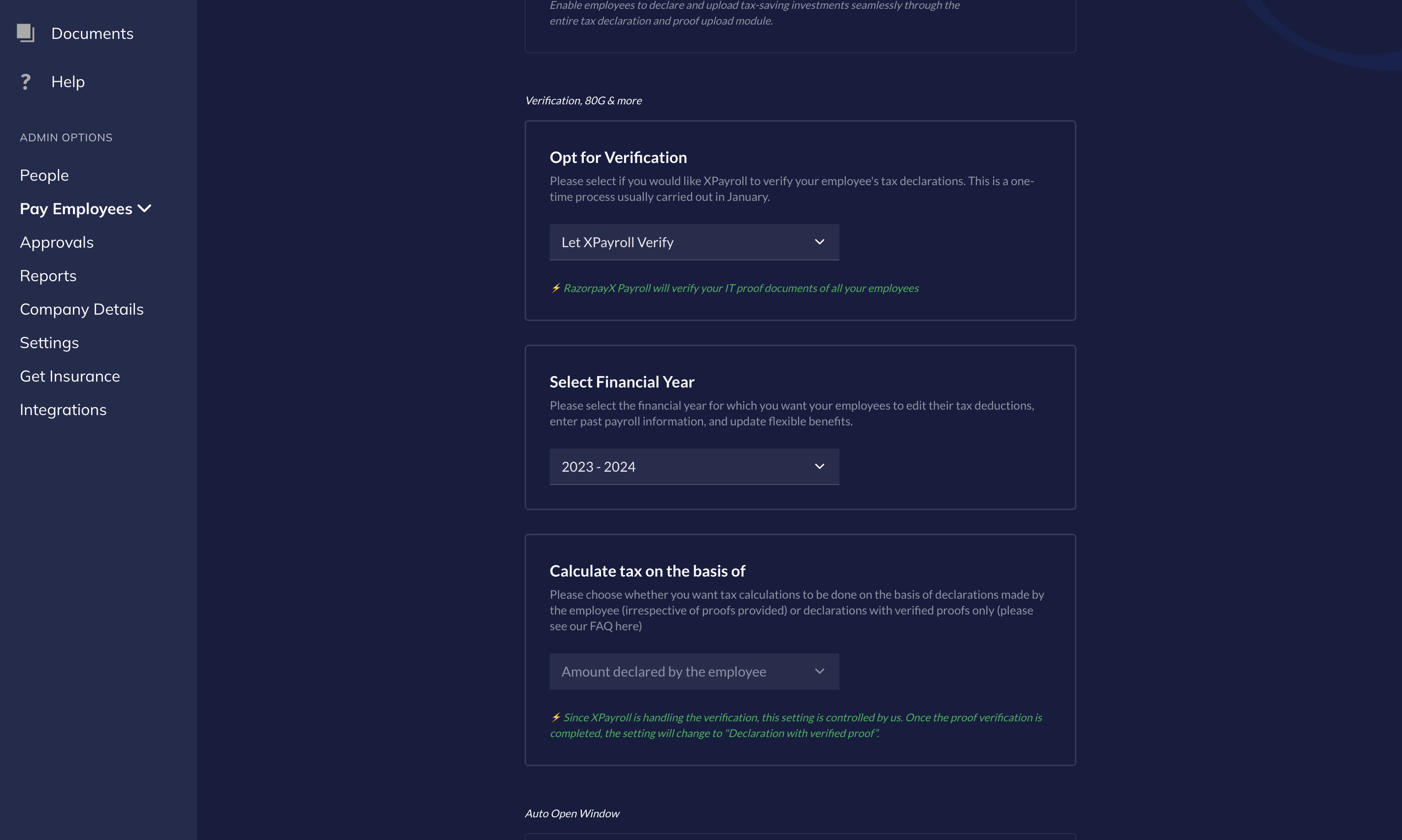
Select Financial Year
Select Financial Year
You can select the financial year for which employees can declare and upload their investment proofs. This is useful to update employees’ past/mid-year payroll information. You can select between:
- Let XPayroll choose. By default, we recommend you allow Payroll to select the year (usually the current financial year) to calculate taxes.
- The relevant financial years available in the drop-down menu.
Calculate Tax on Basis Of
Calculate Tax on Basis Of
Choose on which basis your organisation calculates employees’ taxes. Select either:
- Declaration and verified proofs to calculate tax based on the proofs employees submit.
- Amount declared by employee to calculate as per their investment declarations only.
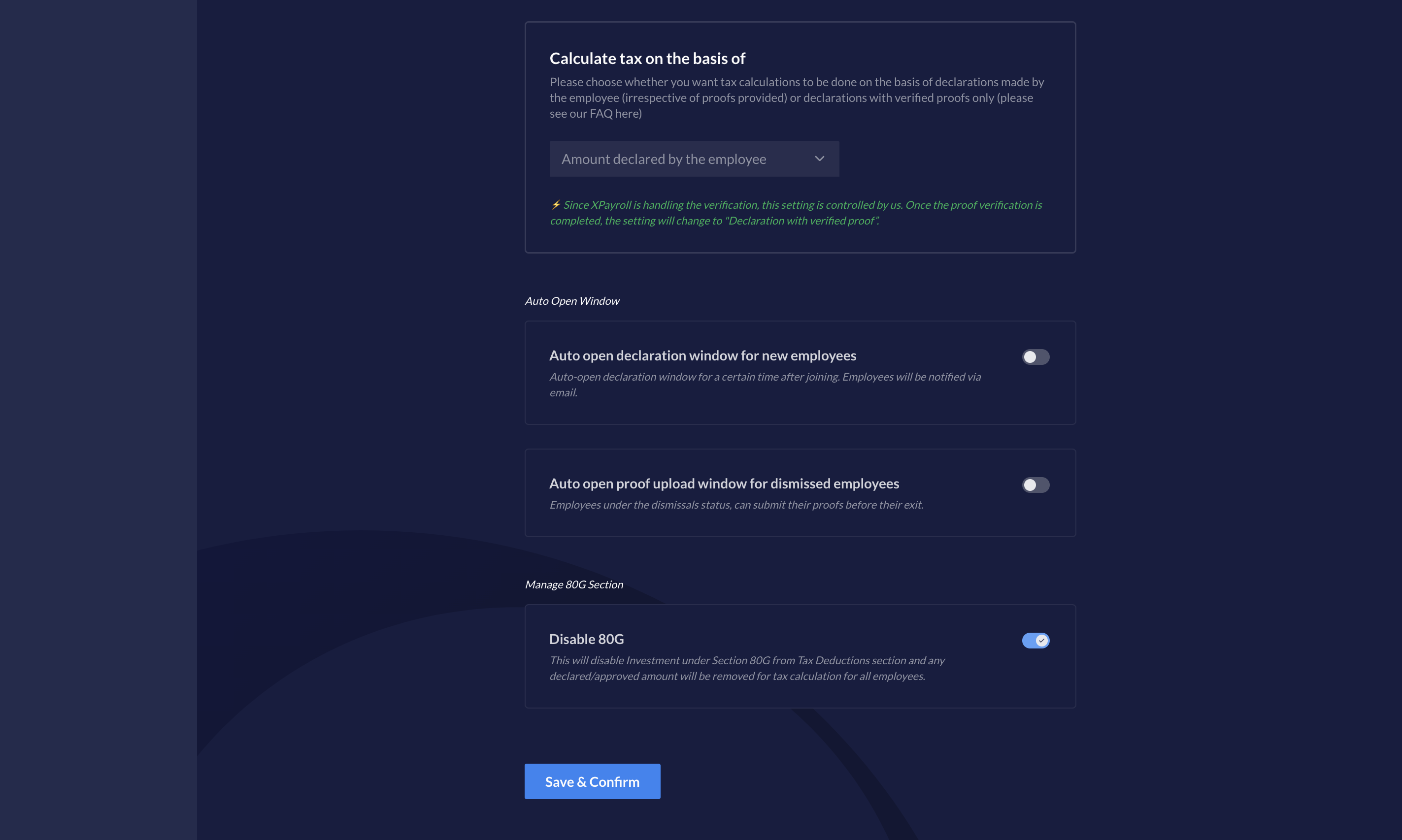
Auto-Open Window & 80G Settings
You can choose to automatically enable the proof upload window for new joiners or dismissed employees on the Payroll Dashboard.Auto-Open Window for New and Dismissed Employees
Auto-Open Window for New and Dismissed Employees
You can automatically open the investment declaration window for new joiners and auto-enable the proof upload window for dismissed employees awaiting their Last Working Day (LWD). To enable this:
- Select the toggle against Auto open declaration window for new employees.
- Enter the Number of days in the text box until the declaration window remains open.
Disable 80G
Disable 80G
You can enable the setting to disable employees’ 80G contributions. Select the toggle against Disable 80G.In such cases, the employee must individually declare their 80G contributions when they file their taxes in July.