

Available in🇮🇳 India
You can use the Dashboard to perform the following actions:
- View Settlements
- Settlements Break-Up Description
- View Settelement Timeline
- Enable Settlements Places on Hold
- View Reports
View Settlements Using Dashboard
You can view details of settlements made to you from the Dashboard. To view settlement details:- Log in to the Dashboard.
- Navigate to Settlements.
- Click on the details of the settlement ID that you wish to refer.
Settlements Break-Up Description
The following screenshot displays the settlement break-up: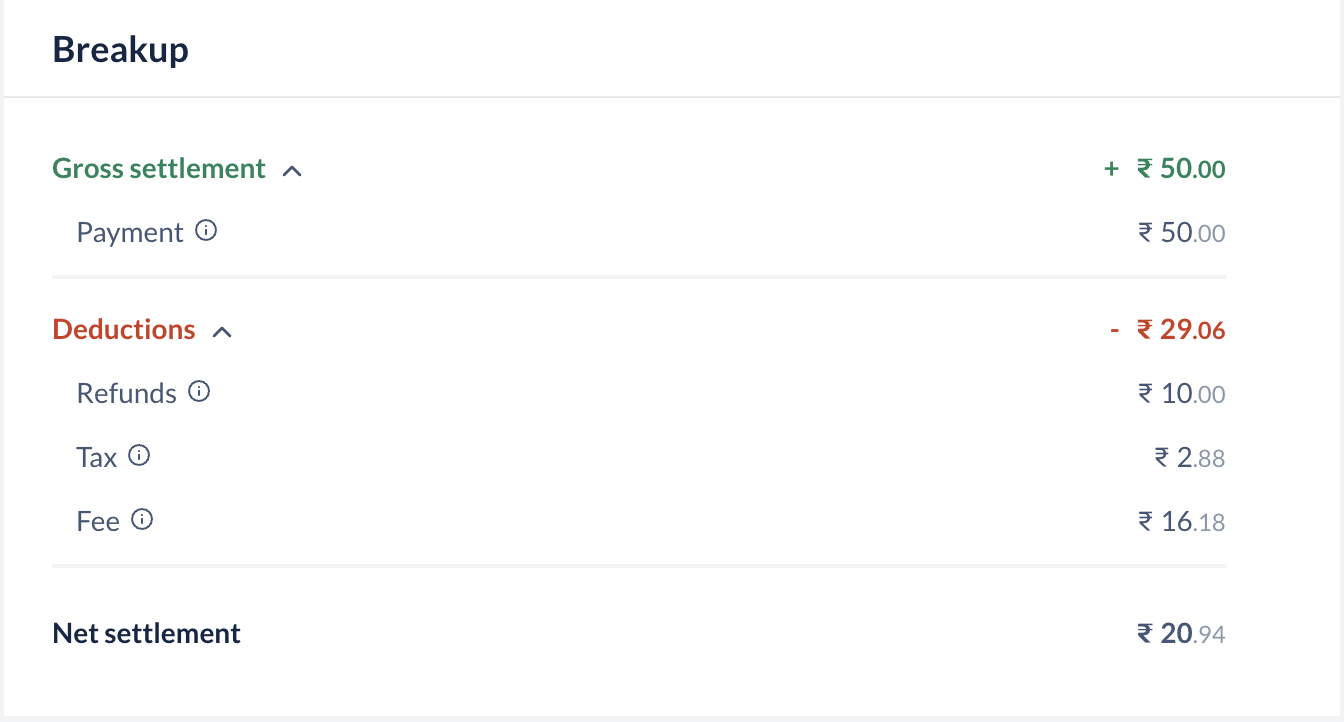 A settlement has the following components:
Payment
: The total payment amount that is being settled before deductions.
Adjustment
: Adjustments to transactions, if any.
Tax
: Tax deducted on the payment.
Fee
: Fees deducted by Razorpay for the transactions.
Transfer
: Transfers made if any, Transfers are payouts made to your linked accounts.
Linked accounts are accounts created for third-party sellers by you after onboarding them onto the Razorpay platform.
Refunds
: Refunds made if any, are refunds you have issued to your customer.
Example
Example
In this example, the amount settled to your account = Payment - Adjustment - Tax - Fee - Transfer + Refunds
Example: Gross Settelements and Deductions Calculations
Example: Gross Settelements and Deductions Calculations
Following is an example of gross settlements and deductions calculations of your settlement: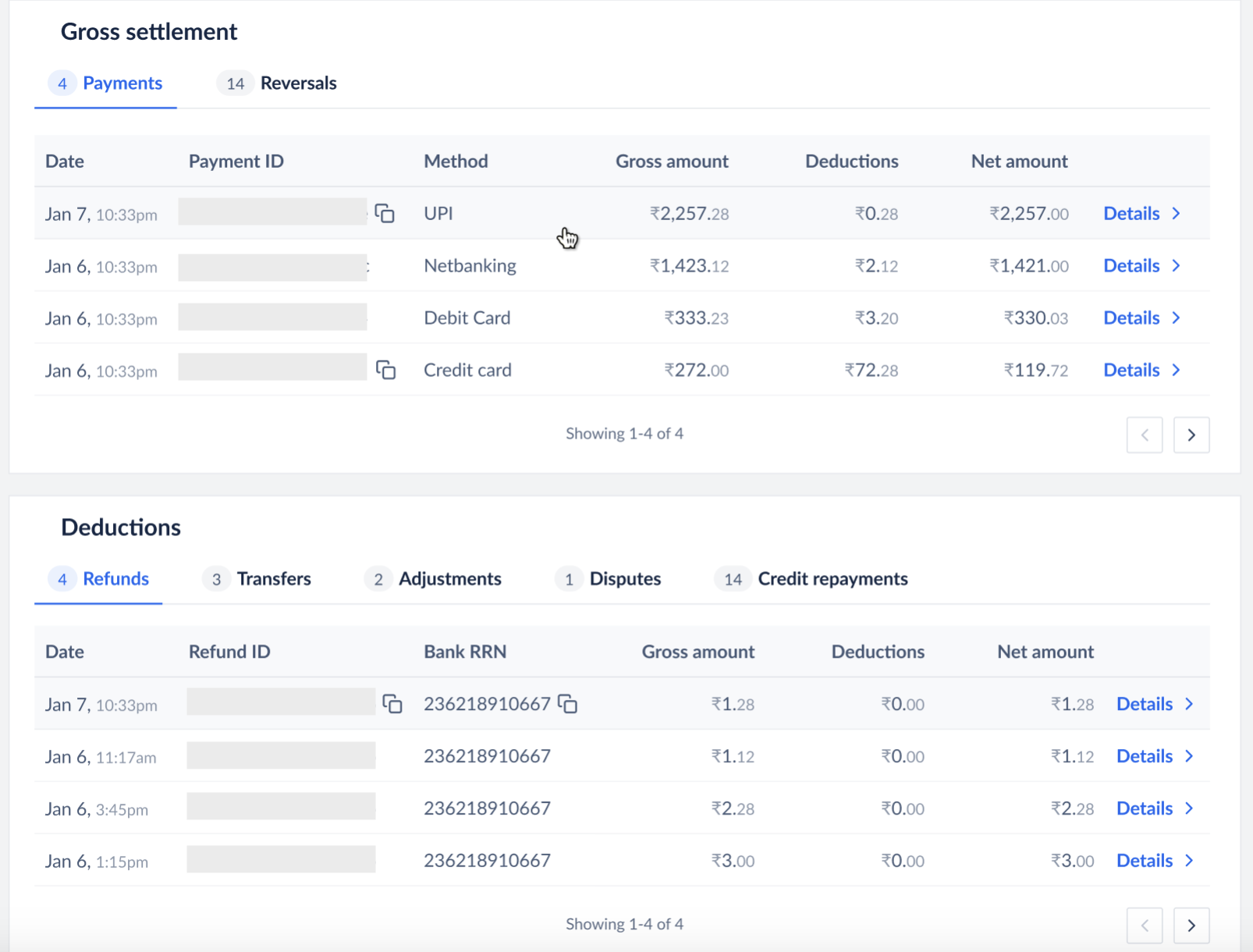 The gross settlements and deductions calculations only apply to merchants on the prepaid model.
The gross settlements and deductions calculations only apply to merchants on the prepaid model.View Settlement Timeline on Dashboard
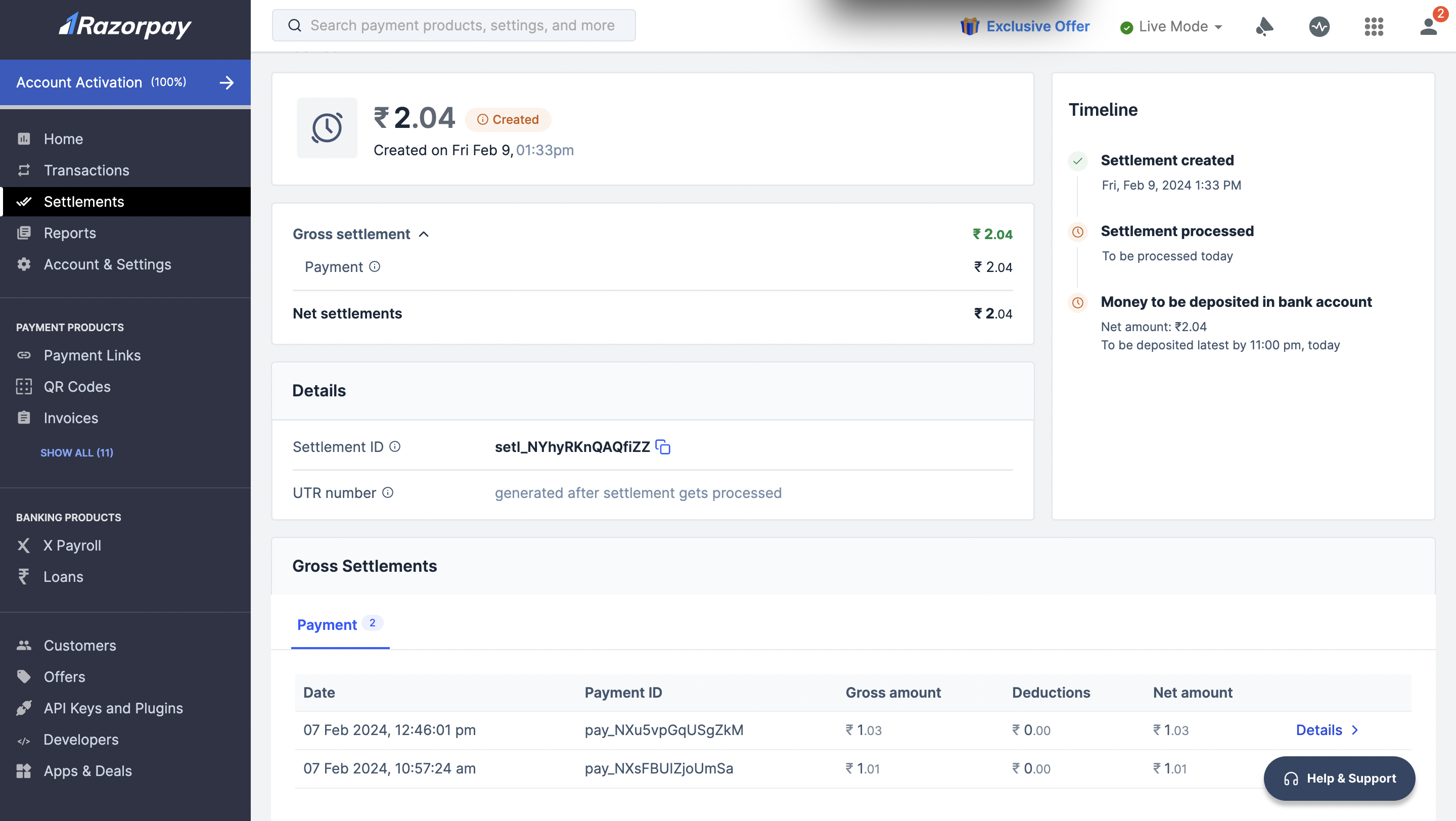
You can view the settlement timeline to check when the settlement for a particular payment will be credited. To view the settlement timeline:- Log in to the Dashboard.
- Navigate to Settlements.
- Click on the details of the settlement ID for which you want to view the timeline.
- You will be able to see the settlement timeline for that particular settlement ID.
Enable Settlements Placed On Hold
Your settlement can be placed on hold if we detect some risk with your payments or with your Razorpay account. You are notified about this on your Dashboard. Contact the support team to enable settlements that are placed on hold.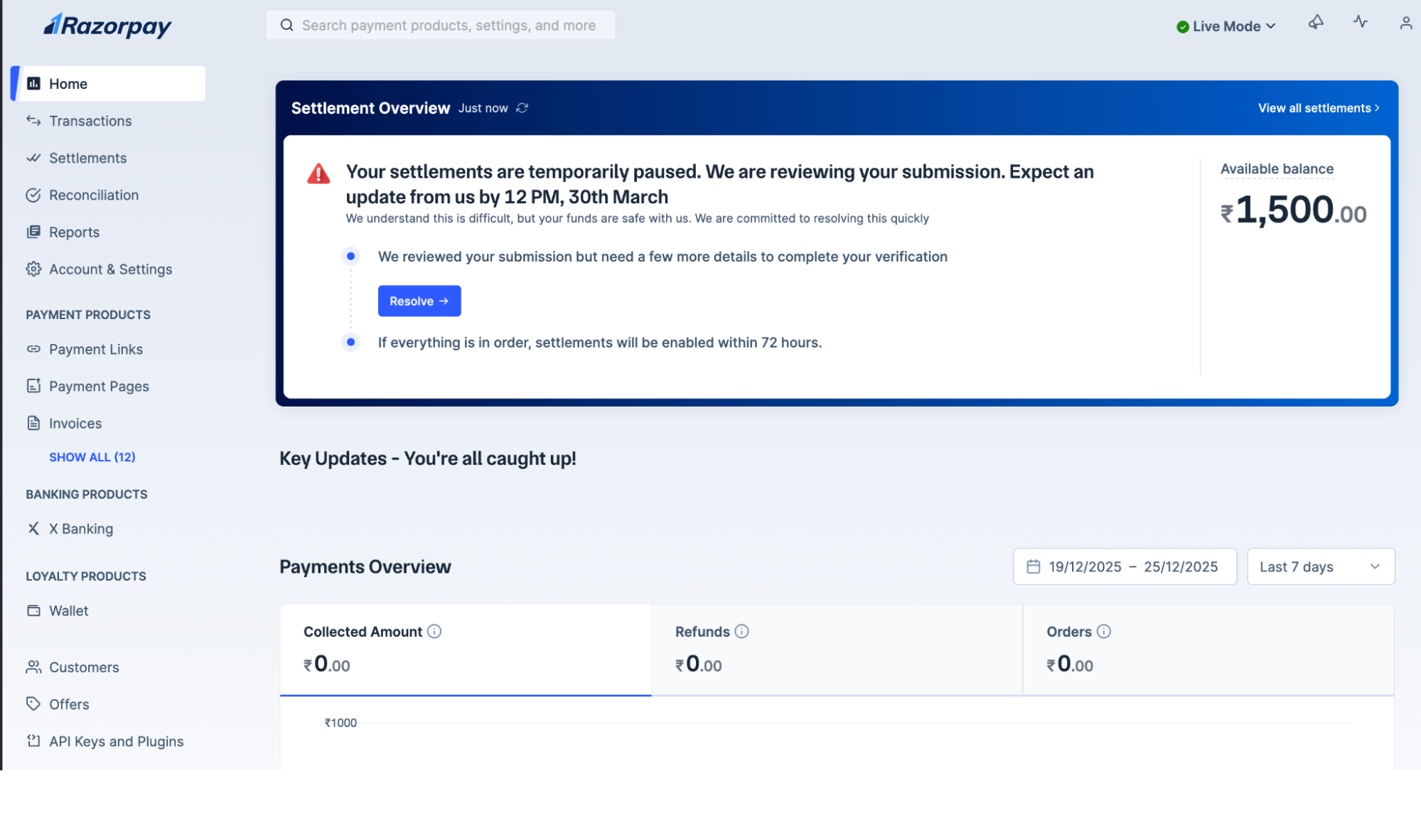 To enable settlements when they are put on hold:
- Log in to the Dashboard.
- Navigate to Home.
- Click Resolve on the notification as shown above..