

Available in🇮🇳 India
After your credit limit is available to you, you can start withdrawing from your credit line on the RazorpayX Dashboard. Here you can:
- View your Line of Credit information, such as Withdrawal balance and Credit limit.
- Make Withdrawals.
- View your withdrawal summary.
- View your repayment schedule/EMI summary for the selected tenure.
- Make Repayments.
- Auto-repay your withdrawals.
- Manually repay your withdrawals.
- Pre-close Withdrawals.
Make Withdrawals
To make withdrawals:- Log in to the RazorpayX Dashboard.
- Navigate to Line of Credit from the left menu.
- On the Overview page, click Withdraw Funds.
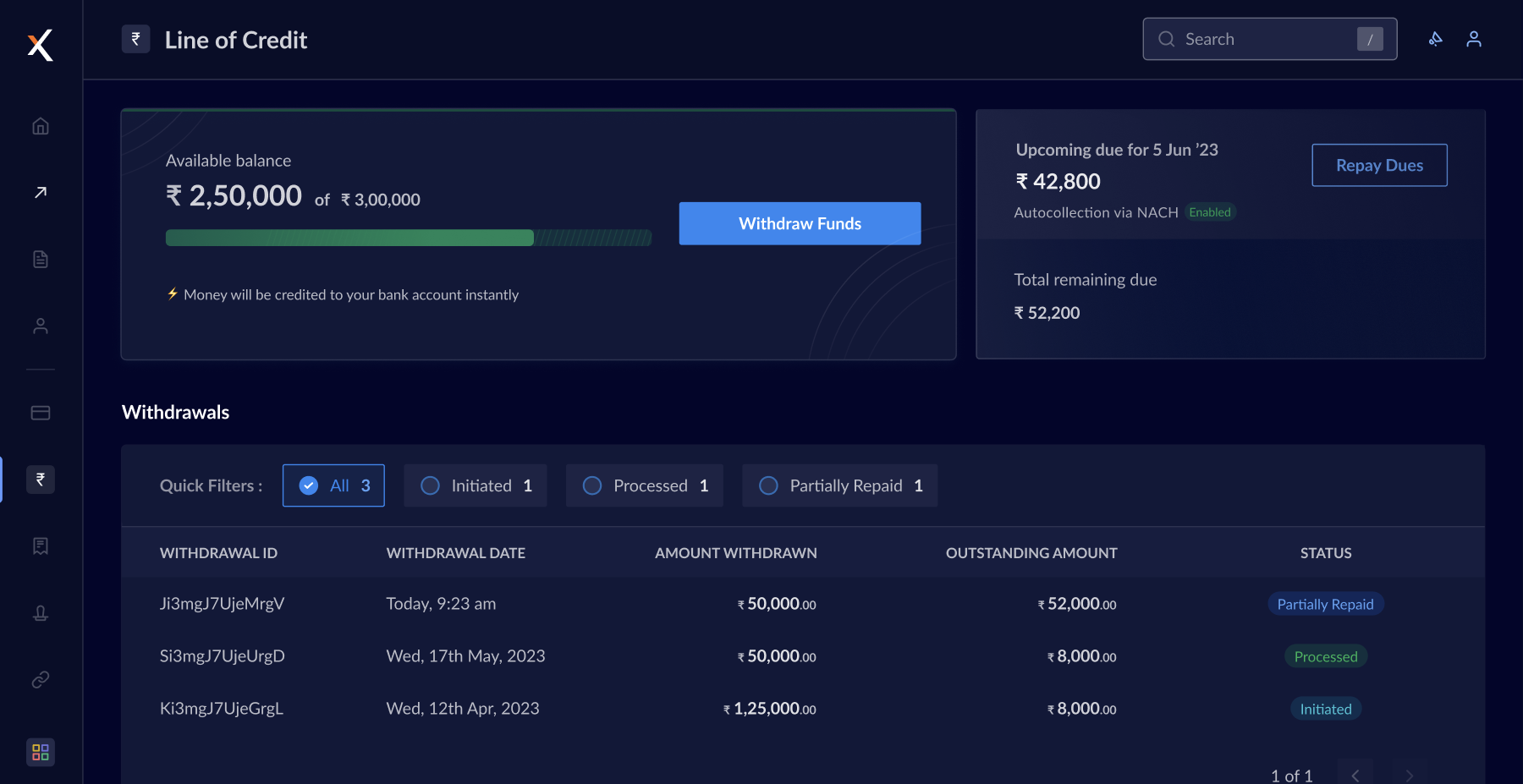
- On the funds withdrawal screen:
- Enter your withdrawal amount and click Proceed.
- Choose the EMI tenure for repayment. You can either:
- Select from the available tenures shown.
- Click Custom Tenure to customise your repayment tenure in months.
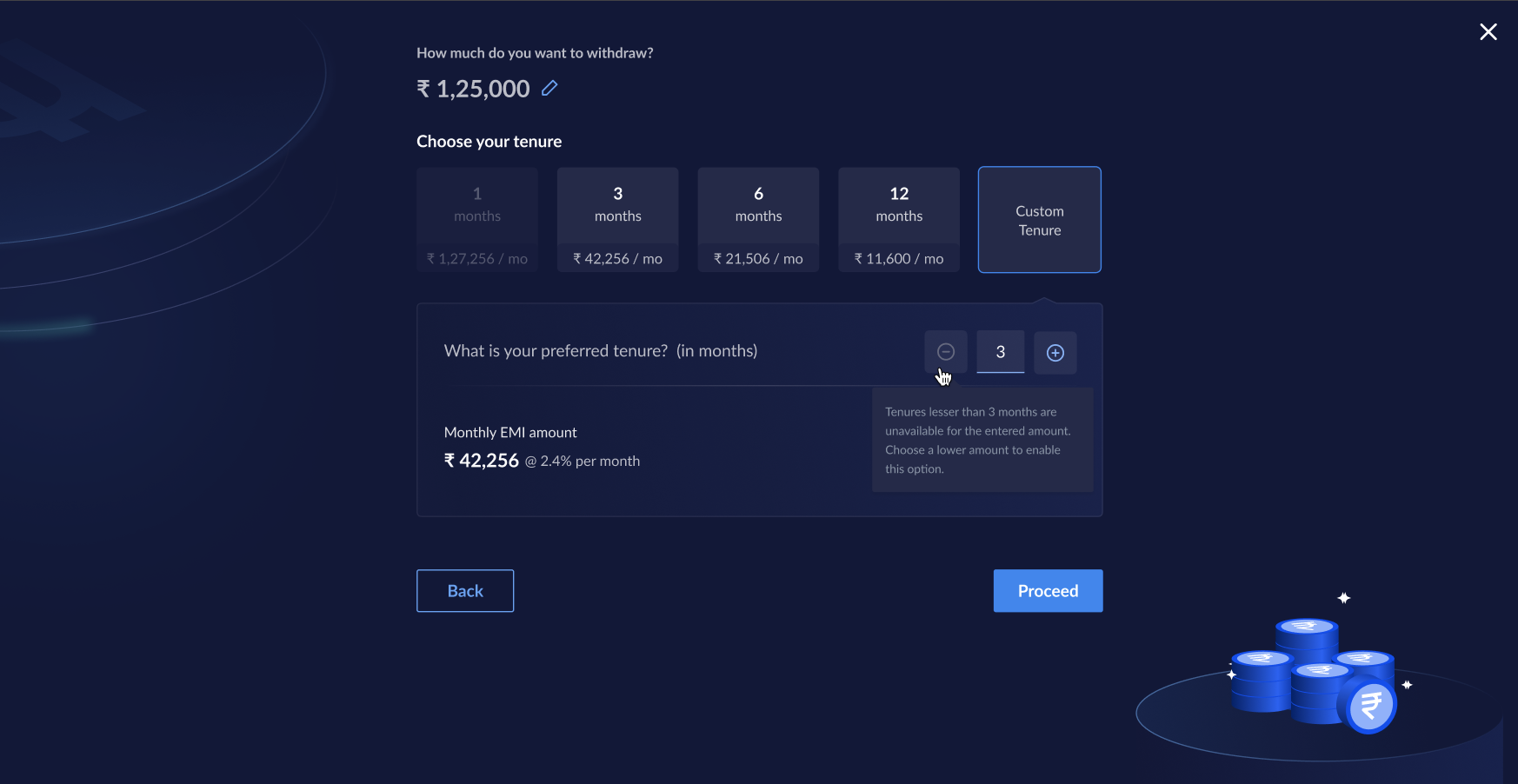
- Click Proceed.
- In the EMI Details screen, you can preview some of the withdrawal details.
- Click See complete EMI schedule → to view the repayment details and schedule. Following is a sample EMI schedule.
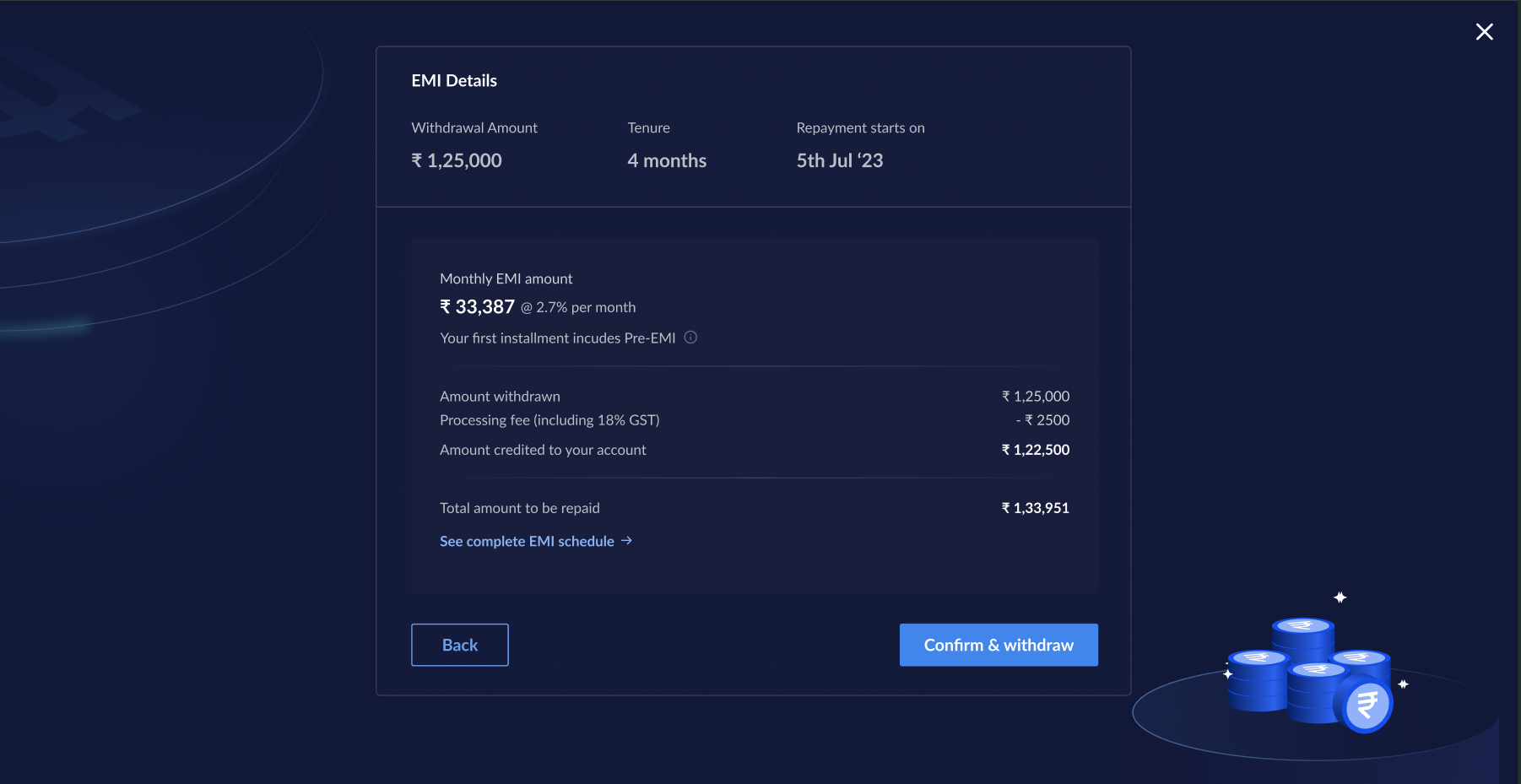
- After reviewing the EMI details, click Confirm & withdraw to proceed with the withdrawal request.
View Withdrawal Summary
The withdrawal summary is available in the Withdrawals section on the Dashboard, as shown.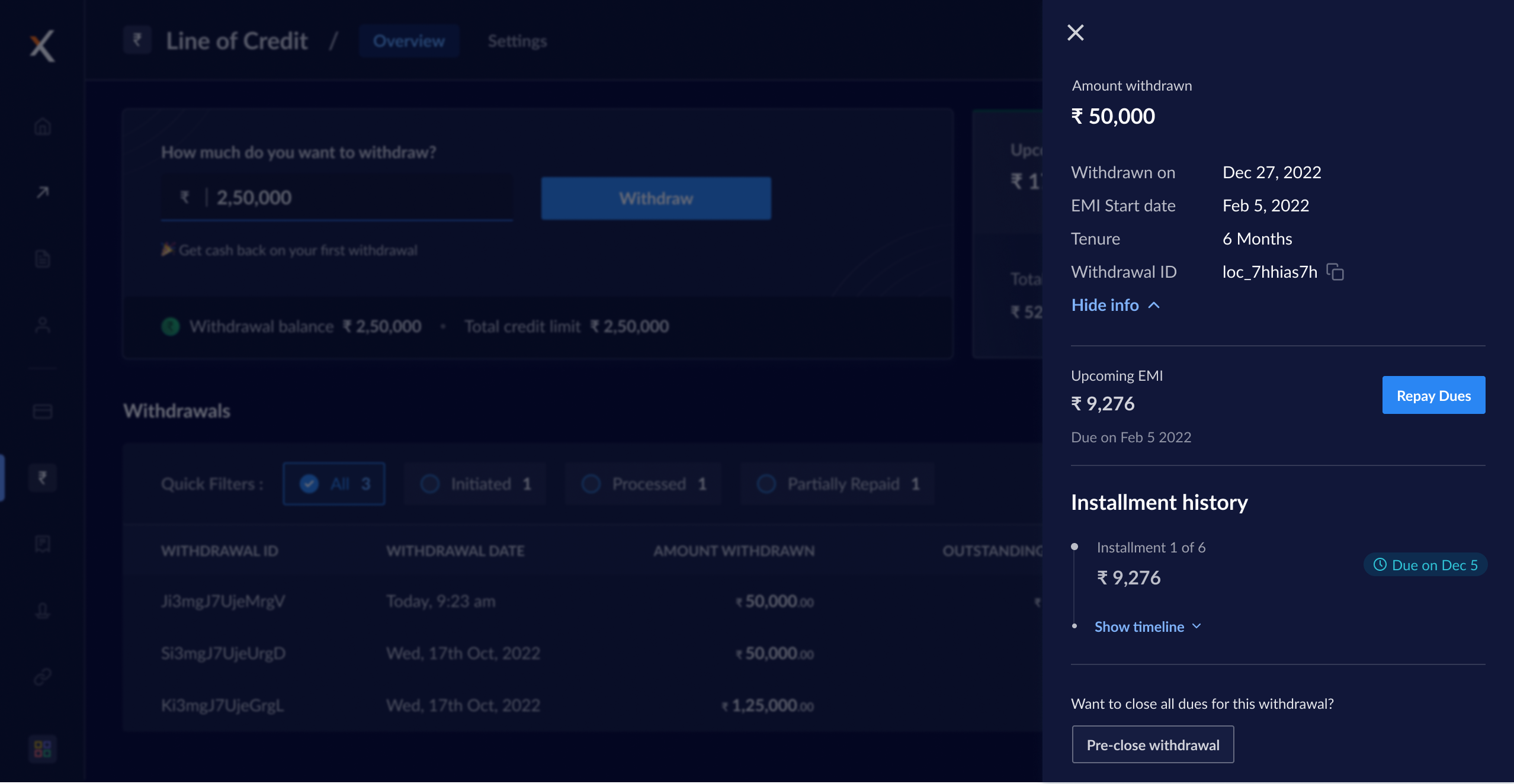
Make Repayments
You make EMI repayments in two ways from the RazorpayX Dashboard:Autopay Using NACH
By default, EMI repayments are automated. On the 5th of every month, the EMI due amount is automatically debited from your account balance via NACH. You need to ensure there is sufficient balance in your account for the NACH to debit.- In case of insufficient balance, the automatic collection fails and you incur delayed interest. RazorpayX sends you reminders via email as you near the due date. View your upcoming dues on the Line of Credit Overview page.
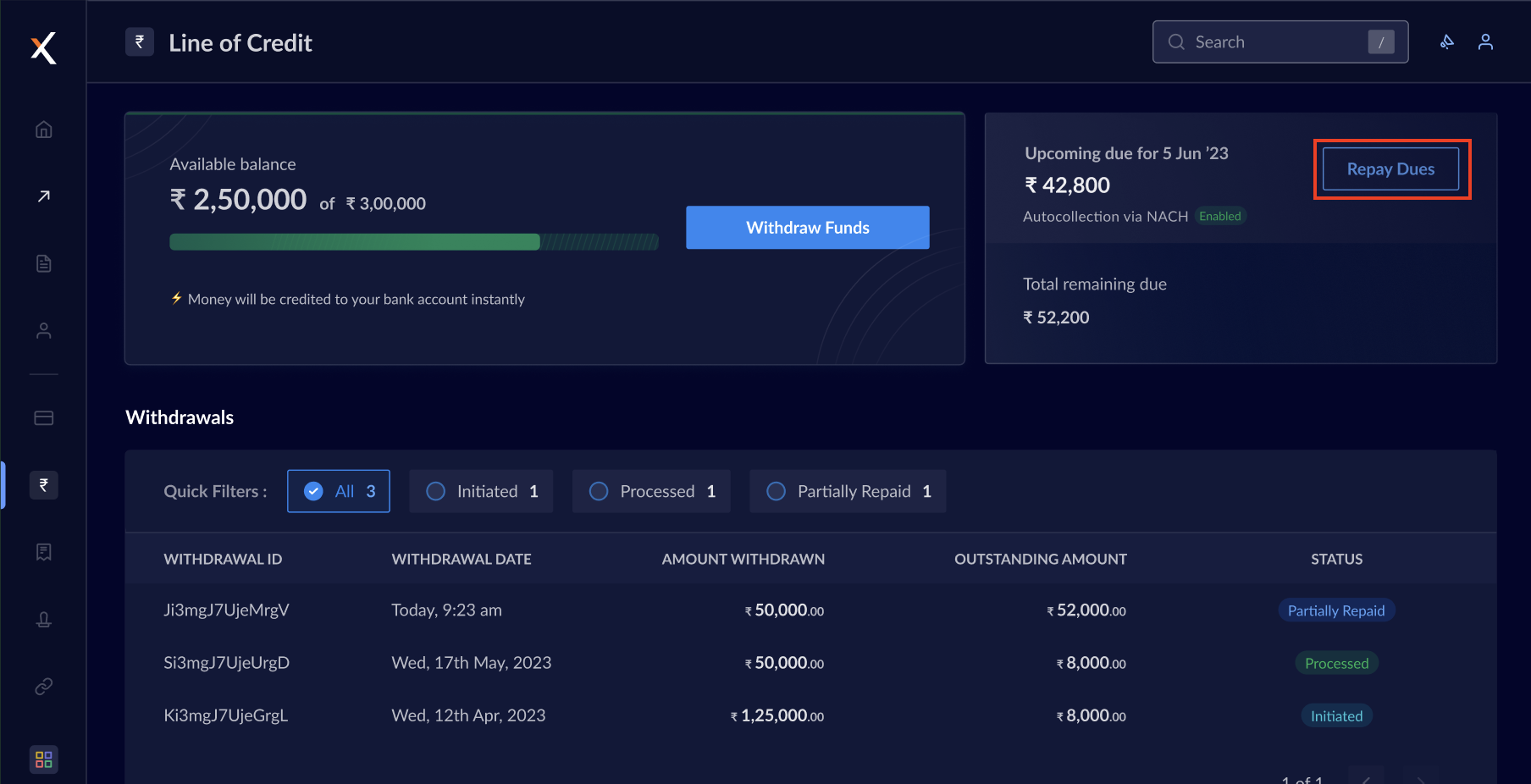
- When the NACH is created, you can view that information on your LOC Dashboard.
- Once the amount is debited, the withdrawal status is updated as per the withdrawal workflow.
Manual EMI Payments
You can pay your EMIs manually the following ways:- Pay from the Overview page.
- Pay from the Withdrawal tab.
- Pay from Overview Page
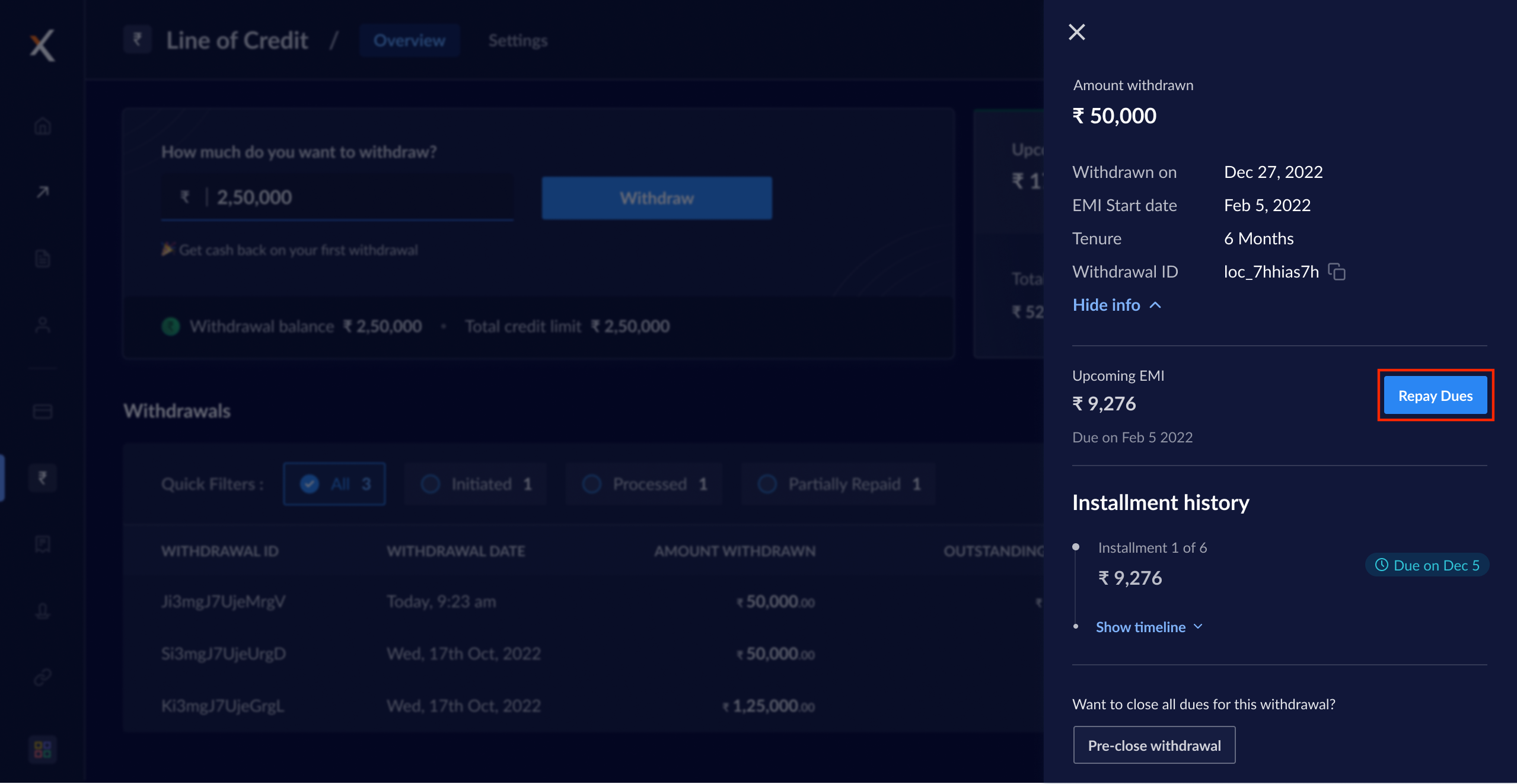
- Pay from the Withdrawal Pane
When you want to repay more than one EMI at once, you can pay your EMIs directly from the Overview tab on the RazorpayX Dashboard.To repay from the Overview tab:
- Navigate to Line of Credit from the left menu.
- Click Repay Dues as shown.
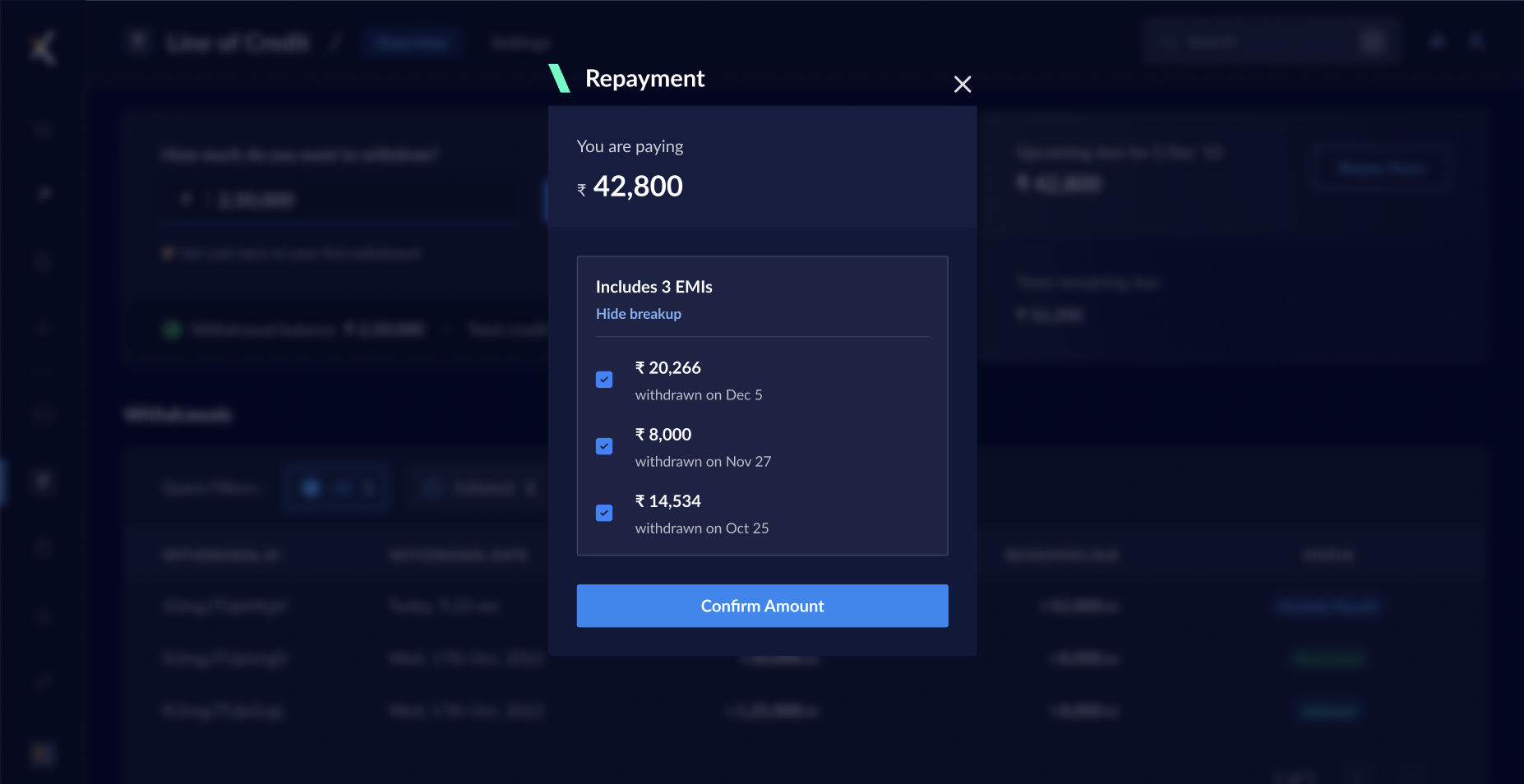
- The Repayment pop-up window opens. Review the total amount payable and the amount breakup by clicking the View breakup drop-down.
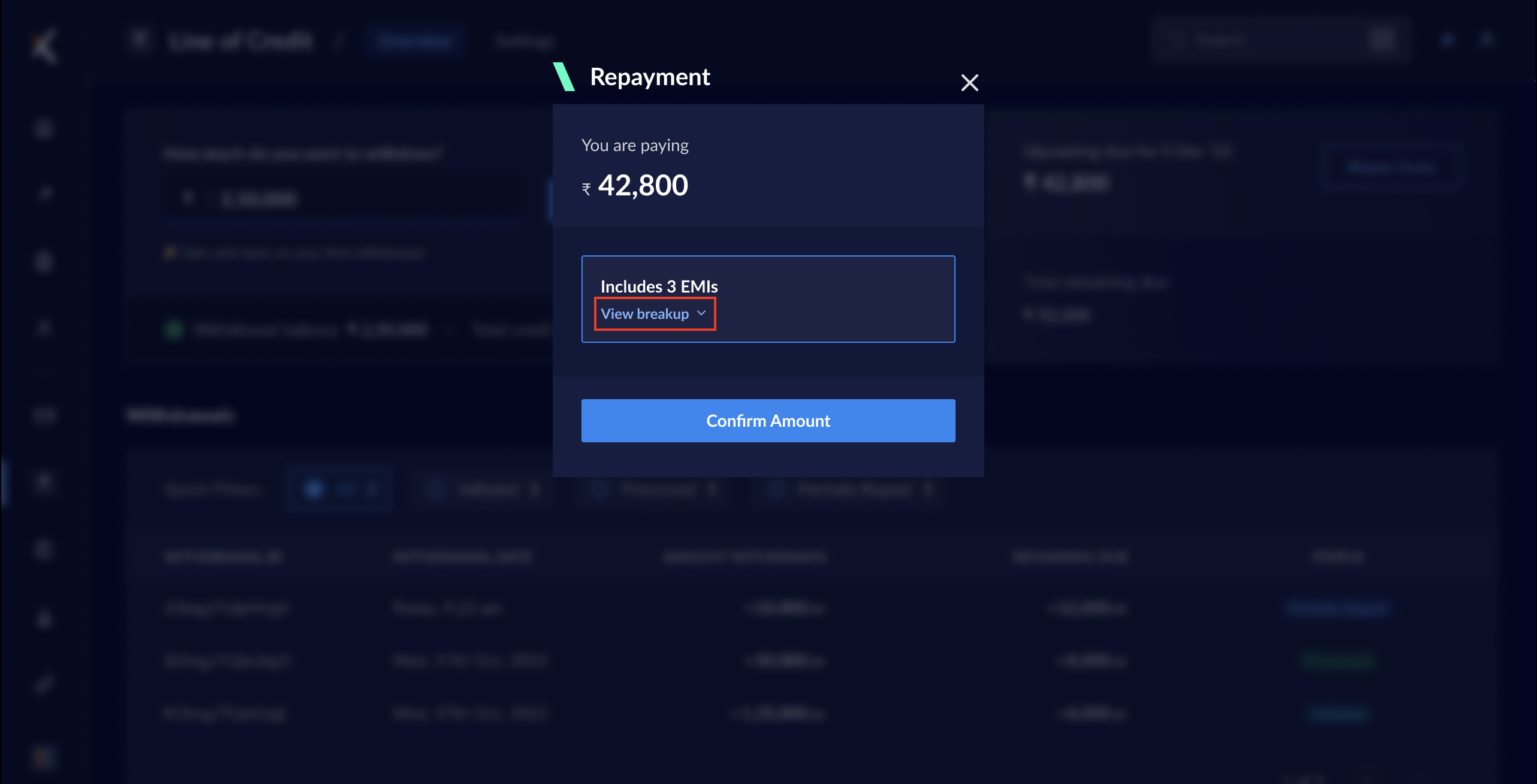
- Select or unselect the EMIs you want to pay. After reviewing, click Confirm Amount to initiate the EMI repayment.
- Enter your contact details and make a successful payment.
Pre-close Withdrawal
When you have the funds to pay off a withdrawal completely, you can choose to pre-close that withdrawal from the Dashboard.- There are no pre-closure charges when you do so.
- This is a manual process.
- Log in to the RazorpayX Dashboard → Line of Credit.
- Select the withdrawal EMI you want to pre-close from the Withdrawals section. The withdrawal summary pane opens to the right.
- Click Pre-close withdrawal to the bottom-right.
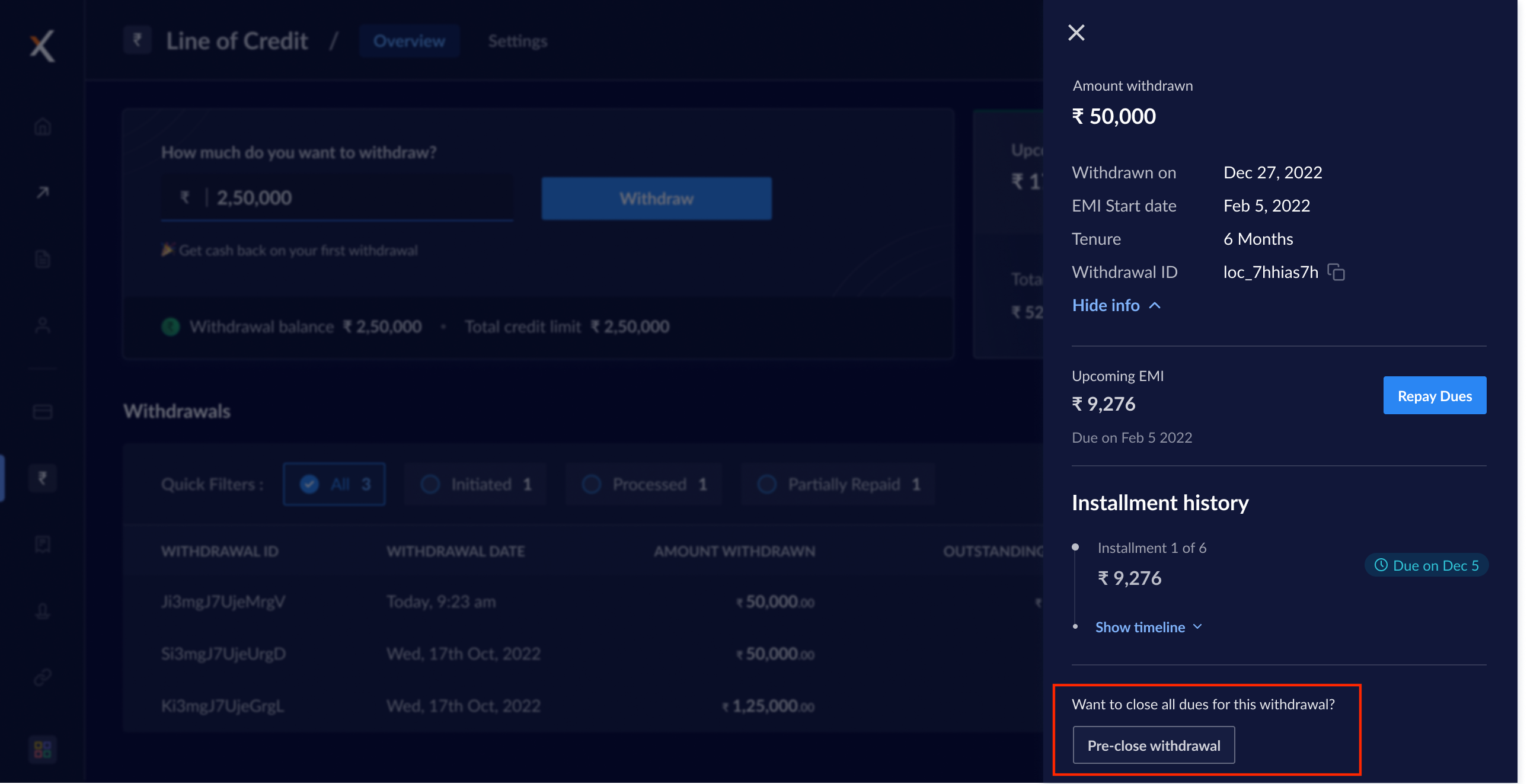
- In the pre-closure summary pop-up page, review the total amount and interest payable. Click Preclose Withdrawal.
- Enter your contact details and make a successful payment.