

Available in🇮🇳 India
After successfully integrating Affordability Widget with your WooCommerce website, you can choose to customise the widget based on your requirement.
To customise the widget:
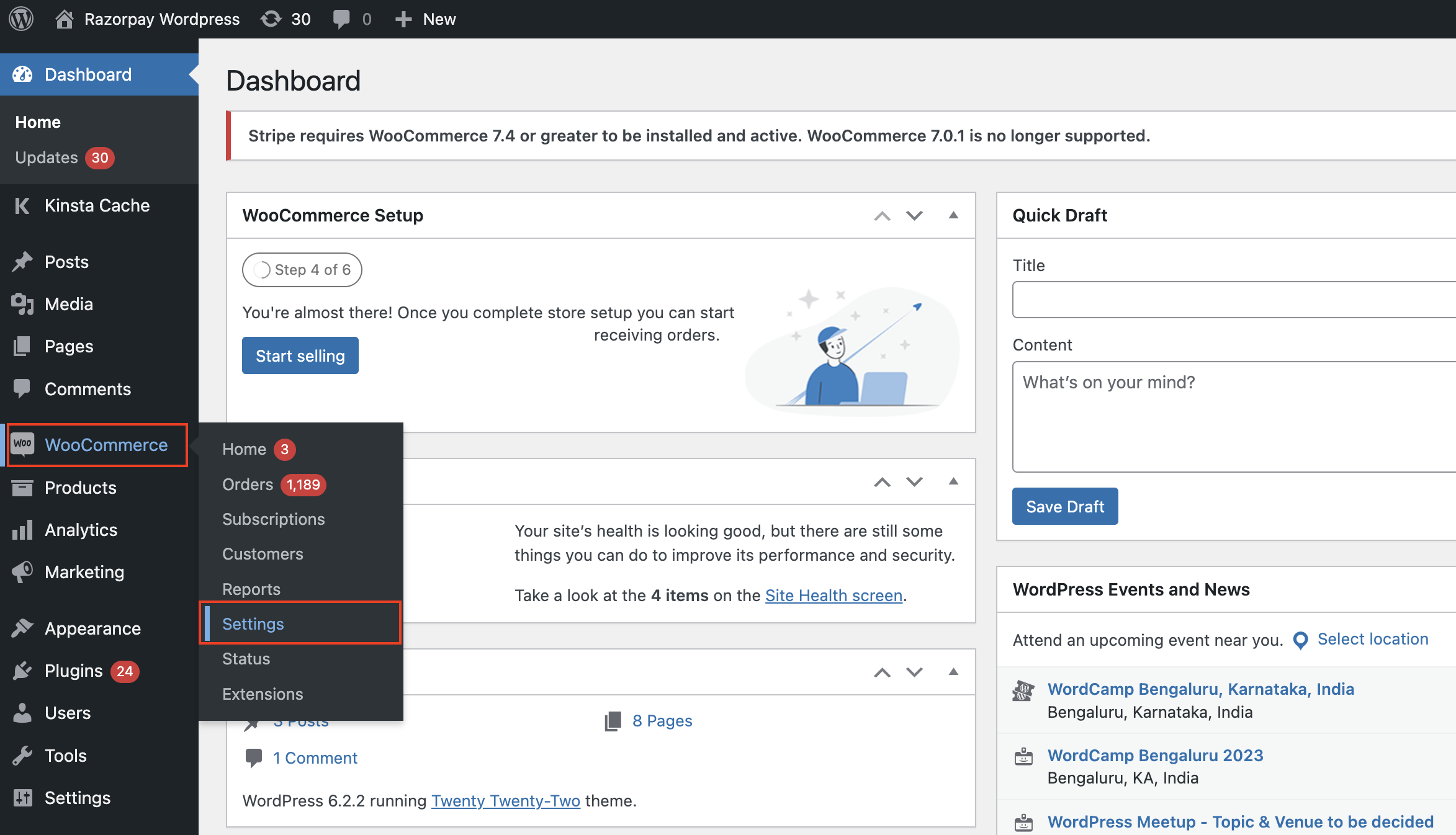
- Log in to the WordPress account, navigate to WooCommerce → Settings and click the Payments tab.
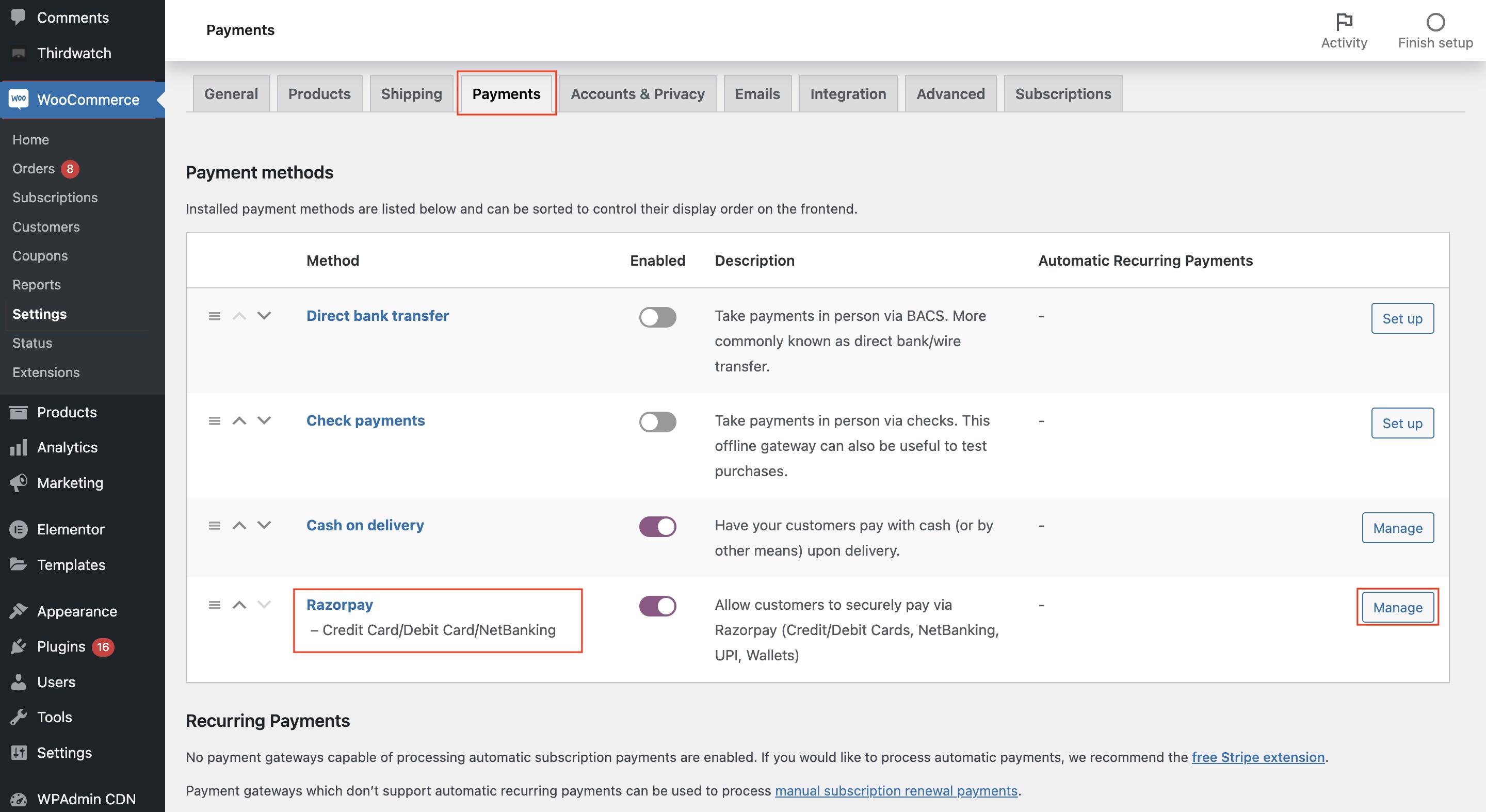
- In the Payments tab, scroll down to Razorpay and click Manage to edit the settings.
- Select Affordability Widget.
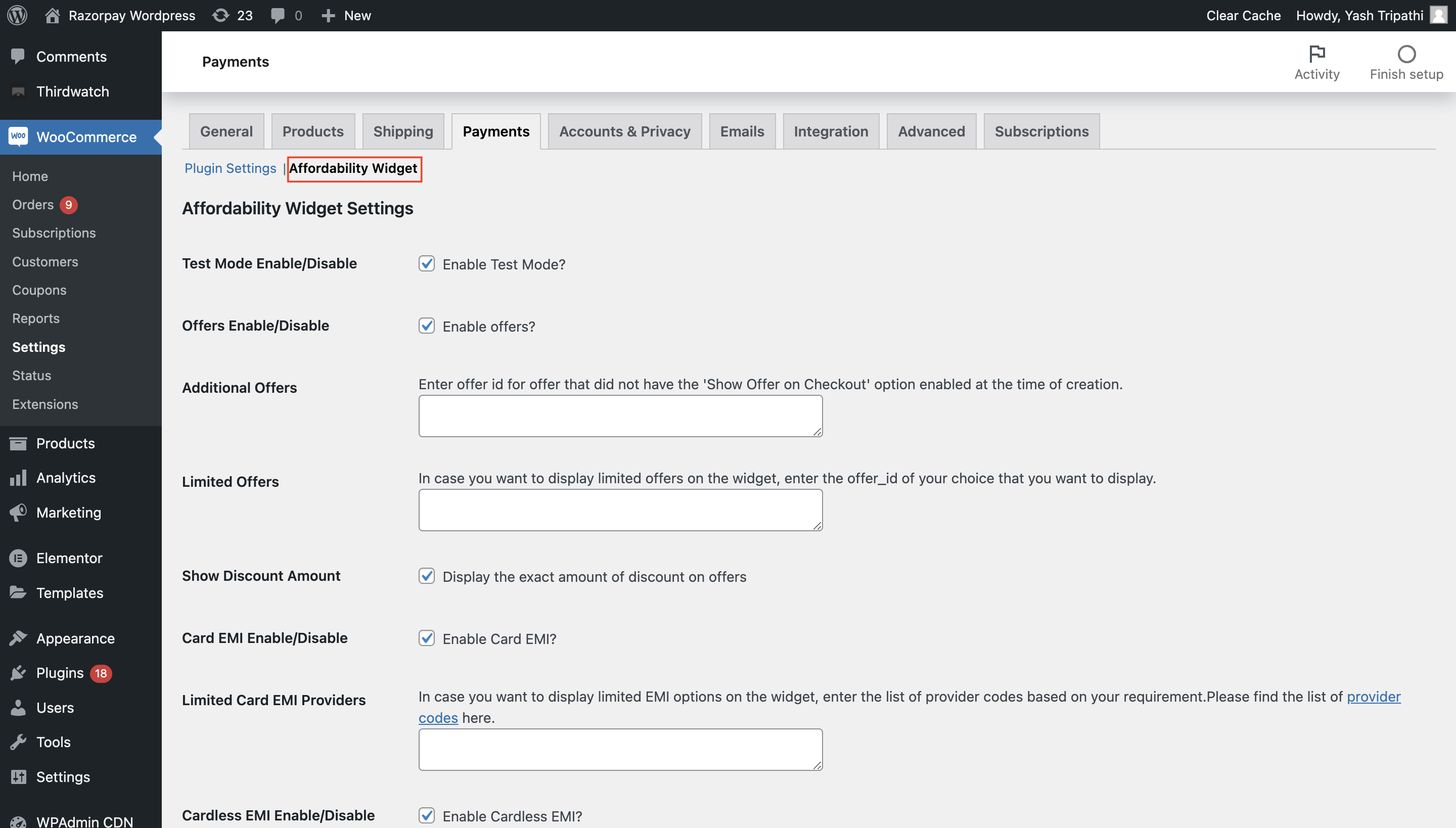
- Offers.
- Offers Enable/Disable.
- Additional Offers.
- Limited Offers.
- Show Discount Amount.
- Payment Methods (EMI, Cardless EMI and Pay Later).
- Card EMI Enable/Disable.
- Limited Card EMI Providers.
- Cardless EMI Enable/Disable.
- Limited Cardless EMI Providers.
- Pay Later Enable/Disable.
- Limited Pay Later Providers.
- Themes and Colours.
- Theme.
- Heading Colour.
- Heading Font Size.
- Content Colour.
- Content Font size.
- Link Colour.
- Link Font Size.
- Footer Colour.
- Footer Font Size.
- Dark Logo Enable/Disable.
1. Offers
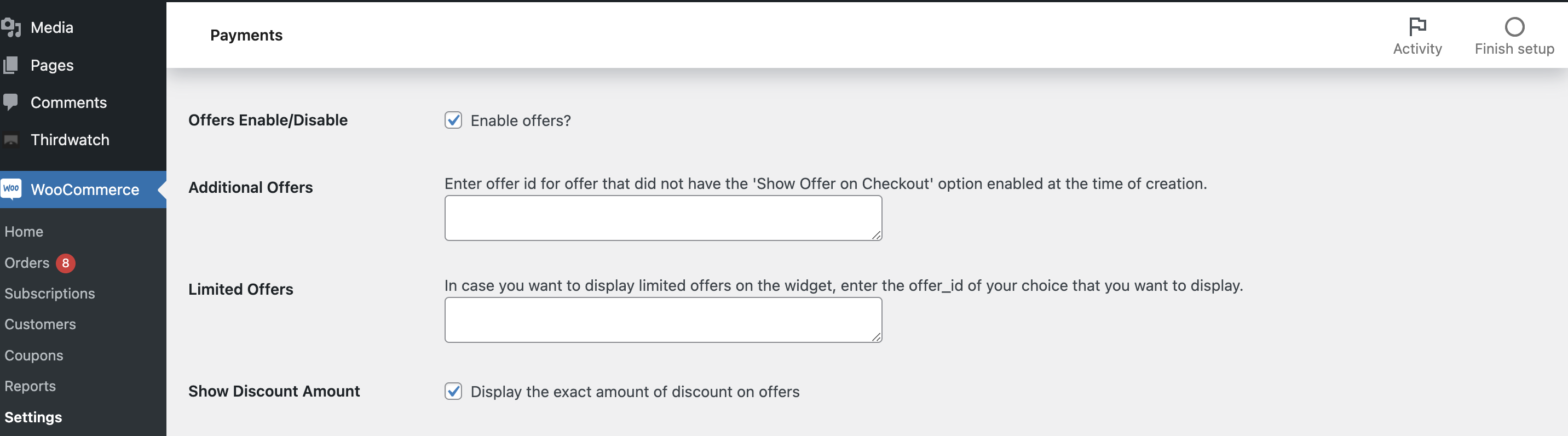
Configure the offers you want to display on the website based on your requirement. The customers can choose from a wide range of offers for your product or service. Know how to create offers.Handy TipsBy default, all the offers marked visible on the Dashboard during the offer creation appear on the widget.
1.1 Offers Enable/Disable
To display the offers on the widget, select the Enable Offers check box. To disable the offers, clear the check box. If you disable the offers completely, they will not appear on the widget and the customers will not be able to view them.1.2 Additional Offers
By default, all those offers with the Show Offer on Checkout option enabled during creation will appear on the widget. Additionally, you can enter theoffer_id of the offer that did not have the Show Offer on Checkout option enabled during offer creation.
1.3 Limited Offers
To display limited offers on the widget, enter the offer_id of the offers of your choice.1.4 Show Discount Amount
Select the check box to display the exact discount amount on the widget. This will help new customers compare and choose your products over your competitors.2. Payment Methods
Configure the payment methods you want to display on the website based on your requirement.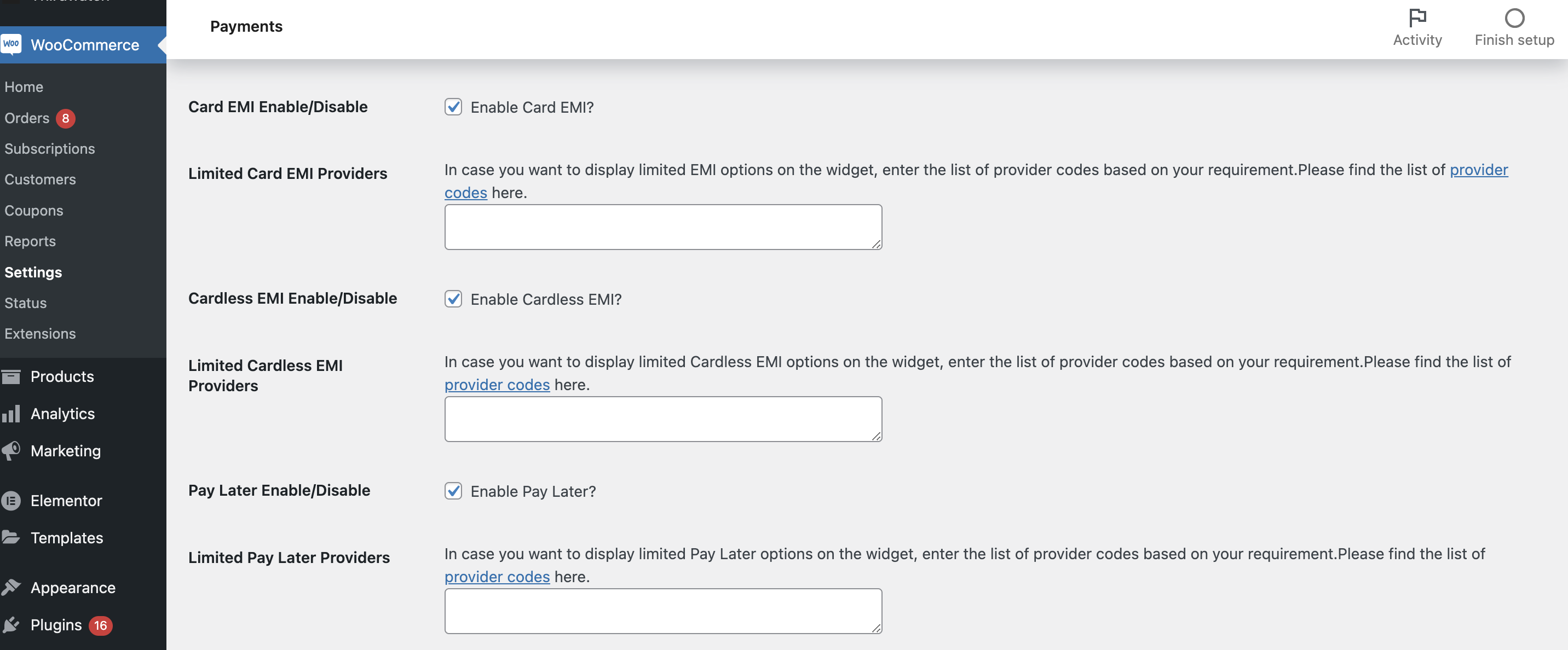
2.1 Card EMI Enable/Disable
To display the Card EMI payment option, select the Enable Card EMI check box. To disable the card EMI payment option, clear the check box. If you disable the EMI options completely, they will not appear on the widget and the customers will not be able to view them.2.2 Limited Card EMI Providers
Razorpay supports Debit Card and Credit Card EMI providers for EMI options. By default, all EMI options satisfying the minimum transaction amount will appear on the widget. If you want to display limited EMI options on the widget, enter the list of provider codes based on your requirement.Handy TipsAll EMI options applicable for the payment amount will appear on the widget by default. For example, if the payment amount is ₹3000, the widget displays only the suitable EMI options.
2.3 Cardless EMI Enable/Disable
To display the Cardless EMI payment option, select the Enable Cardless EMI check box. To disable the cardless EMI payment option, clear the check box. If you disable the cardless EMI options, they will not appear on the widget and the customers will not be able to view them.2.4 Limited Cardless EMI Providers
Razorpay supports these providers for Cardless EMI options. By default, all Cardless EMI options satisfying the minimum transaction amount will appear on the widget. To display limited Cardless EMI options on the widget, enter the list of provider codes based on your requirement.Handy TipsAll Cardless EMI options applicable for the payment amount will appear on the widget by default. For example, if the payment amount is ₹3000, the widget displays only the suitable Cardless EMI options.
2.5 Pay Later Enable/Disable
To display the Pay Later payment option, select the Enable Pay Later check box. To disable the Pay Later payment option, clear the check box. If you disable the Pay Later options, they will not appear on the widget and the customers will not be able to view them.2.6 Limited Pay Later Providers
Razorpay supports these providers for Pay Later options. By default, all Pay Later options satisfying the minimum transaction amount will appear on the widget. If you want to display limited Pay Later options on the widget, enter the list of provider codes based on your requirement.Handy TipsAll Pay Later options applicable for the payment amount will appear on the widget by default. For example, if the payment amount is ₹4000, the widget displays only the suitable Pay Later options.
3. Themes and Colours
Alter the appearance of the widget based on your website. You can customise the widget based on the following themes and colors.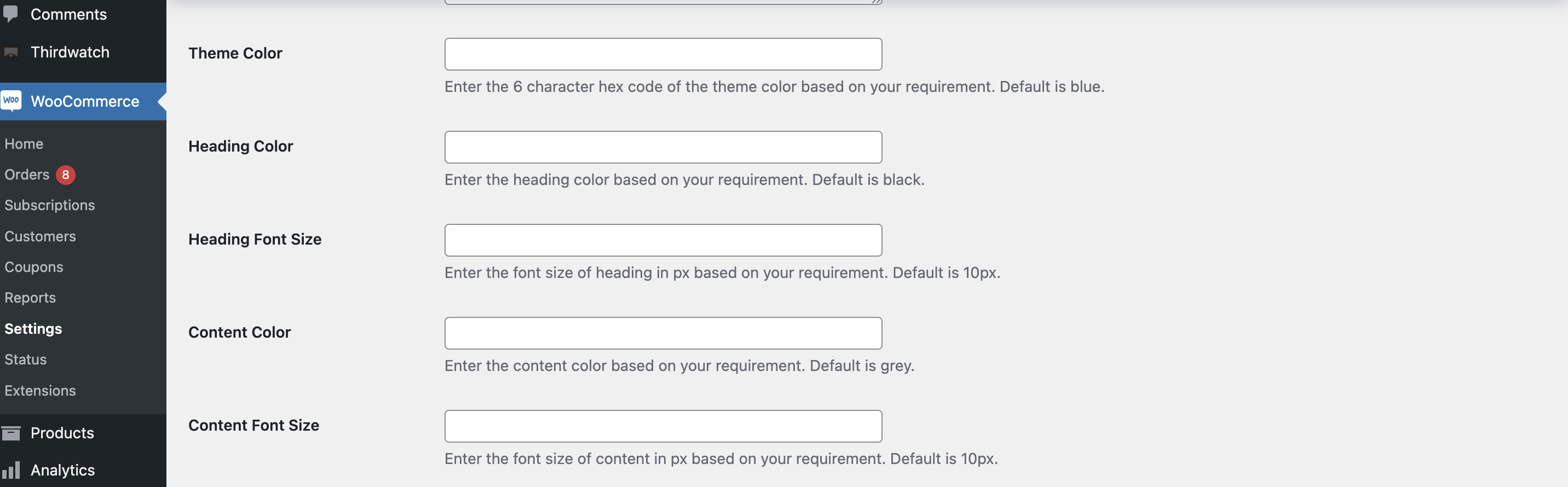
- Widget Theme Colour: Enter the 6-character HEX code of the theme based on your requirement. The default theme colour is blue.
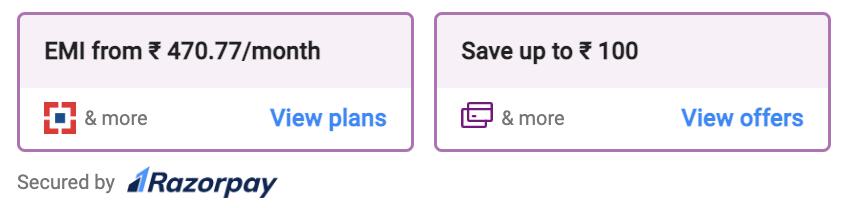
- Heading Colour: Enter the 6-character HEX code of the heading colour based on your requirement. The default colour is black.
- Heading Font Size: Enter the font size of the heading based on your requirement. The default size is 12.
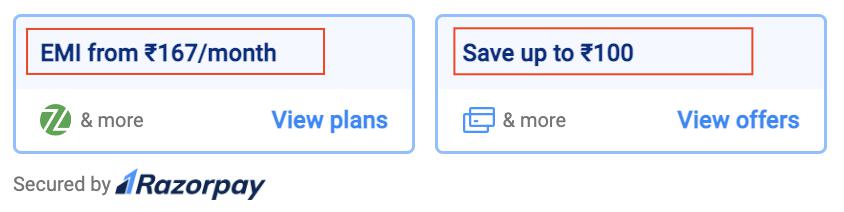
- Content Colour: Enter the 6-character HEX code of the content colour based on your requirement. The default colour is grey.
- Content Font Size: Enter the font size of the content based on your requirement. The default size is 12.
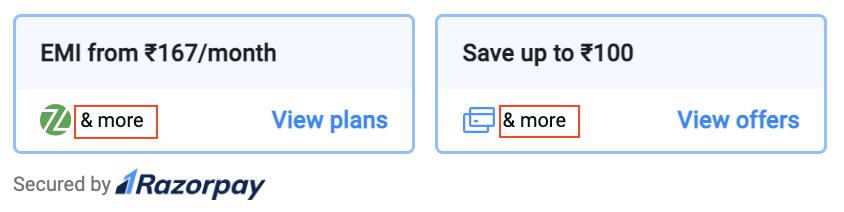
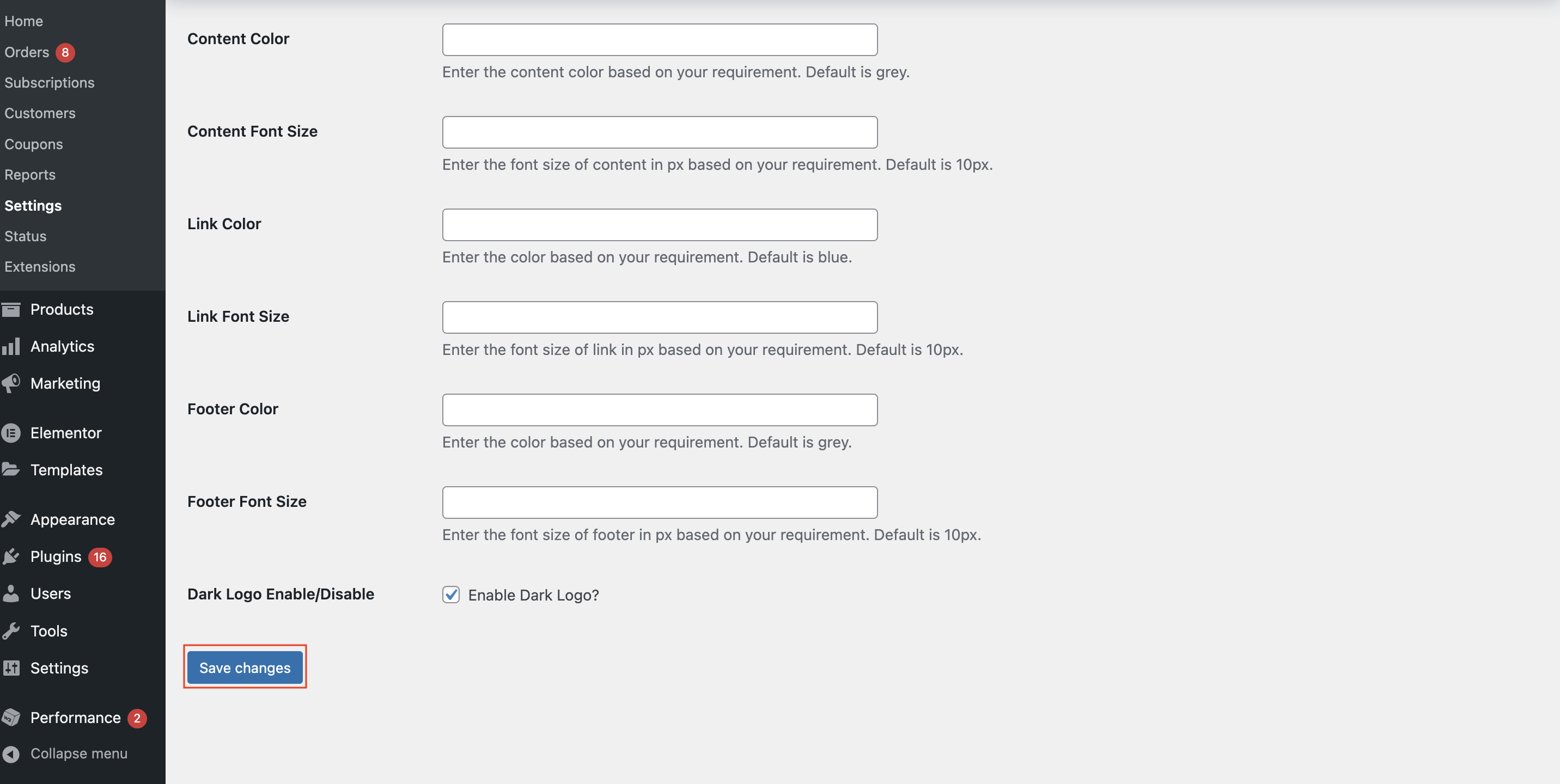
- Link Colour: Enter the 6-character HEX code of the link colour based on your requirement. The default colour is blue.
- Link Font Size: Enter the font size of the link based on your requirement. The default size is 12.
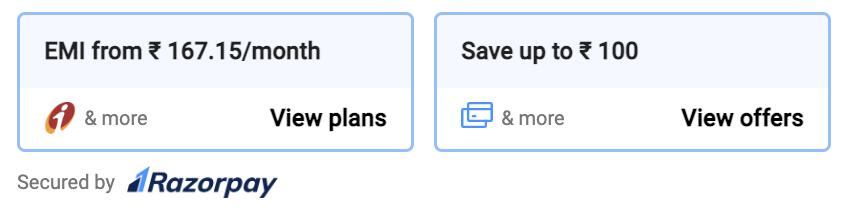
- Footer Colour: Enter the 6-character HEX code of the footer colour based on your requirement. The default colour is grey.
- Footer Font Size: Enter the font size of the footer based on your requirement. The default size is 12.
-
Dark Logo Enable/Disable: Razorpay provides customisation option for the logo in two variants:
- Light
- Dark (default)
If you want to display the light variant of the logo, clear the Enable Dark Logo check box.
 Once you customise the widget based on your requirement, click Save Changes.