

Available in🇮🇳 India
Follow the steps to integrate Custom Checkout in your site:
1.1 Generate API Keys.
1.2 Create an Order in Server.
1.3 Fetch Payment Methods.
1.4 Invoke Checkout and Pass Order Id and Other Options to it.
1.4.1 Include JavaScript code in your Webpage.
1.4.2 Instantiate Custom Checkout.
1.4.3 Submit Payment Details.
1.5 Store Fields in Your Server.
1.6 Verify Payment Signature.
1.7 Verify Payment Status.
1.1 Generate API Keys
Follow these steps to generate API keys:Test Mode API Keys
Watch this video to see how to generate API keys in the Test mode.
Live Mode API Keys
Watch this video to see how to generate API keys in the Live mode.
- Log in to your Dashboard with the appropriate credentials.
- Select the mode (Test or Live) for which you want to generate the API key.
- Test Mode: The test mode is a simulation mode that you can use to test your integration flow. Your customers will not be able to make payments in this mode.
- Live Mode: When your integration is complete, switch to live mode and generate live mode API keys. In the integration, replace test mode keys with live mode keys to accept customer payments.
- Navigate to Account & Settings → API Keys (under Website and app settings) → Generate Key to generate key for the selected mode.
1.2 Create an Order in Server
Order is an important step in the payment process.- An order should be created for every payment.
- You can create an order using the Orders API. It is a server-side API call. Know how to authenticate Orders API.
- The order_id received in the response should be passed to the checkout. This ties the Order with the payment and secures the request from being tampered.
API Sample Code
The following is a sample API request and response for creating an order:Curl
Response
Request Parameters
Request Parameters
amount mandatory
: integer Payment amount in the smallest currency sub-unit. For example, if the amount to be charged is ₹299, then pass 29900 in this field. In the case of three decimal currencies, such as KWD, BHD and OMR, to accept a payment of 295.991, pass the value as 295990. And in the case of zero decimal currencies such as JPY, to accept a payment of 295, pass the value as 295.currency mandatory
: string The currency in which the transaction should be made. View the list of supported currencies. The length must be 3 characters.Handy TipsRazorpay has added support for zero decimal currencies, such as JPY, and three decimal currencies, such as KWD, BHD, and OMR, allowing businesses to accept international payments in these currencies. Know more about Currency Conversion (May 2024).
receipt optional
: string Your receipt id for this order should be passed here. Maximum length is 40 characters.partial_payment optional
: boolean Indicates whether the customer can make a partial payment. Possible values:true: The customer can make partial payments.false(default): The customer cannot make partial payments.
customer_details optional
: json object Details about the customer/user.name optional
: string The customer’s name. For example, Gaurav Kumar.contact optional
: string The customer’s phone number. A maximum length of 15 characters, including country code. For example, +919000090000.email optional
: string The customer’s email address. For example, gaurav.kumar@example.com.insights optional
: json object Additional details of the customer, including past transaction data.order_count optional
: integer Total orders placed by the account so far on the merchant platform. For example, 22.chargeback_count optional
: integer Total chargeback received for the customer account on the merchant platform. For example, 4.tier optional
: string Your company’s passenger classification, such as with a frequent flyer program. In this case, you might use values such as:standardgoldplatinum
booking_channel optional
: string To share if the user is an agent, corporate, or individual. Possible values:agentcorporateindividual
has_account optional
: boolean To denote if the buyer is on guest checkout or has logged into the account. Possible values:true: If the user is logged into the account.false: If the user is on guest checkout.
registered_at optional
: integer UNIX timestamp when the customer account was created with the merchant. For example, 1234567890.shipping_address optional
: Json object This will have details about the order’s shipping address.line1 optional
: string Address Line 1 of the address.line2 optional
: string Address Line 2 of the address.city optional
: string City of the address. For example, Bengaluru.country optional
: string ISO3 country code of the billing address. For example, IND.state optional
: string Name of the state. For example, KA.zipcode optional
: string Zipcode of the state. For example, 560068.latitude optional
: float Latitude of the position expressed in decimal degrees (WSG 84), for example, 6.244203. A positive value denotes the northern hemisphere or the equator, and a negative value denotes the southern hemisphere. The number of digits represents the precision of the coordinate.longitude optional
: float Longitude of the position expressed in decimal degrees (WSG 84), for example, -75.581211. A positive value denotes east longitude or the prime meridian, and a negative value denotes west longitude. The number of digits represents the precision of the coordinate.billing_address optional
: Json object This will have details about the billing address of the customer/user.line1 optional
: string Address Line 1 of the address.line2 optional
: string Address Line 2 of the address.city optional
: string City of the address. For example, Bengaluru.country optional
: string ISO3 country code of the billing address. For example, IND.state optional
: string Name of the state. For example, KA.zipcode optional
: string Zipcode of the state. For example, 560001.latitude optional
: float Latitude of the position expressed in decimal degrees (WSG 84), for example, 6.244203. A positive value denotes the northern hemisphere or the equator, and a negative value denotes the southern hemisphere. The number of digits represents the precision of the coordinate.longitude optional
: float Longitude of the position expressed in decimal degrees (WSG 84), for example, -75.581211. A positive value denotes east longitude or the prime meridian, and a negative value denotes west longitude. The number of digits represents the precision of the coordinate.shipping_details optional
: Json object This will have the order’s shipping details.method optional
: enum Shipping method for the product. Possible values:lowcost: Lowest-cost service.sameday: Courier or same-day service.oneday: Next-day or overnight service.twoday: Two-day service.threeday: Three-day service.pickup: Store pick-up.other: Other shipping method.none: No shipping method because the product is a service or subscription.
gift_wrap optional
: boolean Indicates whether the customer requested gift wrapping for this purchase. This field can contain one of the following values:1: The customer requested gift wrapping.0: The customer did not request gift wrapping.
line_items_total optional
: integer Total sum of the cart value.line_items mandatory
: json object Details about the specific items added to the cart.type mandatory
: string Defines the category type. Possible values:travelhotele_commercemutual_fund
sku optional
: string The unique product id defined by the business.name optional
: string The name of the product.description optional
: string Description of the product.quantity optional
: integer Number of tickets/items/quantity to be purchased.image_url optional
: string URL of the product image.product_url optional
: string URL of the product’s listing page.price optional
: integer Unit price of the product in paisa. (needs to be inclusive of tax)offer_price optional
: integer Offer price of the product. The offer price can be lower than the price if the business runs a discount on the product.tax_amount optional
: integer Tax amount that needs to be added to the product. In case the offer_price is tax-inclusive, keep it blank.e_commerce optional
: json object Details about the type-specific data points. Will vary based on the type selected.other_product_codes optional
: object Array to collect different codes that can identify the item type. Possible values:upc optional
: string Universal Product Code (UPC; redundantly: UPC code) is a barcode symbology used worldwide to track trade items in stores. UPC consists of 12 numeric digits that are uniquely assigned to each trade itemean optional
: string European Article Numbers (EAN) is a type of barcode that encodes an article number. Contains 8 (EAN-8) or 13 (EAN-13) numerical digits.unspsc optional
: string The United Nations Standard Products and Services Code (UNSPSC) is a taxonomy of products and services used in eCommerce. It is a four-level hierarchy coded as an eight-digit number, with an optional fifth level adding two more digits.refund_allowed optional
: string Denotes if the cart items are refundable or not. Possible values:fullpartialnot_allowed
campaign optional
: JSON object Details of the campaign. *Can be extended to share UTM parameters.external_campaign_id optional
: string Unique identifier of the campaign. For example, PQR12453.name optional
: string Name of the campaign.description optional
: string A human-readable description of the campaign.channel optional
: string The marketing channel used.source optional
: string The referrer of the marketing event. Example values: google, newsletter.medium optional
: string The medium that the campaign is using. Example values: cpc, banner, etc.notes optional
: json object Key-value pair that can be used to store additional information about the entity. Maximum 15 key-value pairs, 256 characters (maximum) each. For example, "note_key": "Beam me up Scotty”.Response Parameters
Response Parameters
amount
: integer The transaction amount, expressed in the currency subunit. For example, for an actual amount of ₹299.35, the value of this field should be 29935.amount_due
: integer The amount pending against the order.amount_paid
: integer The amount paid against the order.attempts
: integer The number of payment attempts, successful and failed, that have been made against this order.created_at
: integer The UNIX timestamp at which the order is created.currency mandatory
: string The currency in which the transaction should be made. View the list of supported currencies. Length must be of 3 characters.entity
: string Name of the entity. Here, it is order.id
: string The unique identifier of the order.notes
: json object Key-value pair that can be used to store additional information about the entity. Maximum 15 key-value pairs, 256 characters (maximum) each. For example, "note_key": "Beam me up Scotty”.offer_id
: string The unique identifier of the offer.receipt
: string Your receipt id for this order should be passed here. Maximum length is 40 characters.status
: string The status of the order. Possible values:created: When you create an order, it is in thecreatedstate. It stays in this state till a payment is attempted on it.attempted: An order moves fromcreatedtoattemptedstate when a payment is first attempted on it. It remains in theattemptedstate till one payment associated with that order is captured.paid: After the successful capture of the payment, the order moves to thepaidstate. No further payment requests are permitted once the order moves to thepaidstate. The order stays in thepaidstate even if the payment associated with the order is refunded.
Error Response Parameters
Error Response Parameters
The error response parameters are available in the API Reference Guide.
1.3 Fetch Payment Methods
When creating a custom checkout form, display only the activated methods to the customer. Use the below methods to fetch all payments methods available to you:1.4 Invoke Checkout and Pass Order Id and Other Options to it
1.4.1 Include JavaScript code in your Webpage
Include the following script, preferably in the<head> section of your page:
Index HTML
Handy Tips
- Include the script from
https://checkout.razorpay.com/v1/razorpay.jsinstead of serving a copy from your server. This allows the library’s new updates and bug fixes to fit your application automatically. - We always maintain backward compatibility with our code.
1.4.2 Instantiate Custom Checkout
Single Instance on a Page
Invoke a Single Instance
Multiple Instances on Same Page
If you need multiple Razorpay instances on the same page, you can globally set some of the options:Invoke Multiple Instances
Checkout Options
While building a custom UI for accepting payments from your customers, you should be familiar with the fields supported in therazorpay.js script.
Checkout Parameters
Checkout Parameters
key mandatory
: string API Key ID generated from Dashboard → Account & Settings → API Keys.amount mandatory
: integer Payment amount in the smallest currency sub-unit. For example, if the amount to be charged is ₹299, then pass 29900 in this field. In the case of three decimal currencies, such as KWD, BHD and OMR, to accept a payment of 295.999, pass the value as 295999. And in the case of zero decimal currencies such as JPY, to accept a payment of 295, pass the value as 295.currency mandatory
: string The currency in which the payment should be made by the customer. For example, INR. See the list of supported currencies.Handy TipsRazorpay has added support for zero decimal currencies, such as JPY, and three decimal currencies, such as KWD, BHD, and OMR, allowing businesses to accept international payments in these currencies. Know more about Currency Conversion (April 2023).
description optional
: string Description of the product shown in the Checkout form. It must start with an alphanumeric character.image optional
: string Link to an image (usually your business logo) shown in the Checkout form. Can also be a base64 string, if loading the image from a network is not desirable.order_id mandatory
: string Order ID generated via the Orders API.notes optional
: object Set of key-value pairs that can be used to store additional information about the payment. It can hold a maximum of 15 key-value pairs, each 256 characters long (maximum).method mandatory
: string The payment method used by the customer on Checkout. Possible values:
card(default)upi(default)netbanking(default)wallet(default)emi(default)cardless_emi(requires approval)paylater(requires approval)emandate(requires approval)
card mandatory if method=card/emi
: object The details of the card that should be entered while making the payment.number
: integer Unformatted card number.name
: string The name of the cardholder.expiry_month
: integer Expiry month for card in MM format.expiry_year
: integer Expiry year for card in YY format.cvv
: integer CVV printed on the back of the card.Handy Tips
- CVV is not required by default for tokenised cards across all networks.
- CVV is optional for tokenised card payments. Do not pass dummy CVV values.
- To implement this change, skip passing the
cvvparameter entirely, or pass anullor empty value in the CVV field. - We recommend removing the CVV field from your checkout UI/UX for tokenised cards.
- If CVV is still collected for tokenised cards and the customer enters a CVV, pass the entered CVV value to Razorpay.
emi_duration
: integer Defines the number of months in the EMI plan.bank_account mandatory if method=emandate
: The details of the bank account that should be passed in the request. These details include bank account number, IFSC code and the name of the customer associated with the bank account.account_number
: string Bank account number used to initiate the payment.ifsc
: string IFSC of the bank used to initiate the payment.name
: string Name associated with the bank account used to initiate the payment.bank mandatory if method=netbanking
: string Bank code. List of available banks enabled for your account can be fetched via methods.wallet mandatory if method=wallet
: string Wallet code for the wallet used for the payment. Possible values:payzapp(default)olamoney(requires approval)phonepe(requires approval)airtelmoney(requires approval)mobikwik(requires approval)jiomoney(requires approval)amazonpay(requires approval)paypal(requires approval)phonepeswitch(requires approval)
provider mandatory if method=cardless_emi/paylater
: string Name of the cardless EMI provider partnered with Razorpay.Available options for Cardless EMI (requires approval):hdfcicicidfbkkbkzestmoneyearlysalarywalnut369
lazypaypaypal
vpa mandatory if method=upi
: string UPI ID used for making the payment on the UPI app.callback_url optional
: string The URL to which the customer must be redirected upon completion of payment. The URL must accept incoming POST requests. The callback URL will have razorpay_payment_id, razorpay_order_id and razorpay_signature as the request parameters for a successful payment.redirect conditionally mandatory
: boolean Determines whether customer should be redirected to the URL mentioned in the
callback_url parameter. This is mandatory if callback_url parameter is used. Possible values:true: Customer will be redirected to thecallback_url.false: Customer will not be redirected to thecallback_url
1.4.3 Submit Payment Details
After creating an order and obtaining the customer’s payment details, send the information to Razorpay to complete the payment. The data that needs to be submitted depends on the customer’s payment method. You can do this by invokingcreatePayment method.Know more about sample codes for various payment methods.
Handy Tips
- Handler Function
When you use the handler function, the response object of the successful payment (razorpay_payment_id,razorpay_order_idandrazorpay_signature) is submitted to the Checkout Form. You need to collect these and send them to your server. - Callback URL
When you use a callback URL, Razorpay makes a post call to the callback URL, with therazorpay_payment_id,razorpay_order_idandrazorpay_signaturein the response object of the successful payment (razorpay_payment_idandrazorpay_order_id).
1.5 Store Fields in Your Server
A successful payment returns the following fields to the Checkout form.Success Callback
Success Callback
- You need to store these fields in your server.
- You can confirm the authenticity of these details by verifying the signature in the next step.
razorpay_payment_id
: string Unique identifier for the payment returned by Checkout only for successful payments.razorpay_order_id
: string Unique identifier for the order returned by Checkout.razorpay_signature
: string Signature returned by the Checkout. This is used to verify the payment.Failure Response
Failure Response
1.6 Verify Payment Signature
This is a mandatory step to confirm the authenticity of the details returned to the Checkout form for successful payments.To verify the `razorpay_signature` returned to you by the Checkout form:
To verify the `razorpay_signature` returned to you by the Checkout form:
-
Create a signature in your server using the following attributes:
order_id: Retrieve theorder_idfrom your server. Do not use therazorpay_order_idreturned by Checkout.razorpay_payment_id: Returned by Checkout.key_secret: Available in your server. Thekey_secretthat was generated from the Dashboard.
-
Use the SHA256 algorithm, the
razorpay_payment_idand theorder_idto construct a HMAC hex digest as shown below:
HMAC Hex Digest
- If the signature you generate on your server matches the
razorpay_signaturereturned to you by the Checkout form, the payment received is from an authentic source.
Generate Signature on Your Server
Generate Signature on Your Server
Given below is the sample code for payment signature verification:
Post Signature Verification
Post Signature Verification
After you have completed the integration, you can set up webhooks, make test payments, replace the test key with the live key and integrate with other APIs.
1.7 Verify Payment Status
Handy TipsOn the Razorpay Dashboard, ensure that the payment status is
captured. Refer to the payment capture settings page to know how to capture payments automatically.You can track the payment status in three ways:
You can track the payment status in three ways:
- Verify Status from Dashboard
- Subscribe to Webhook Events
- Poll APIs
To verify the payment status from the Razorpay Dashboard: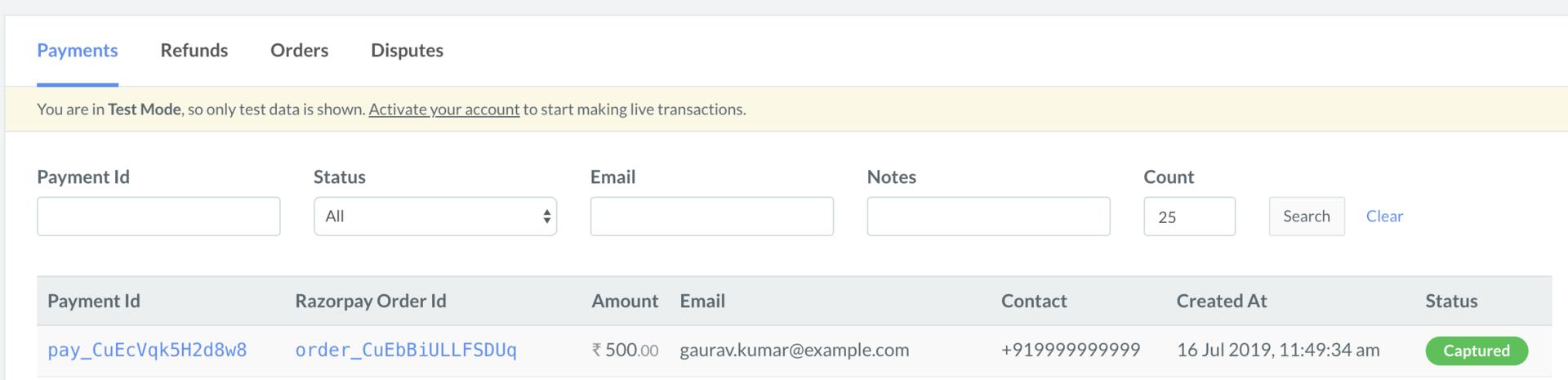
- Log in to the Razorpay Dashboard and navigate to Transactions → Payments.
- Check if a Payment Id has been generated and note the status. In case of a successful payment, the status is marked as Captured.