Available in🇮🇳 India
Follow the steps given below to integrate Razorpay Payment Gateway with your OpenCart enabled site using the Razorpay Subscription for OpenCart plugin.
Integration Steps
Follow these steps to complete the integration:On Your OpenCart Site
- Install the Razorpay Subscriptions for OpenCart Plugin.
- Configure OpenCart Settings.
- Create a Plan for Subscriptions product.
- Test integration.
On Razorpay Dashboard
Step 1: Install Razorpay Subscriptions for OpenCart Plugin
To install Razorpay Subscriptions for OpenCart plugin:- Download the latest source code ZIP file of the Razorpay OpenCart Subscriptions plugin from the repository on Github.
- Copy all files/folders recursively to the OpenCart installation directory.
Step 2: Configure OpenCart Settings
- Log in to OpenCart.
- Go to the Admin Panel → Extensions → Payments to install the Razorpay Payment Gateway extension.
- Click the edit icon and fill in the following field details.
Handy TipsWebhook is auto-configured when you enter and save the API key ID and secret on the plugin settings page. You need to verify if webhooks are enabled on your Razorpay Dashboard.
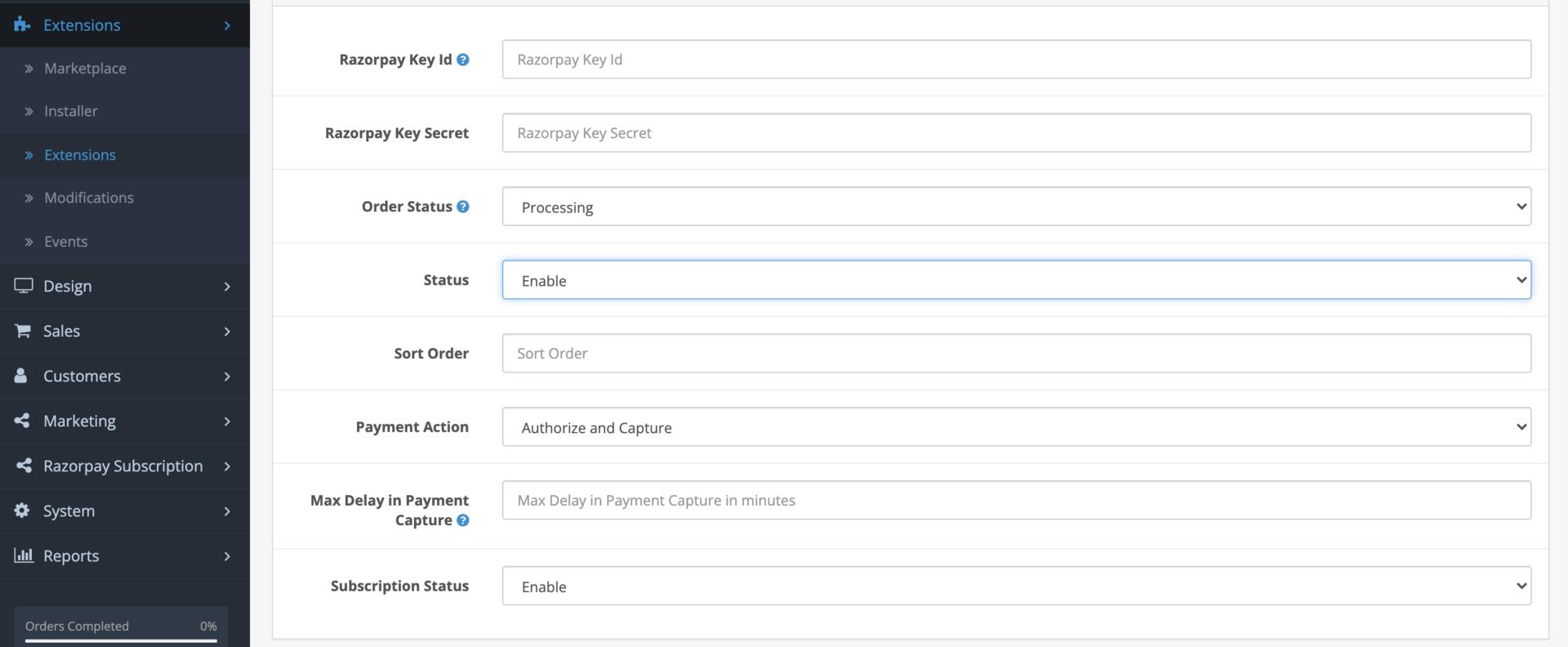
- Click Save to save the extension settings.
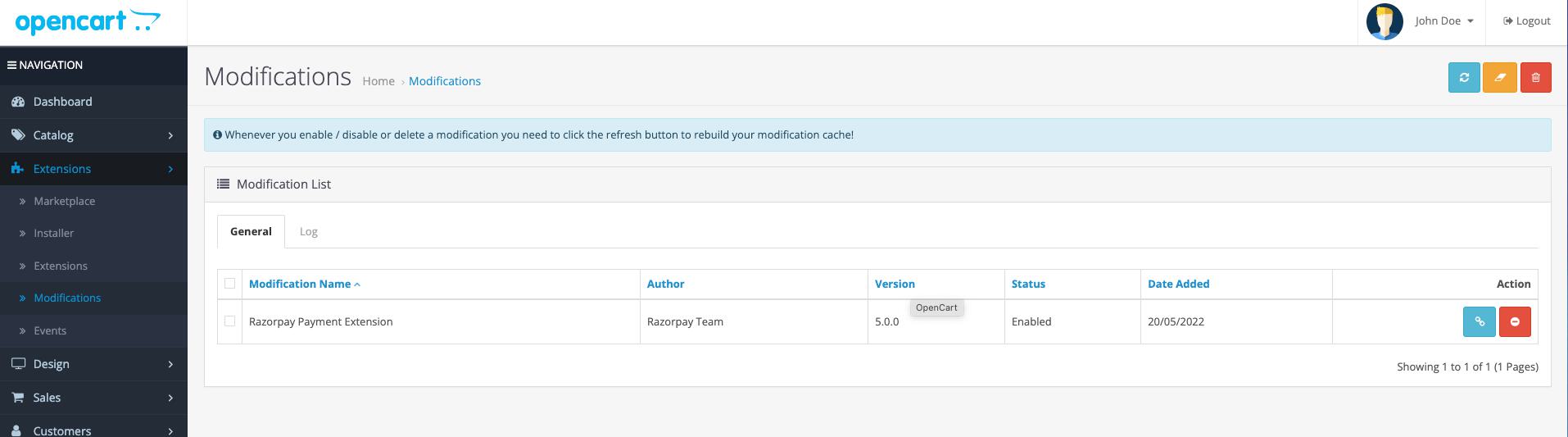
- Go to Admin Panel → Extensions → Modifications and click the refresh button to rebuild your modification cache.
Step 3: Create a Plan for Subscriptions Product
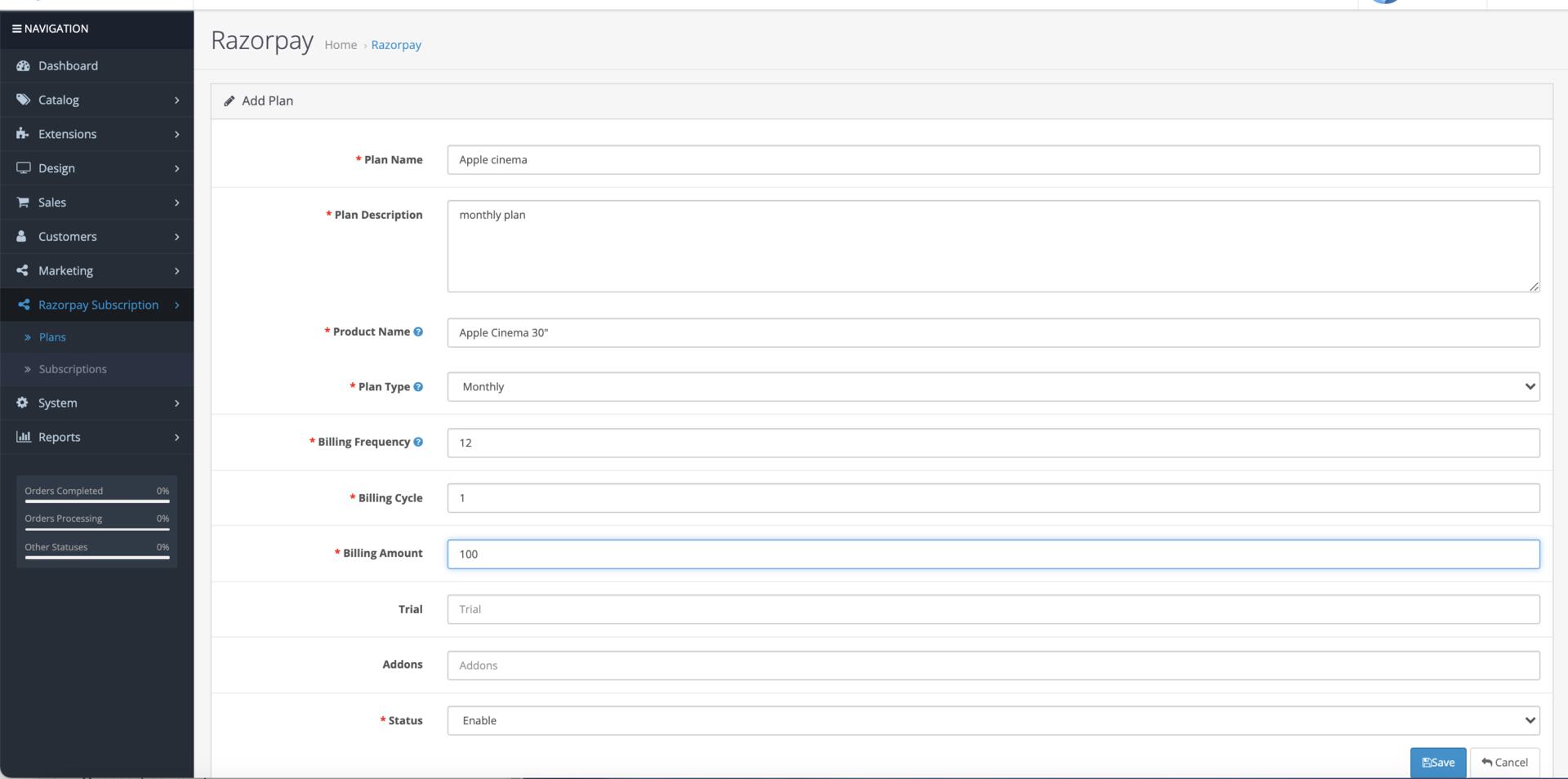
To create a Plan for Subscriptions product:- Go to the Admin Panel → Razorpay Subscription → Plans to add a new Plan.
- Click Add new to create a new Plan.
- Enter the required details and click Save to save the Plan.