

Available in🇮🇳 India
The Bulk One-Time Payment feature in RazorpayX Payroll enables you to add one-time adhoc earnings, such as bonuses and incentives, for multiple employees at once. Instead of adding a one-time payment for each employee individually, you upload a single template and process the payments for your entire workforce in one operation, saving time and ensuring consistency.
Handy TipsBulk One-Time Payment is available for organisations on Payroll Engine 2.0 and needs to be enabled for your organisation. Contact Payroll Support for assistance.
Use Cases
Bulk one-time payments are beneficial when you want to pay adhoc earnings to a group of employees together, such as:- A performance incentive or other bonuses like a retention or joining bonus.
- Remuneration for an ad hoc project.
Step-by-Step Bulk One-Time Payment Process
Step 1: Access the Bulk One-Time Payment Feature
Step 1: Access the Bulk One-Time Payment Feature
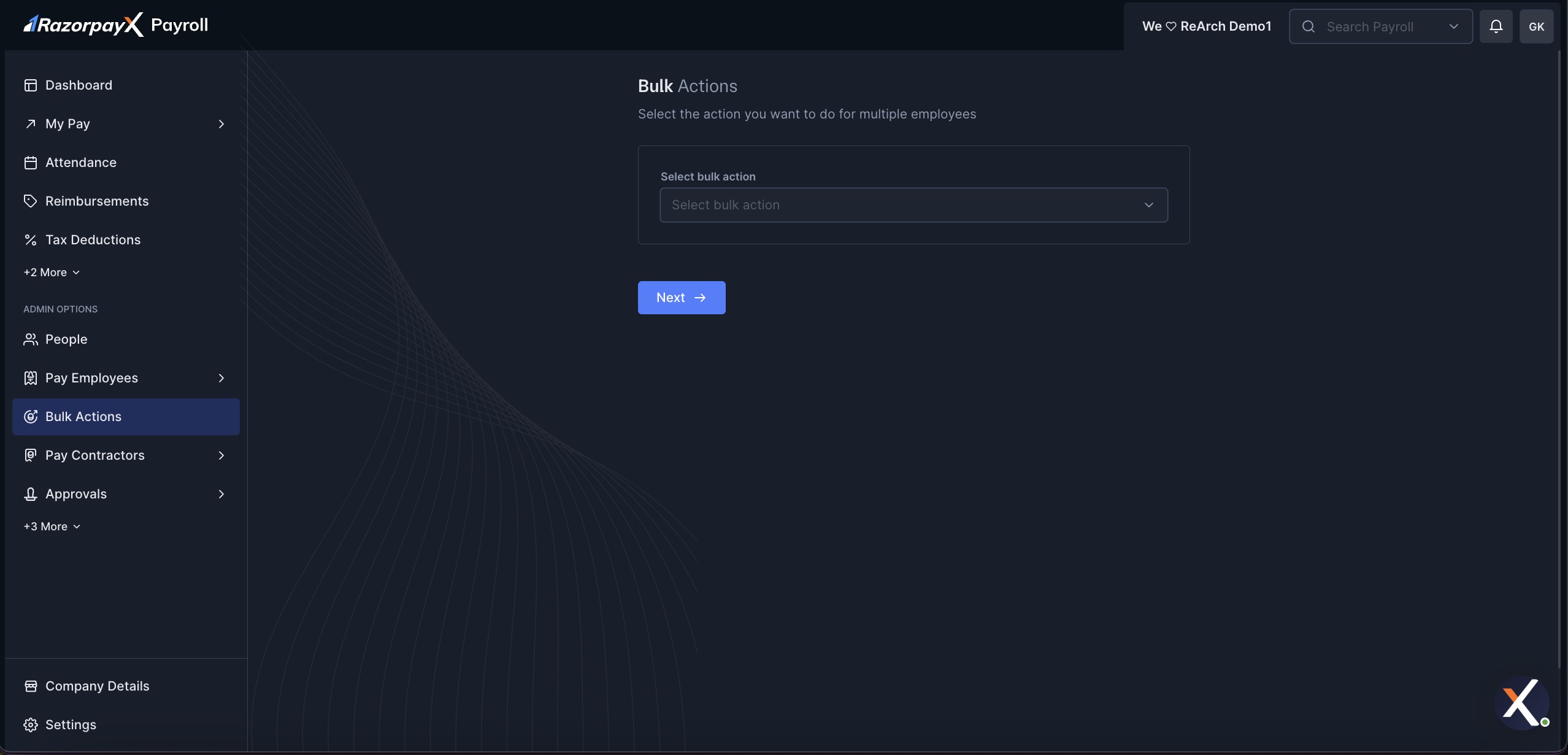
- Log in to the Payroll Dashboard.
- Navigate to the Bulk Actions section from the left navigation menu.
- Under Select bulk action, select One-Time Payment from the drop-down menu.
- Click Next.
Step 2: Download the Template
Step 2: Download the Template
In the Bulk One-Time Payments modal, on the Upload Template step:
- Under Select payroll month, choose the payroll month to which the one-time payments should be applied.
- Click the Download Template button to download the template for the selected payroll month.
-
Save the template to your local system.
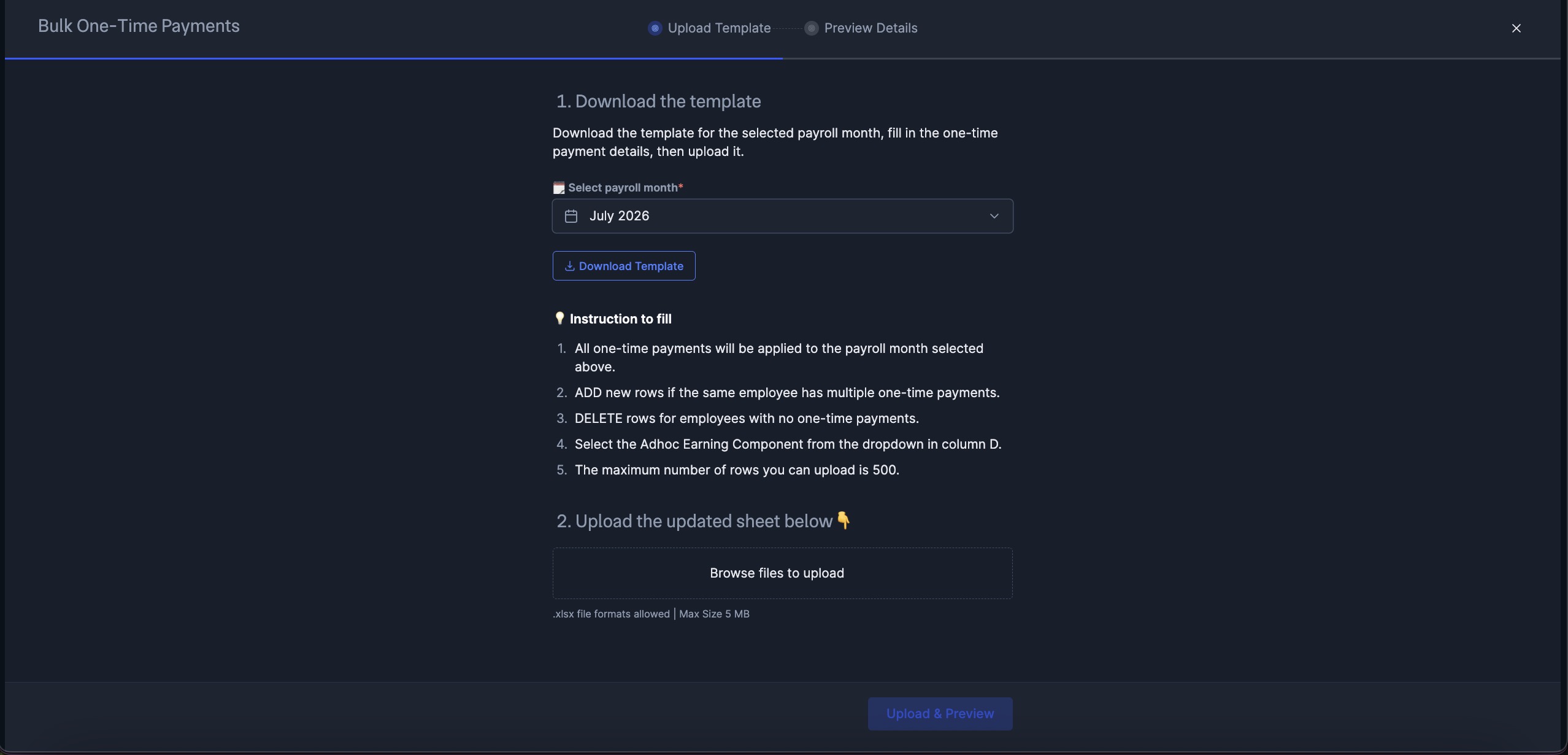 Handy TipsAll one-time payments in the template are applied to the payroll month you select here.
Step 3: Fill the Template
Step 3: Fill the Template
Open the downloaded template in Microsoft Excel or a compatible spreadsheet application and fill it in as per the instructions:
- All one-time payments are applied to the payroll month selected in the previous step.
- ADD new rows if the same employee has multiple one-time payments.
- DELETE rows for employees with no one-time payments.
- Select the Adhoc Earning Component from the dropdown in column D.
- You can upload a maximum of 500 rows.
- Save the file in .xlsx format.
Step 4: Upload the Template
Step 4: Upload the Template
- Return to the Bulk One-Time Payments modal.
- Under Upload the updated sheet below, click Browse files to upload and select your updated file.
- Only the .xlsx file format is allowed, with a maximum size of 5MB.
- Click Upload & Preview to proceed to the preview step.
Step 5: Preview and Confirm
Step 5: Preview and Confirm
- On the Preview Details step, the system displays a preview of all the one-time payments to be processed.
- Review the employee names, components and amounts for any errors or discrepancies.
- After carefully reviewing all entries, confirm to process the payments.
-
Upon successful processing, a confirmation message appears.
Handy TipsThe preview stage is crucial for catching potential errors. Review all records carefully, especially when paying a large number of employees.
- The one-time payments are applied to the payroll month you selected.
- To check the history of all one-time payments, refer to the Ledger section.
- The one-time payment reflects in the selected month’s payslip for each employee. Tax is deducted as applicable based on the adhoc earning component selected.