Available in🇮🇳 India
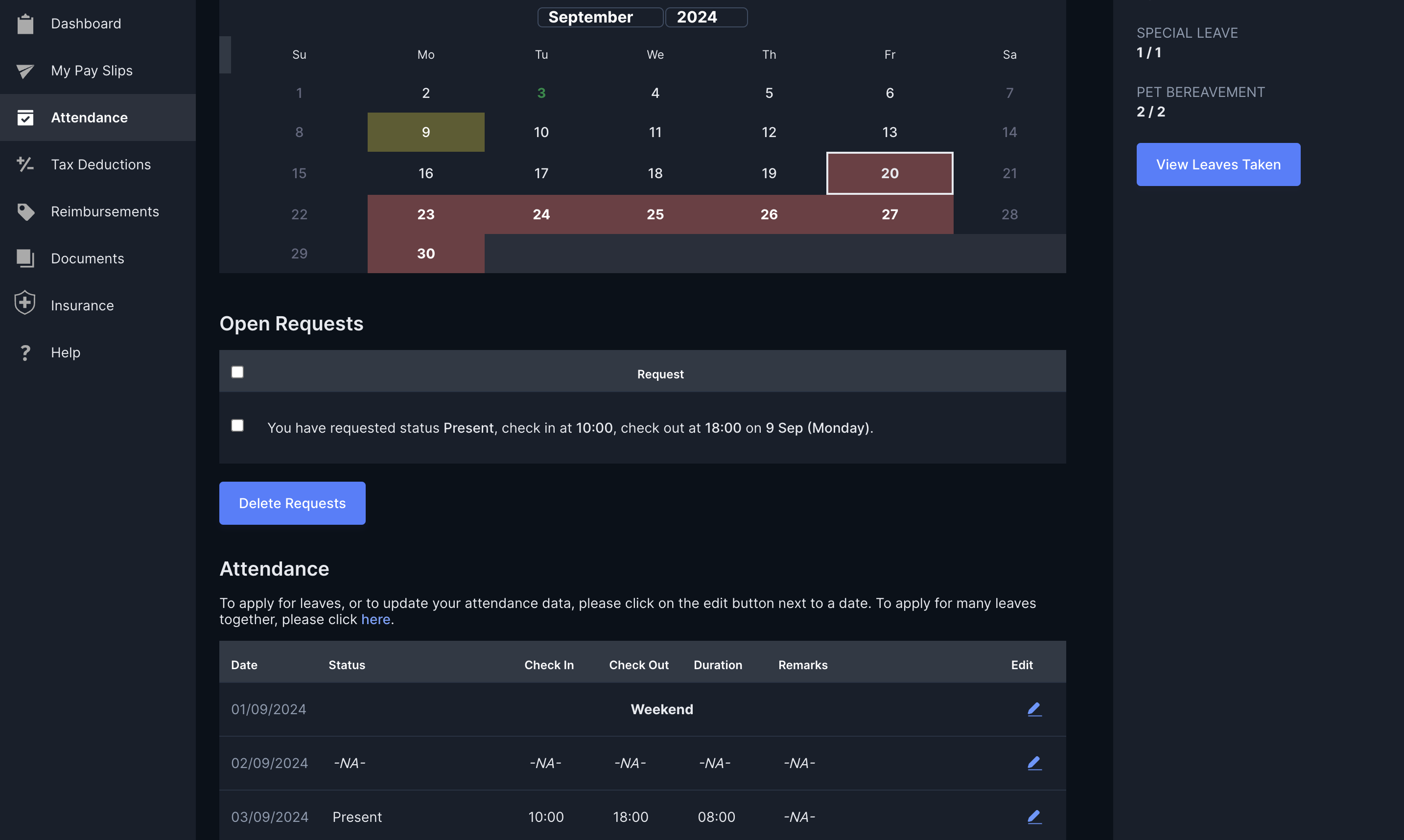
Leaves and attendance form a critical part of every employee’s payslip and personal management. On the Payroll Dashboard, you can:
Once you apply for leaves, they are sent to your managers for approval as configured under Profile → Basic Information. Both administrators and your manager can approve leave requests.
Available Now!Watch the video on to how to mark attendance and apply for leaves.
Handy Tips
- If your organisation has integrated Payroll with Slack, you can update your leaves and attendance from within the Slack App. Refer to the leave commands.
- You can check in and check out of your organisation via the biometric device, if your organisation has enabled it.
Mark Attendance
To mark attendance:- Log in to the Payroll Dashboard.
- Navigate to Attendance in the left menu.
- Use the CHECK IN and CHECK OUT options on the Leave & Attendance page to mark attendance for the day. You can also edit it on a future date and send it for approval.
Manage Attendance
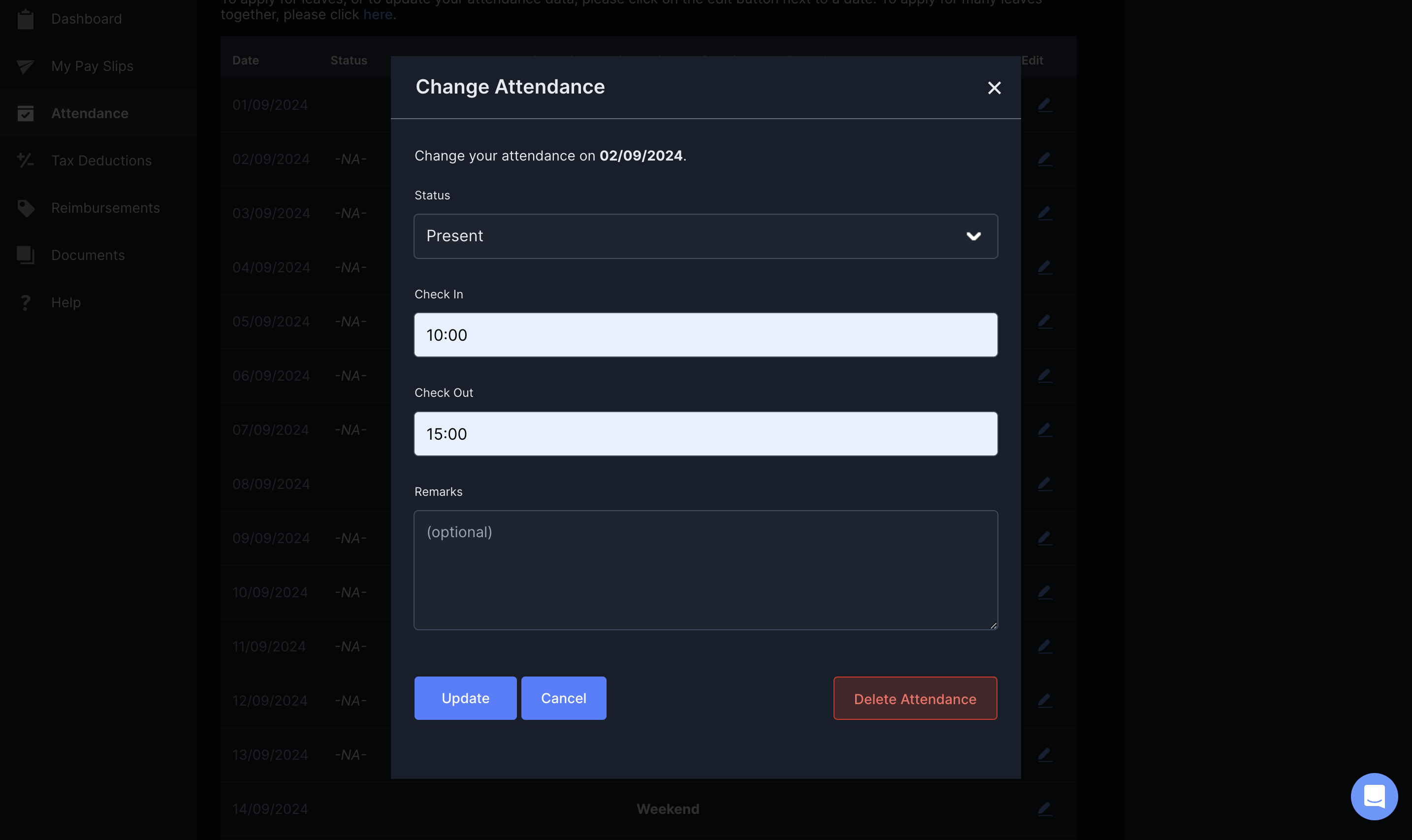
You can edit and delete incorrect attendance data on the Payroll Dashboard. After you make changes to your attendance, we send your request to your manager for approval.Edit Attendance
Edit Attendance
You can edit attendance for a past date to update your attendance information.
- Log in to the Payroll Dashboard.
- Go to to Attendance in the left menu → Attendance table.
- Navigate to the specific date for which you want to edit attendace. Click the edit icon in the Edit column against that date.
- In the Change Attendance pop-up window, update you attendance/leave information.
Delete Attendance
Delete Attendance
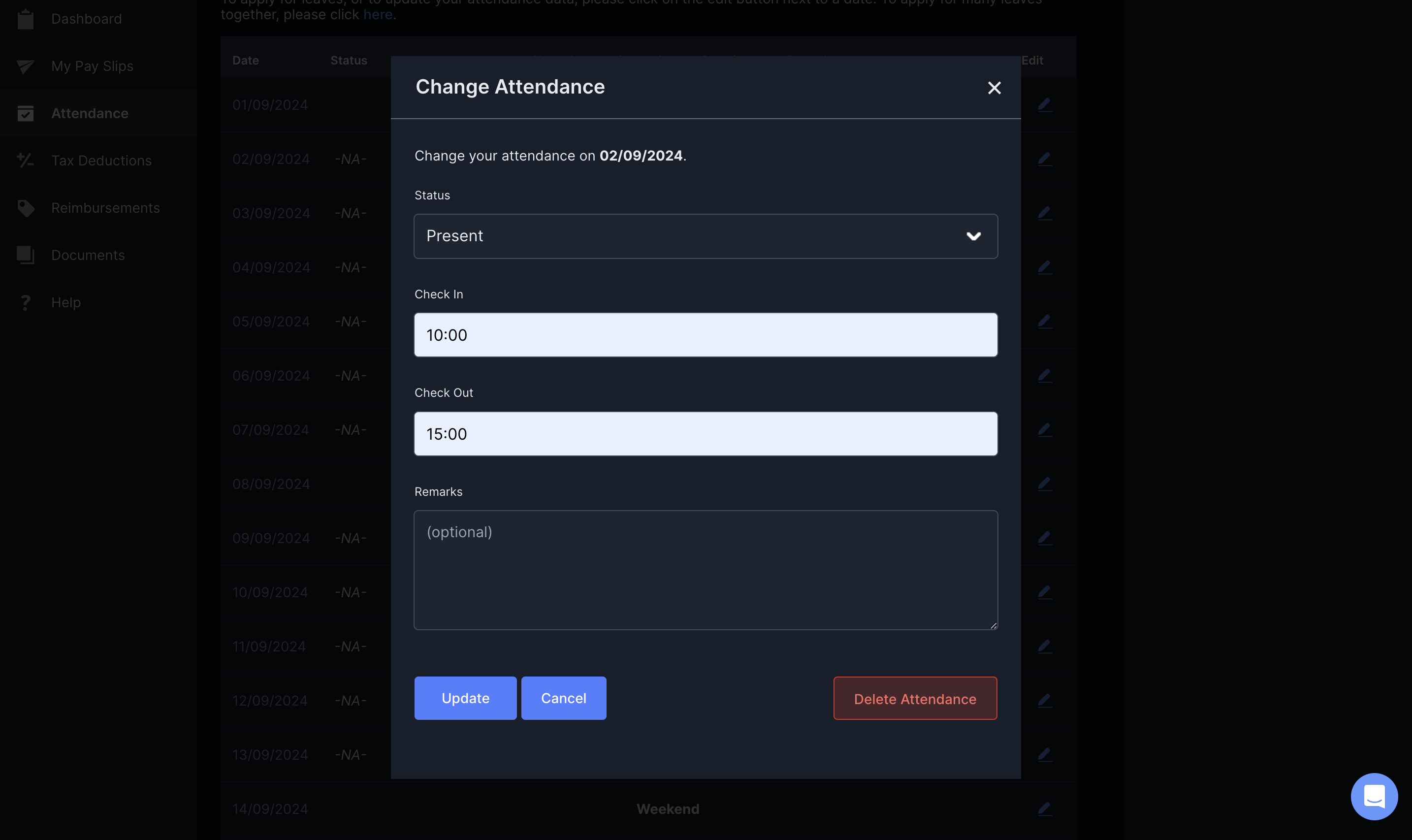
You can delete attendance for a specific date if you have added and saved your attendance for the incorrect date.
- Log in to the Payroll Dashboard.
- Go to Attendance in the left menu.
- Navigate to the specific date for which you want to delete your attendace. Click the edit icon in the Edit column against that date.
- In the Change Attendance pop-up window, click DELETE ATTENDANCE.
View Attendance
View Attendance
After you mark your attendance for the day, we update the Attendance table. To view the attendance information for a specific date, navigate to the specific date in the table.Here you can view the Date, Status, Check In and Check Out times. We automatically update the Duration and add the Remarks provided by you or your manager in the specific columns.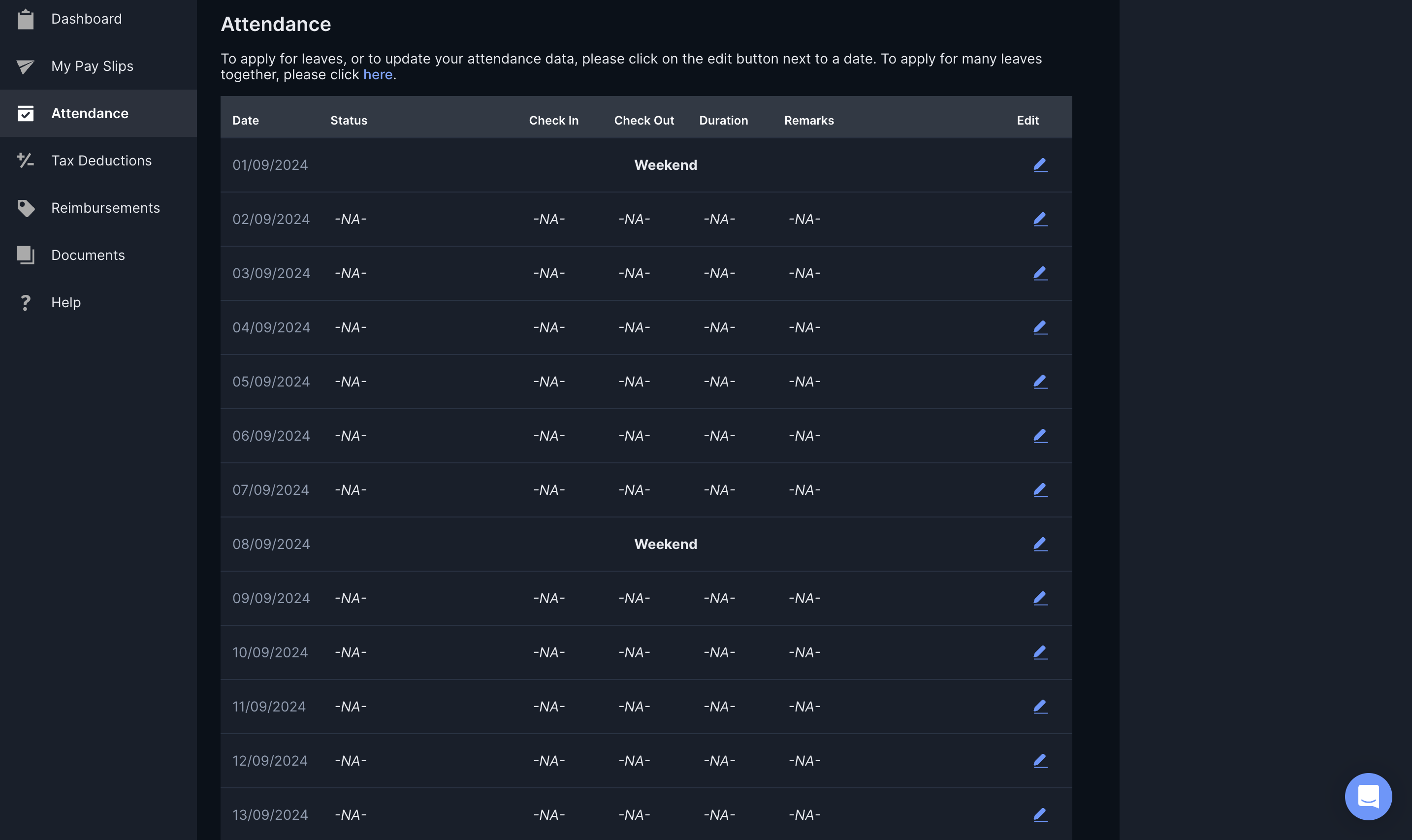
Apply for Leaves
To apply for a leave:- Log in to the Payroll Dashboard.
- Go to Attendance in the left menu.
-
In the Attendance table, find the date on which you are on leave. Click the edit icon in the Edit column.
-
In the Change Attendance pop-up modal:
- Select the Status. Select the leave to avail from the drop-down menu.
- Leave the Check In and Check Out times blank.
- Enter Remarks as applicable.
- Click SEND REQUEST.
This successfully creates a leave request for the chosen date. We update your attendance calendar after your manager/HR’s approval.
Manage Leaves
You can edit and update, or delete your leave and leaves modification requests on the Payroll Dashboard.Apply Leaves in Bulk
Apply Leaves in Bulk
To apply for leaves in bulk: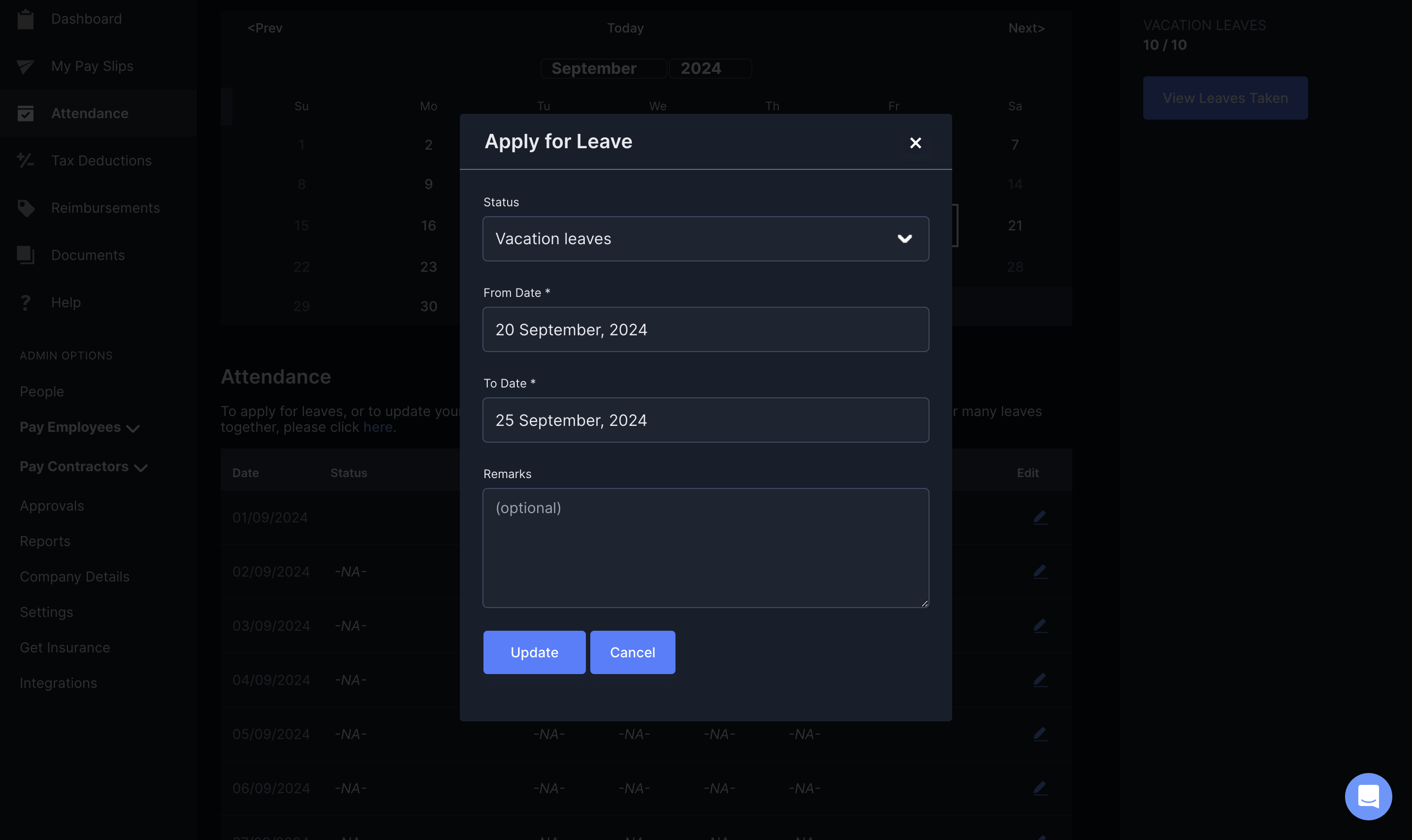
- Log in to the Payroll Dashboard.
- Go to Attendance in the left menu → Attendance table.
- Click here under the Attendance heading. This opens the Apply for Leave pop-up modal.
- Select the From Date and To Date in the modal.
- Click SEND REQUEST.
Leave Status Indicator
Leave Status Indicator
Payroll indicates attendance/leaves using the following colours: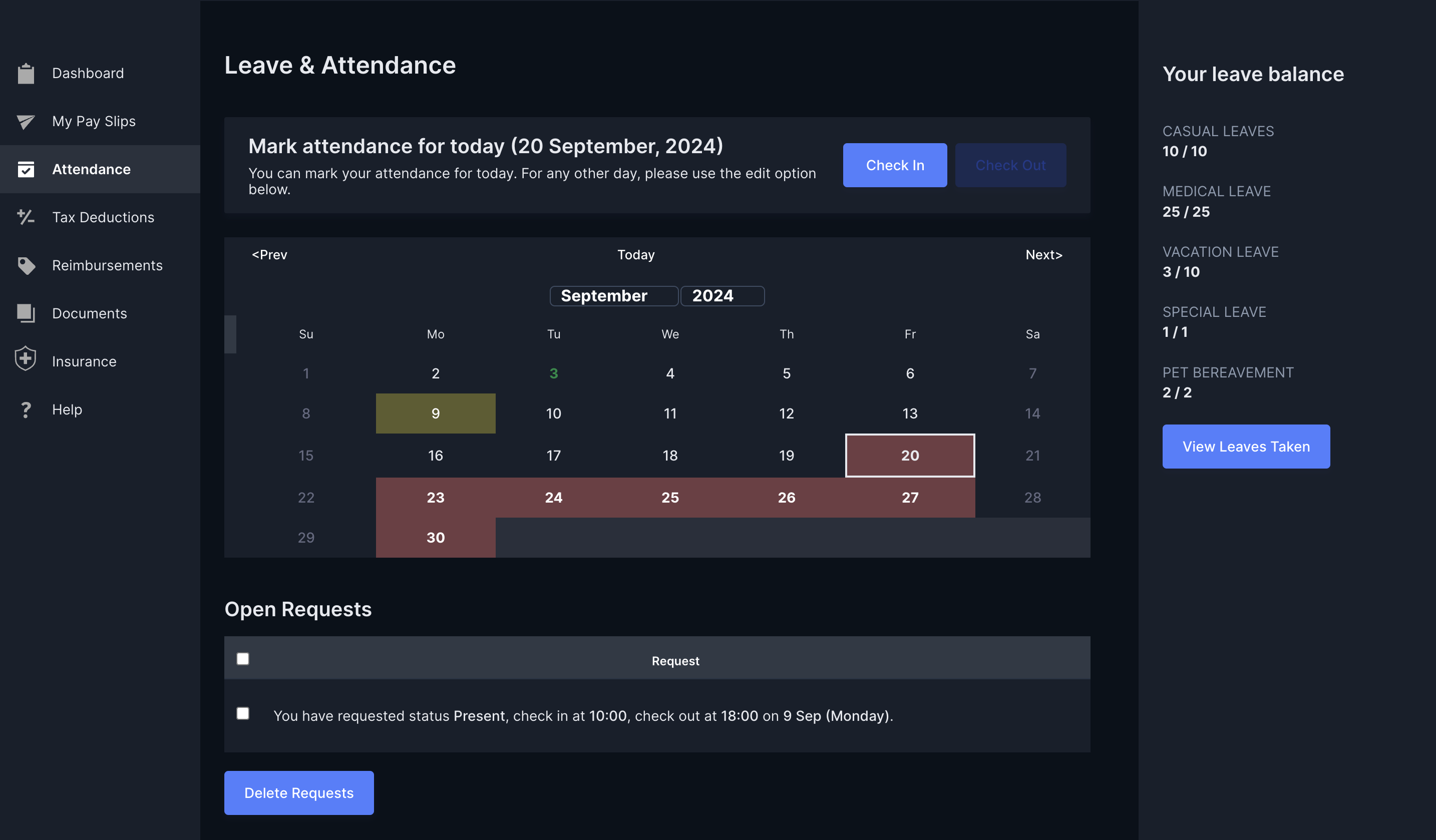
View Leave Balance
View Leave Balance
To view leave balance, click VIEW LEAVES TAKEN in the right pane. You can view the leaves taken and available balance in the Leaves Taken pop-up modal.
Delete Requests
When you modify your attendance or add a leave, we raise the leave as a request with your manager. You can also choose to delete the request before your manager’s approval.- Go to the Open Requests section on the Leave & Attendance page.
- Select the check box against the list requests you have raised to delete them.