

Available in🇮🇳 India🇸🇬 Singapore
You can configure email, SMS and WhatsApp notification settings on the Dashboard.
Manage Email Notifications
You can configure the email addresses to receive email notifications like payments received, daily payment reports and webhooks. You will also receive an email notification for both successful and failed settlements.Handy TipsSettlement emails will be sent to the email addresses provided on the Dashboard.
To enable email notifications:
To enable email notifications:
- Log in to the Dashboard.
- Click Accounts & Settings and go to Email under Notification settings.
- Enter email addresses under Email Notifications. If you want to enter multiple email addresses, separate them by a comma.
Manage SMS Notifications
You can enable SMS Notifications to receive SMS notifications for successful and failed settlements.To enable SMS notifications:
To enable SMS notifications:
- Log in to the Dashboard.
- Click Accounts & Settings and go to SMS under Notification settings.
- Enable SMS Notifications.
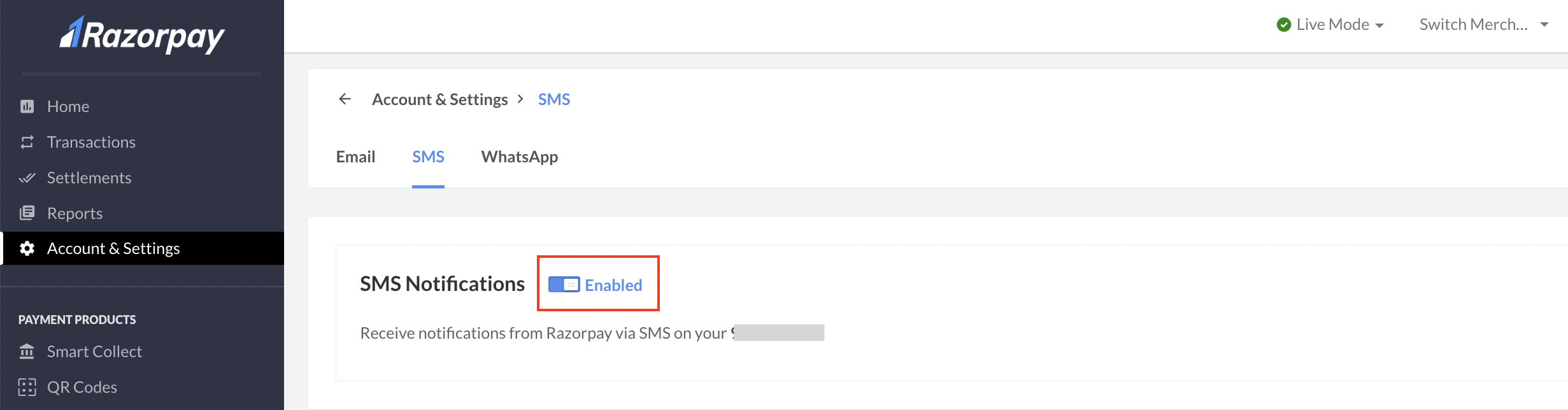 After SMS notifications are enabled, you start receiving notifications on the registered phone number. By default, this feature is set to Enabled. You can disable it using the toggle button.
Manage WhatsApp Notifications
You can receive WhatsApp notifications regarding settlements, account configuration changes and more on your registered contact number. You can enable this feature during the sign-up process or later from the Dashboard.Handy TipsThis feature is available only to the owner user role. Know about the various user roles.
To enable WhatsApp notifications:
To enable WhatsApp notifications:
- Log in to the Dashboard.
- Click Accounts & Settings and go to WhatsApp under Notification settings.
- Enable WhatsApp Notifications.
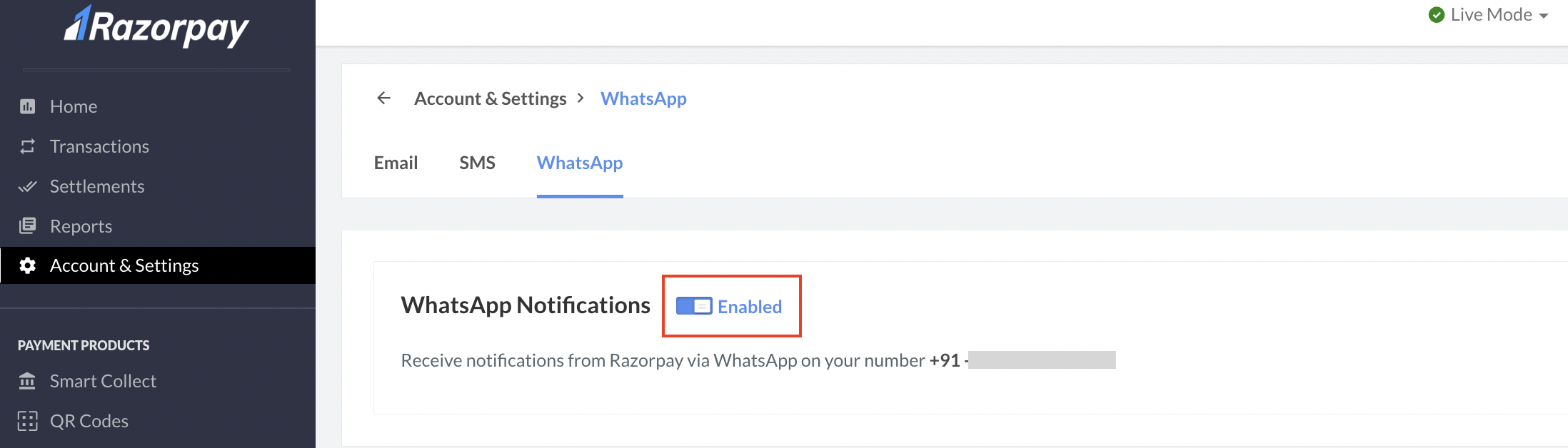 After WhatsApp notifications are enabled, you start receiving notifications on the registered number. You can disable the WhatsApp notifications from the Dashboard.