

Available in🇮🇳 India🇸🇬 Singapore
Check the available payment methods, enable and disable payment methods or request for new payment methods.
View Available Payment Methods
You can view the payment methods enabled for your account from the Account & Settings → Payment Methods tab. You can raise requests for additional payment methods. The requests initiated from this panel are raised with our partner banks and the onboarding process for the payment method is started.Handy Tips
- This feature is available only on the Live mode of the Dashboard.
- Users with the following User Roles can configure the payment methods: Owner, Admin and Manager.
- You can also accept international payments.
Enable Payment Methods
Activation of each of the payment methods involves onboarding with our partner banks. The average activation time is 10 working days, which can vary based on the payment method and banks.Request Payment Methods
To raise a request for a payment method:
To raise a request for a payment method:
- Log in to the Dashboard and select Account & Settings on the left navigation.
- Click the payment method you want to request under the Payment Methods tab, for example, Cards.
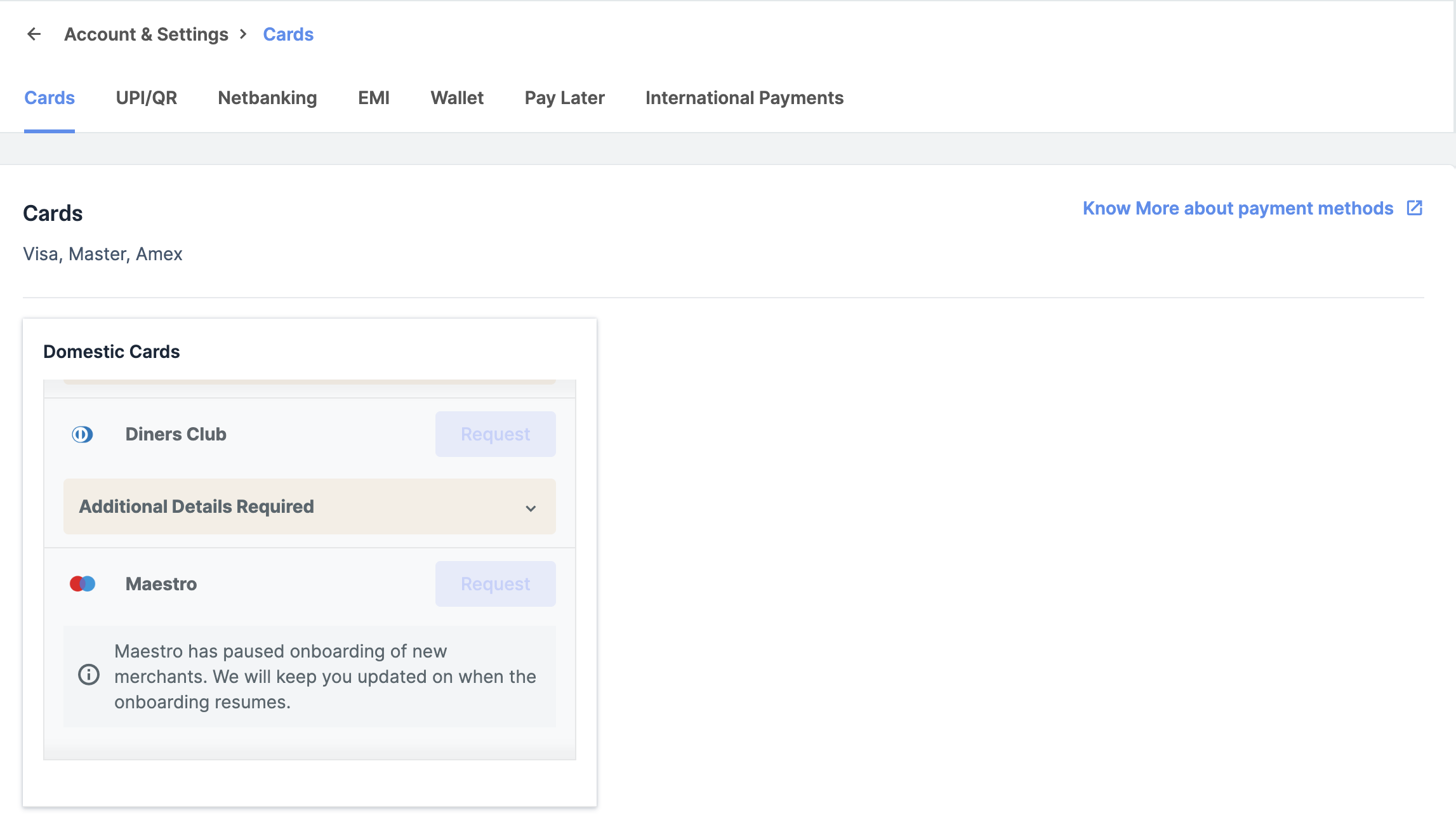
- Click the drop-down on the Additional details required tab and click Add now to update the business website or GSTIN details.
- Fill in the business website/app details and click Proceed to update website/app. Know more about how to add website details.
- Fill in the GSTIN details and click Submit. Know more about how to add GSTIN details.
Handy TipsThe Additional details are requested by our banking partners and are specific to the payment method.
- Once you submit all the required information, the status of the information provided changes to Under Review.
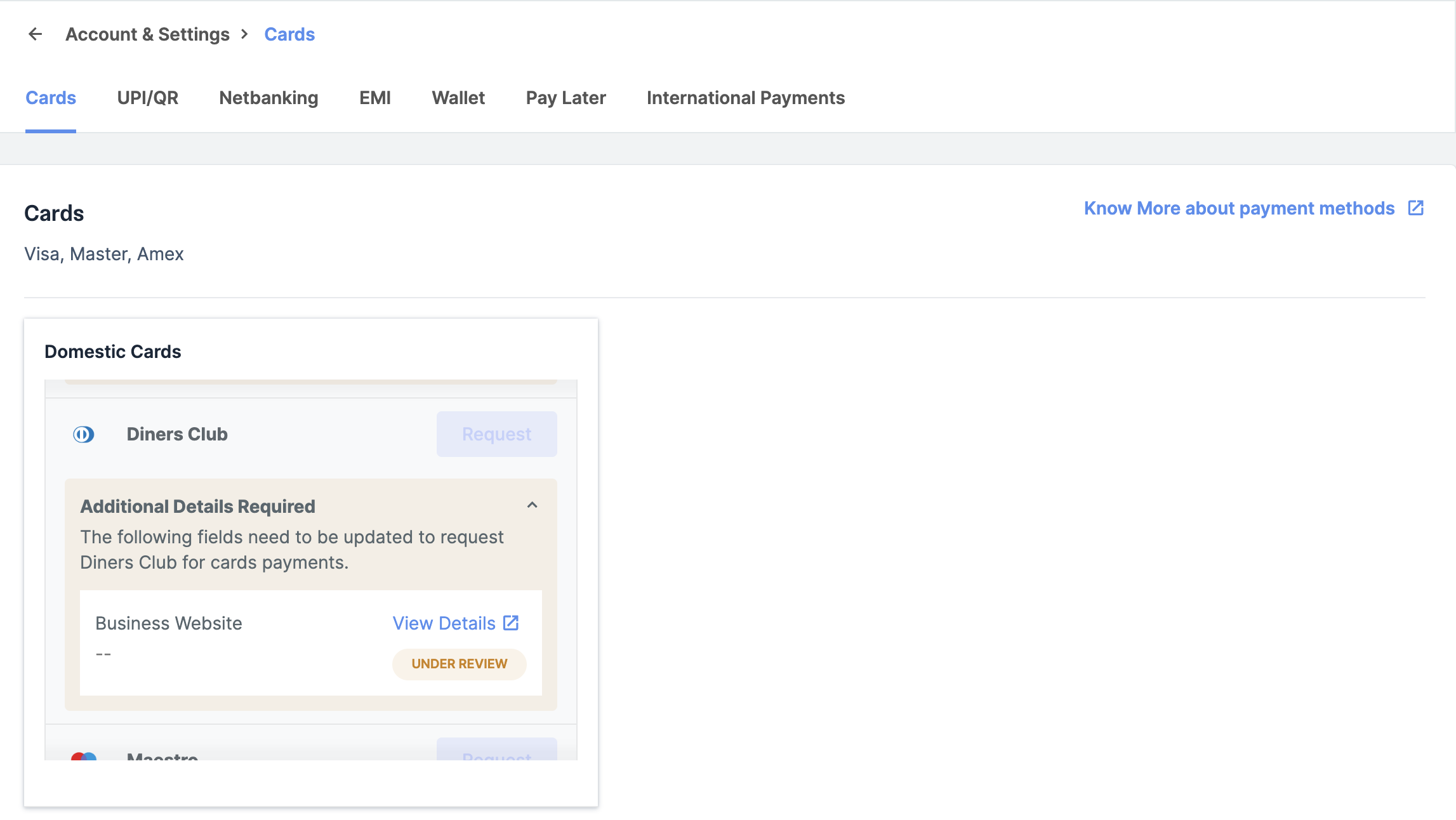
- Once the required information is reviewed and updated, click Request.
- Fill in the required details and click Next.
- Click Submit Request.
- The status of the payment method changes to Requested.
Payment Method Request States
To view the status of your payment method request:- Log in to the Dashboard and navigate to Account & Settings.
- Click any payment method under Payment methods.
- You can view the list of payment methods and providers and their status.
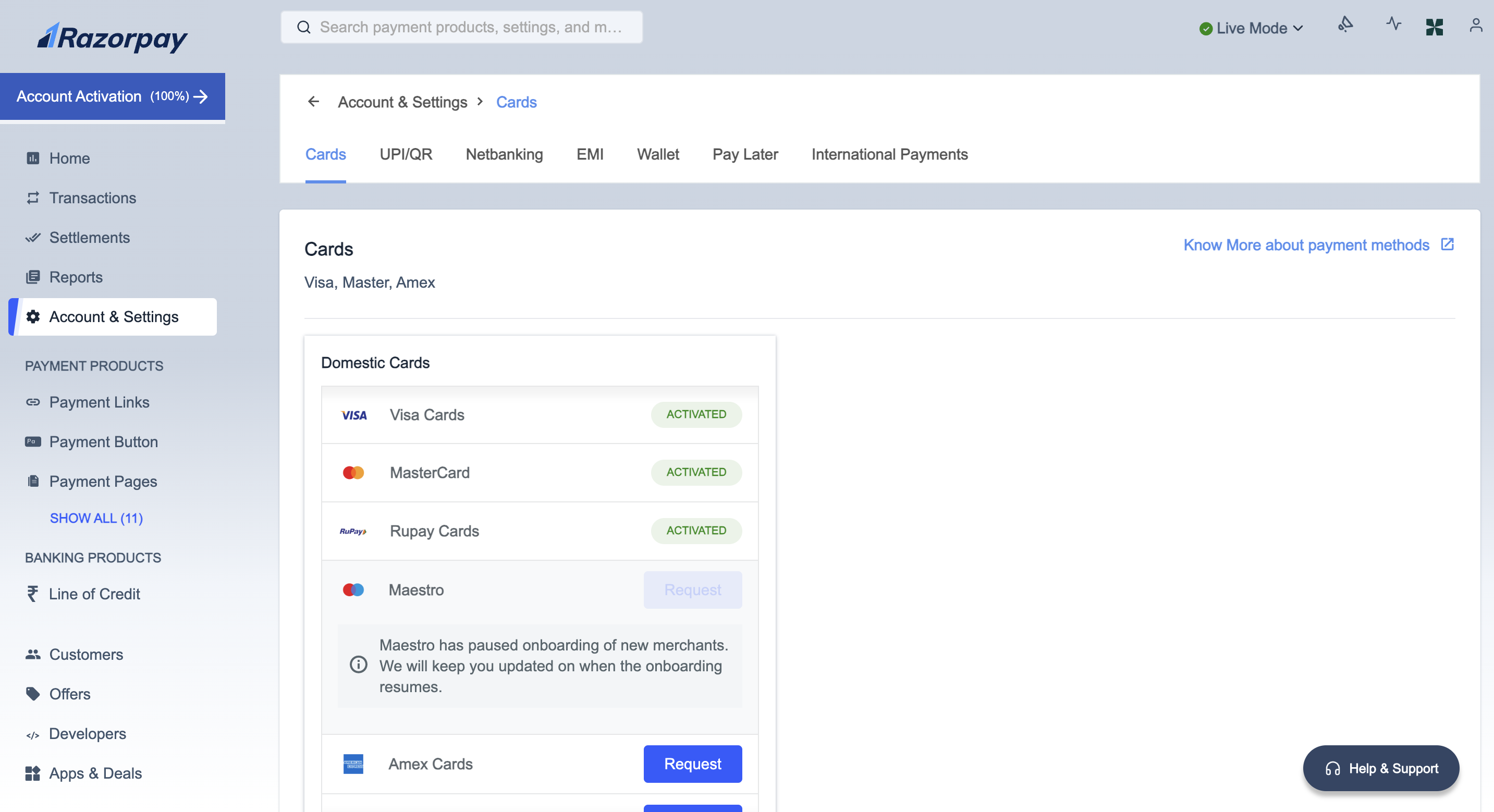 Some payment methods are enabled by default, while you need to raise a request for others. Below are the various statuses your request can go through.
Respond to Action Required
You can respond to any discrepancies or clarifications raised for payment method requests with comments, attachments, or both.Our Banking Ops team validates your payment method request. If they find any discrepancies or need further clarification regarding the website or documents, we change the request status from Pending to Action Required. You can provide these details from the Dashboard.
To respond to the discrepancies or clarifications requested:
- On the Dashboard, navigate to Account & Settings → Payment Methods.
- Look for the payment method you requested and click Update Request Form.
- Provide the requested clarifications.
- Fill in the required details, add attachments if requested, and click Submit Form.
- The status of your request changes from Action Required to Reinitiated.