Available in🇮🇳 India
Cash on Delivery transactions are popular in India. However, they can result in a higher return rate due to less customer commitment.
With Magic Checkout, you can urge customers who chose cash on delivery while placing an order to convert to prepaid by offering discounts or incentives post-order placement. You can do this by sending your customers a conversion link via WhatsApp to convert COD orders to prepaid.
Dependencies
- This is an on-demand feature. Write to us at magic-checkout-support@razorpay.com to get this feature enabled for your account.
- This feature is available only if you use Shopify or WooCommerce (v4.3.5 and above) plugin.
Advantages
Advantages
-
Increase Order Commitment
Since customers have already paid upfront, prepaid orders reduce the likelihood of cancellations or returns. -
Reduce RTO
Customers who invest their money are more likely to be satisfied with their purchases, leading to a decrease in RTO orders. -
Streamline Operations
Shifting to prepaid orders simplifies order fulfillment, reducing operational burdens and errors associated with cash handling and returns management. -
Enhance Customer Trust
Offering discounts or incentives for prepaid orders builds customer trust and loyalty, fostering a positive brand impression and increasing the likelihood of repeat purchases.
Configure Conversion Link
Follow the steps given below:- Log in to the Dashboard and navigate to Magic Checkout → Setup & Settings.
- Navigate to COD Setup → Convert COD to Prepaid.
- Click Convert COD to Prepaid.
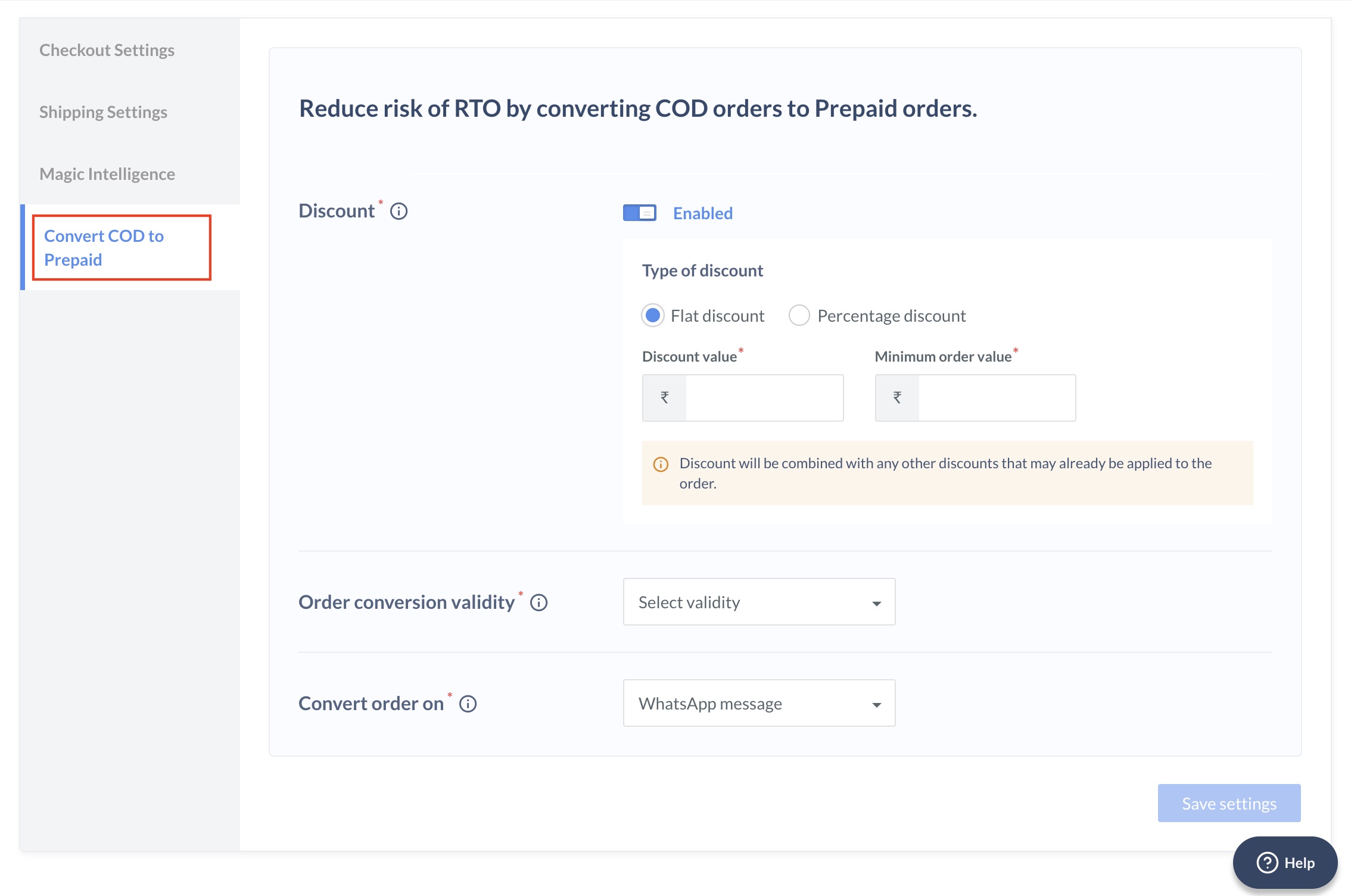
Manually Review COD OrdersThe Enable conversion for field will appear if you enable the Manually review COD orders feature. The COD conversion will be based on the type of RTO risk.
- Enable Discount to add a flat or percentage discount to the total COD order amount. Adding a discount increases the probability of conversion by up to 30%. Select the type of discount you want to apply:
- Flat Discount
- Percentage Discount
In this type, a fixed amount is deducted from the original amount.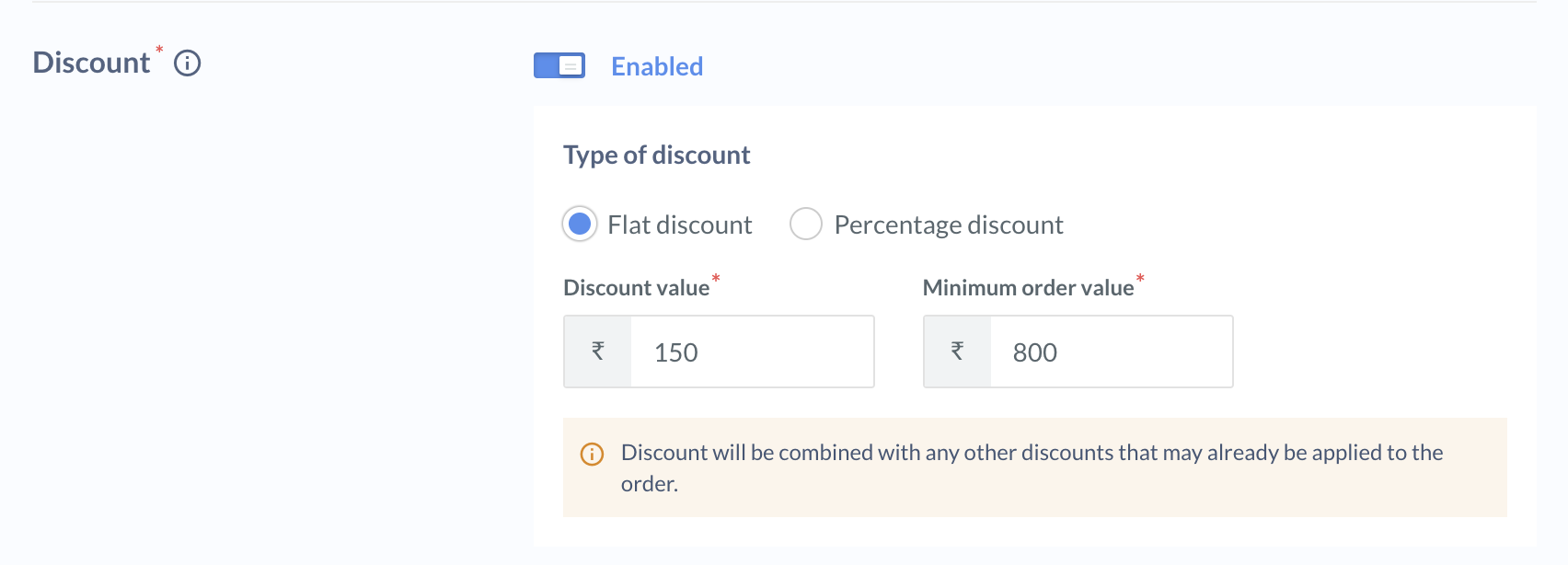
- Discount value: Enter an amount by which the original price should be reduced. For example, if ₹150 is the flat discount applied, ₹150 is deducted from the original price.
- Minimum order value: Enter the minimum bill amount for which the discount can be applied. For example, if you enter ₹800, the discount is applied to orders whose bill amount is ₹800 or above.
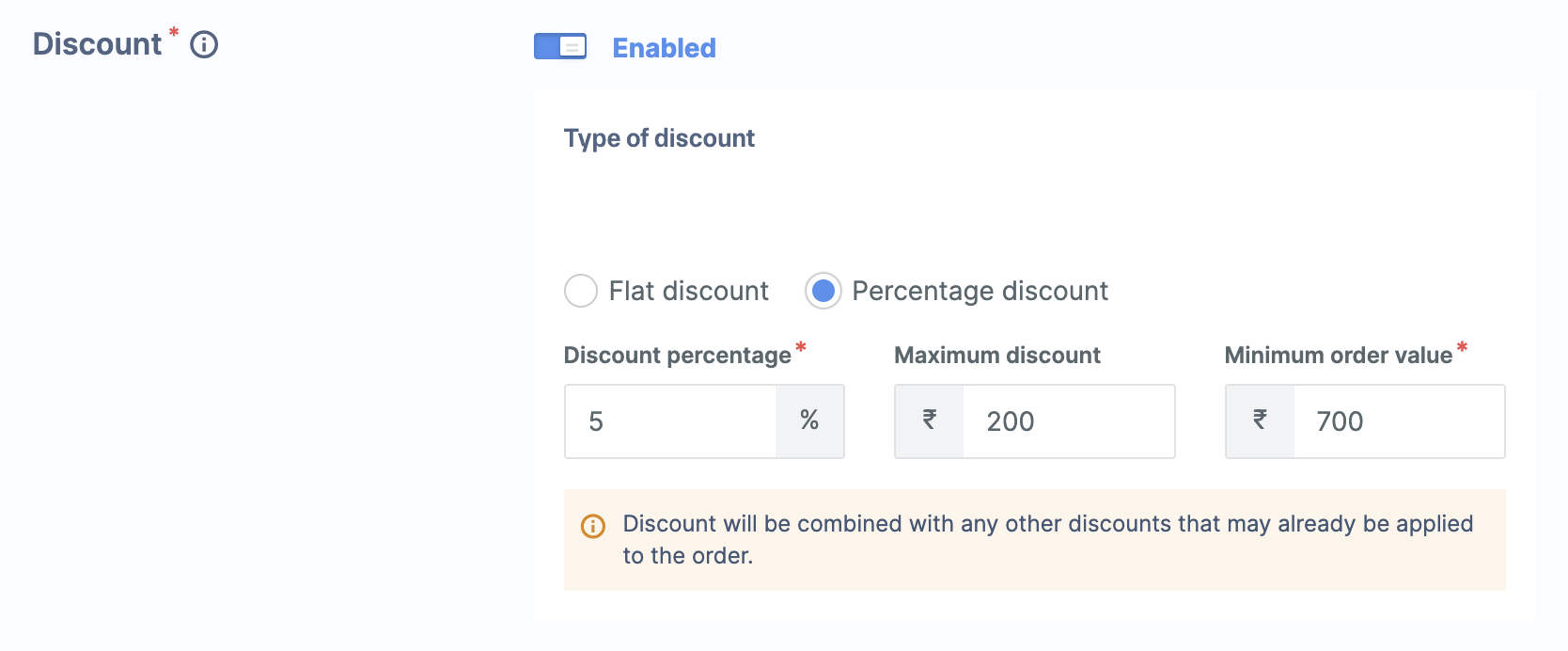
- Select the Order conversion validity based on your requirement. Customers will not be able to convert COD orders to prepaid post validity. For example, if you set the order conversion validity to 15 minutes, customers cannot convert COD orders to prepaid 15 minutes after sending the conversion link.
Handy TipsWe recommend setting the order conversion validity below your average shipping start time. Customers should not be able to convert COD orders to prepaid after the order is shipped.
- You can convert orders only on WhatsApp message. Customers will receive the conversion link based on your selected option.
- Click Save settings.
WooCommerce API CredentialsIf you are a WooCommerce user and have not opted for the Manually review COD orders feature, you must provide your WooCommerce API credentials to enable us to send the conversion links to your customers.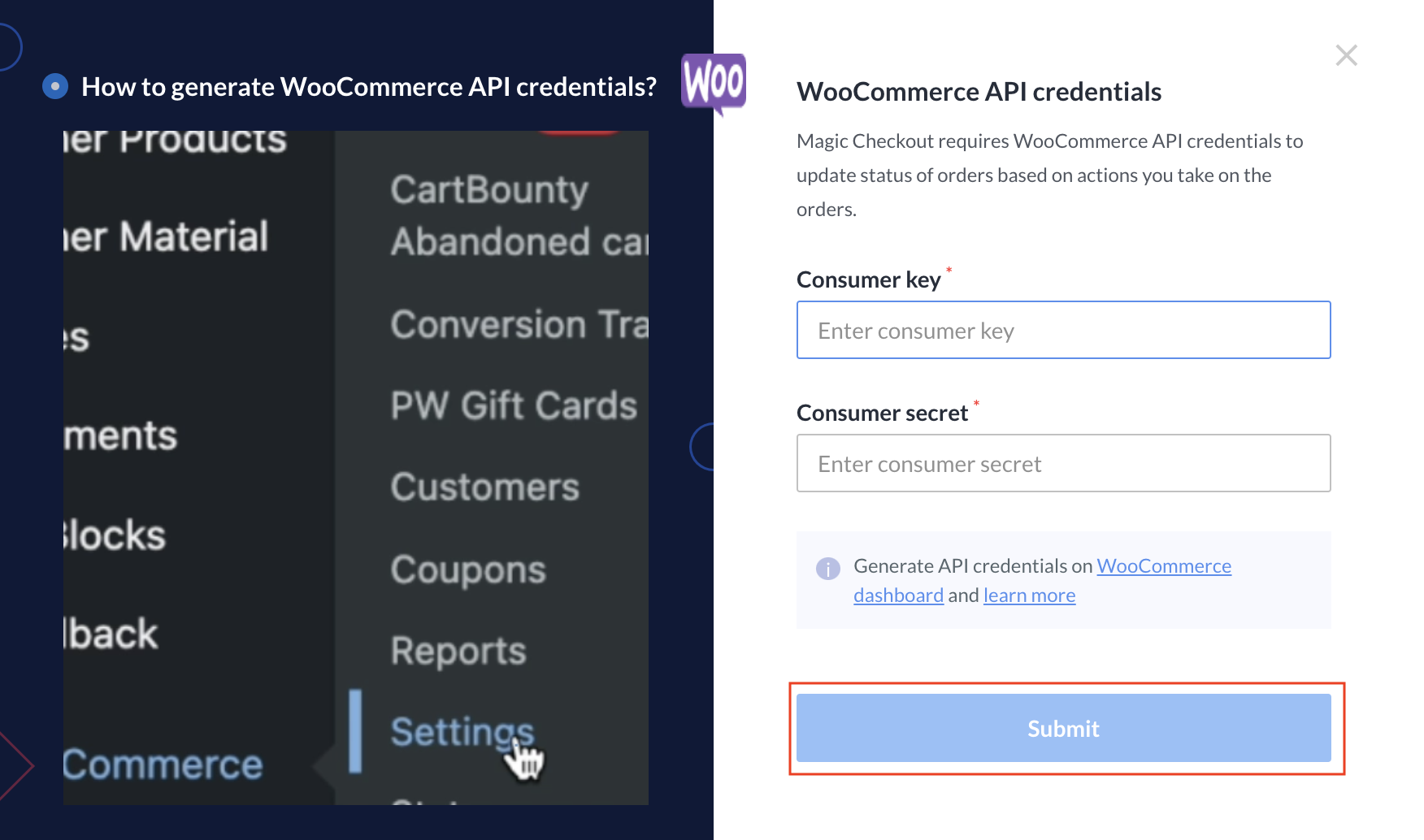
Conversion States
After you send the conversion link to your customers, you can filter the search by Order Id and track the conversion status on the Dashboard. Navigate to Magic Checkout → COD Order Conversion.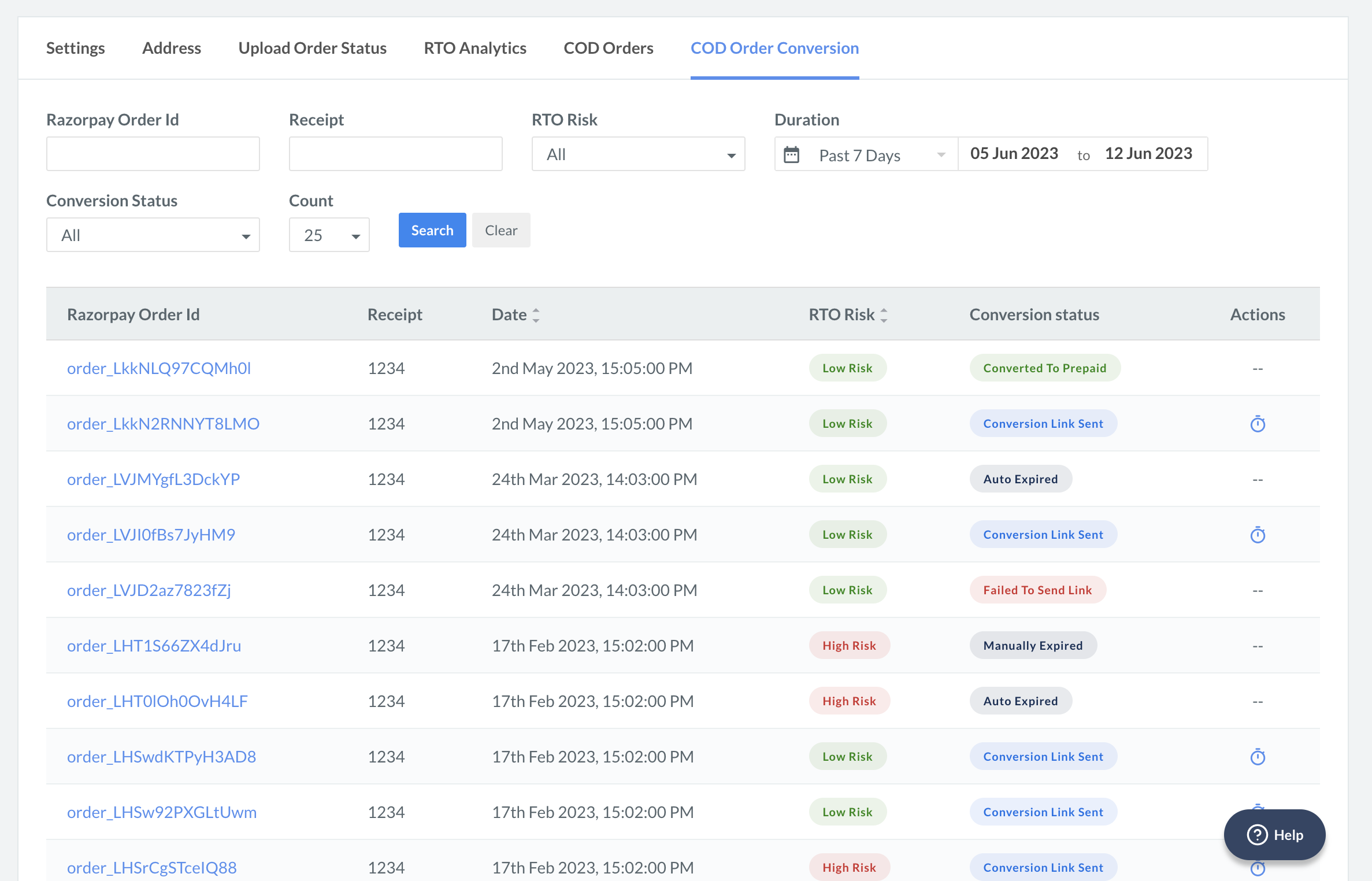
List of Conversion States
List of Conversion States
The table below lists the various conversion states and their descriptions:
Conversion Link Sent StateWhen the link is in the Conversion Link Sent state, you can choose to expire the link manually. Follow the steps given below:
- In the COD Order Conversion tab, select the Order Id for which you want to expire the conversion link.
- Under Actions, click the clock icon.
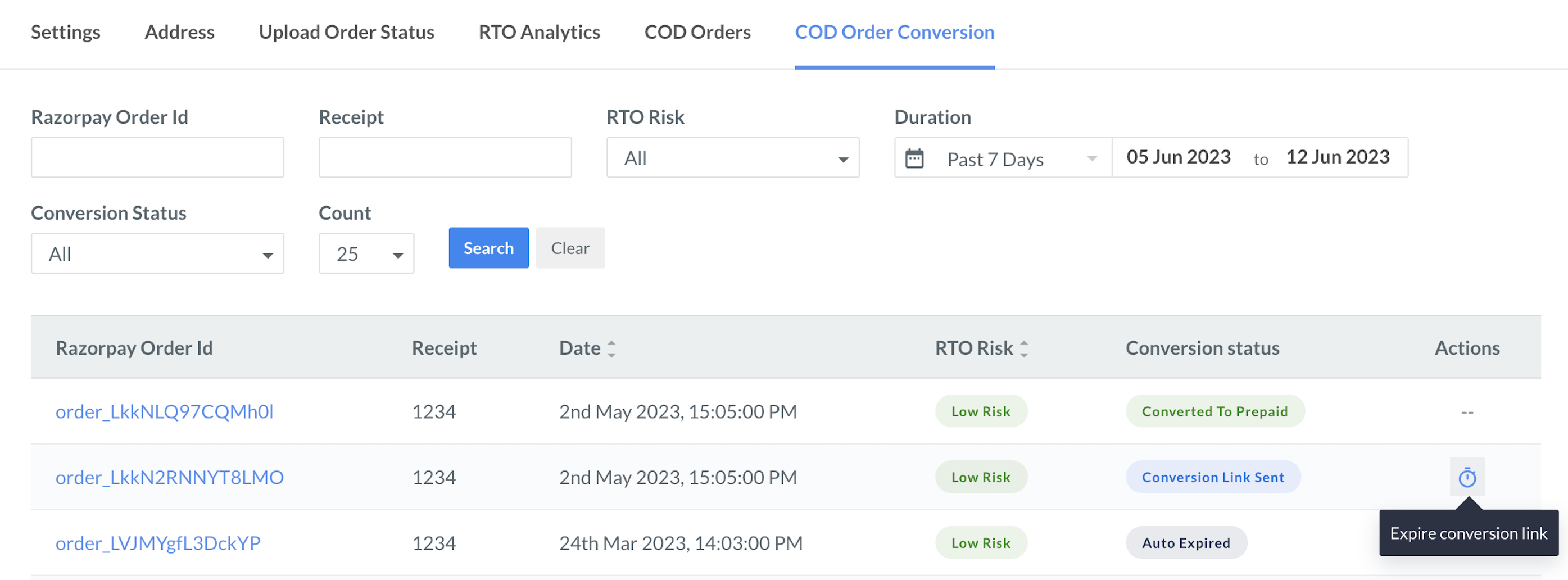
- Click Expire Link to confirm your action.
Customer Experience
Customers view the conversion link on WhatsApp sent via Razorpay’s WhatsApp handle and can choose to prepay for the order.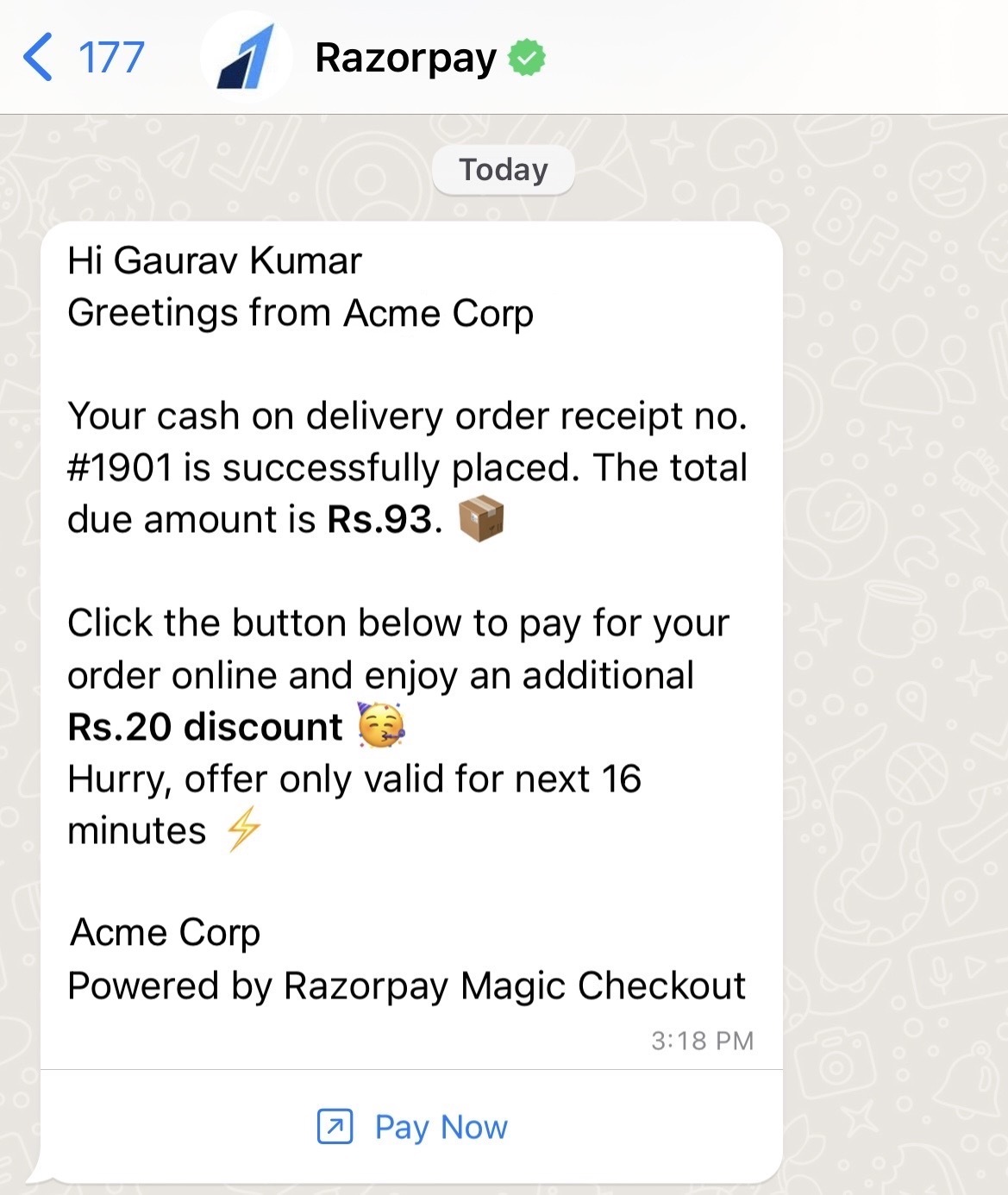
Edit Display Name (Optional)
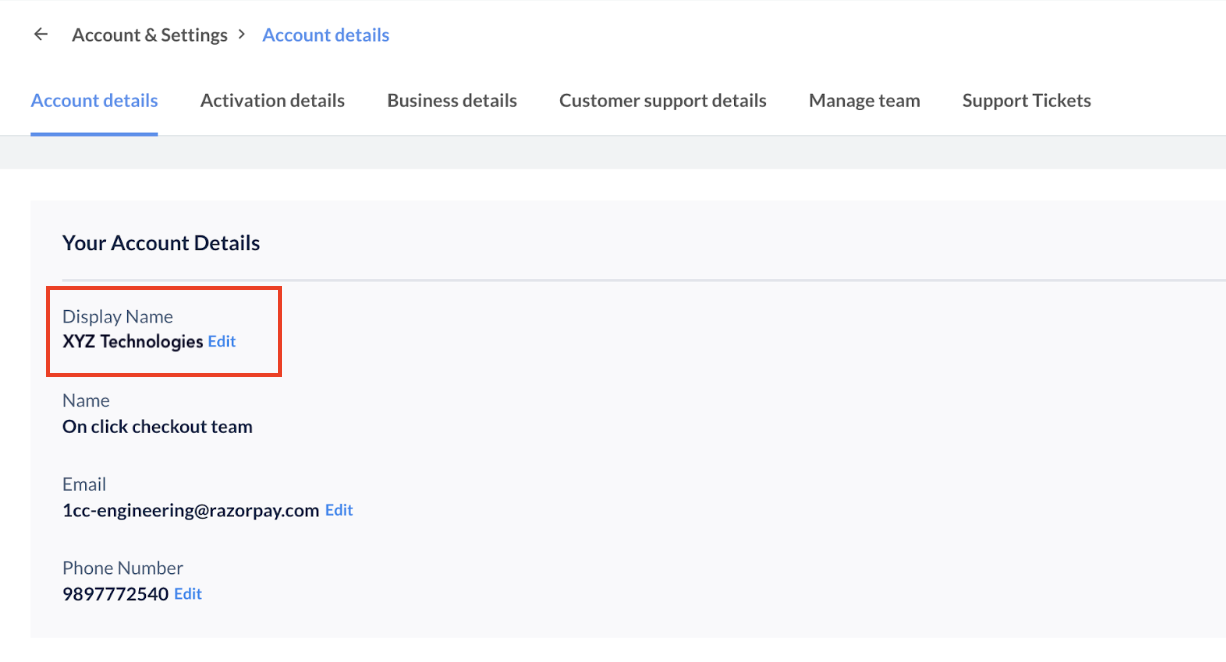
You can change the business name displayed on the WhatsApp message to a name that your customers are familiar with. For example, if Acme Corp’s official business name is XYZ Technologies, but customers know them as Acme Corp, we recommend using Acme Corp as the display name.To edit the display name:
To edit the display name:
- Log in to the Dashboard and navigate to Account & Settings.
- In the Business settings section, select Account details.
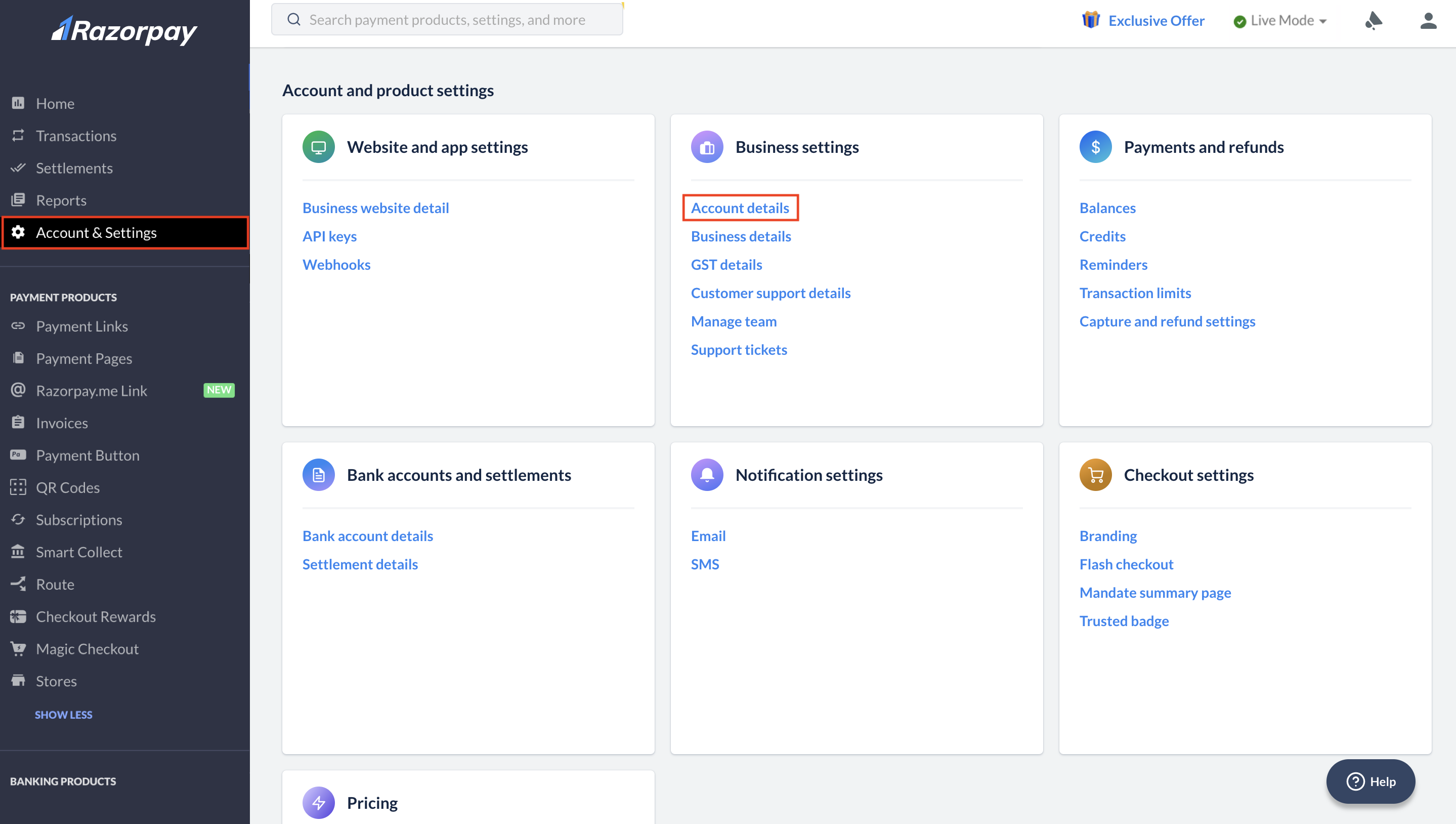
- Click Edit and modify the name.