Available in🇮🇳 India
You can manually review COD orders and take necessary actions based on our recommendations post-order placement to filter out potential RTOs.
Features
- Manually review COD orders to filter out potential RTO orders.
- Take necessary actions on COD orders based on the insights.
- Evaluate orders on priority based on the risk levels.
How it Works
Follow the steps given below:- Log in to the Dashboard.
- Navigate to Magic Checkout.
- Select the platform of your e-commerce website, enter the relevant details and click Next.
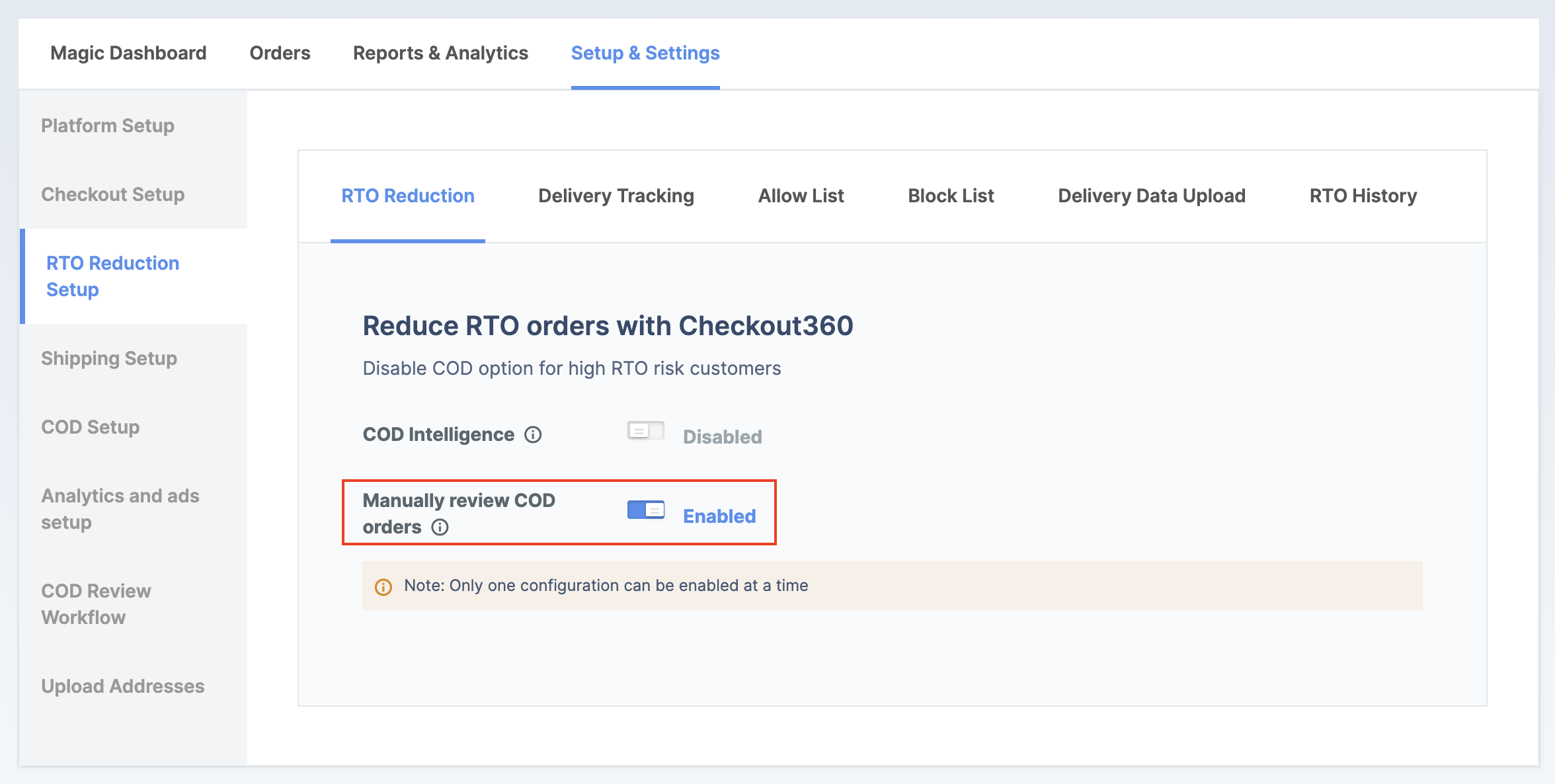
- Navigate to RTO Reduction Setup → RTO Reduction.
- Toggle on Manually review COD orders.
- Enter the required details based on the platform of your e-commerce website to align your actions performed on the Razorpay Dashboard with your e-commerce platform.
- Shopify
- WooCommerce
- Custom E-Commerce
No additional configuration is required to enable manual review.
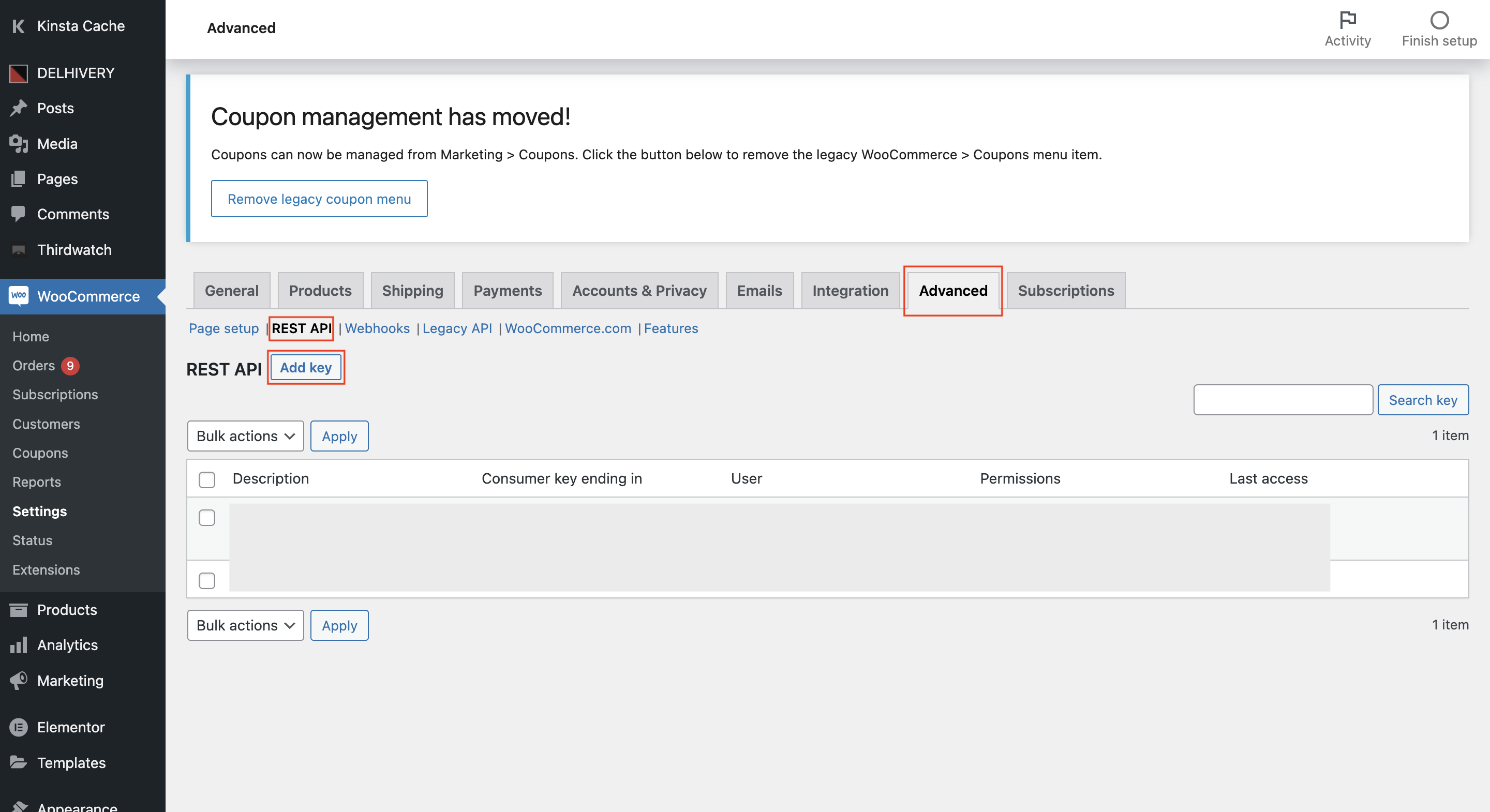
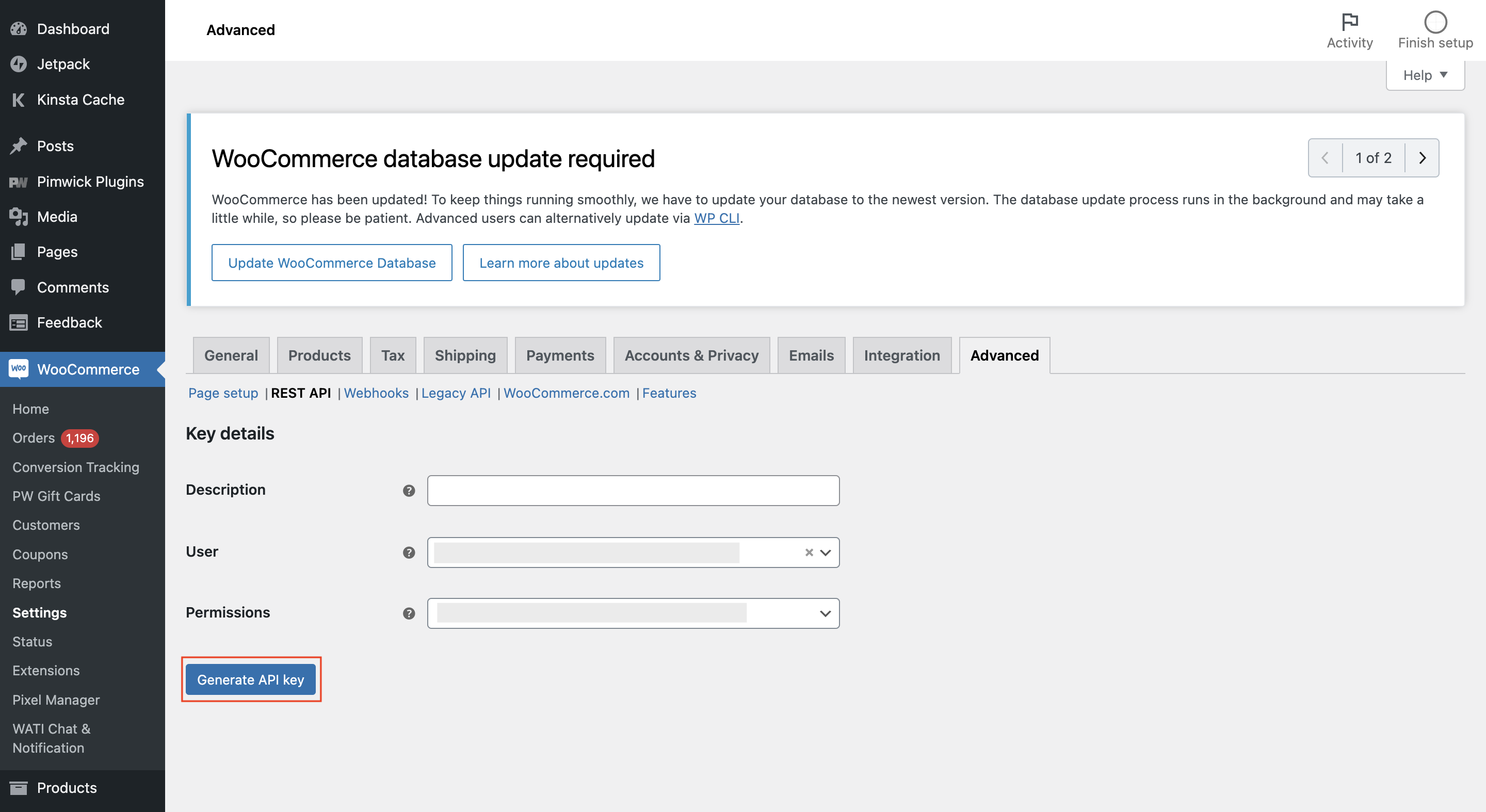
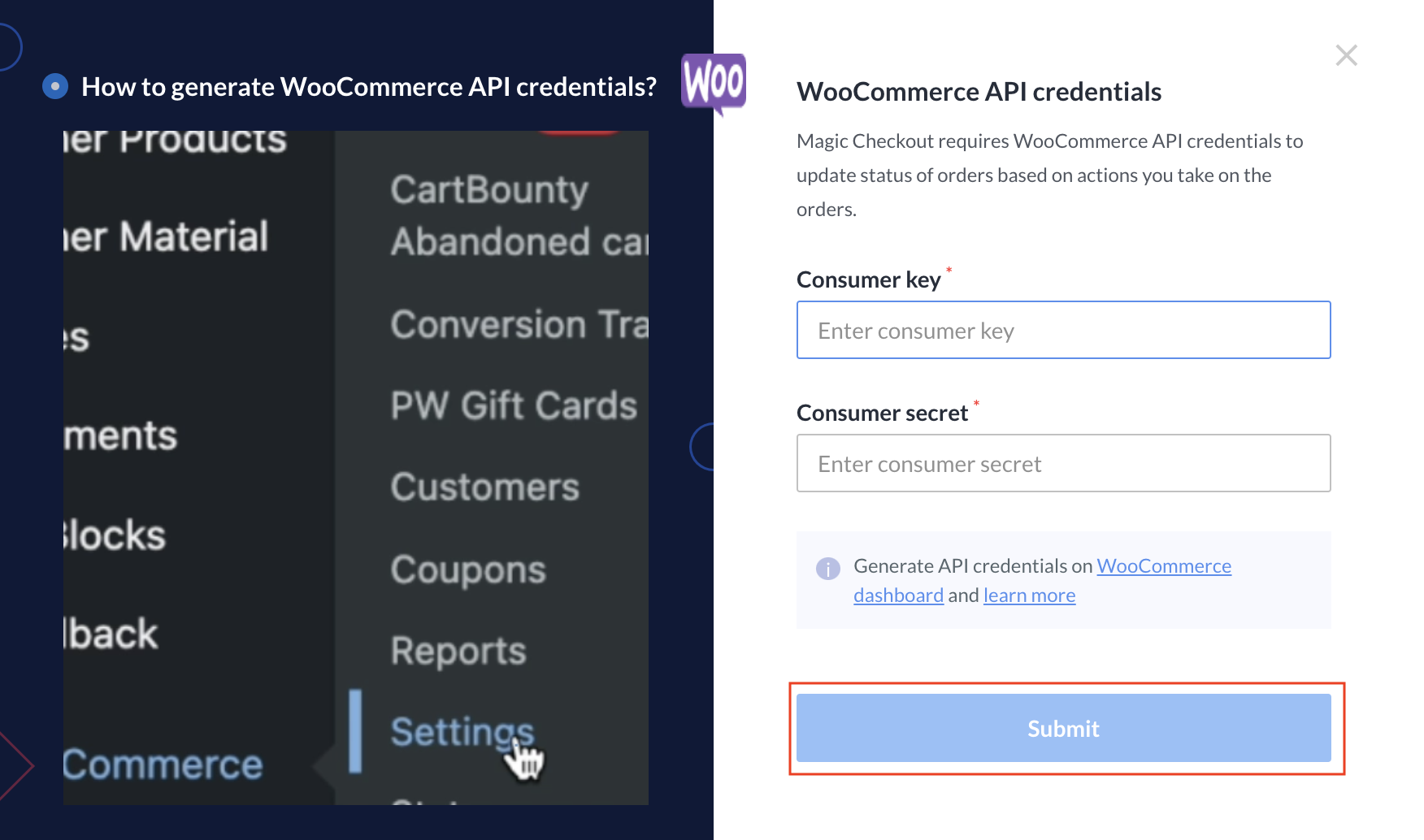
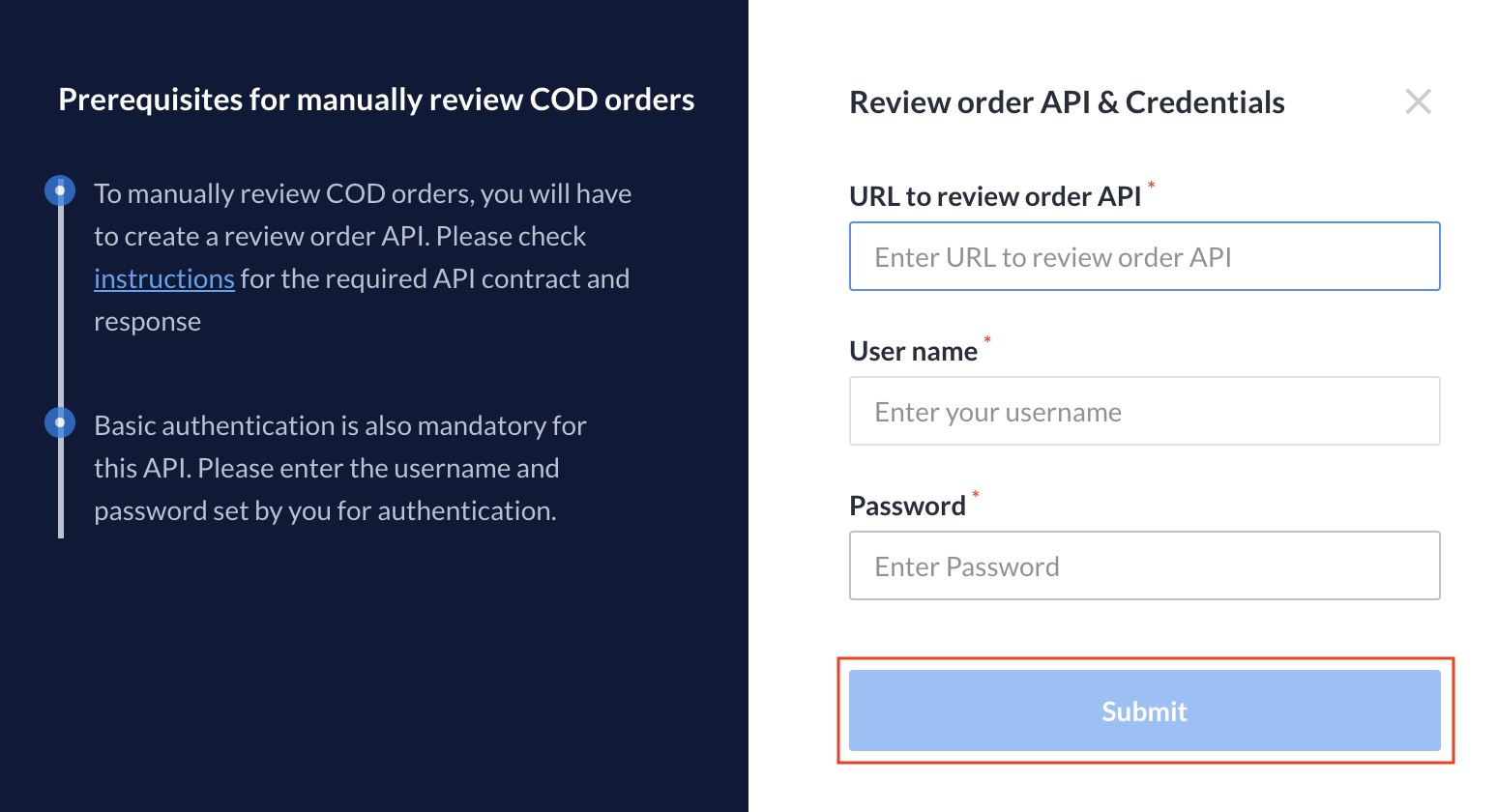
- Click Enable manual review.
Review COD Orders
Once you enable manual review for orders, navigate to Orders → COD Order Conversion on the Razorpay Dashboard. Under this section, you can review all the COD orders and take relevant actions. The list gets populated with orders as and when customers place an order for COD.- You can view the Razorpay Order ID, Receipt, Date when the order was placed and RTO risk level.
- Click on a particular Order ID to view the Risk Reasons, recommendations and Customer Details.
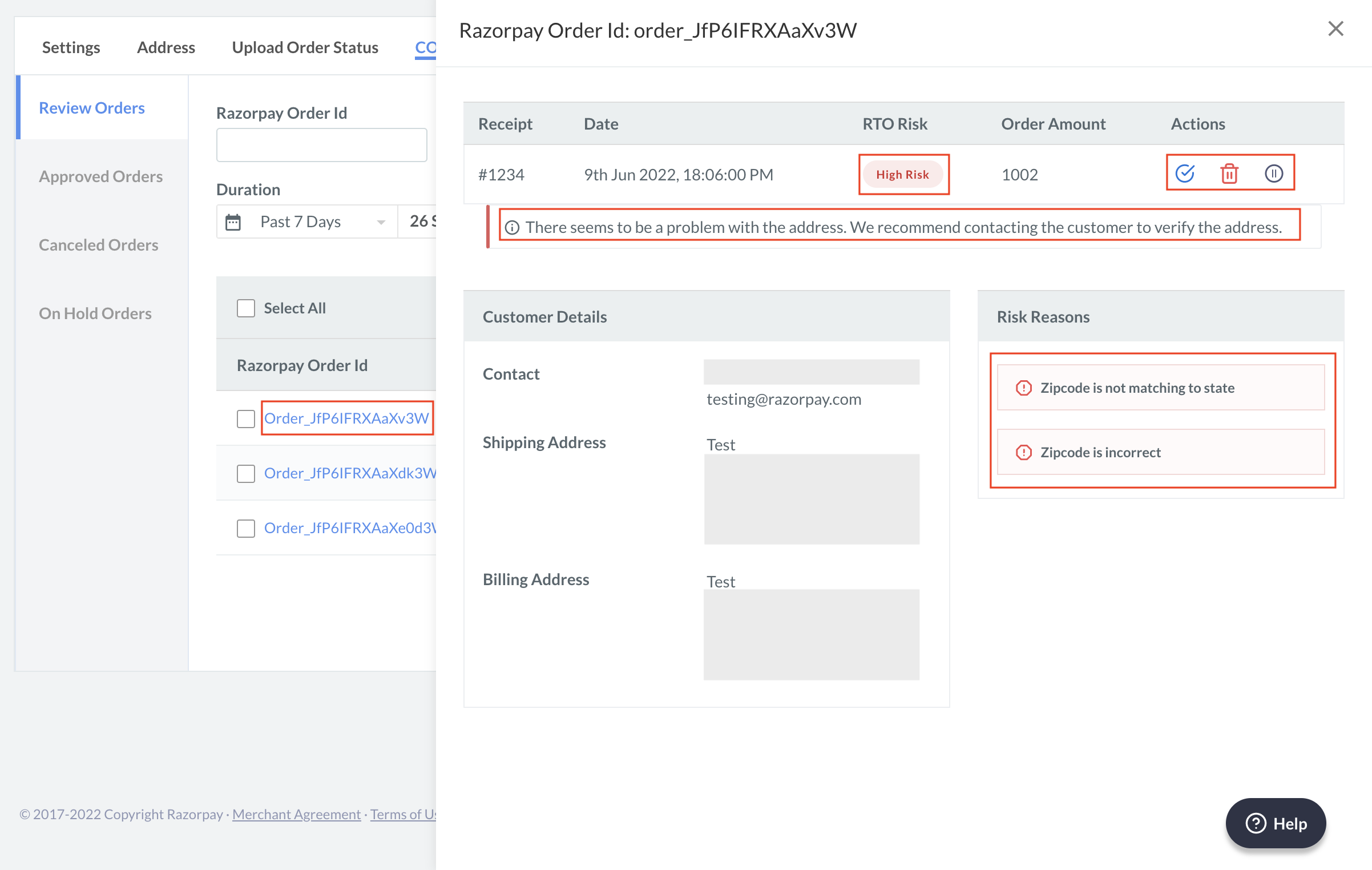 Based on the Risk Reasons and our recommendation, you can take the following actions:
Approve Order
Approve Order
There are no changes in the order. It indicates that you have reviewed the order but chose not to take action. Click the approve icon to approve the order.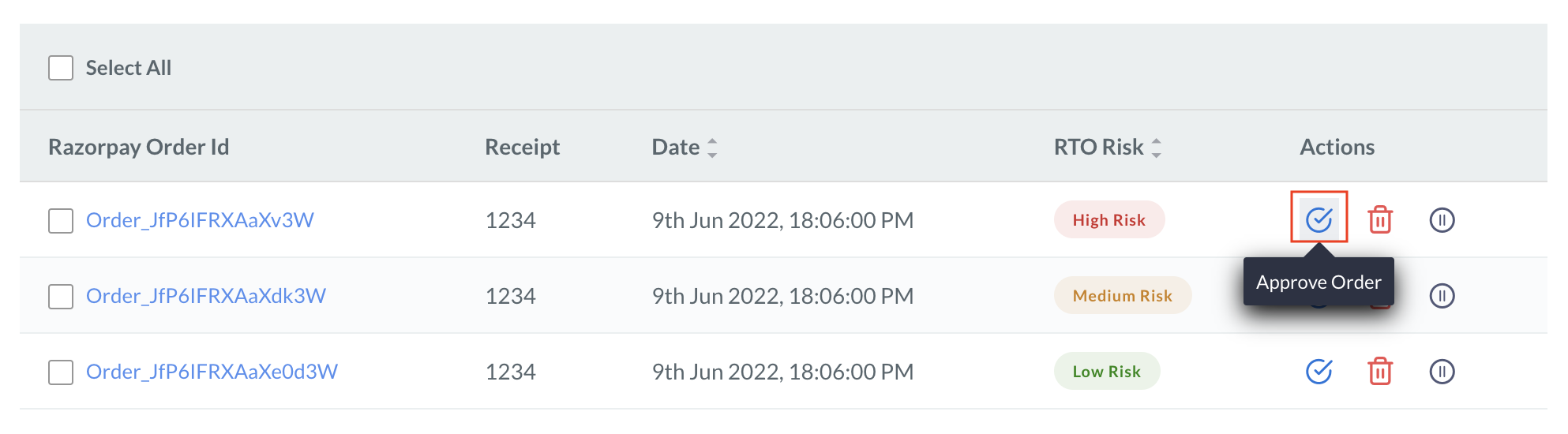
Cancel Order
Cancel Order
You can cancel the order based on the risk level and our recommendation. For example, if we have noticed a high return behaviour associated with this order; we recommend cancelling the order. The order status will change to cancelled on the COD orders tab and your e-commerce platform. Click the cancel icon to cancel the order.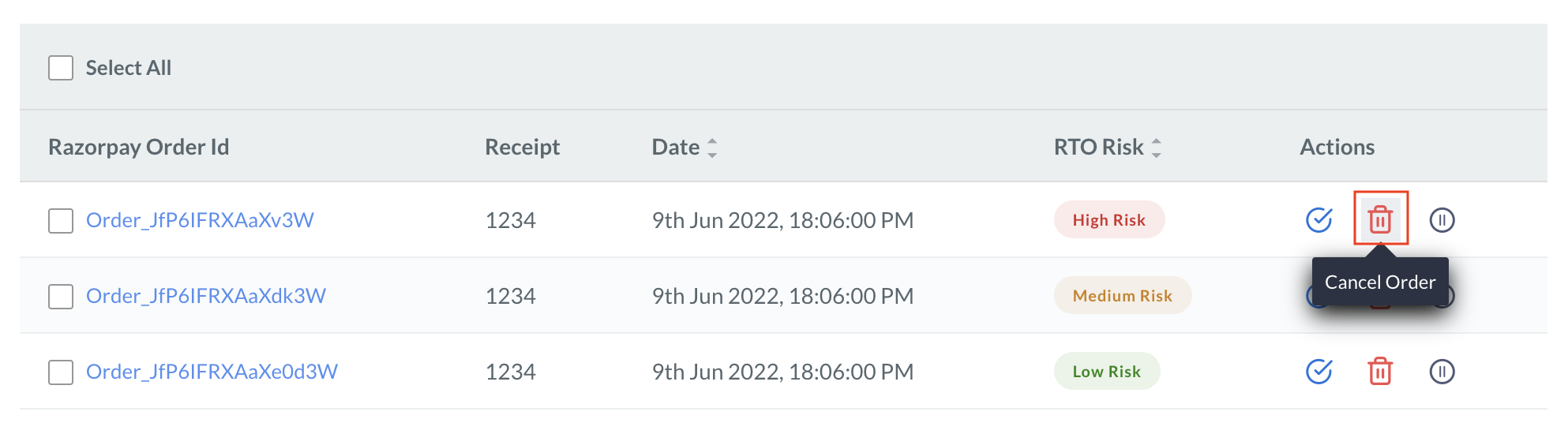
Mark Order On Hold
Mark Order On Hold
It indicates that you have reviewed the order but have not decided what action to take. For example, if the address on order is incorrect, you might want to contact the customer and clarify the details. You can put the order on hold, review the order post clarification and decide if you want to approve or cancel the order. Click the on hold icon to put the order on hold.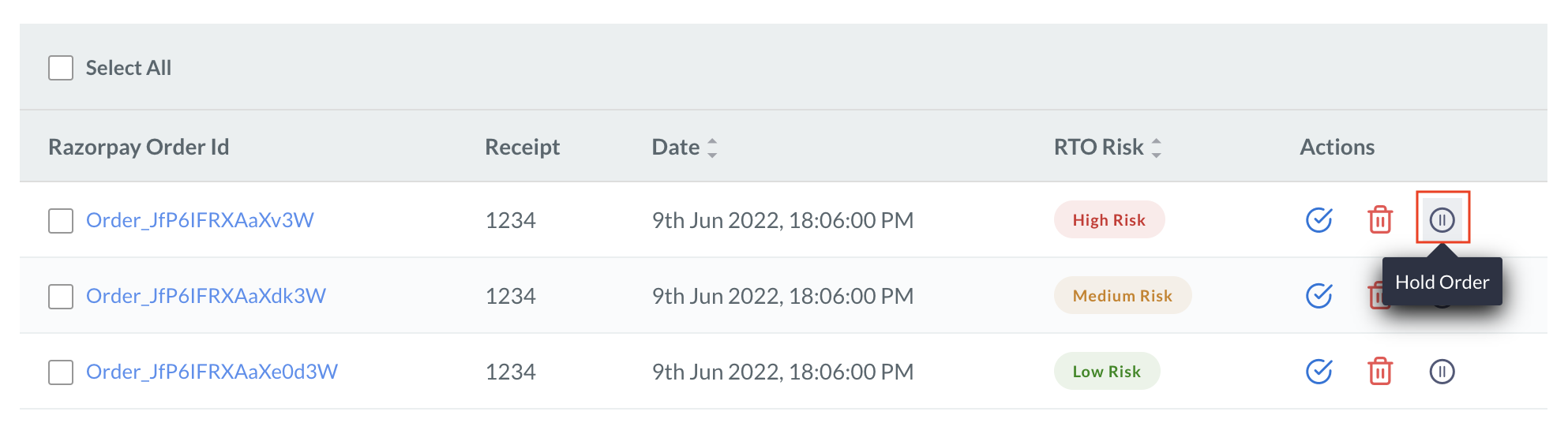
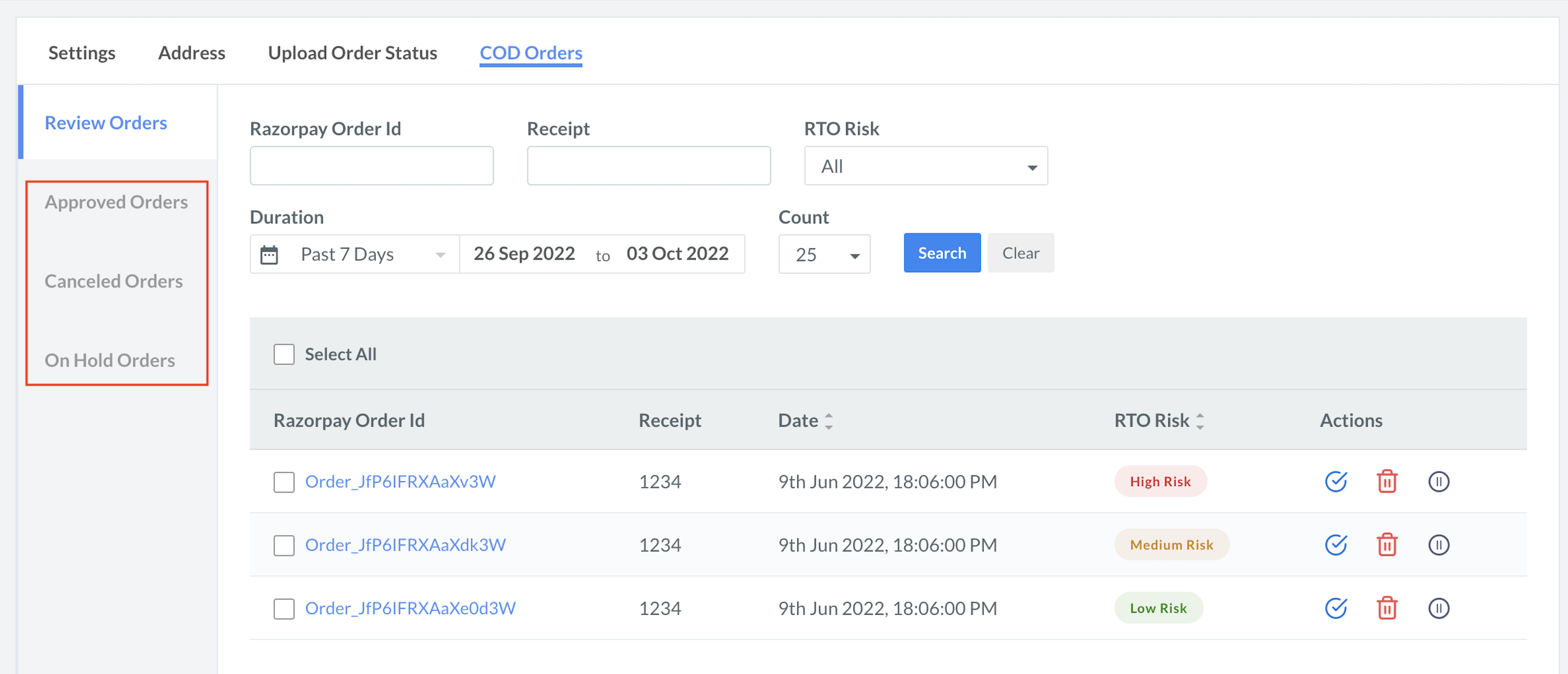
E-Commerce Platform
Based on the action on the Razorpay Dashboard, the order status changes on your e-commerce platform as well.WooCommerce Dashboard
WooCommerce Dashboard
Refer to the order states given below: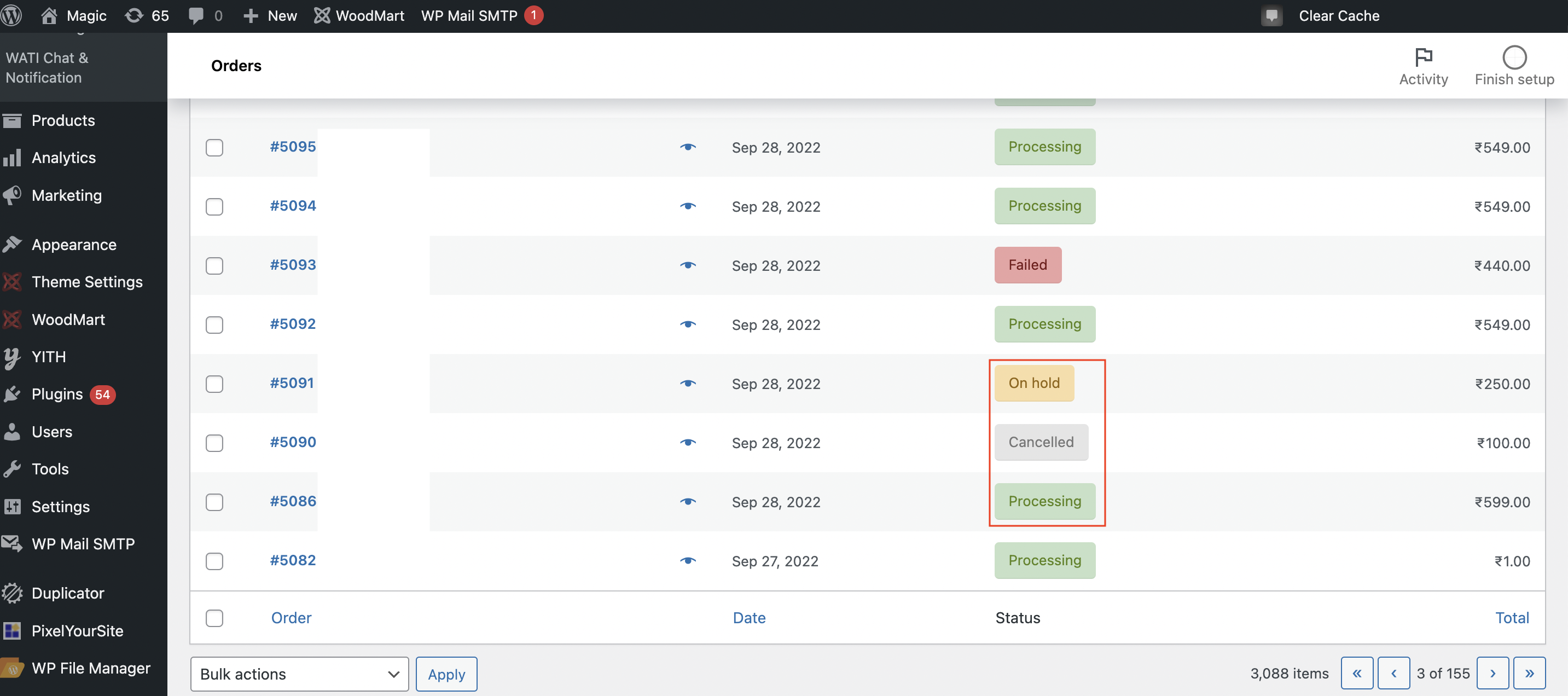
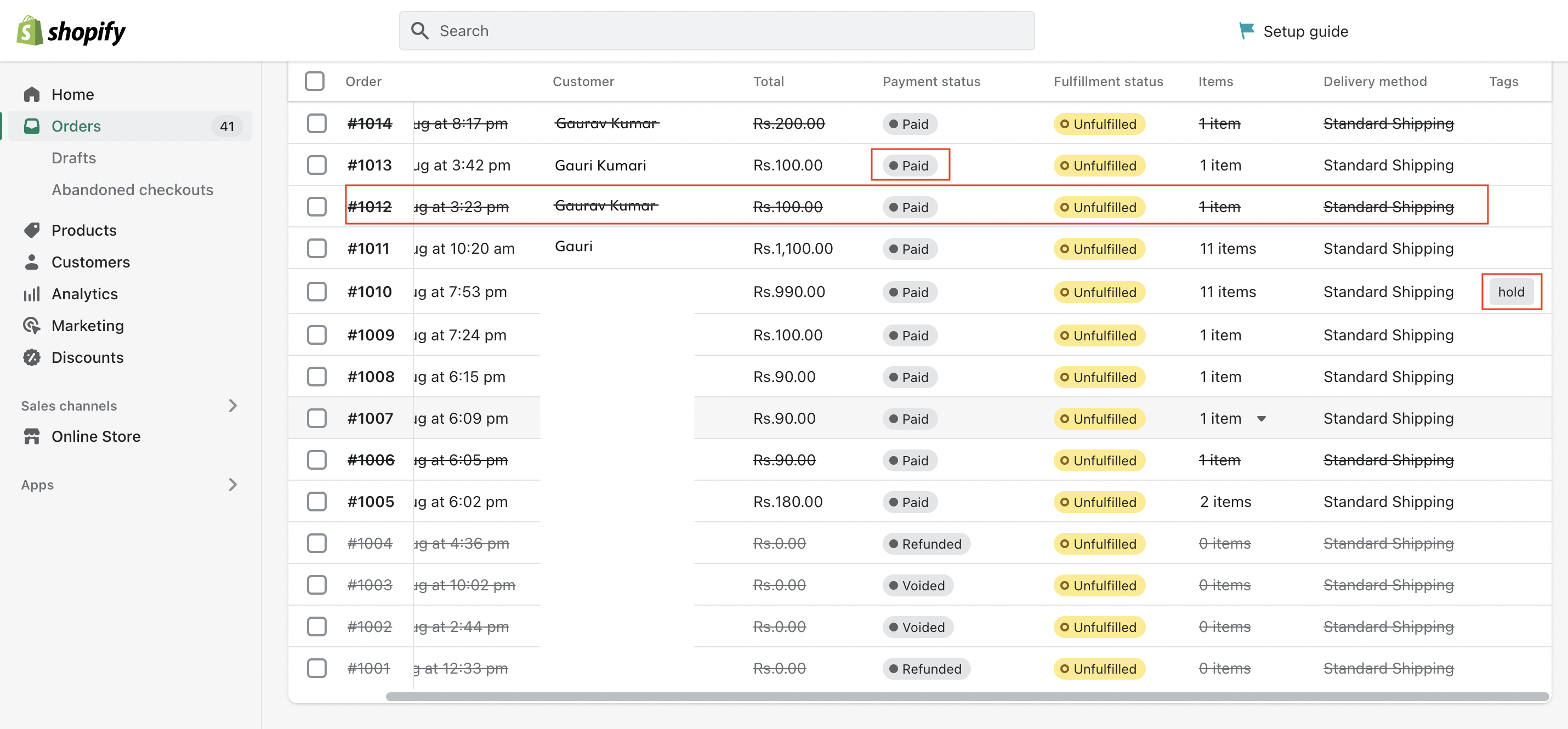
Shopify Dashboard
Shopify Dashboard
Refer to the order states given below: