

Available in🇮🇳 India
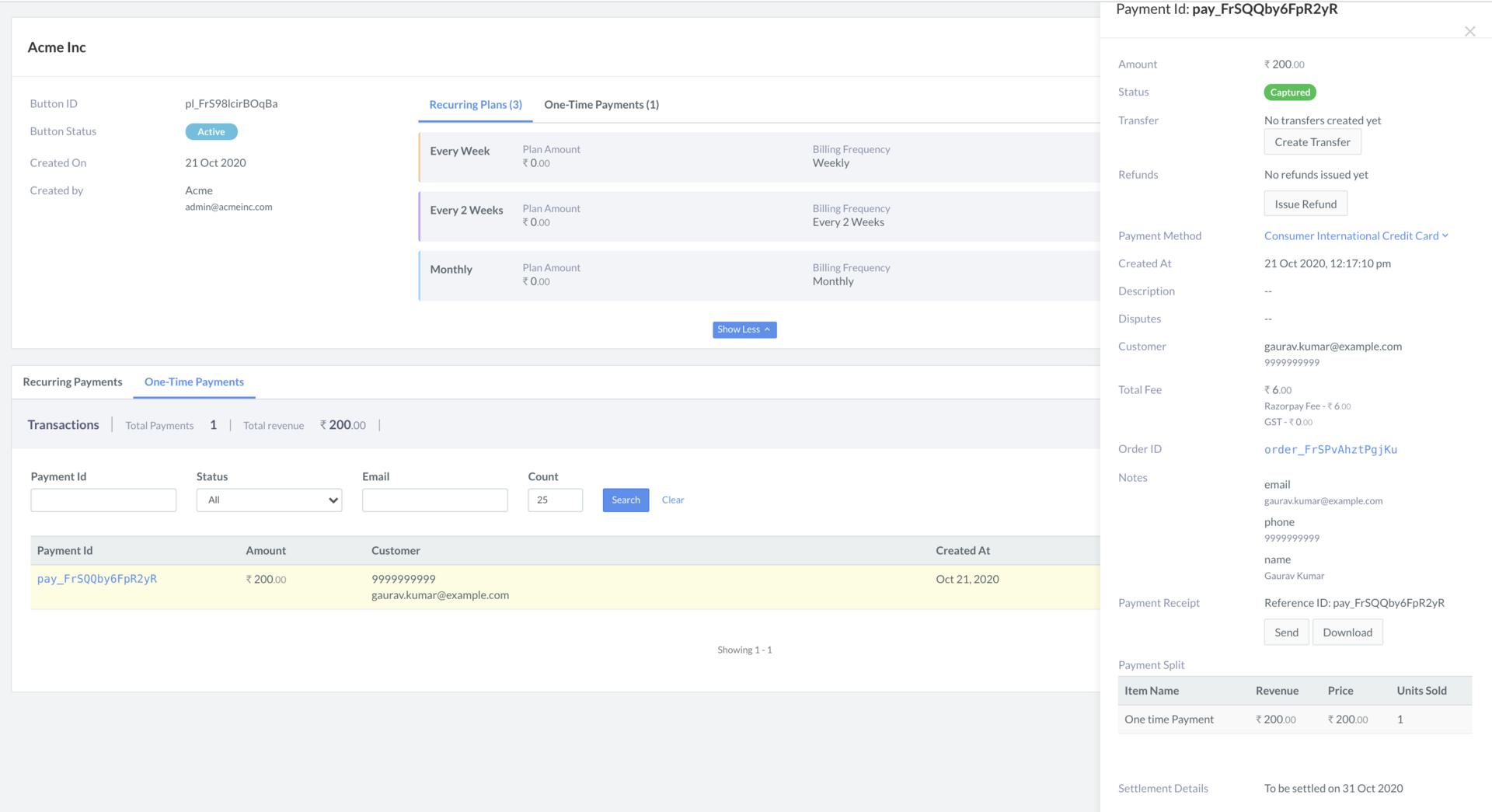
After an active Subscription button accepts payments, view its subscriptions and one-time payment details on the Dashboard → Payment Button → Subscription Buttons tab.
View Subscription Button Details
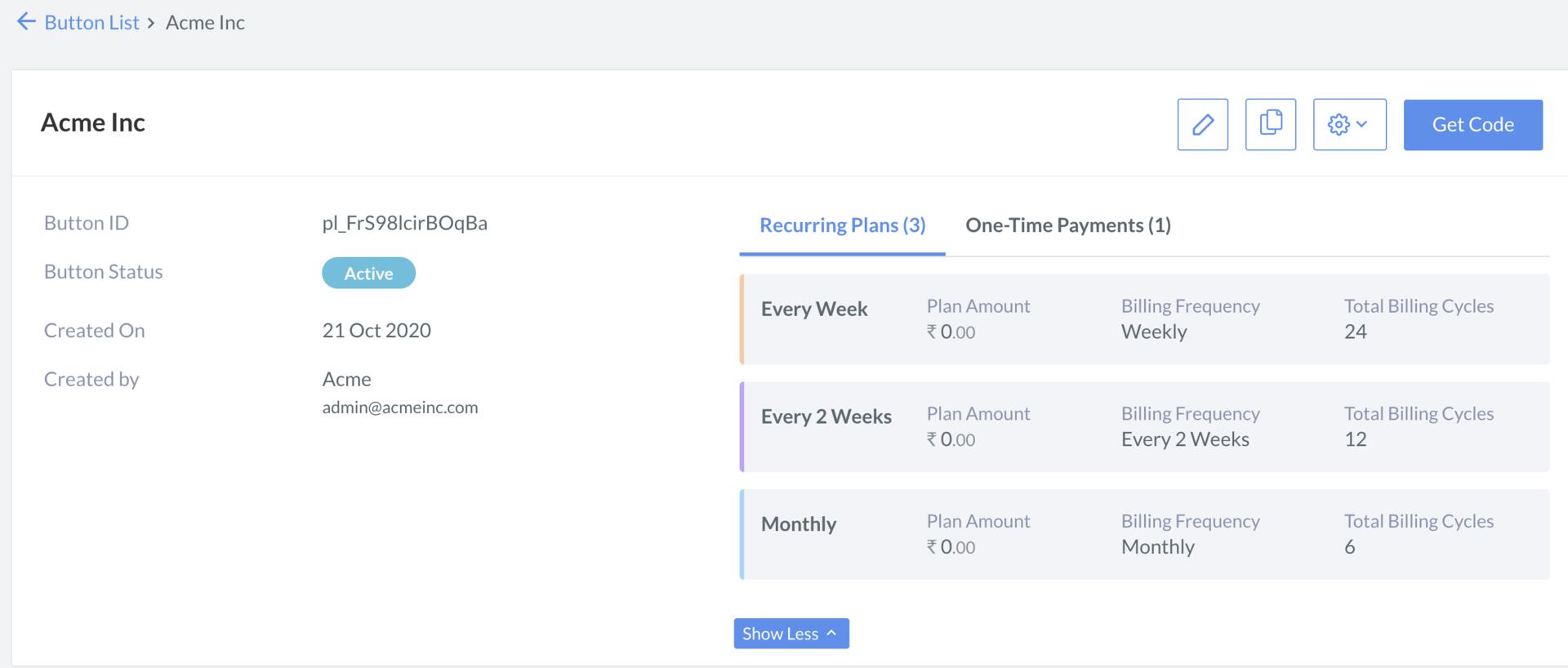
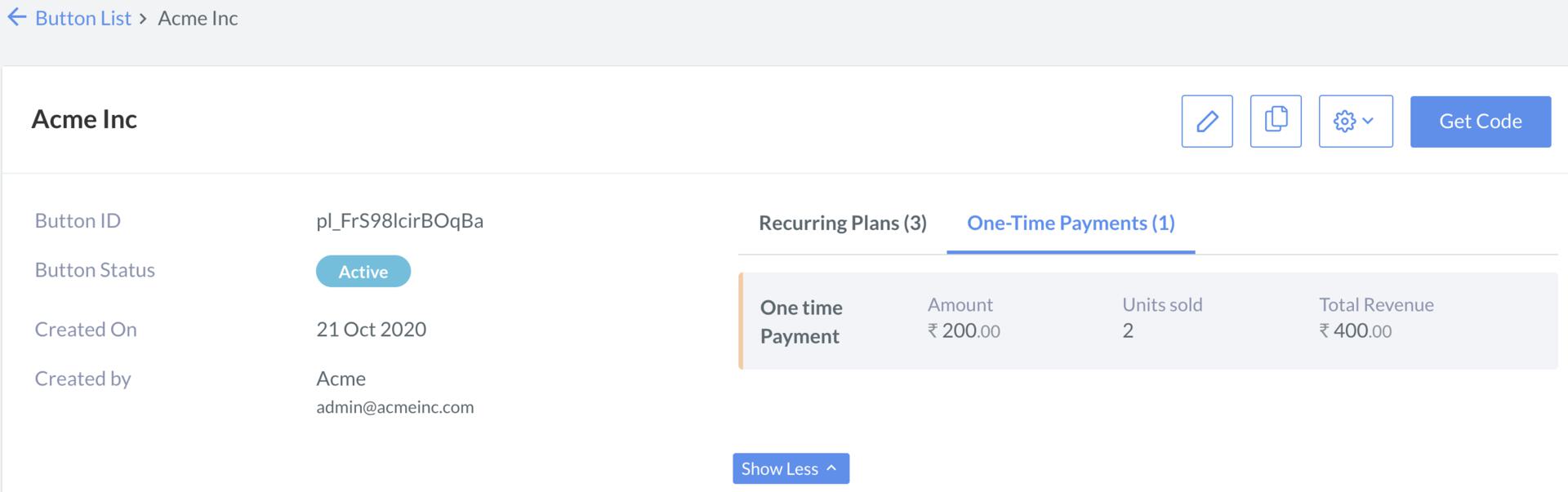
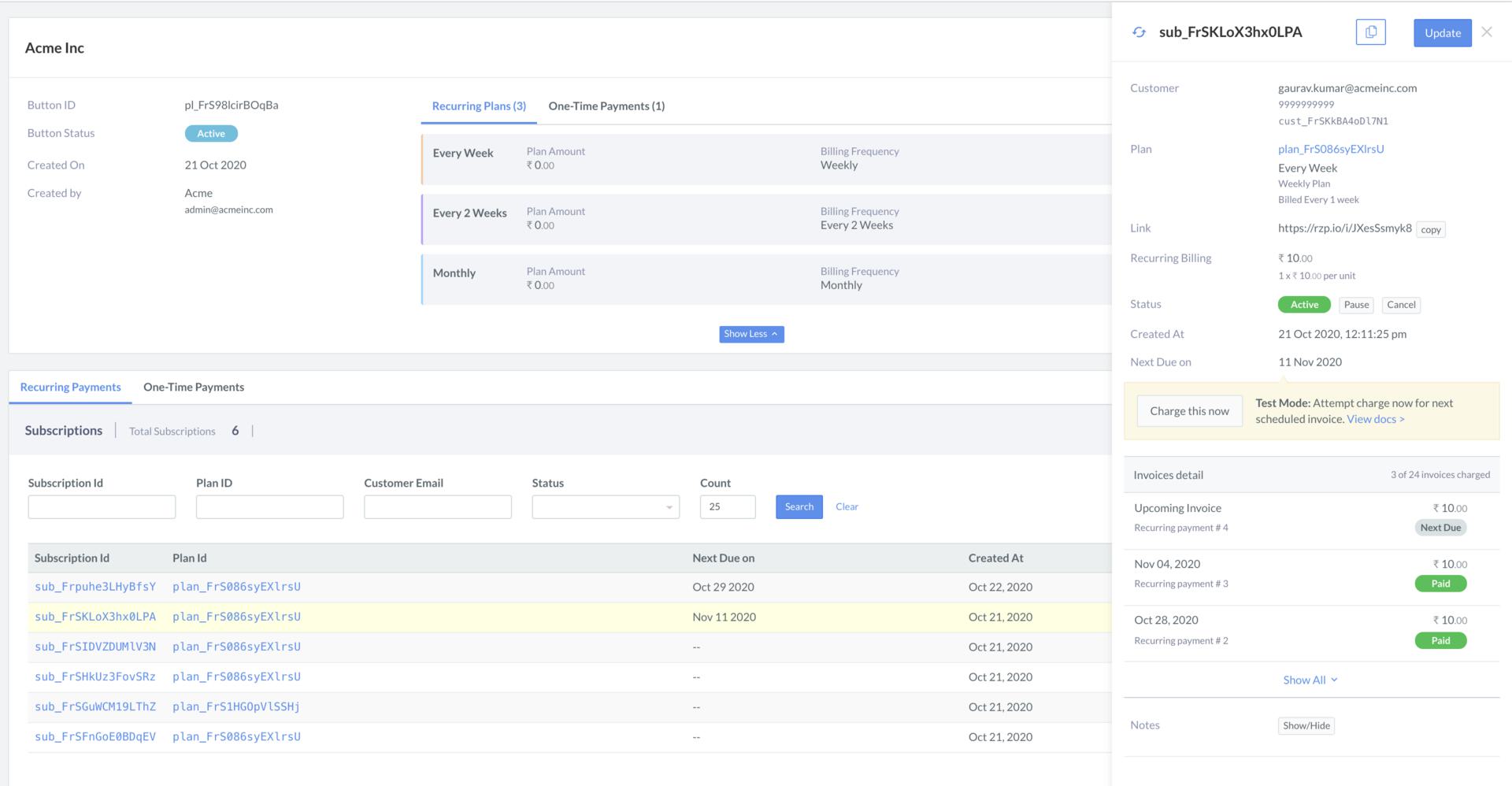
You can view Subscription button details in three ways:- Hover over the Link
- Click on the Tabs
Under the Subscription Buttons tab, view the overall details related to Recurring Plans and One-Time Items.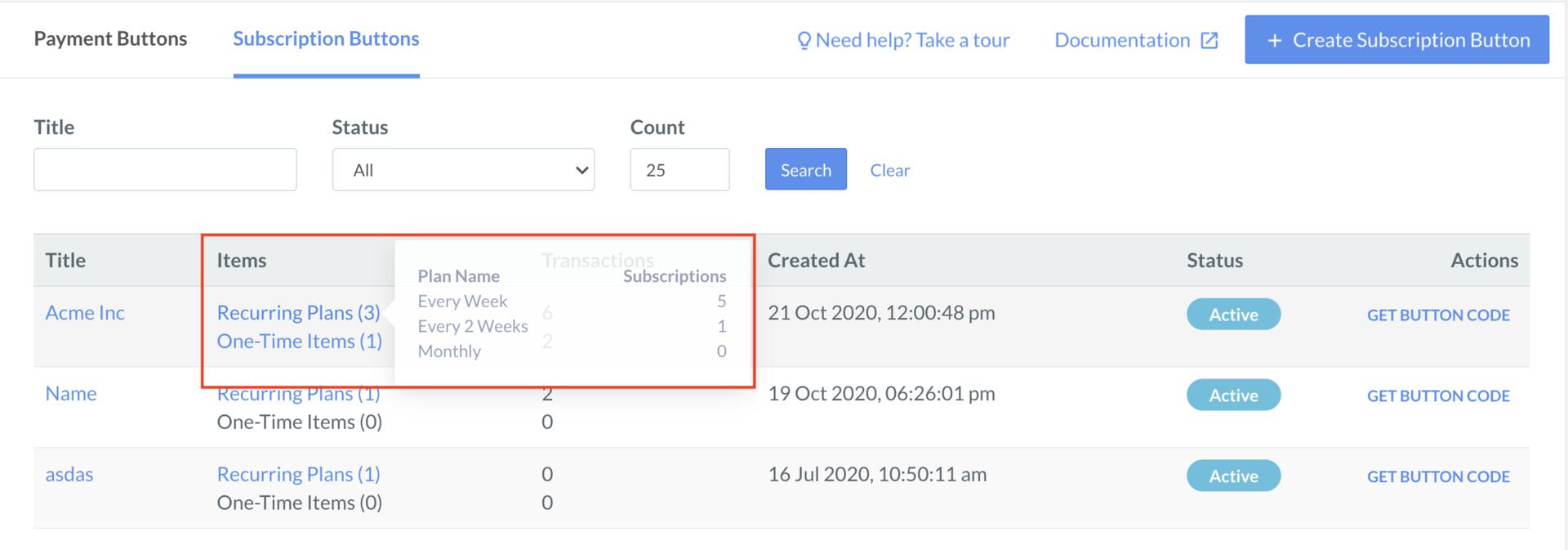
- Recurring Plans: Hover the mouse pointer on Recurring-Plans and find the Plan Name and Number of Subscriptions against each plan.
- One-Time Items: Hover the mouse pointer on the One-Time Items and find the Item Name and Units Sold.
Download Report
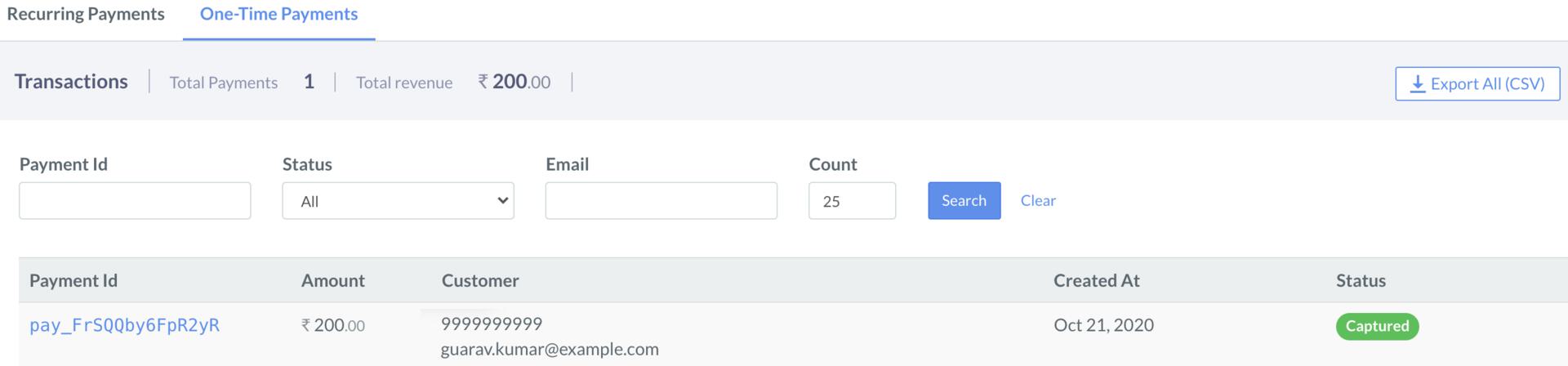
To download One-Time Payments as aCSV, XLSX or an XLS file:
- Log in to the Dashboard and navigate to Payment Button.
- Click the Subscription Buttons tab, and then click the specific button. The button details view appears.
- Scroll down and click One-Time Payments tab.
- Click Download Report.
- Payment Button ID
- Payment Button Title
- Payment Date
- Order ID
- Item Name
- Item Amount
- Item Quantity
- Item Payment Amount
- Total Payment Amount
- Currency
- Payment Status
- Payment Id
- Phone
- Name