Available in🇮🇳 India
You can perform multiple actions on the Subscription Buttons. You need to first view the Subscription Button to make changes.
View a Subscription Button
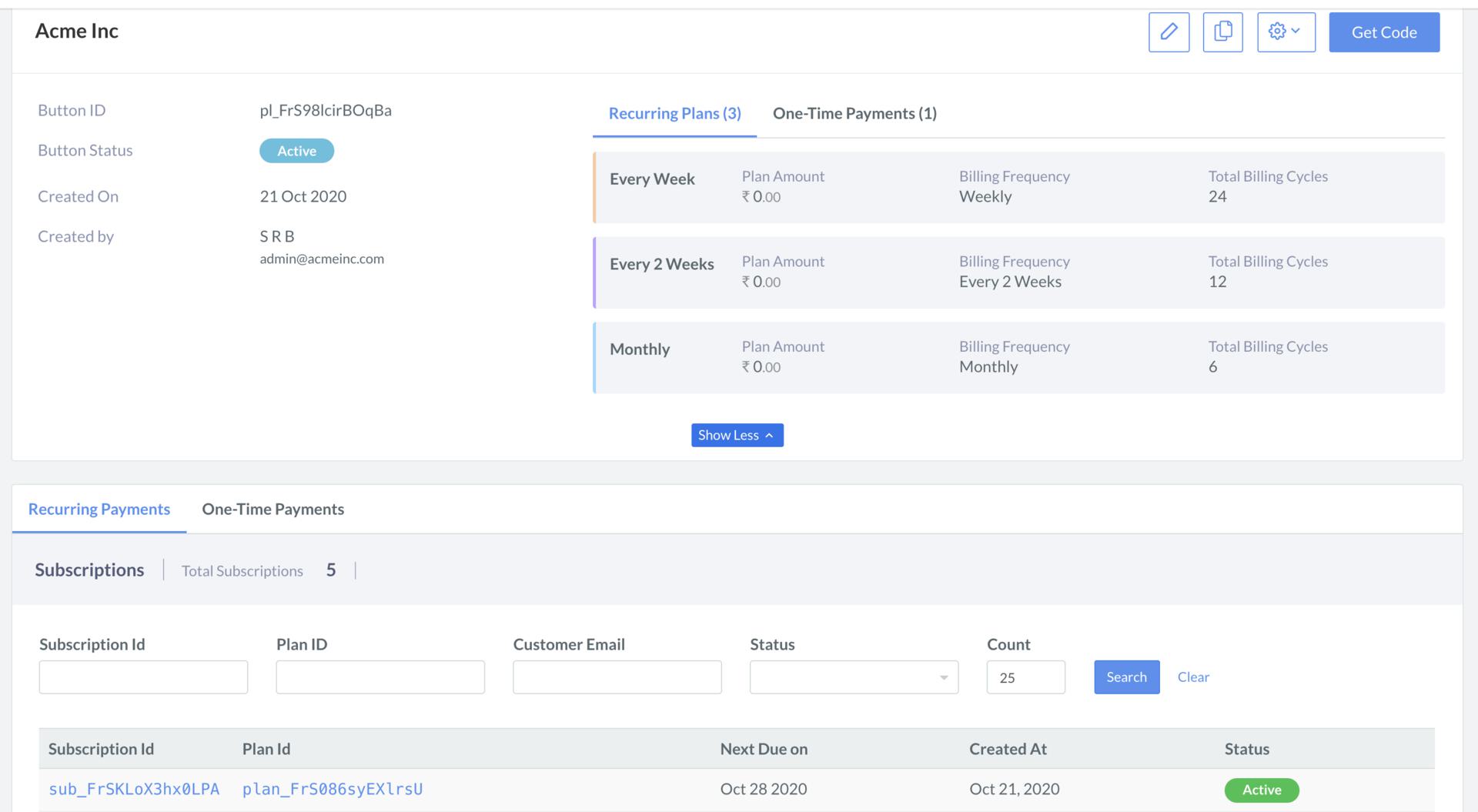
To view a Subscription Button:- Navigate to Payment Button on the Dashboard.
- Click the Subscription Buttons tab, and then click on the link of the button that you want to modify.
- The button details appears as shown.
Edit Button Content
To modify the content of the button:- In the top right corner of the page, click Edit Icon.
- The button appears in edit mode. You can edit any of the fields to update the details.

Duplicate Button
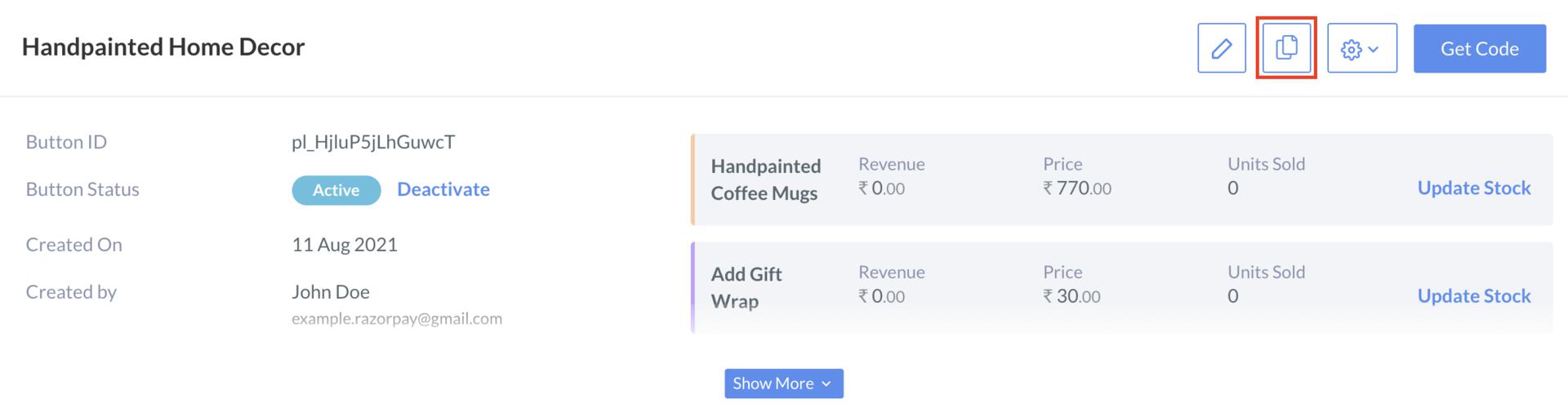
You can create a duplicate of the Subscription Button and modify it as per requirements. This saves you the time of creating a similar button from scratch. To duplicate the button:- In the top-right corner of the page, click Duplicate Icon.
- The button appears in edit mode. You can edit the fields to create a new button.
Add Post Payment Message
You can display a customized payment message on Checkout upon payment completion. To add a payment message:-
In the top right corner of the page, click Settings Icon, and then click Post Payment Message.

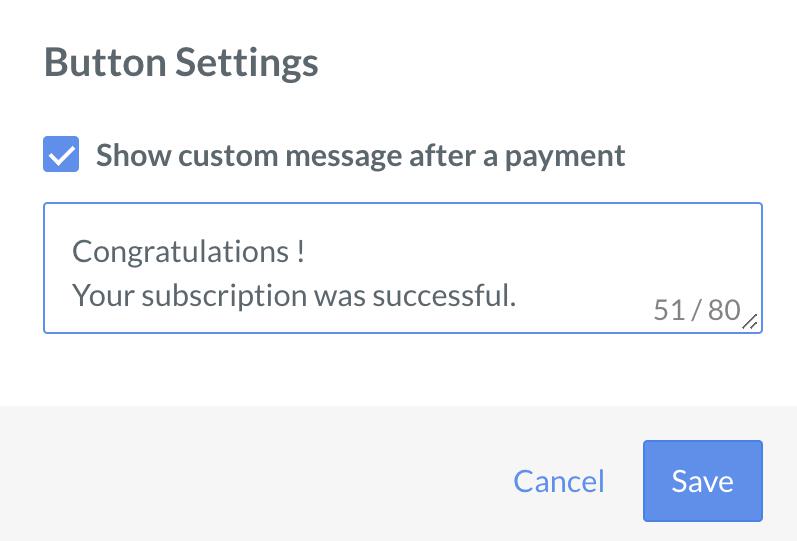
- In the Button Settings pop-up, select Show custom message after a payment checkbox.
- Add the custom message in the text box.
- Click Save.
Search
You can search Subscription Buttons, Recurring Payments and One-Time Payments.- Recurring Payments
- One-Time Payments
To search Subscription Buttons: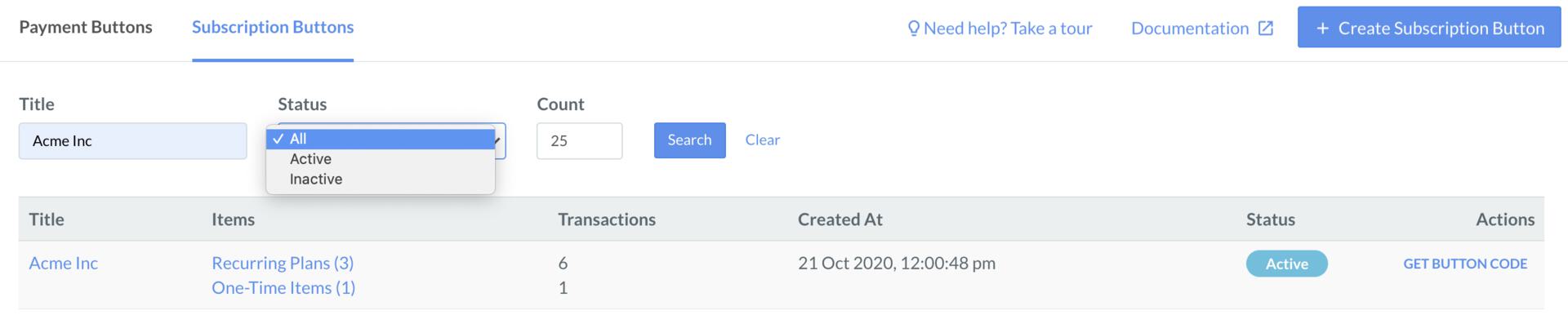
- Navigate to Payment Button on the Dashboard, and then click the Subscription Buttons tab.
- Enter the title of the button in Title text box.
- Select the Status from the list.
- Click Search.
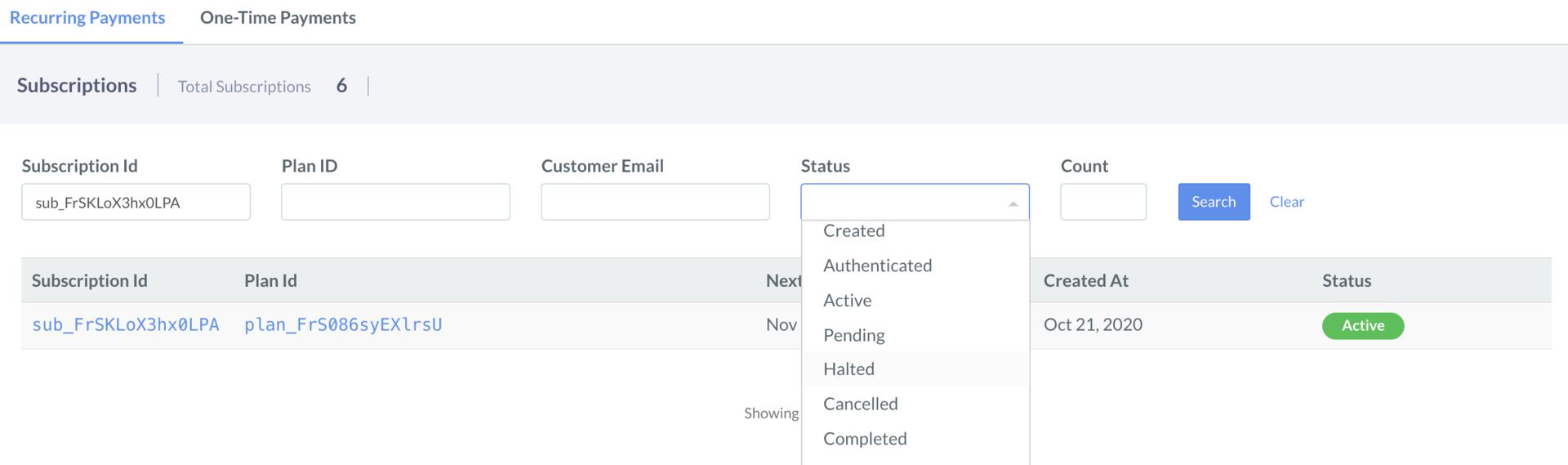
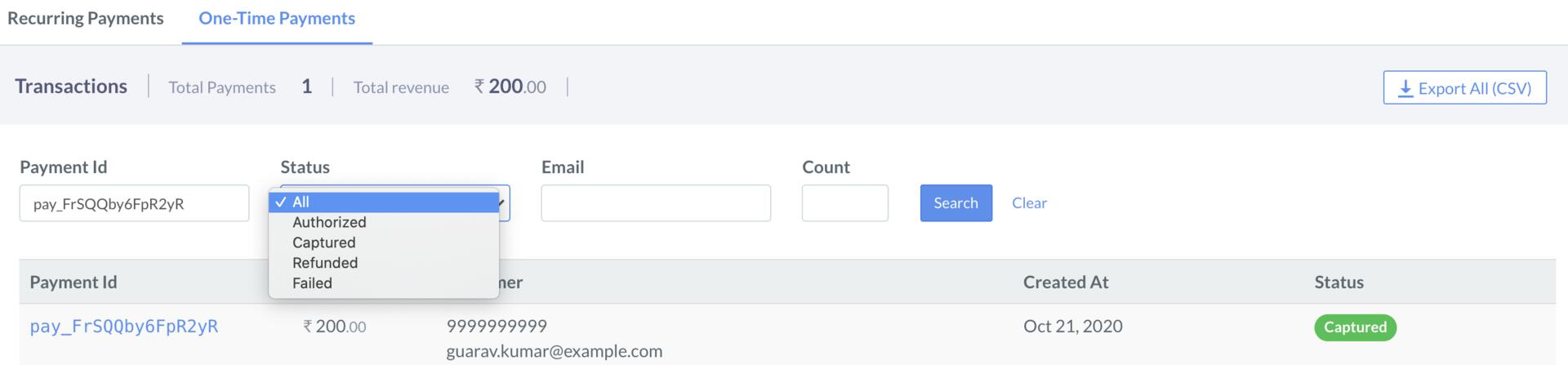
Statuses
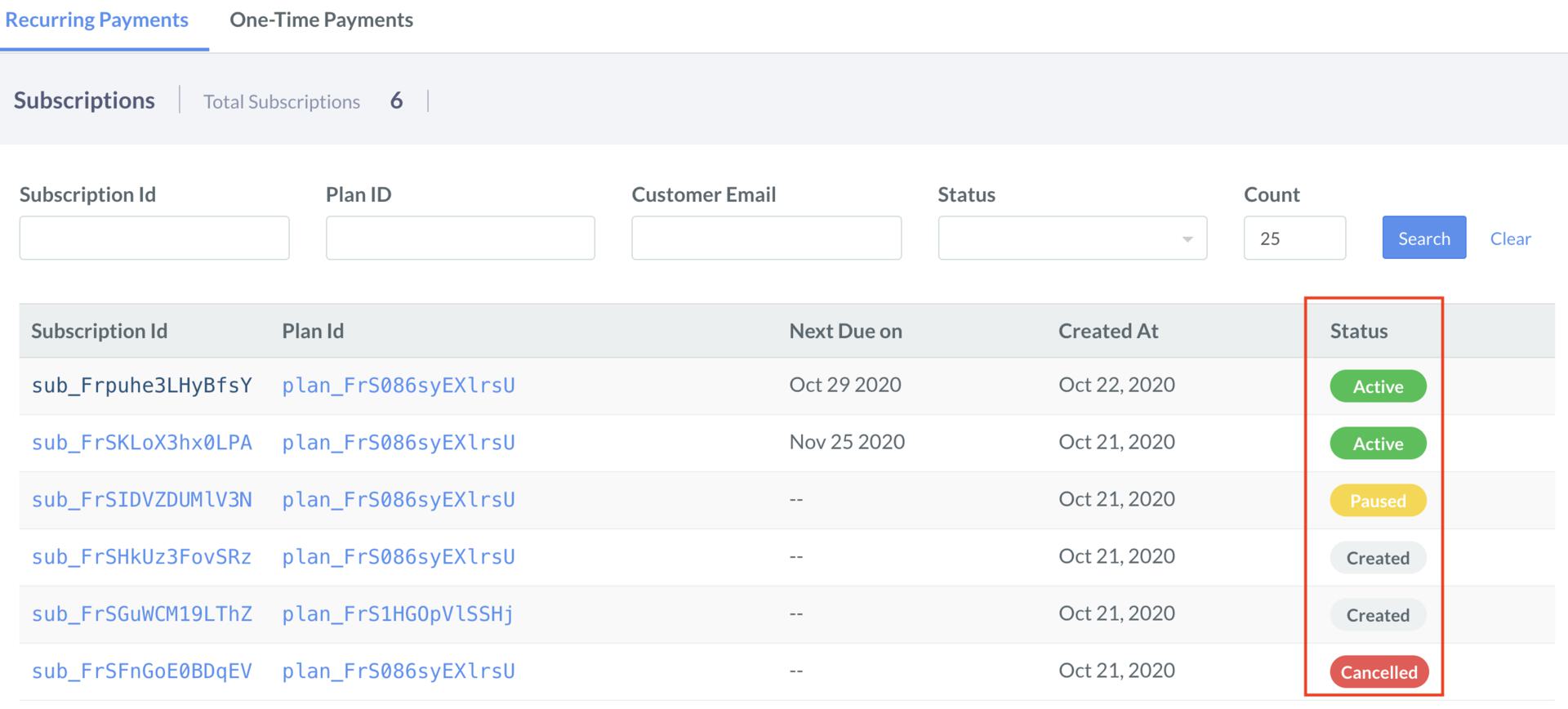
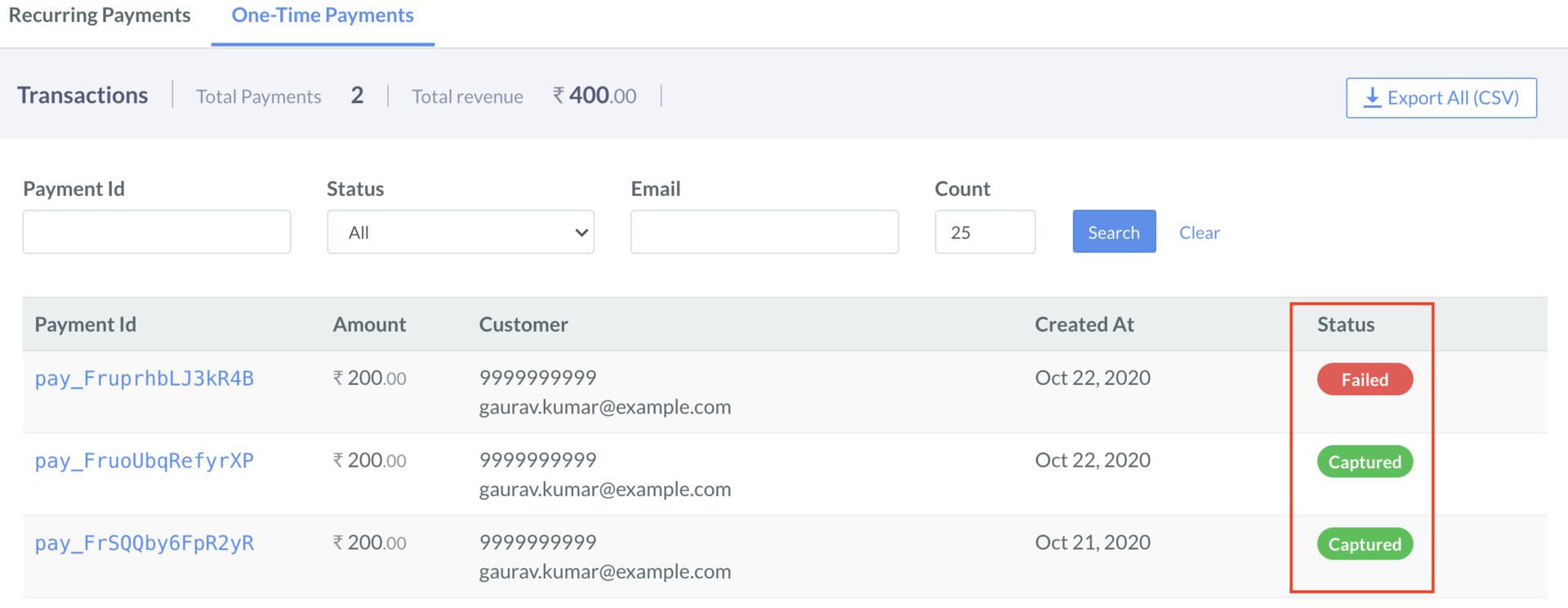
You can view the statuses of Subscription Button, Recurring Payments and One-Time Payments.- Recurring Payments
- One-Time Payments
Following are the different statuses of the Subscription Buttons: Active and Inactive.To view the status of a Subscription Button:
- Navigate to Payment Button on the Dashboard, and then click the Subscription Buttons tab.
- View the status of a button against each Subscription Button under the Status column.
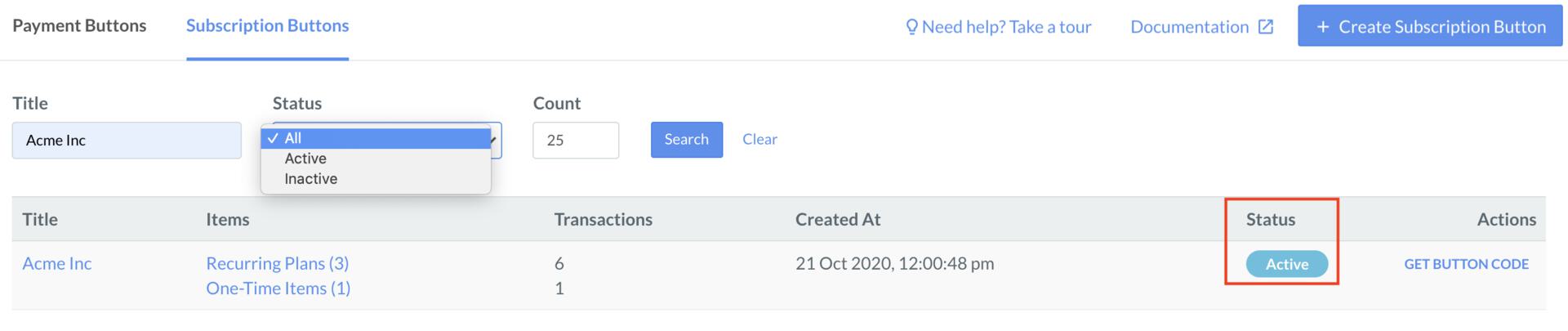
- Click the Subscription Button to view Recurring Payments and One-Time Payments Statuses.
Modify Recurring Payments
To view Recurring Payments Subscription:- Navigate to Payment Button on the Dashboard, and then click the Subscription Buttons tab.
- Click the link of the button that you want to view.
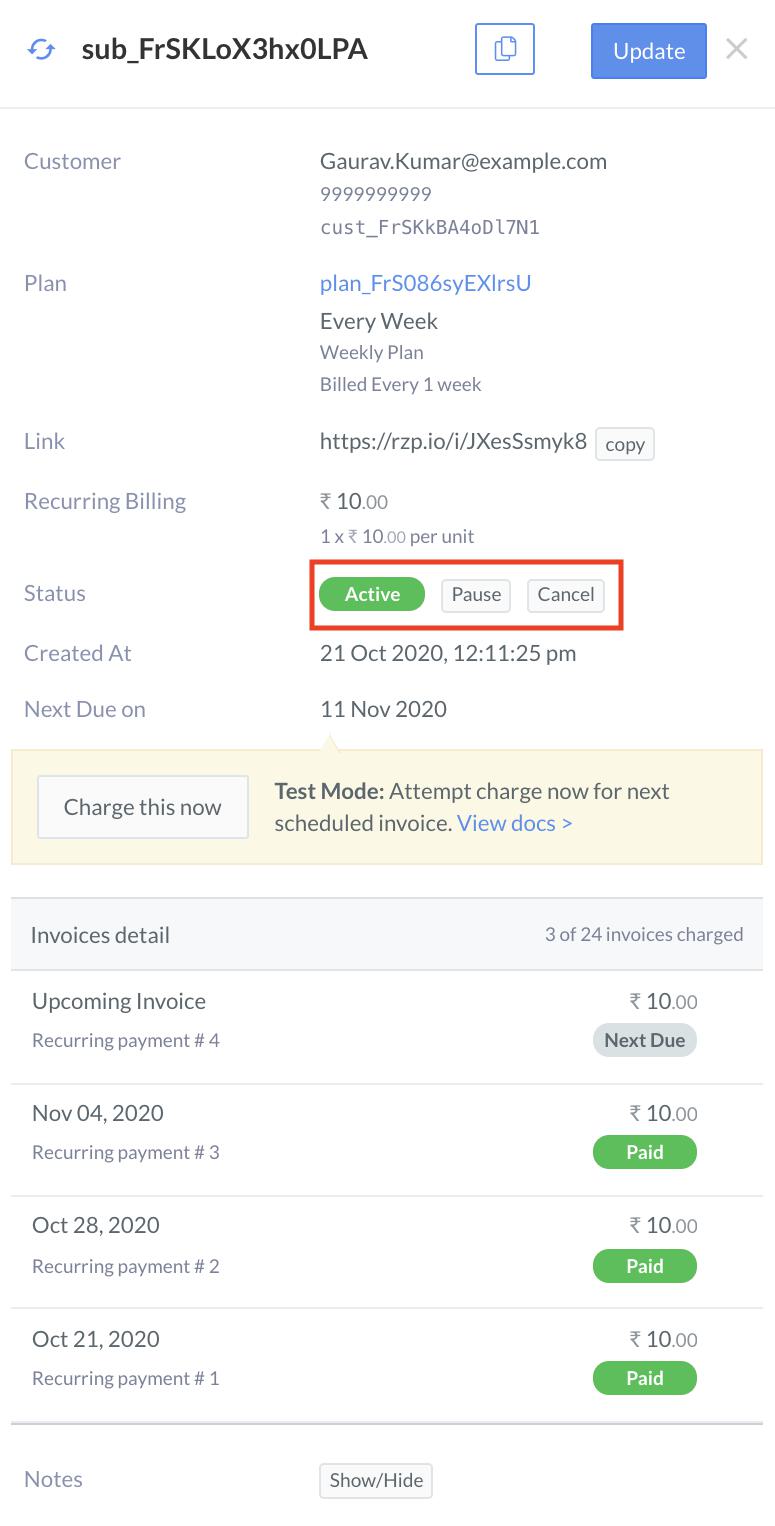
- Scroll down, and then click the Subscription Id which you want to modify.
Change Status of a Subscription
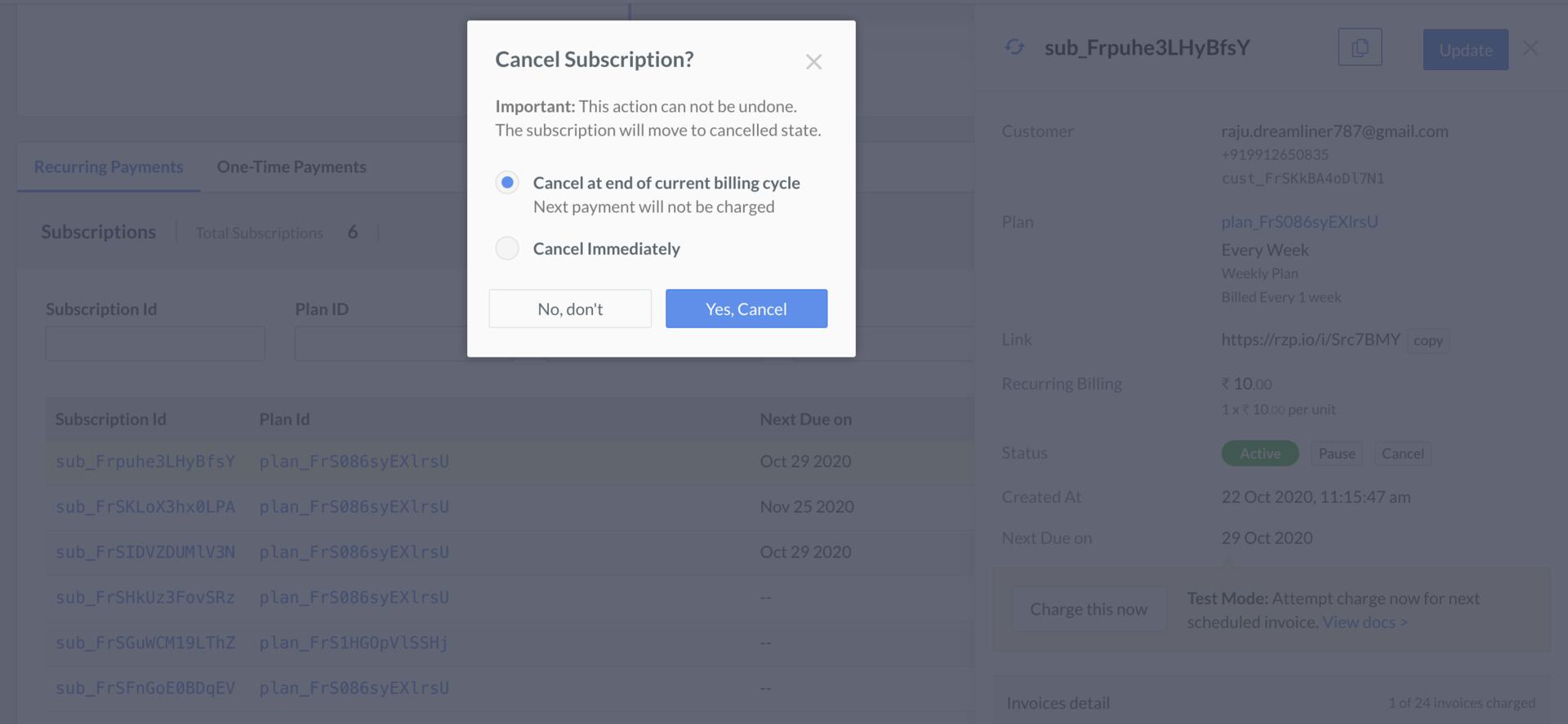
You can pause, resume or cancel a subscription as follows:- You can pause or cancel a subscription when it is in Active status.
- You can resume or cancel a subscription when it is in Paused status.
- You can cancel a subscription at the end of current billing cycle or immediately.
Duplicate a Subscription
Click the Duplicate icon and update as appropriate.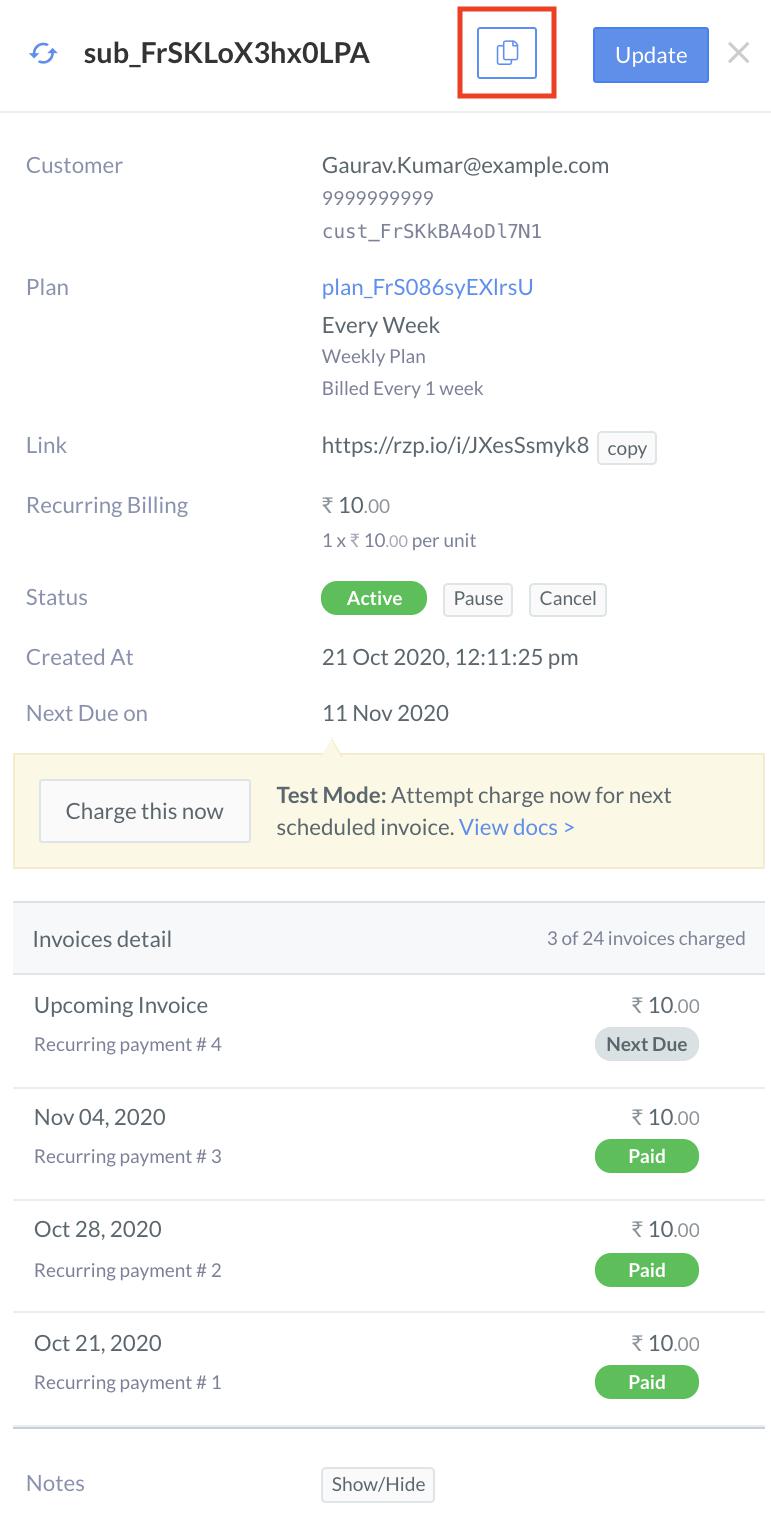
Update an Active Subscription
You can update an Active Subscription as follows:- Click Update button.
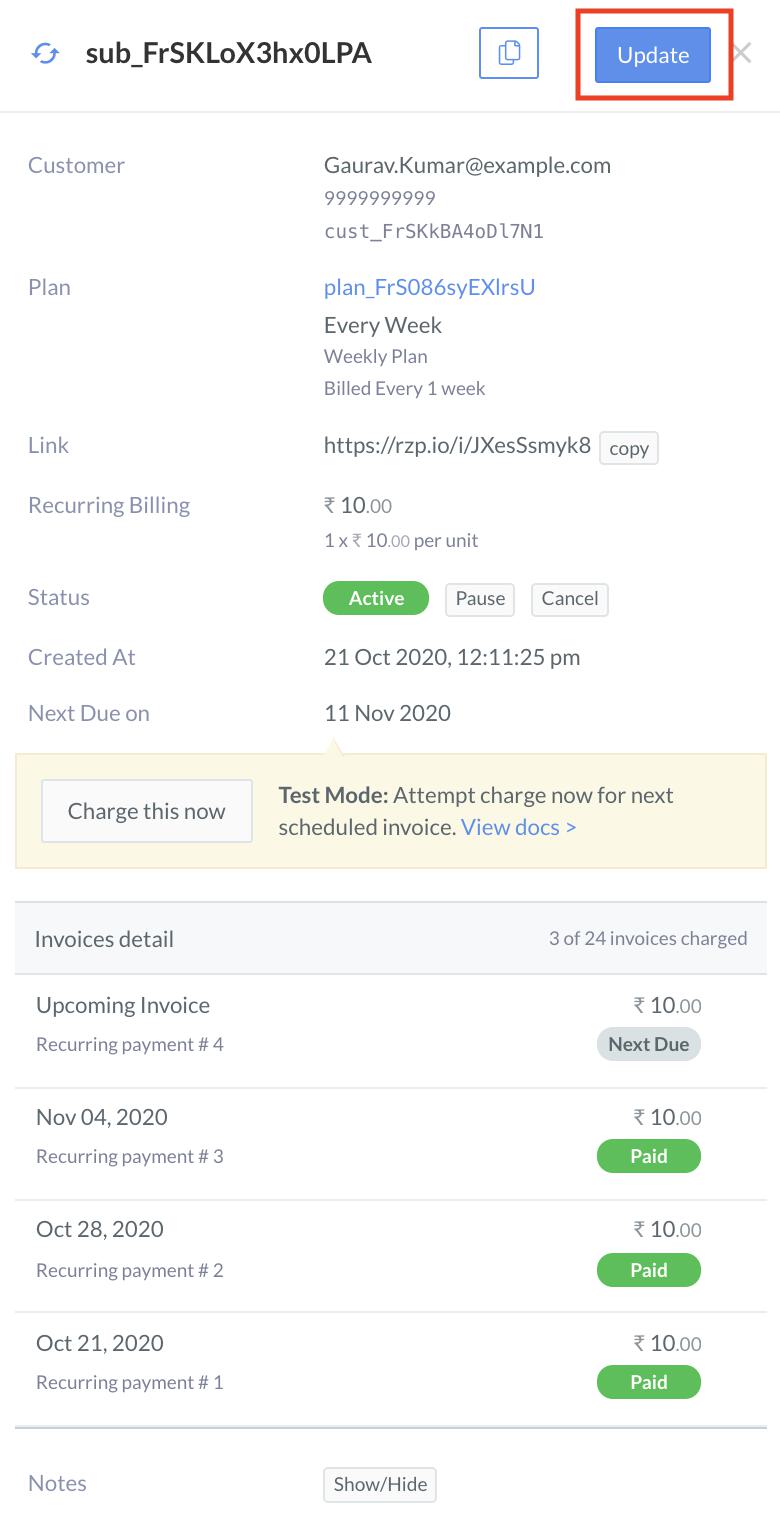
- Modify the subscription details as you want.
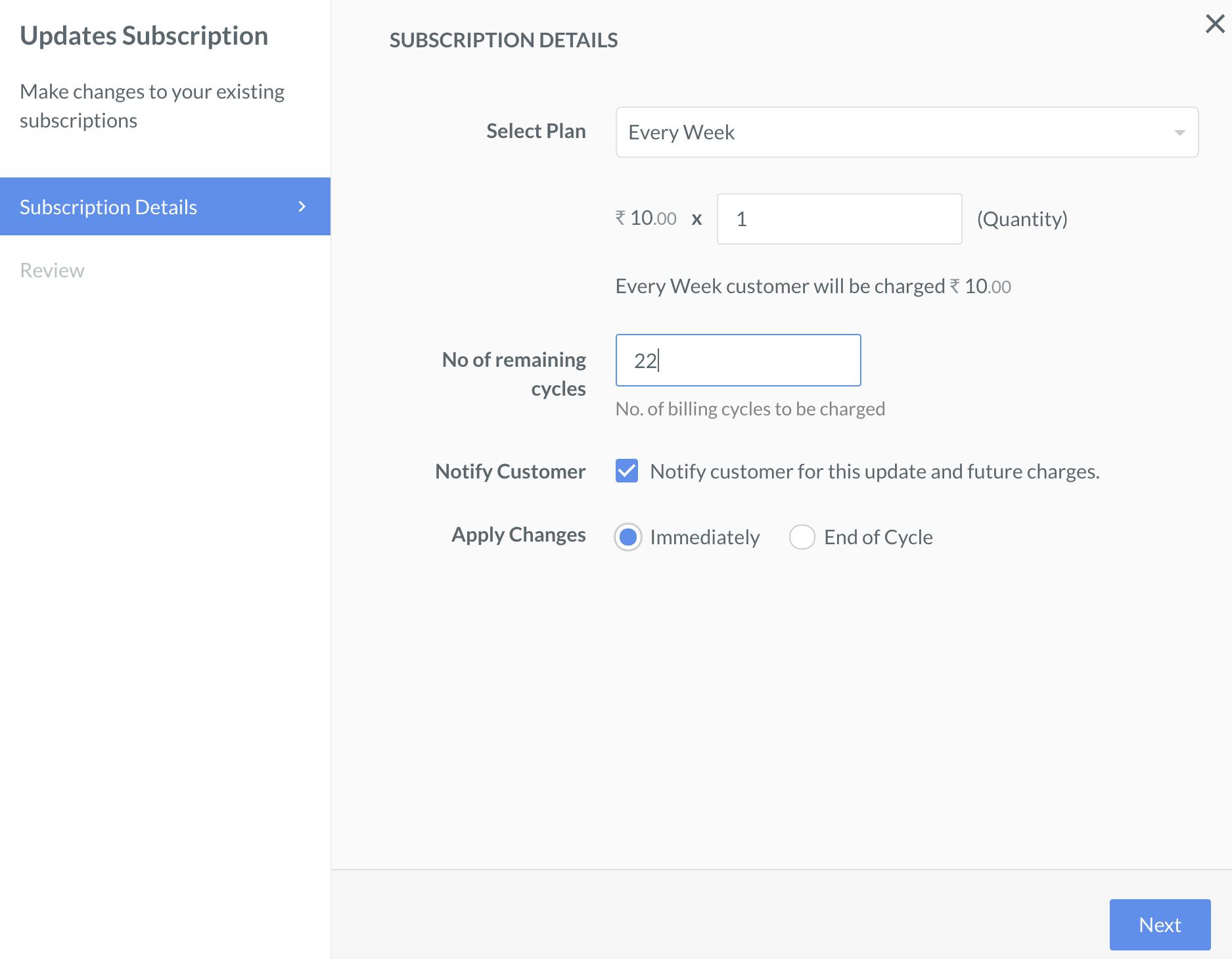
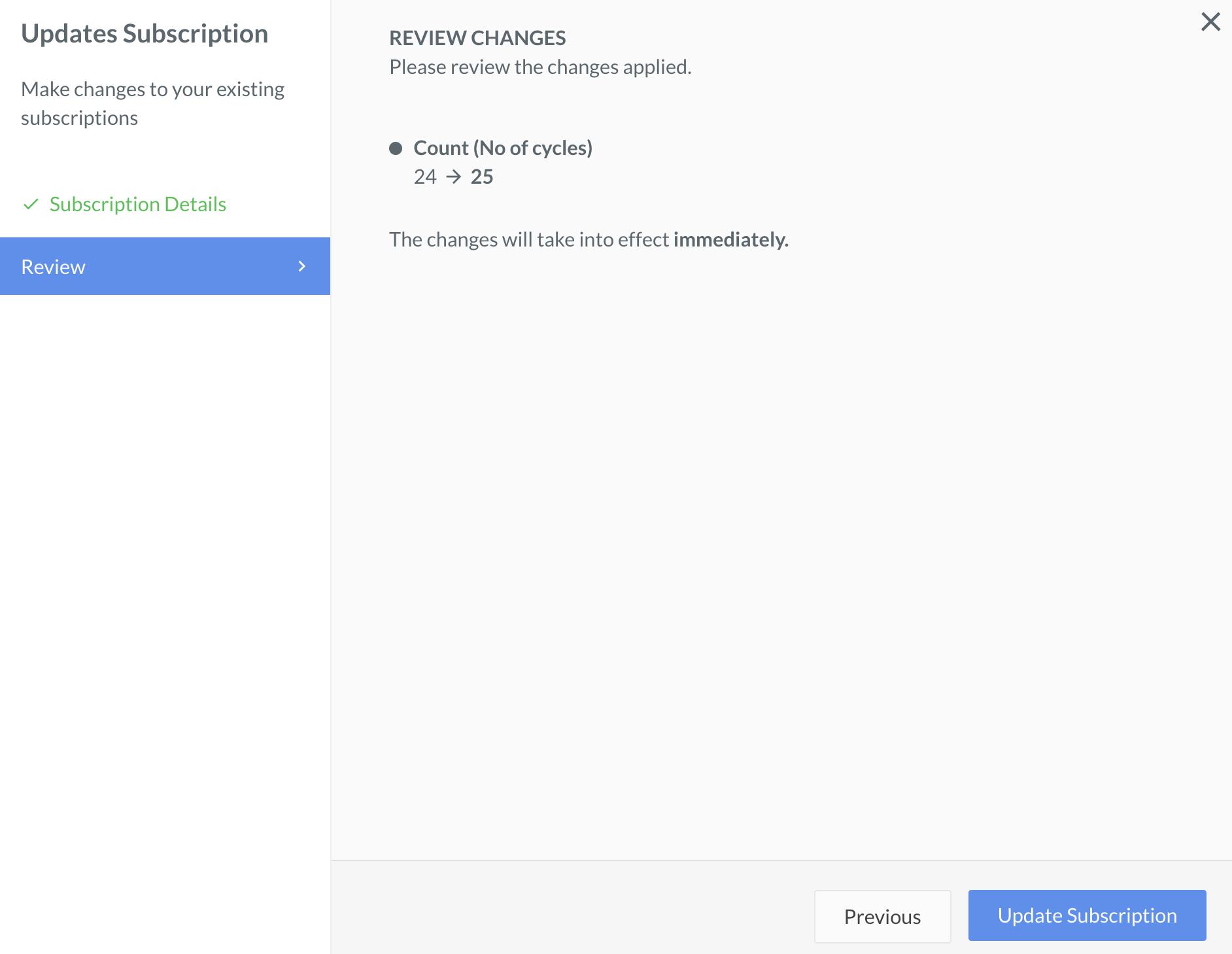
- Review the changes, and then click Update Subscription.