

Available in🇮🇳 India
You can also enable webhooks to receive notifications about the payment as they move through the different states. All information entered by the customer while making the payment will appear in the webhook payload.
Webhooks (Web Callback, HTTP Push API or Reverse API) automatically notify your application when specific events occur. Instead of continuously polling APIs to check for updates, webhooks push notifications directly to your server when events happen.
Webhooks vs APIs
Here is how webhooks compare to traditional API polling:How Razorpay Webhooks Work
When you subscribe to webhook events, Razorpay sends an HTTP POST request with JSON payload to your configured endpoint URL whenever those events are triggered. Suppose you have subscribed to theorder.paid webhook event, you will receive a notification every time a user pays you for an order, in the configured endpoint URL.
Use Cases
There can be multiple uses for webhook events. Two of these are listed below.Notifications on Failed Payments
Notifications on Failed Payments
When a payment attempted by your customer fails, we receive the failed payment status from the bank. This payment gets recorded in our system as Failed.Suppose you have enabled the
payment.failed webhook, you will receive a notification from us about the failed payment. You can then further analyse this payment and notify your customer about the failure.Setup and Configuration
- You can set up webhooks from your Dashboard and configure separate URLs for Live mode and Test mode. Know more about setting up Payment webhooks and Payout webhooks.
- A Test mode webhook receives events for your test transactions. Know more about testing webhooks.
- Webhook URLs must use ports 80 or 443 only.
- Ensure Razorpay webhook IPs are whitelisted on your server. Even if your server accepts all incoming requests, webhooks may still be blocked by cloud security groups or network configurations. Refer to Razorpay IPs and Certificates for the complete list of webhook IP addresses.
To set up webhooks:
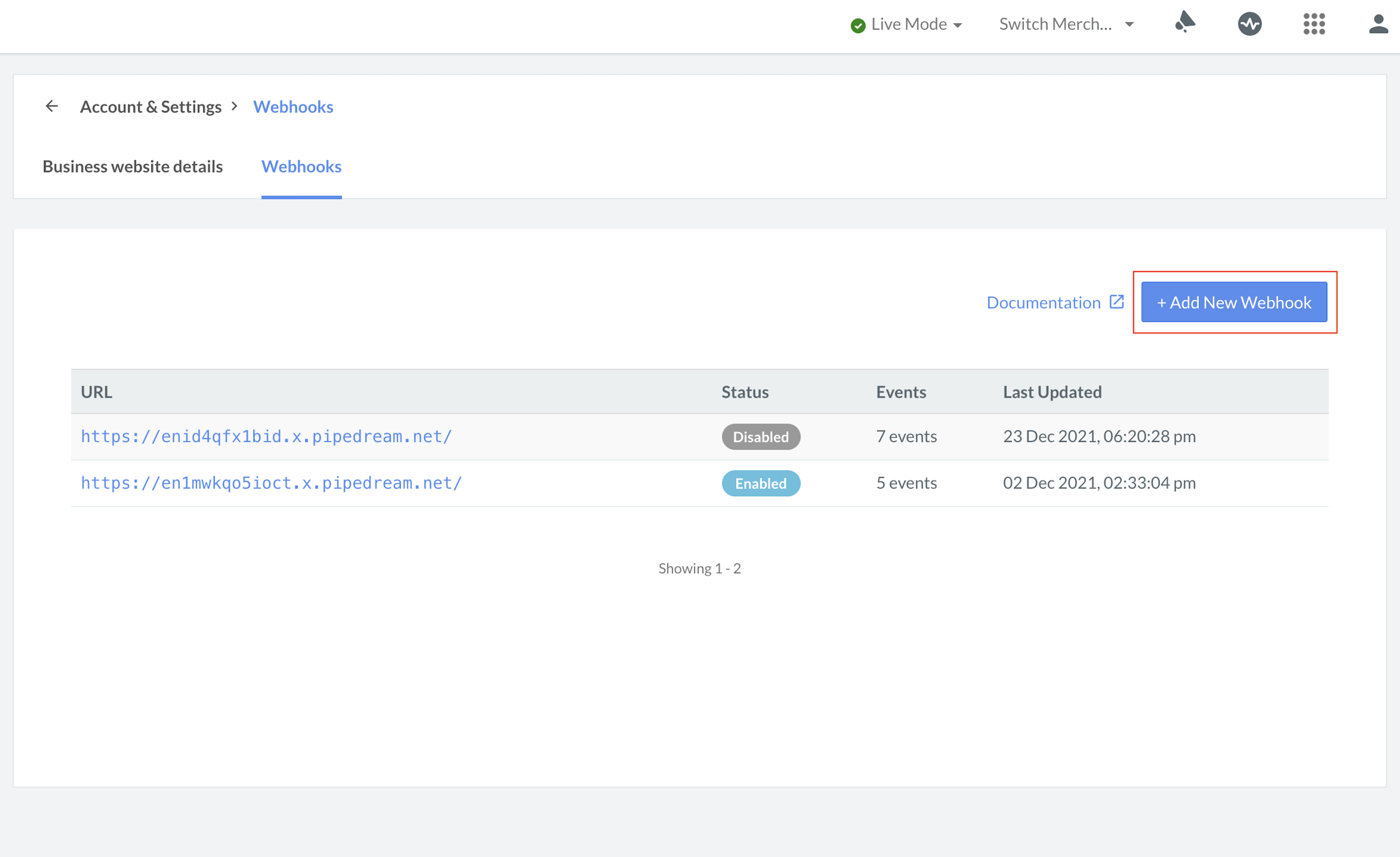
- Log in to the Dashboard and navigate to Accounts & Settings.
- Click Webhooks under Website and app settings.
-
Click the + Add New Webhook button.
-
In the Webhook Setup pop-up page:
- Enter the URL where you want to receive the webhook payload when an event is triggered. We recommend using an HTTPS URL.
Handy Tips
- You can set up to 30 URLs to receive Webhook notifications. Webhooks can only be delivered to public URLs.
- If your URL contains
razorpayas a domain, you will not be able to add the URL and will receive an error. - If you attempt to save a localhost endpoint as part of a webhook setup, you will notice an error. Know more about testing Webhooks on an application running on localhost.
- Enter a Secret for the webhook endpoint. The secret is used to validate that the webhook is from Razorpay. Do not expose the secret publicly. Know more about how to validate webhooks.
Handy Tips
- When setting up the webhook, specify a secret. Use this secret to validate that the webhook is from Razorpay. Entering the secret is optional but recommended. The secret should never be exposed publicly.
- The webhook secret does not need to be the Razorpay API key secret.
- In the Alert Email field, enter the email address to which the notifications should be sent in case of webhook failure. You will receive webhook related notifications like failures, deactivation and so on.
- Select the required events from the list of Active Events.
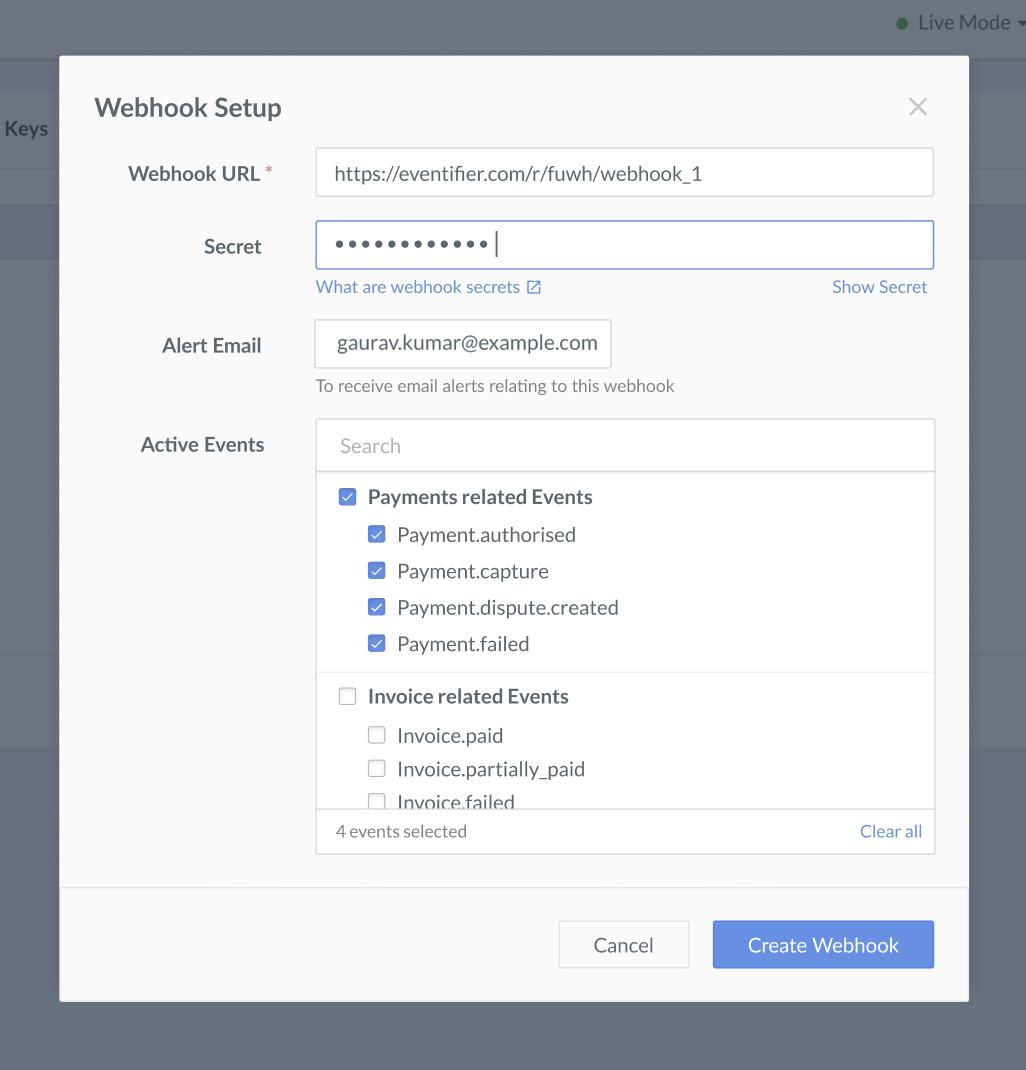
- Click Create Webhook. After you set up a webhook, it appears on the list of webhooks.
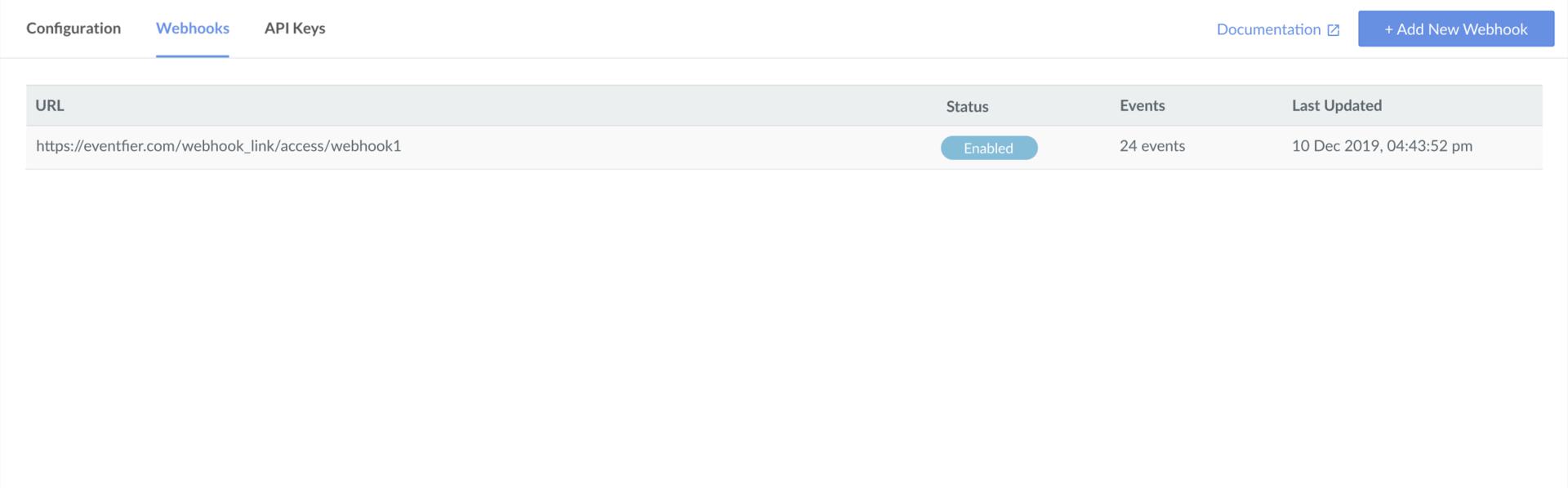
- You can select the webhook and click Edit to make more changes.
Subscribe to Webhook Events
You must subscribe to the following Payment and Order webhook events:payment.authorized
: To receive notifications when the payment made by a customer is in authorized state.
payment.captured
: To receive notifications when the payment made by a customer is in captured state.
payment.failed
: To receive notifications when a customer’s payment attempt failed.
order.paid
: To receive notifications when an order is paid.
Event Payload: payment.authorized
Below is the sample payload for thepayment.authorized event.
payment.authorized.payload
Event Payload: payment.captured
Below is the sample payload for thepayment.captured event.
payment.captured.payload
Event Payload: payment.failed
payment.failed.payload
Event Payload: order.paid
Below is the sample payload for theorder.paid event.
order.paid.payload