

Available in🇮🇳 India
Enabling GST Input Credit allows RazorpayX to use GSTR-2A data and check if your vendors have reported GST correctly and reports if there are discrepancies. This helps you optimise your GST input claim.
Set up GST Input Credit
To set up the GST Input Credit integration:- Log in to the RazorpayX Dashboard.
- Navigate to the profile icon at the top right and click My Accounts & Settings → Integrations.
- Find GST Input Credit and click Get Started.
- Log in to your GST portal.
GST Portal
GST Portal
After logging in to the GST portal, perform the following steps:
- Click My Profile on the GST dashboard.
- Navigate to Quick Links → Manage API Access.
- Select Yes to Enable API Request.
- Select 30 days from the Duration drop-down and click Confirm.
- Select the I have completed above steps checkbox and click Next.
- Your GSTIN is displayed. Enter the GSTIN portal Username and click Generate OTP.
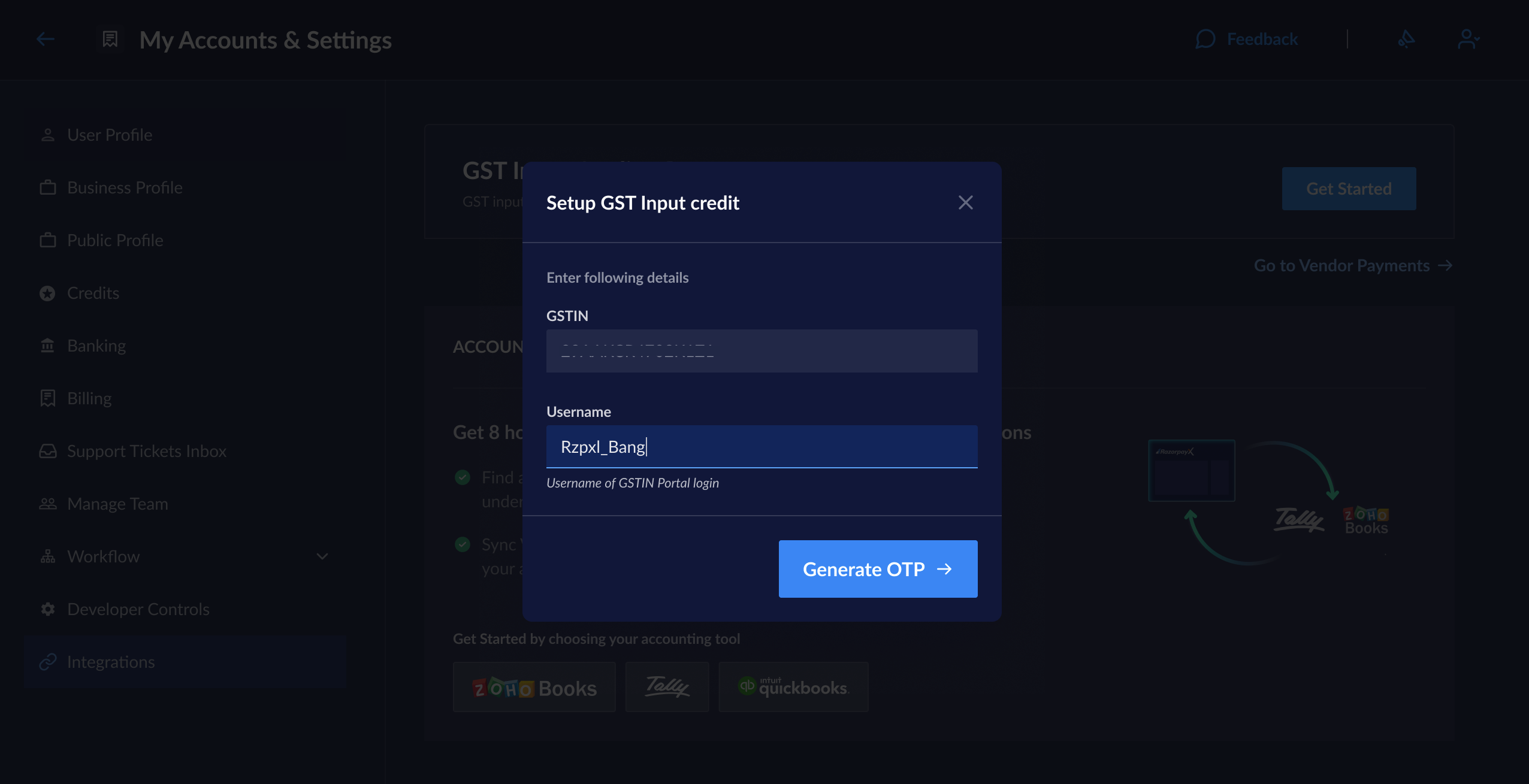
- Enter the OTP sent to your registered mobile number on the GSTIN portal and click Next.
Re-authenticate GST Input Credit
Re-authenticate GST Input Credit
Handy TipsYou will receive an email and a Dashboard notification when re-authentication is required. You can directly re-authenticate from the banner or email, or you can follow the steps given below.
- Log in to the RazorpayX Dashboard.
- Navigate to the profile icon at the top right and click My Accounts & Settings → Integrations.
- Find GST Input Credit and click Re-authenticate.
- Enter the GSTIN portal Username and click Generate OTP.
- Enter the OTP sent to your registered mobile number on the GSTIN portal and click Next.
GST Input Credit on Dashboard
You can view whether the vendor has reported GST for the respective invoice on the RazorpayX Dashboard → Vendor Payments → Invoices. The GSTR-2A coloumn displays the status.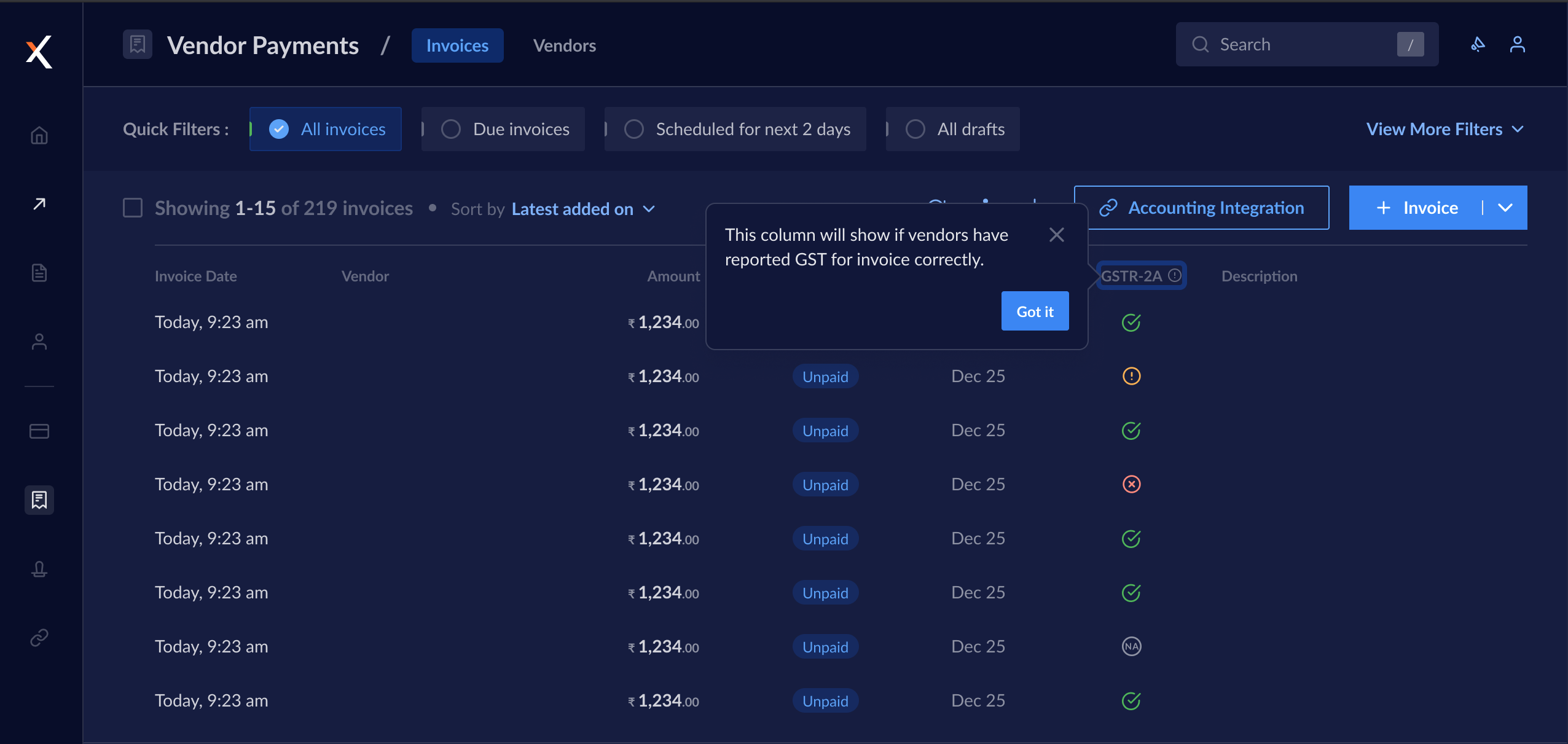 To view more information, select the required invoice. The relevant information is available in the right-pane.
Refresh GSTR-2A Data
Refresh GSTR-2A Data
To refresh the GSTR-2A data on RazorpayX Dashboard:
- Log in to the RazorpayX Dashboard.
- Navigate to the profile icon at the top right and click My Accounts & Settings → Integrations.
- Find GST Input Credit and click Refresh.
Disable GST Input Credit
To disable the GST Input Credit integration:- Log in to the RazorpayX Dashboard.
- Navigate to the profile icon at the top right and click My Accounts & Settings → Integrations.
- Find GST Input Credit and click Disable.
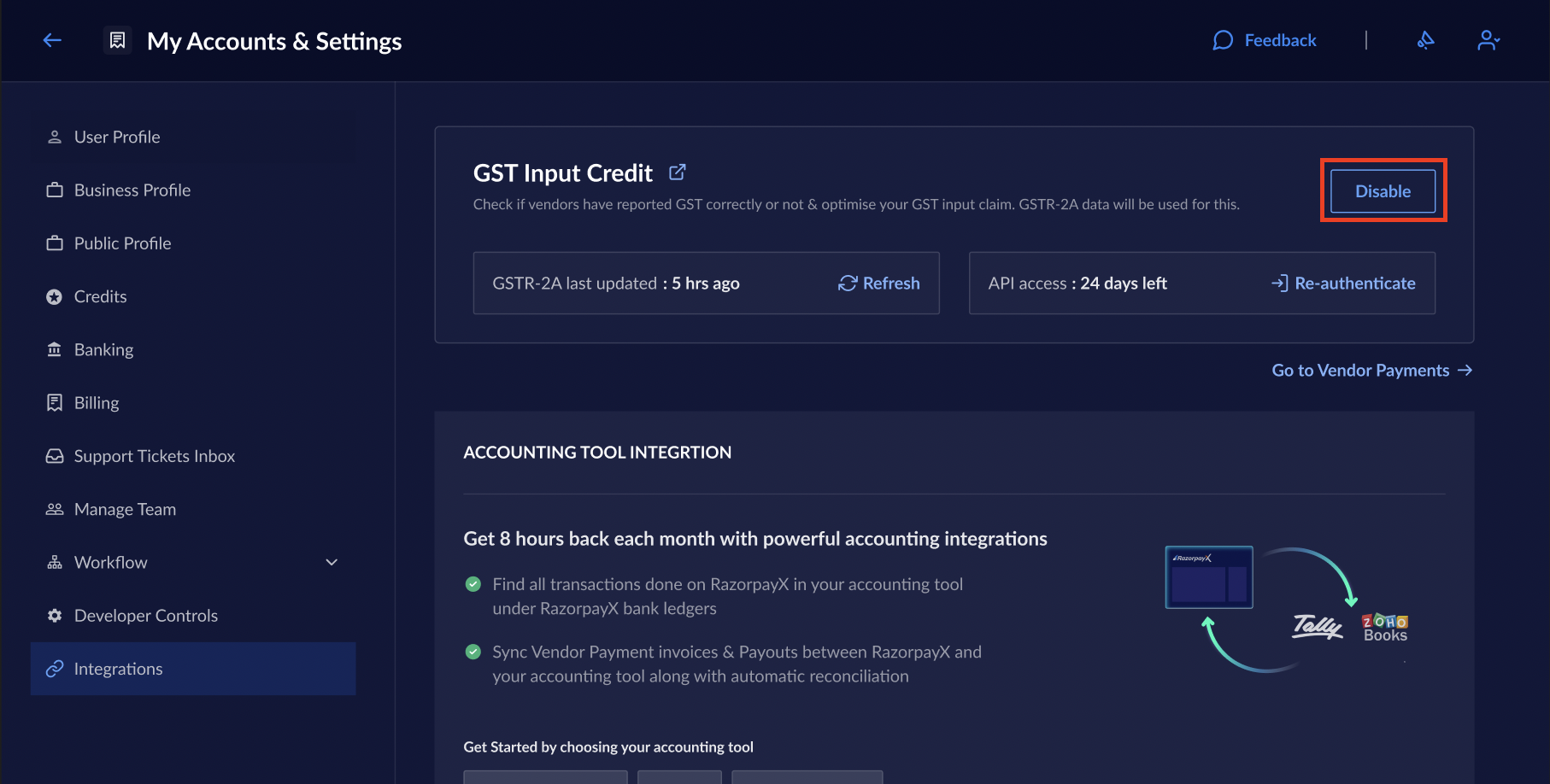
- In the pop-up, click Disable.