Available in🇮🇳 India
Customise your checkout experience on the Dashboard by setting a default language, enabling email collection , activating flash checkout, making the summary page mandatory and adding a custom banner message to enhance customer engagement.
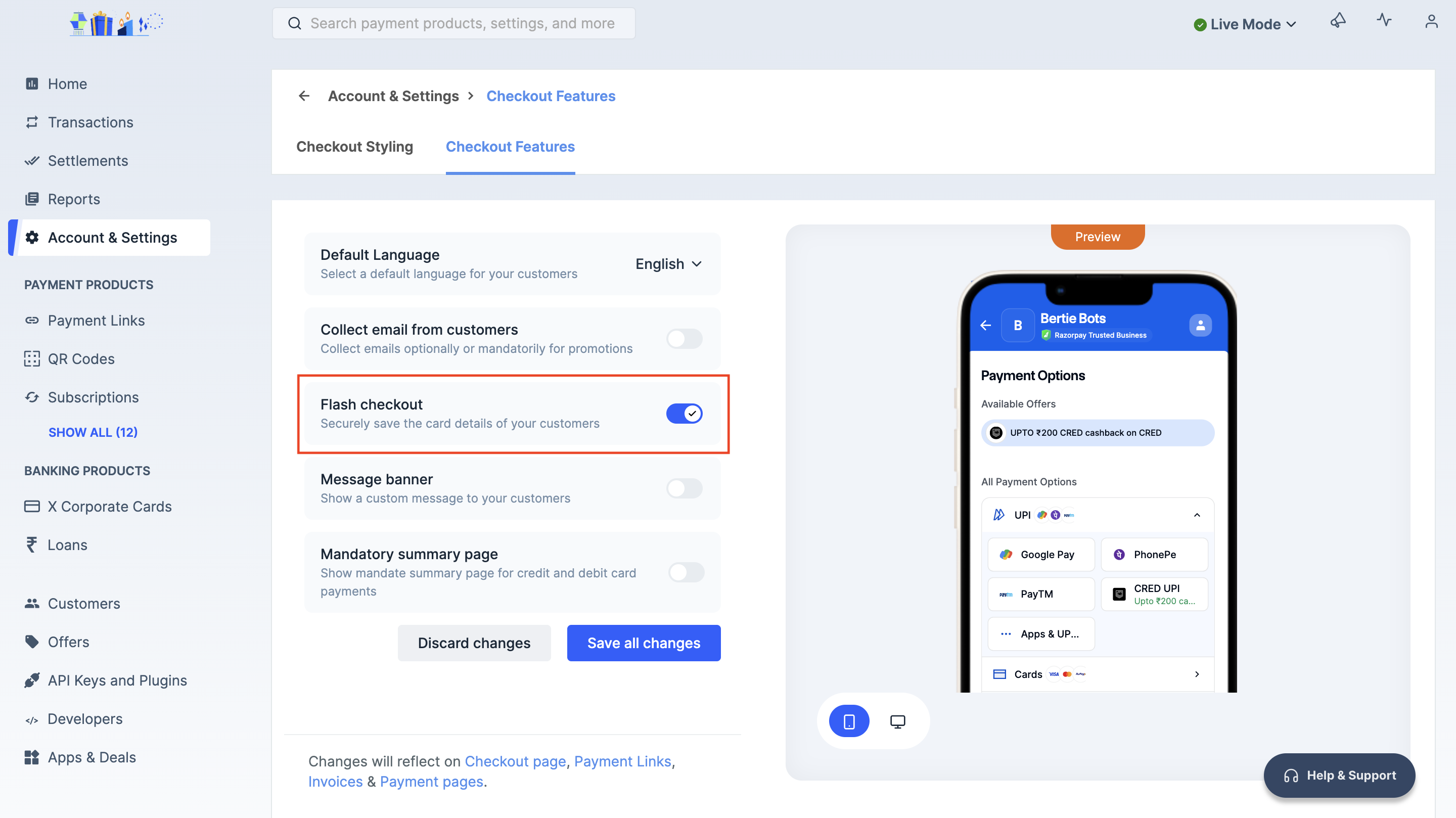
Default Language
Set the default language for your checkout page when customers don’t specify one.
Collect Email Address From Customers
Configure the email address field to collect customer email addresses on checkout.
Flash Checkout
Let customers securely save their card details for faster transactions.
Message Banner
Show custom messages to highlight offers, discounts or important updates.
Mandate Summary Page
Display the mandate summary screen for card payments to your users.
FAQs
Find answers to frequently asked questions about checkout settings.
Handy Tips
- All the below changes will reflect on Checkout page, Invoices, Payment Button, Webstore, Payment Links and Payment Pages.
- You can switch between mobile and desktop views to preview changes.
Default Language
The customers can view the Checkout page in their preferred language. If the customer does not specify a language, the default language will be used on the checkout page.To select the default checkout language:
To select the default checkout language:
- Log in to the Dashboard.
- Navigate to Accounts & Settings → Checkout Features in the Checkout settings section.
- Select the default language from the drop-down list. For example, English.
- Click Save all changes.
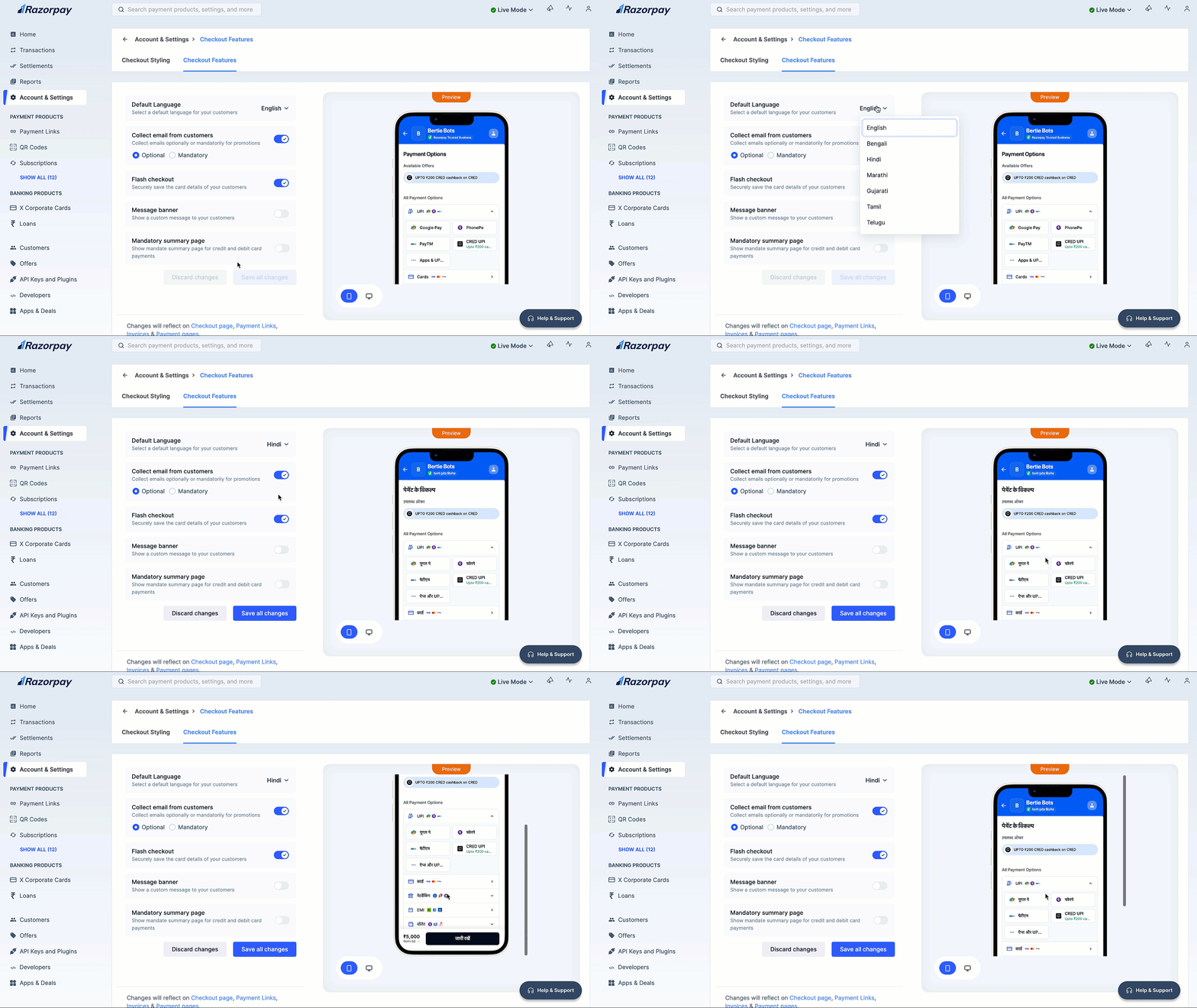
Collect Email Address From Customers
By default, the email address field is hidden on checkout. You can choose to configure the email address field based on your requirement.To configure email address field:
To configure email address field:
- Log in to the Dashboard.
- Navigate to Accounts & Settings → Checkout Features in the Checkout settings section.
- Turn on Collect email from customers.
- Select either of the following options:
- Optional (Default): Customers can either enter their email address or choose to skip it.
- Mandatory: Customers have to enter their email address to proceed.
- Click Save all changes.
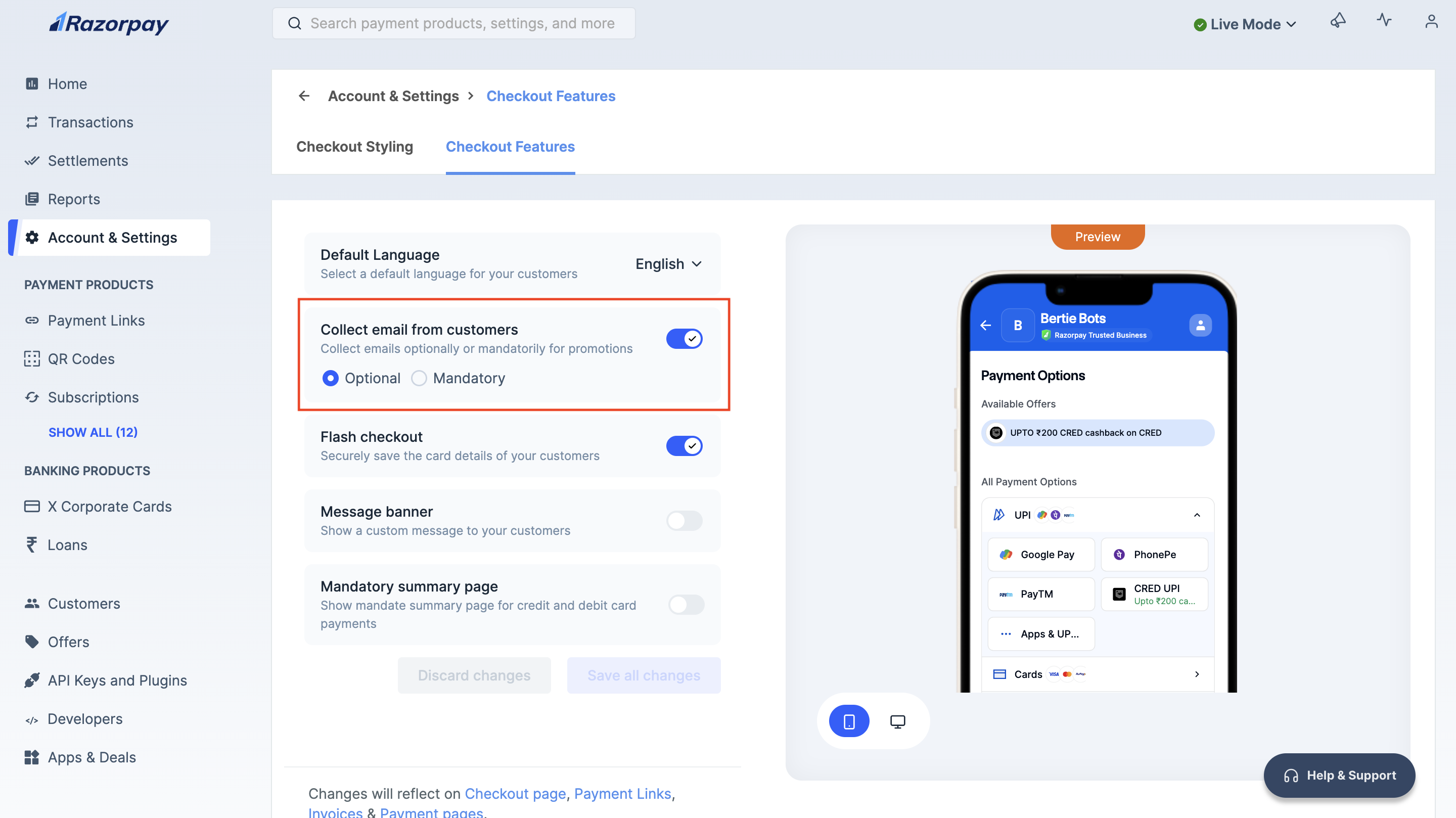
Flash Checkout
Use Flash Checkout to let your customers securely save their credit and/or debit card details with Razorpay, thereby reducing transaction time.- Customers need to authenticate themselves only once on their mobile devices. Razorpay is PCI-DSS compliant. All the card information is securely saved on our servers.
- After the one-time authentication, customers’ saved cards are available to accept payments online via Razorpay.
To enable flash checkout:
To enable flash checkout:
- Log in to the Dashboard.
- Navigate to Accounts & Settings → Checkout Features in the Checkout settings section.
- Toggle on the Flash checkout field.
- Click Save all changes.
Message Banner
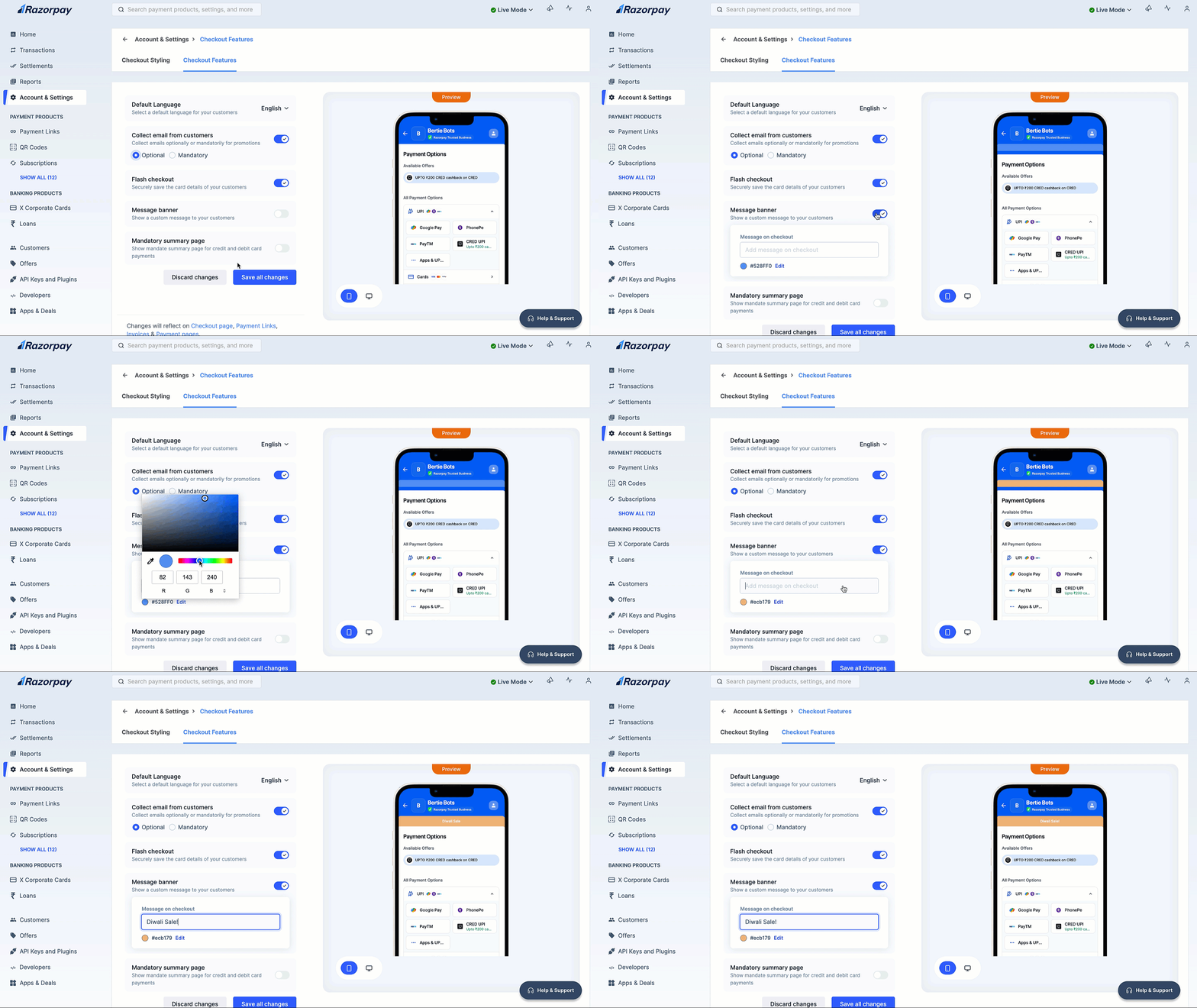
Show a custom message to your customers on checkout to highlight promotional offers, discounts or important updates, enhancing their shopping experience.- Log in to the Dashboard.
- Navigate to Accounts & Settings → Checkout Features in the Checkout settings section.
- Toggle on the Message banner field.
- Enter your custom message.
- Click Edit to select the banner color as preferred.
- Click Save all changes.
Mandate Summary Page
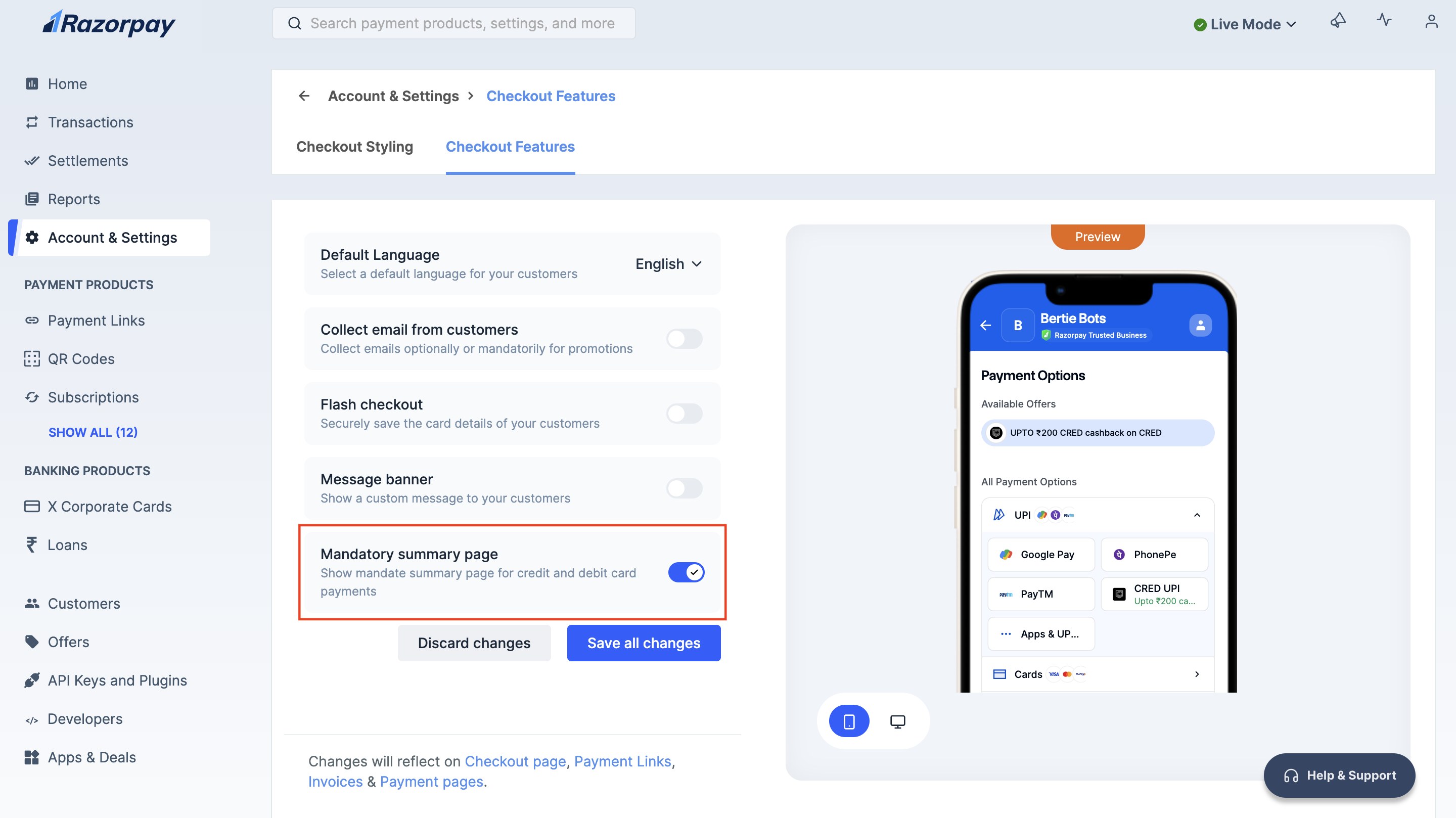
You can display the mandate summary screen for credit and debit card payments to your users.To show mandate summary page:
To show mandate summary page:
- Log in to the Dashboard.
- Navigate to Accounts & Settings → Checkout Features in the Checkout settings section.
- Toggle on the Mandate summary page field.
- Click Save all changes.
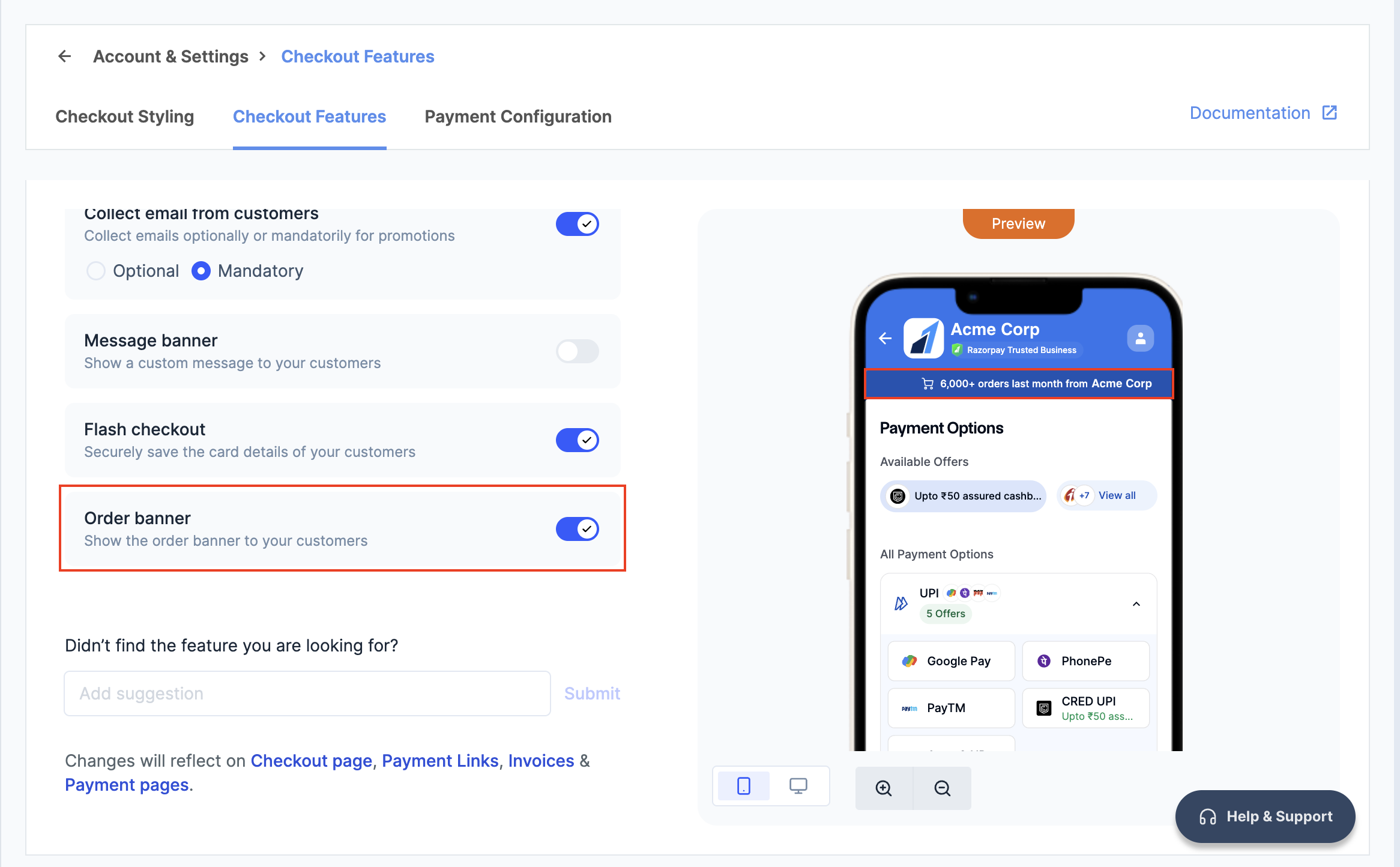
Order Banner
Display order milestone badges at checkout to boost customer trust and credibility. These badges highlight real order volumes, reassuring customers of your reliability and encouraging them to complete their purchase. For example, if your store has processed 10,000+ successful orders, the badge showcases this achievement, reinforcing trust.- Log in to the Dashboard.
- Navigate to Accounts & Settings → Checkout Features in the Checkout settings section.
- Toggle on the Order banner field.
- Click Save all changes.