

Available in🇮🇳 India
Reviewing and acting upon COD orders manually can be time-consuming. With the automation feature, you can configure workflows to approve, hold or cancel COD orders based on the RTO risk levels.
How it Works
Follow the steps given below to configure the COD review workflow:- Log in to the Dashboard.
- Navigate to Magic Checkout → Orders.
- In the Manual Review of COD Orders tab, click Automate now. This redirects you to the COD Review Workflow field in the Setup & Settings section.
Handy TipsCOD Review Workflow section appears only if you opt for the manual review of COD orders.
- Select the Type of RTO risk and its corresponding action from the drop-down list.
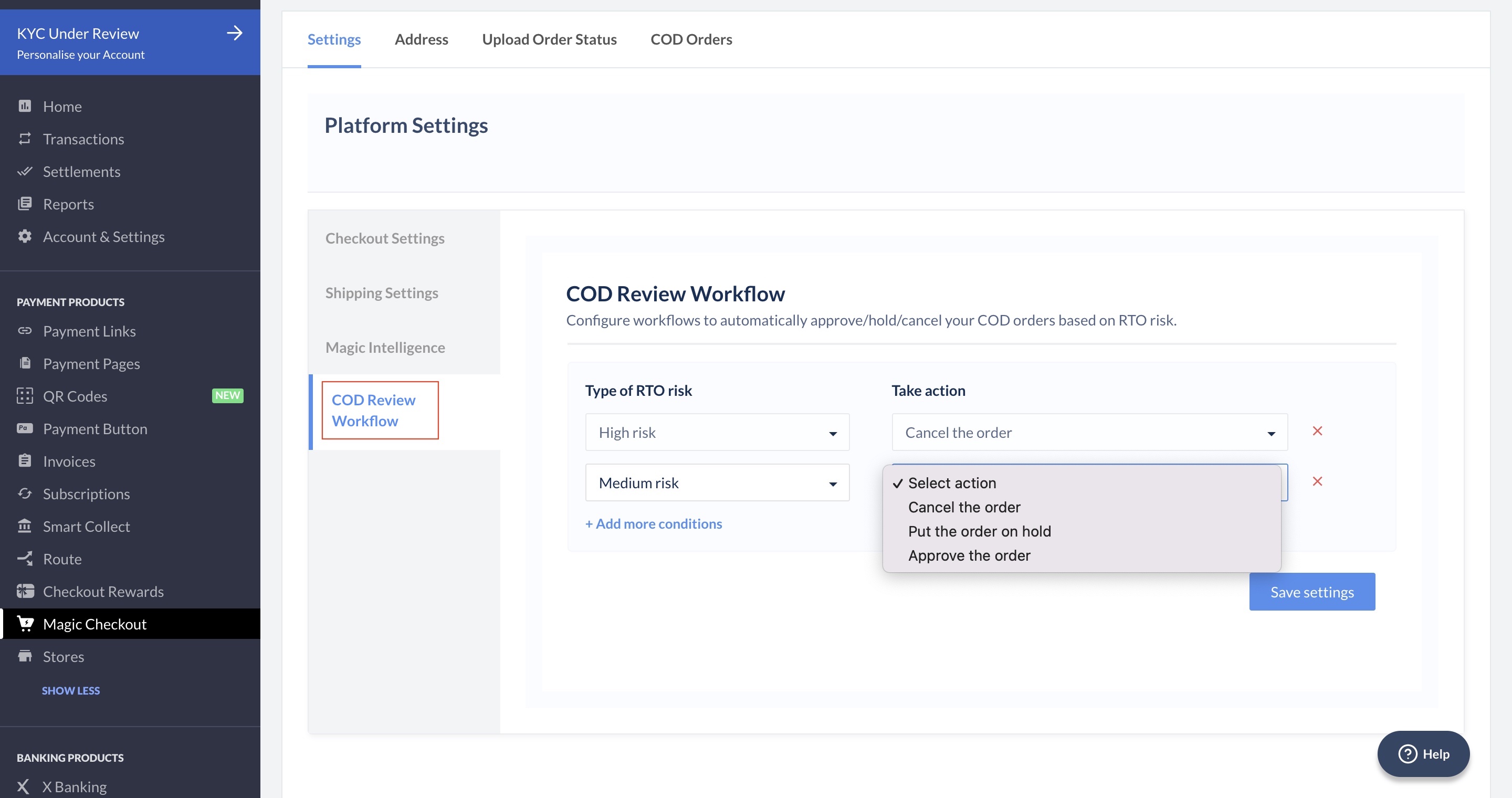
- Click + Add more conditions to add more types of RTO risk and its corresponding action if required.
- Click Save settings.
Edit Workflow Conditions *(Optional)*
Edit Workflow Conditions *(Optional)*
Follow the steps given below to edit the conditions:
- Log in to the Dashboard.
- Navigate to Magic Checkout.
- Select the platform of your ecommerce website from the drop-down list and click Next.
Handy TipsThis feature is available for your Custom ecommerce platform, WooCommerce website and Shopify store.
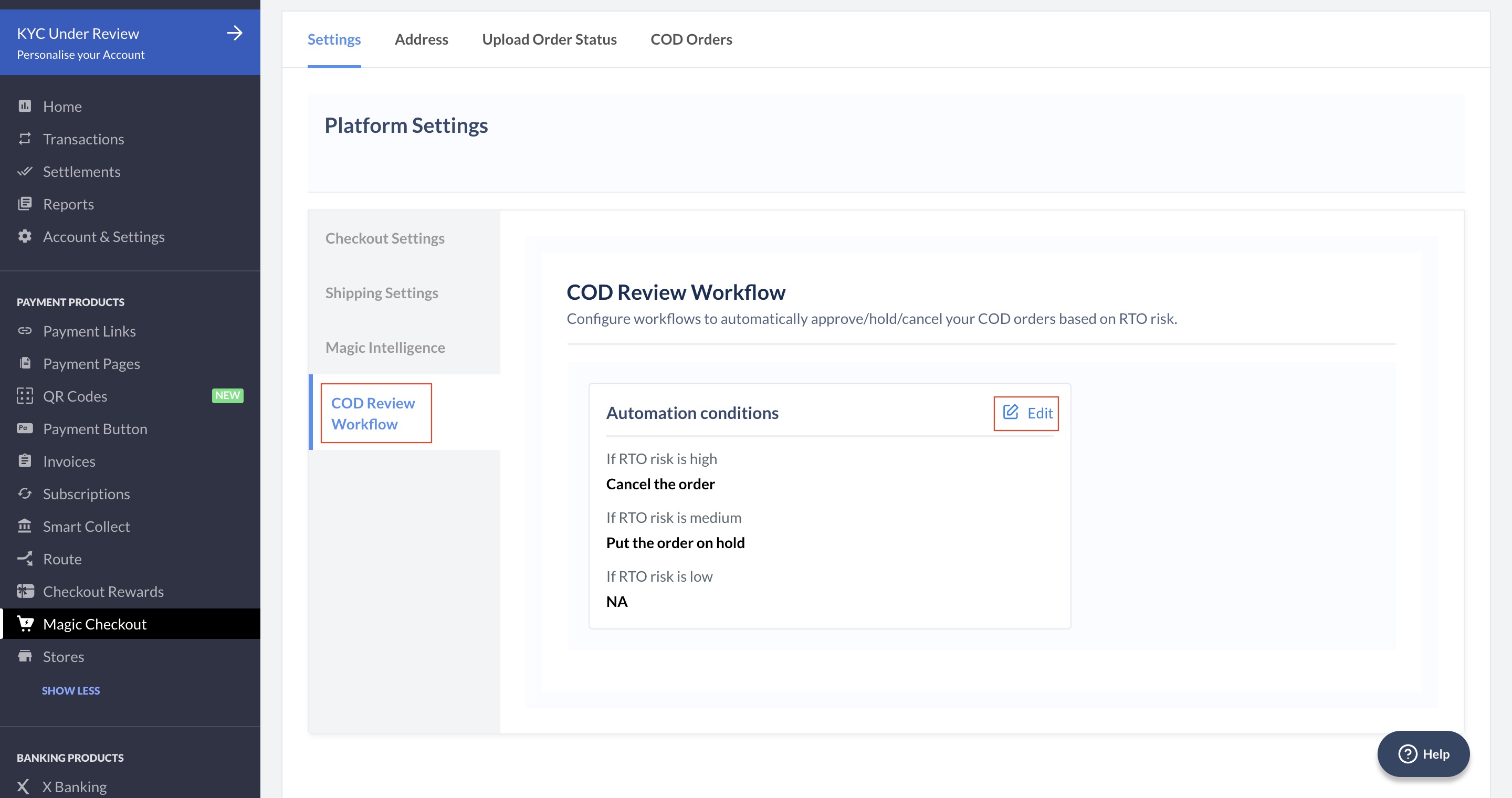
- Click COD Review Workflow.
- Click Edit to modify the conditions based on your requirement.
- Click Save settings.
Remove a Workflow
Remove a Workflow
Follow the steps given below to remove the review workflow conditions:
- In the COD Review Workflow section, click the cancel icon.
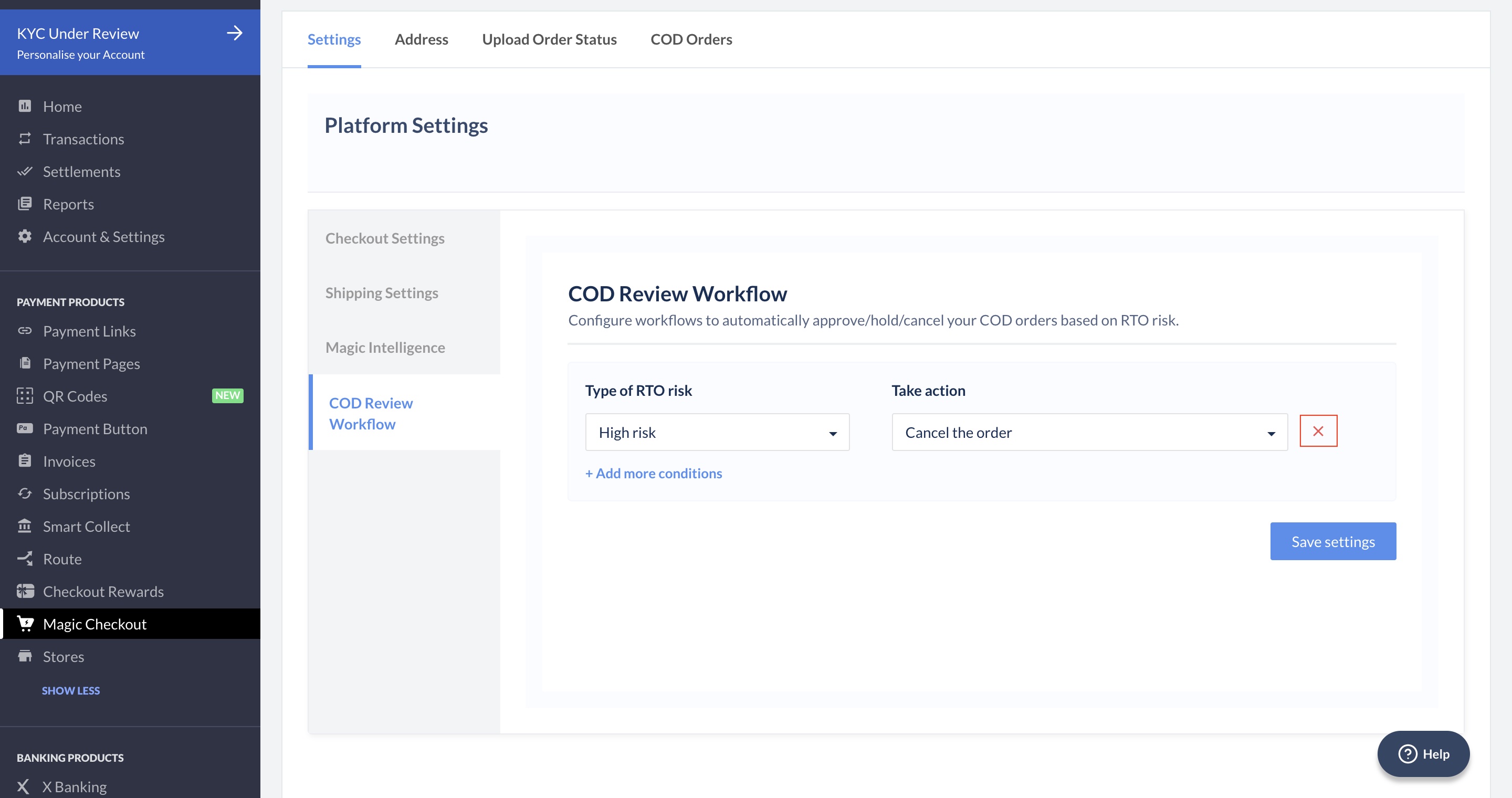
- Click Yes, Remove to remove all the the COD review workflow conditions.