

Available in🇮🇳 India
Wallet Auto-Debit streamlines the payment process and significantly boosts success rates, delivering an exceptional payment experience to your customers. The customers can complete wallet transactions with unparalleled speed and simplicity.
Prerequisites
- You need to have an active Razorpay account with Optimizer enabled.
- You need to have an active Paytm PG account.
- Write to your Razorpay Relationship Manager to enable Wallet Auto-Debit feature on your Optimizer account.
- Write to your Paytm Relationship Manager to enable the Paytm wallet auto debit feature and provide the client key and secret.
Handy TipsThe Paytm auto-debit feature is supported on Razorpay Standard Checkout.
Add Paytm as a Payment Provider
- Log in to your Dashboard.
- Go to the PAYMENT PRODUCTS section and click Optimizer.
- In the top-right section, click Add Provider.
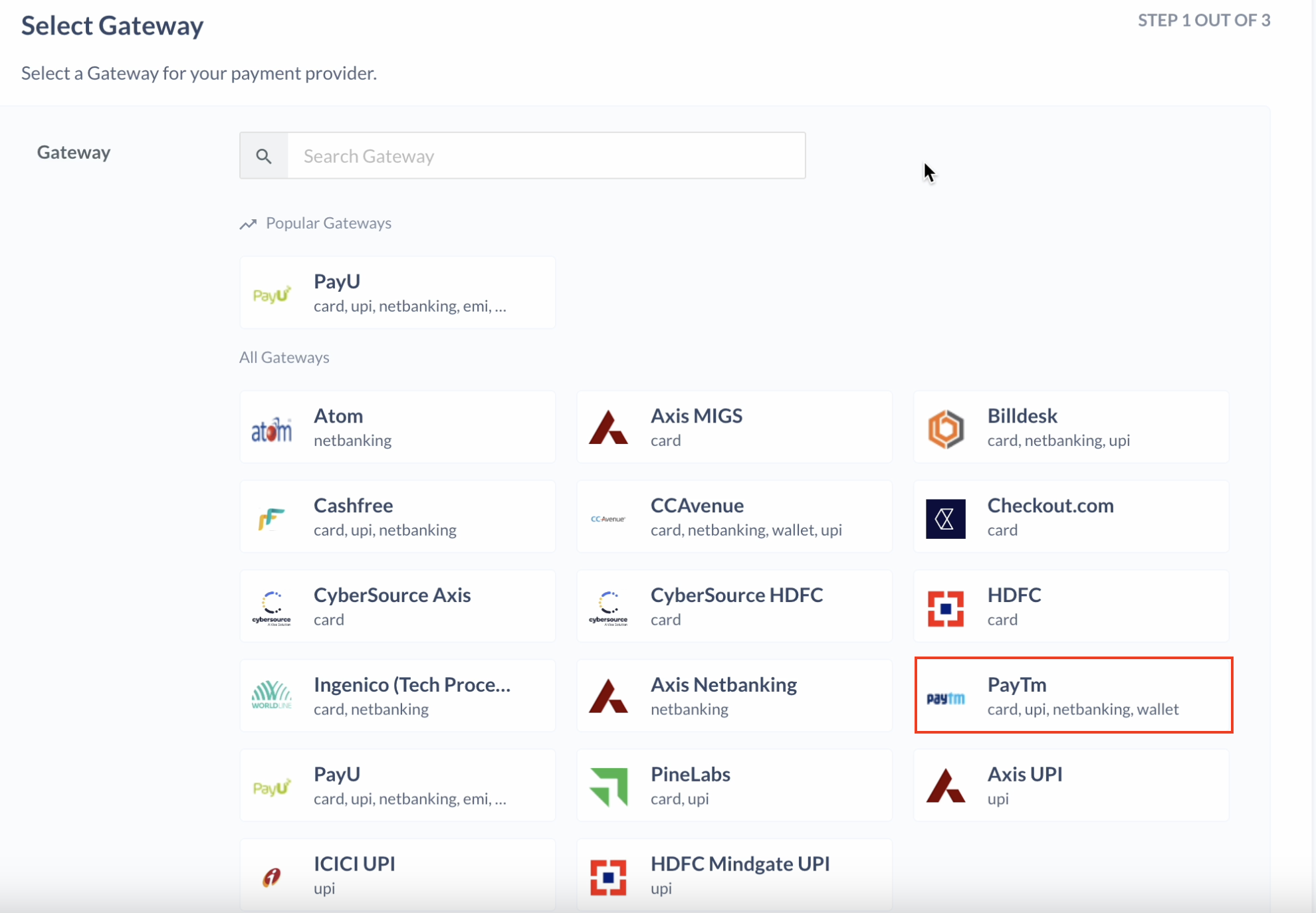
- Select PayTm in the list of gateways available and click Next.
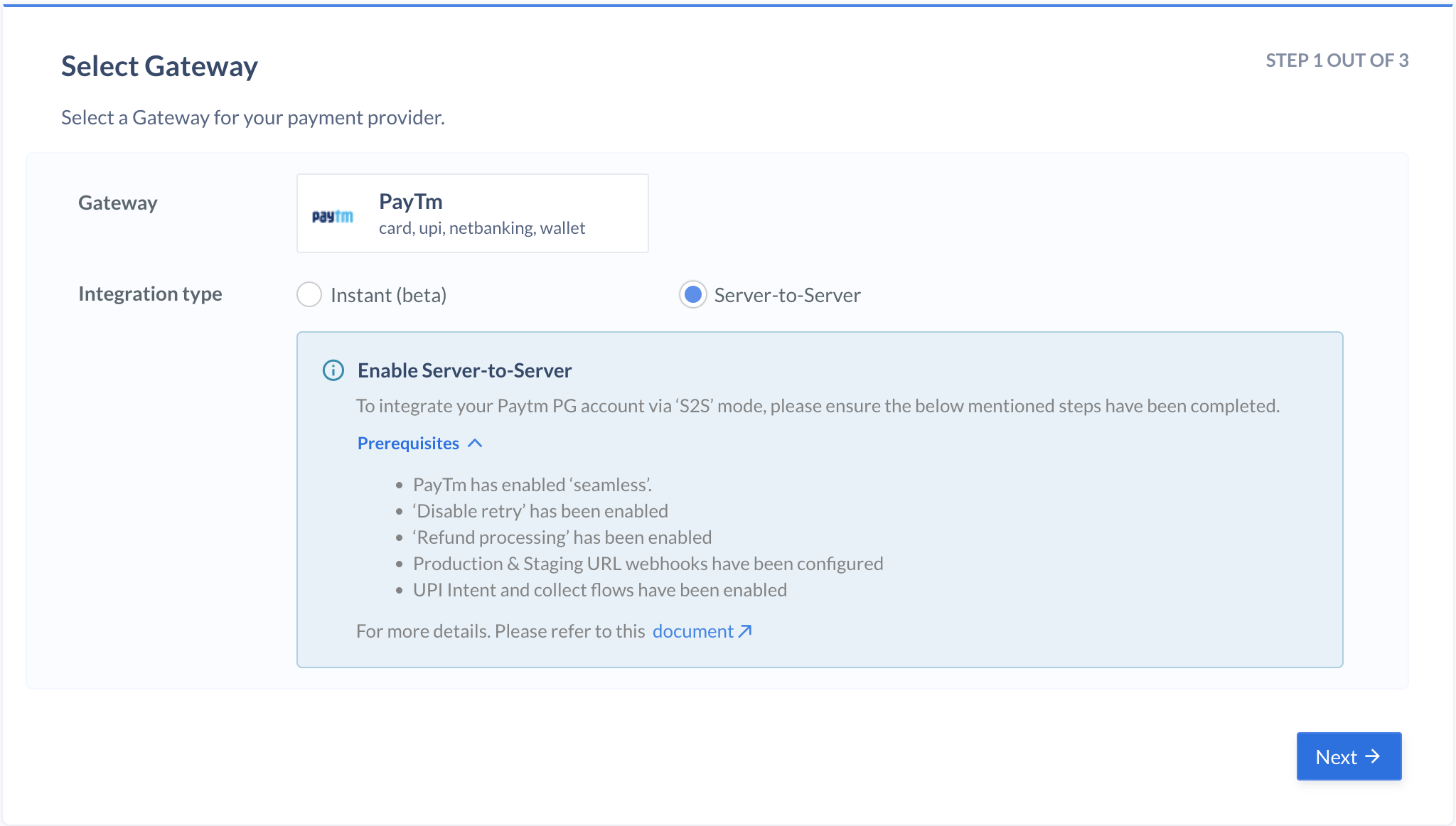
- Select Server-to-Server and click Next.
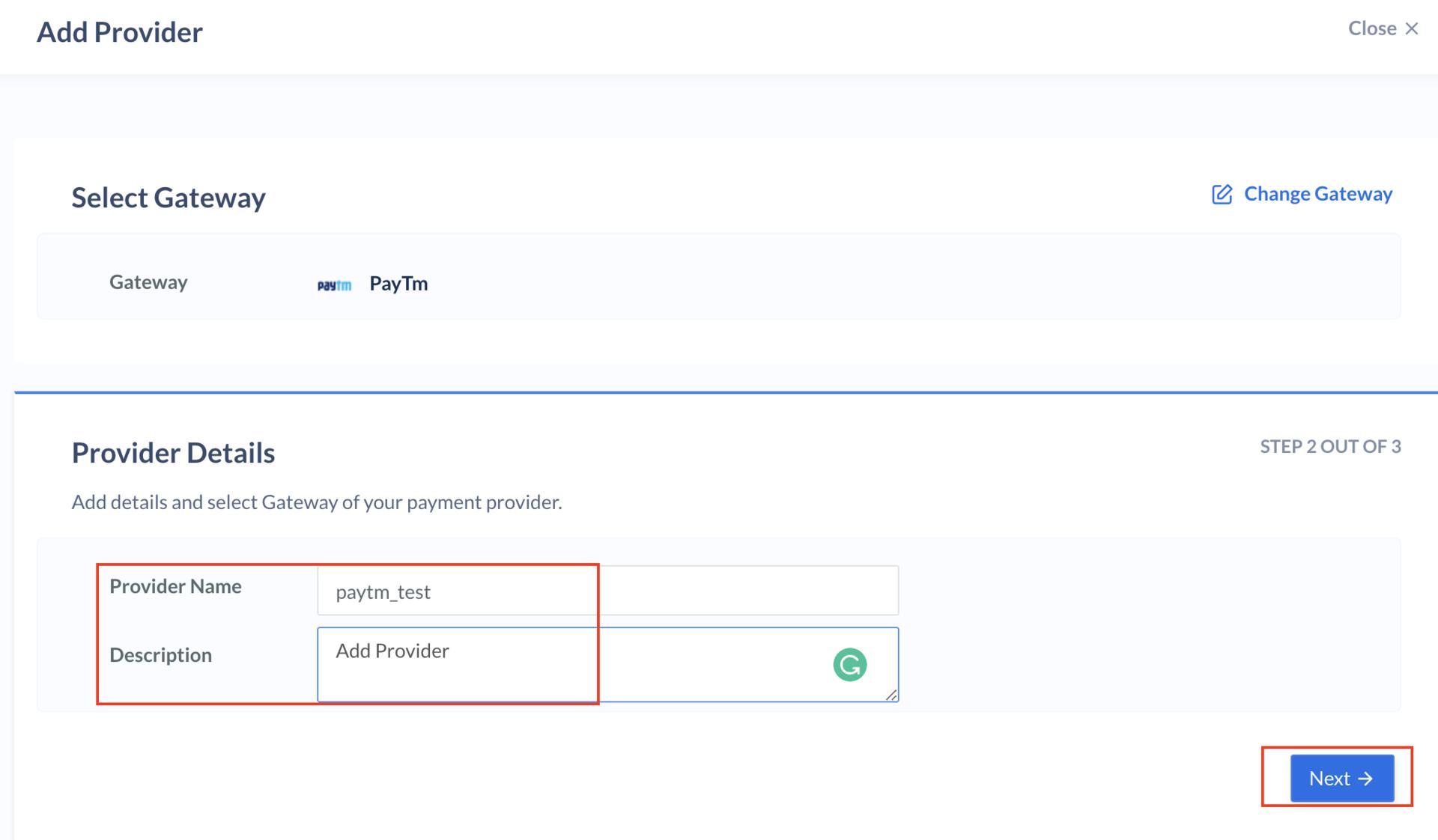
- Enter the provider name and description and click Next.
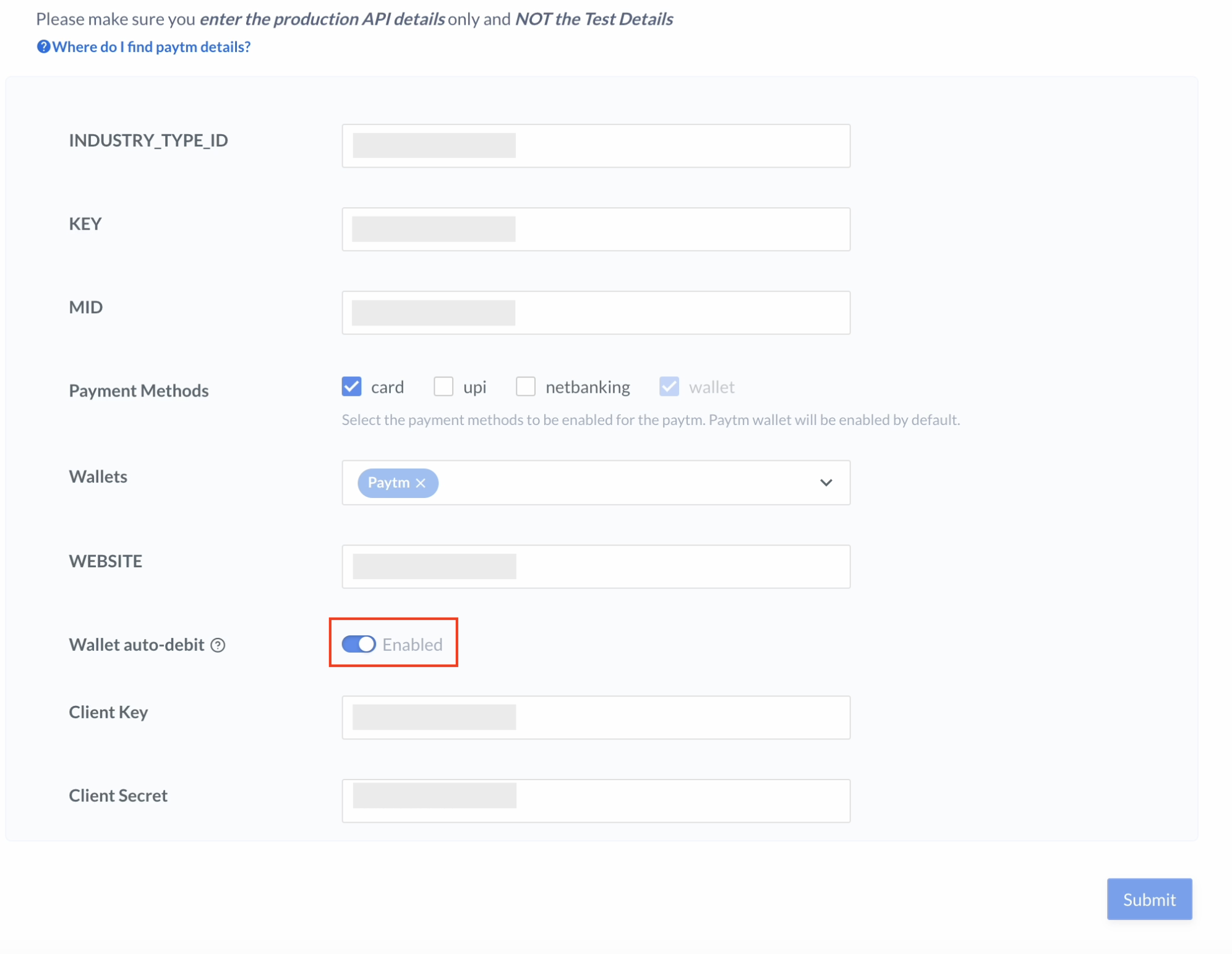
- Enter your INDUSTRY_TYPE_ID, KEY, MID (merchant ID) and WEBSITE details.
- Enable the Wallet auto-debit button, enter your Client Key and Secret and click Submit.
Razorpay Wallet Auto-Debit (Customer Flow)
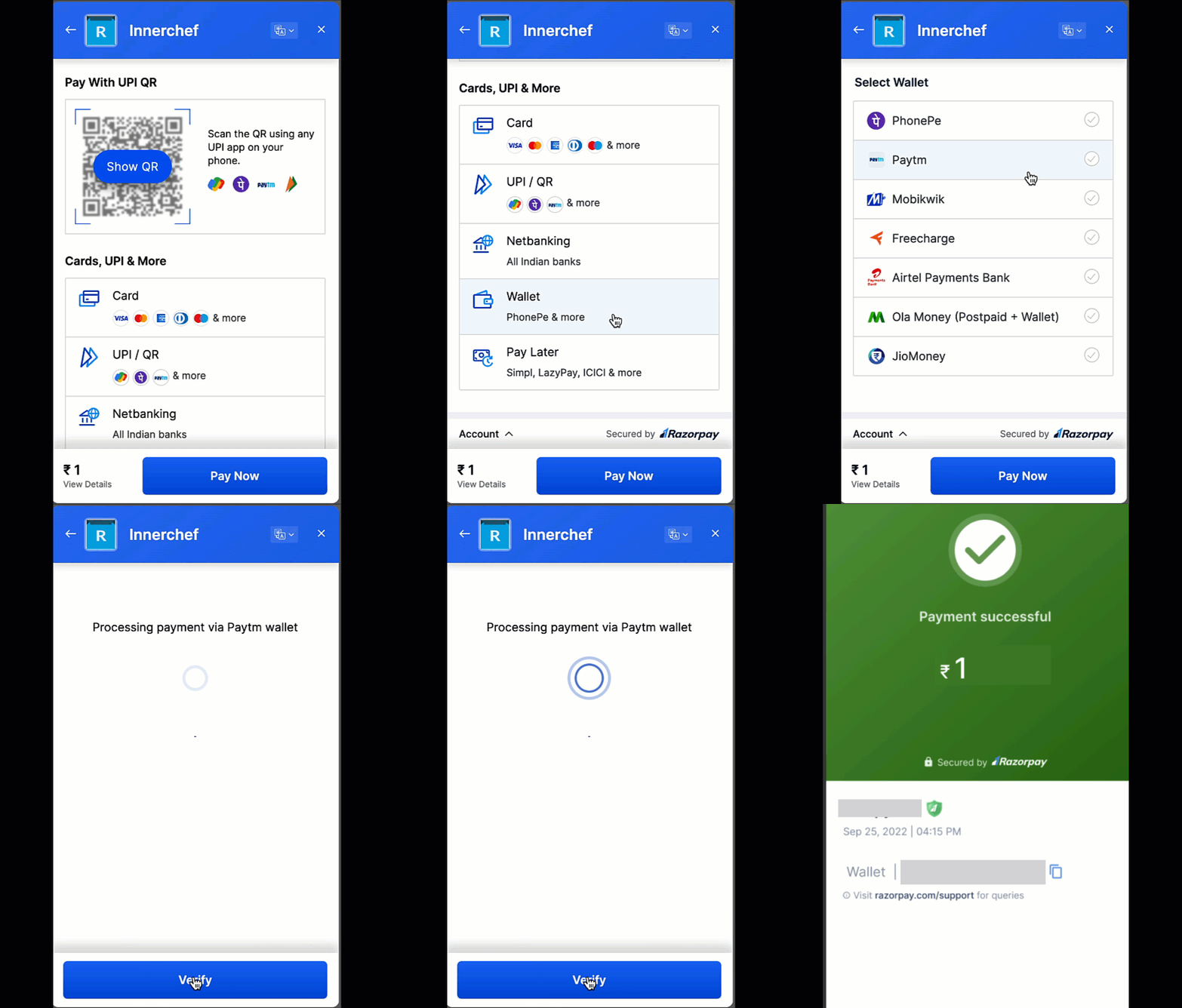
Below is a complete end-to-end flow about how Razorpay Wallet Auto-Debit works:-
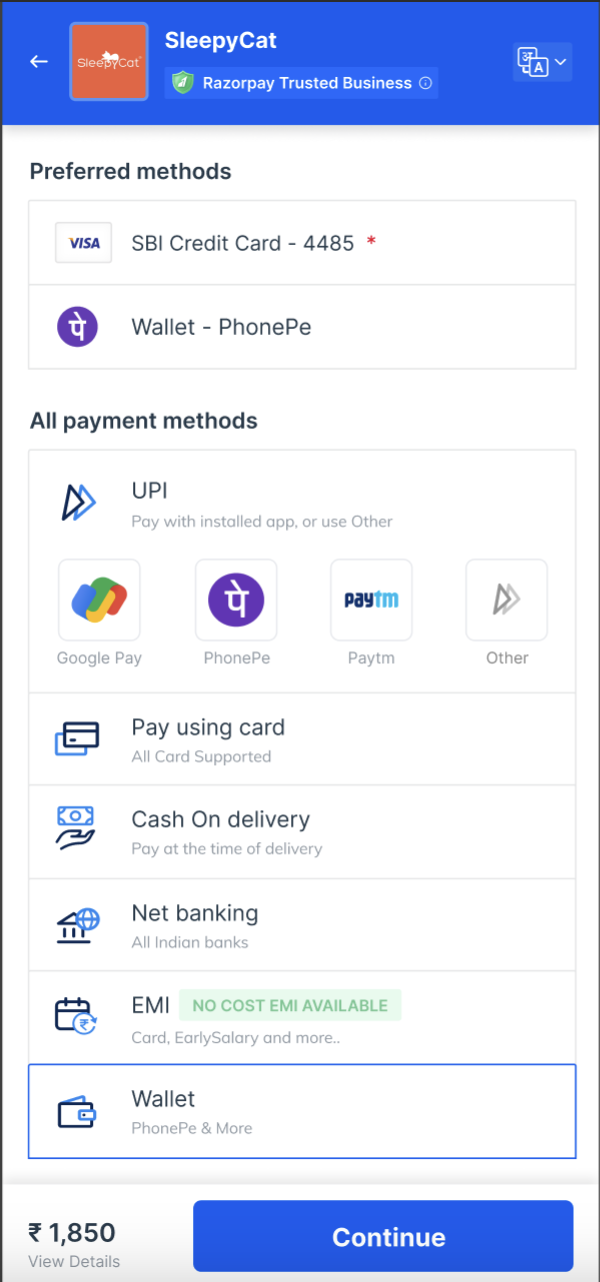
The customer clicks Pay Now on your website and is redirected to the Razorpay Standard Checkout.
-
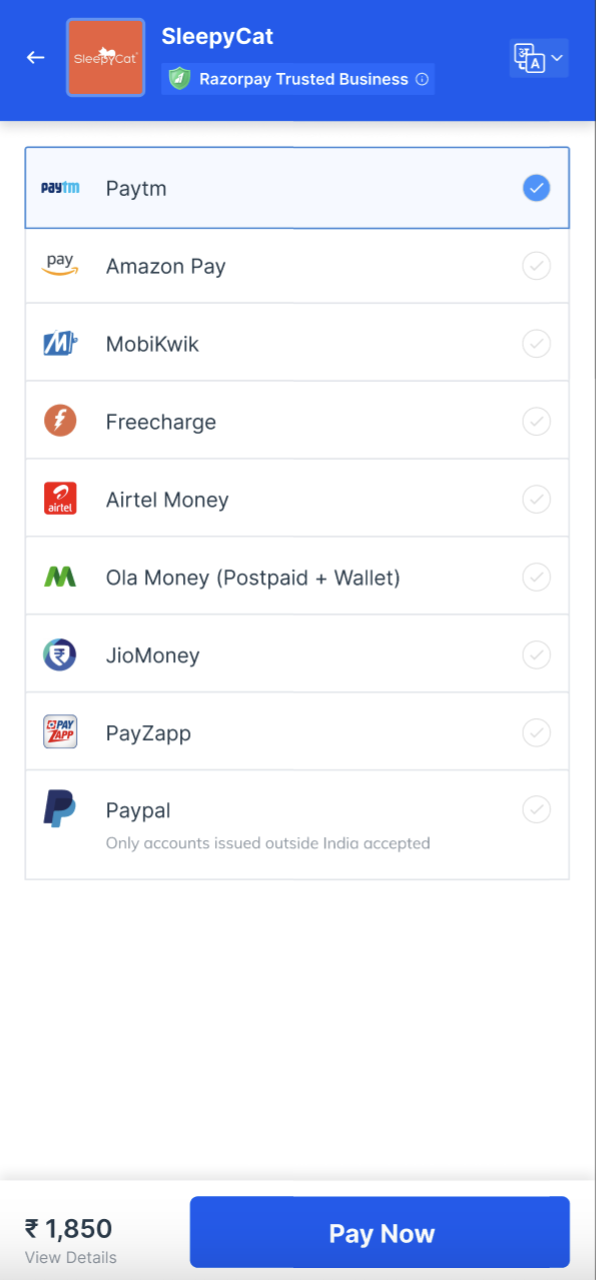
The customer selects Wallet and Paytm.
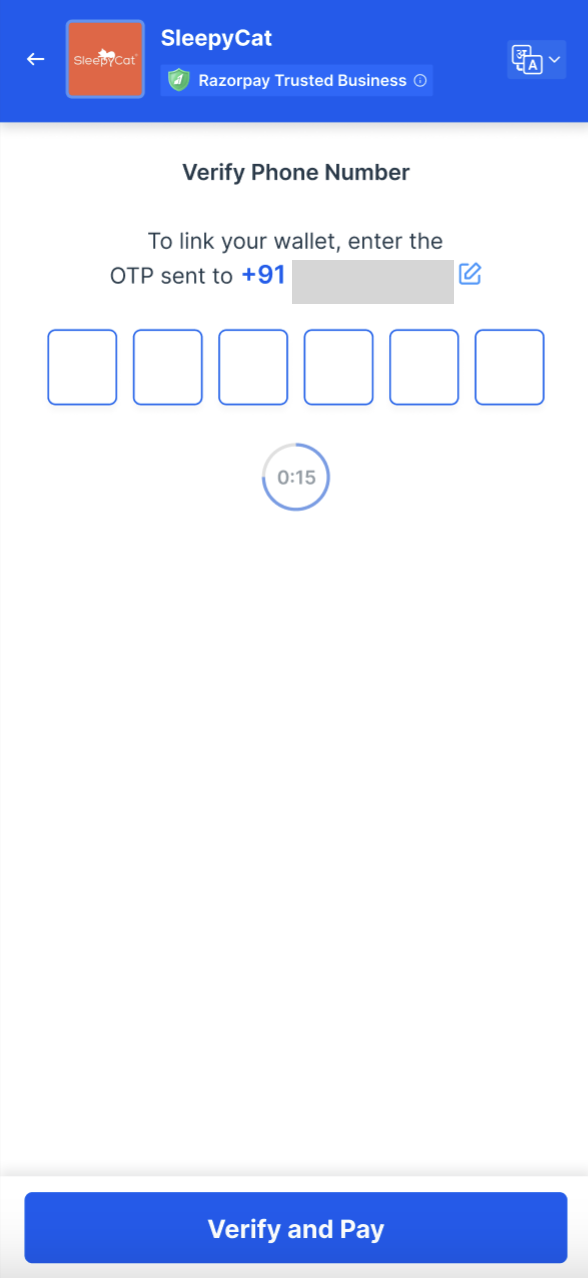
- If the customer is a first-time user, they will be asked to enter the mobile number and the OTP to link their wallet and complete the payment.
- If the customer has sufficient balance in their wallet, they can pay directly with a single click.
- If the customer does not have sufficient balance in their wallet, they will be redirected to a Paytm page where they can add money to their balance and complete the payment.
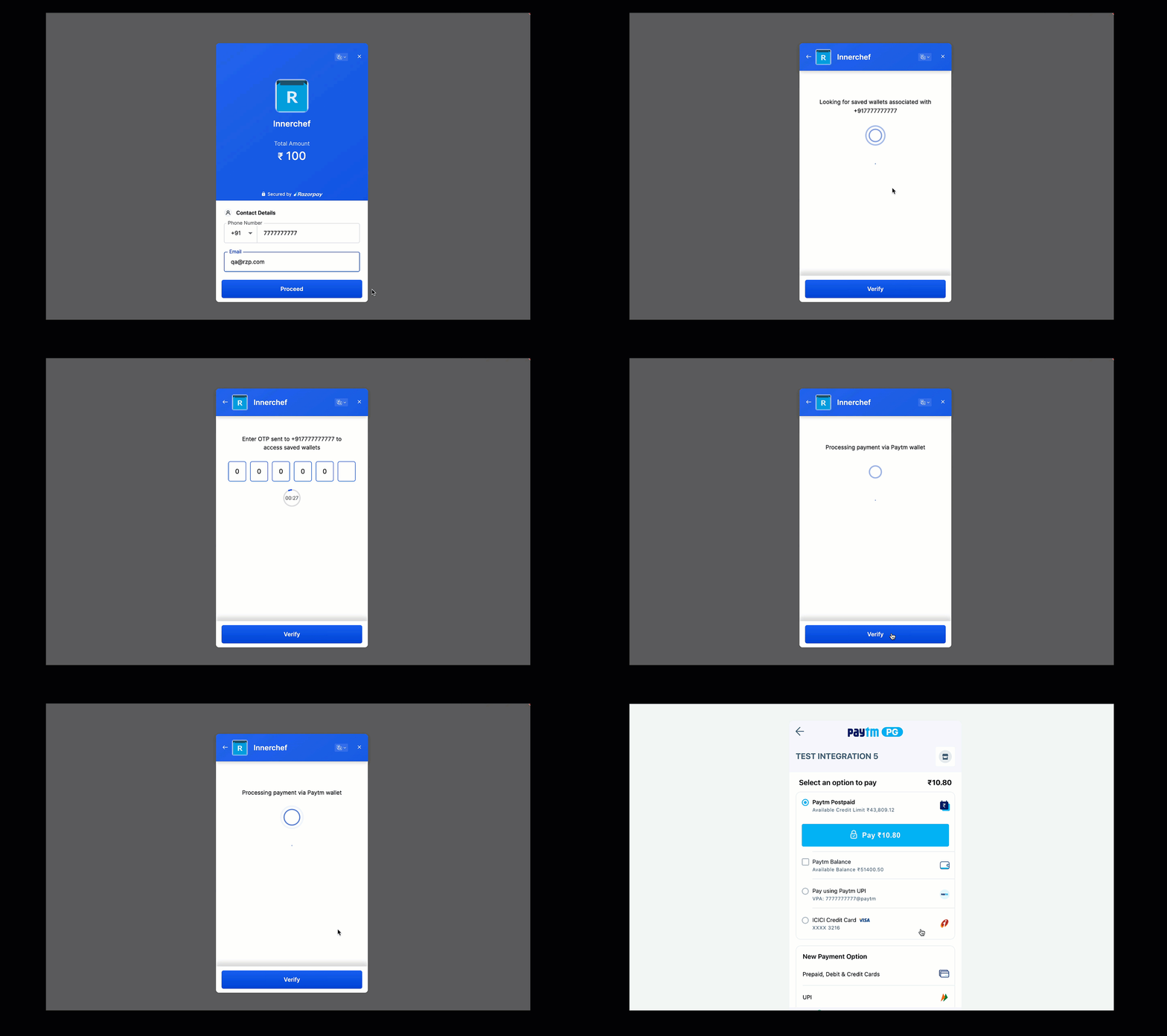
- If the customer is a first-time user, they will be asked to enter the mobile number and the OTP to link their wallet and complete the payment.