

Available in🇮🇳 India
You can use Optimizer Recurring Payments to set up and oversee customer payments on your terms. It is a user-friendly self-serve feature on Optimizer that simplifies the process, enabling you to establish recurring payment schedules for your customers effortlessly.
Supported Payment Gateways and Methods
Integrate Emandate (PayU)
Prerequisites
- Write to your PayU Relationship Manager with the following requests:
- Enable seamless mode for your account. Mention that you use a technology company to handle sensitive card data.
- Enable the method ENACH for your account.
- Configure the webhook URL as
https://api.razorpay.com/v1/callback/payuto receive an Emandate response. - Subscribe to webhooks for all emandate payment events.
- Enable the required banks.
- Provide PayU key and Salt key details.
- You should have an active Razorpay account with Optimizer enabled.
- Get in touch with your Razorpay Relationship Manager to enable Emandate as a payment method.
Integration Steps
Below are the steps to integrate Recurring Payments for PayU using Emandate as a payment method:Step1: Add PayU as a Payment Provider
Step1: Add PayU as a Payment Provider
Know how to add PayU as a payment provider.
Step2: Route Emandate Transactions
Step2: Route Emandate Transactions
To route emandate transactions via Optimizer, configure the rule as follows: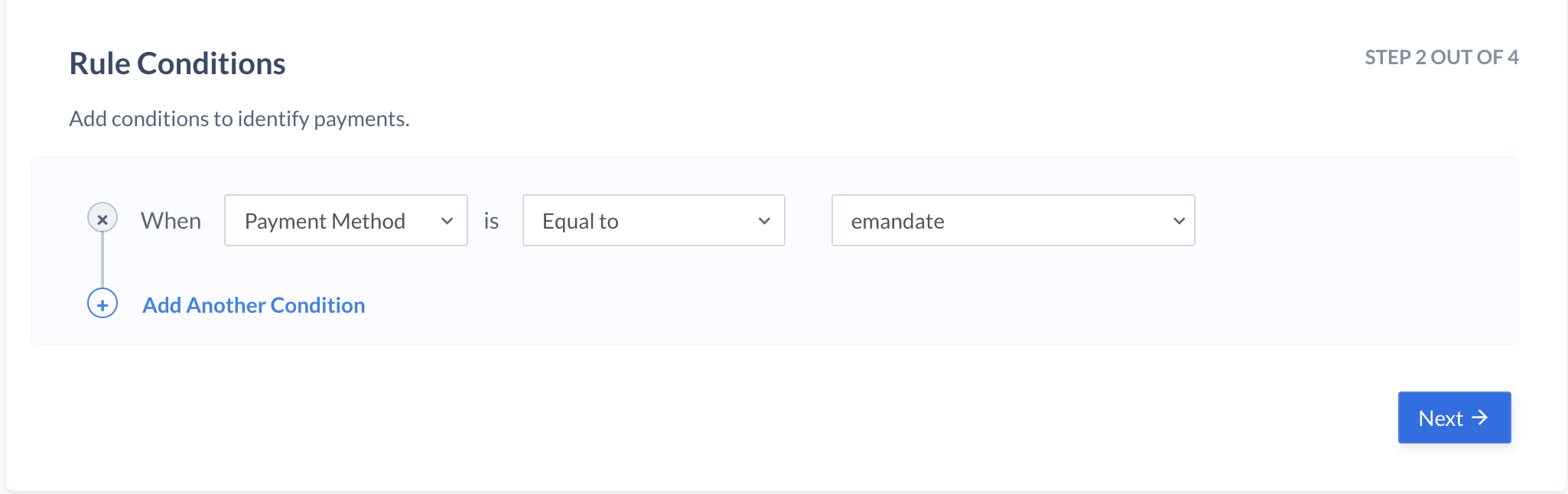
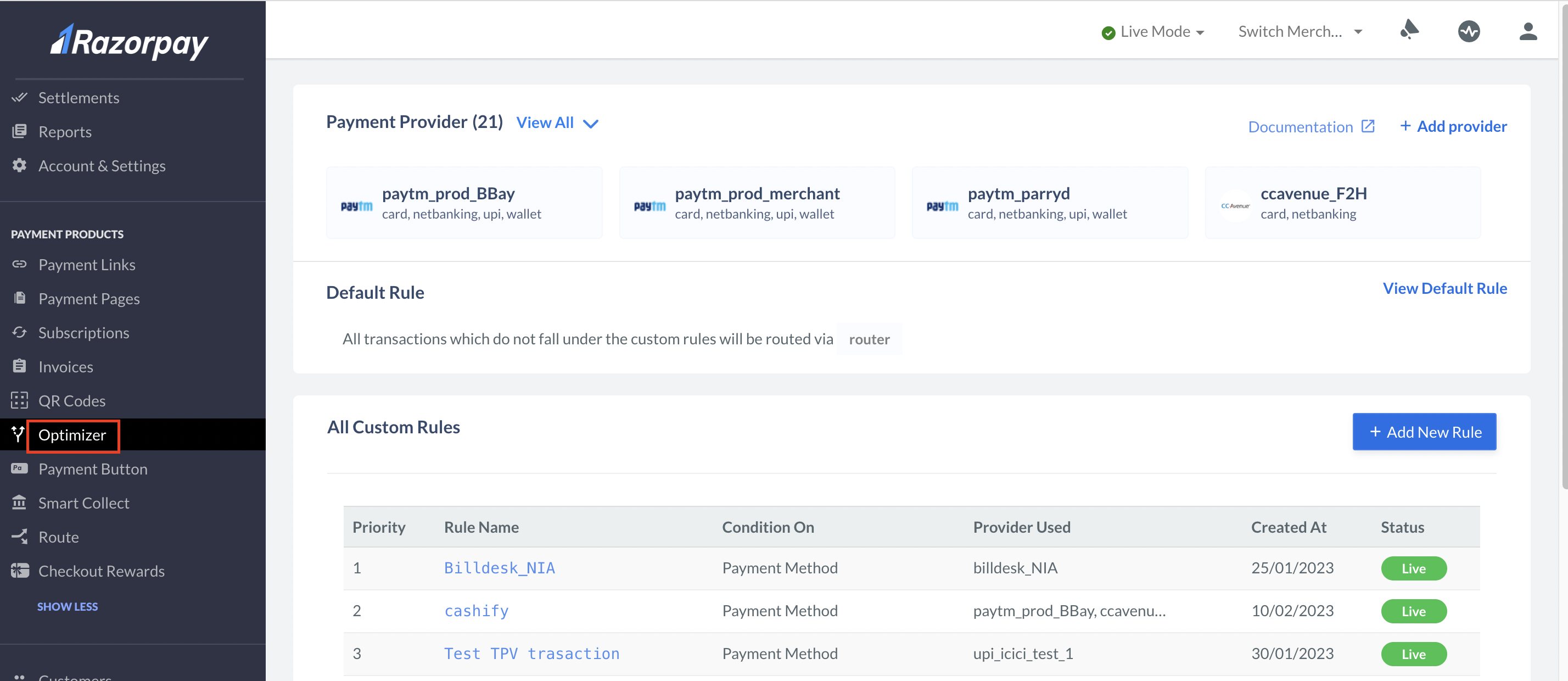
- Log in to your Dashboard.
-
Go to the PAYMENT PRODUCTS section and click Optimizer.
-
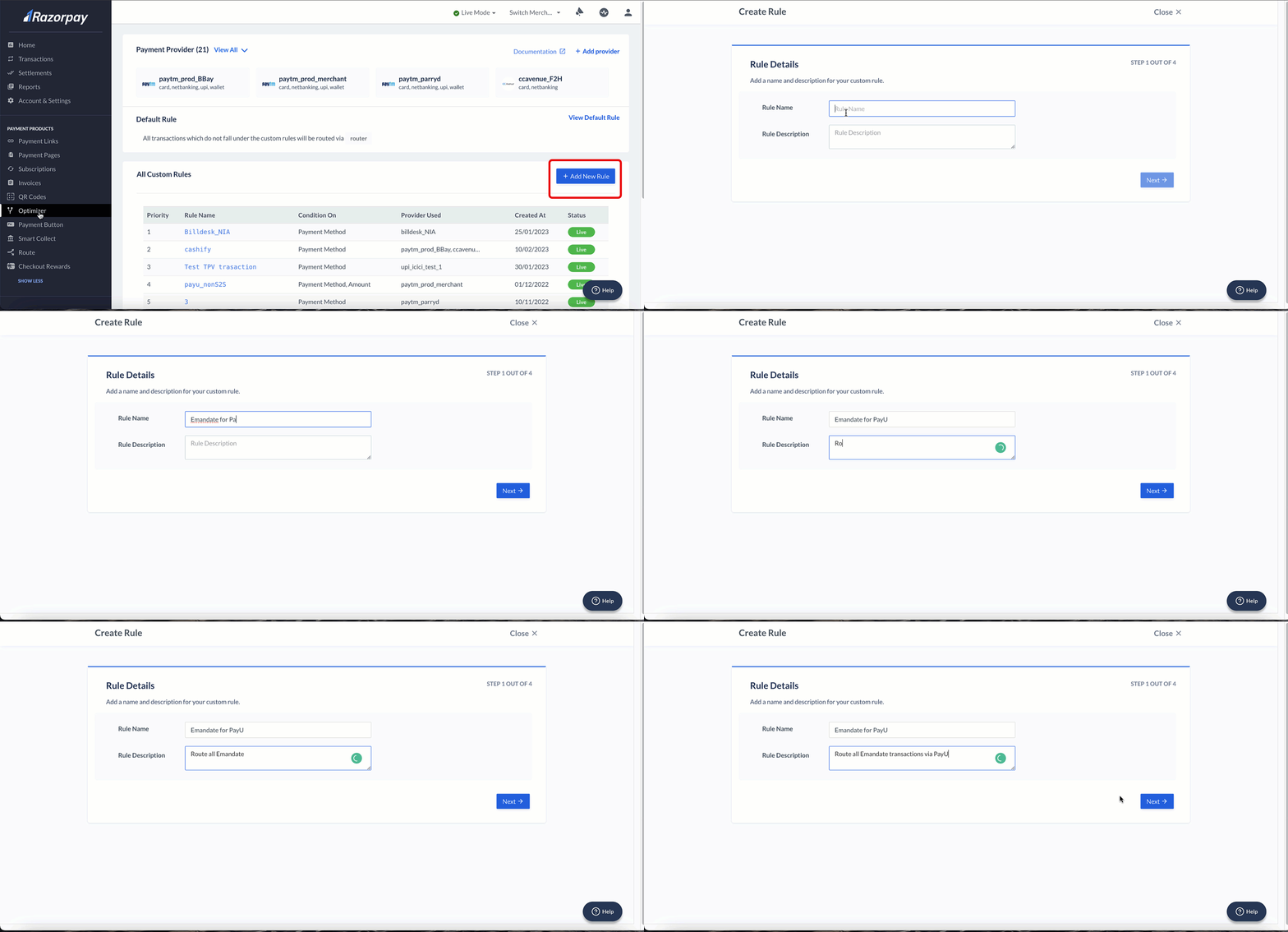
Click +Add New Rule and enter the Rule name and Description.
-
Click Next and enter the following rule:
- In Select Parameter field, select Payment Method.
- In Select Connection field, select Equal to.
- In Select Comparing Value field, select emandate.
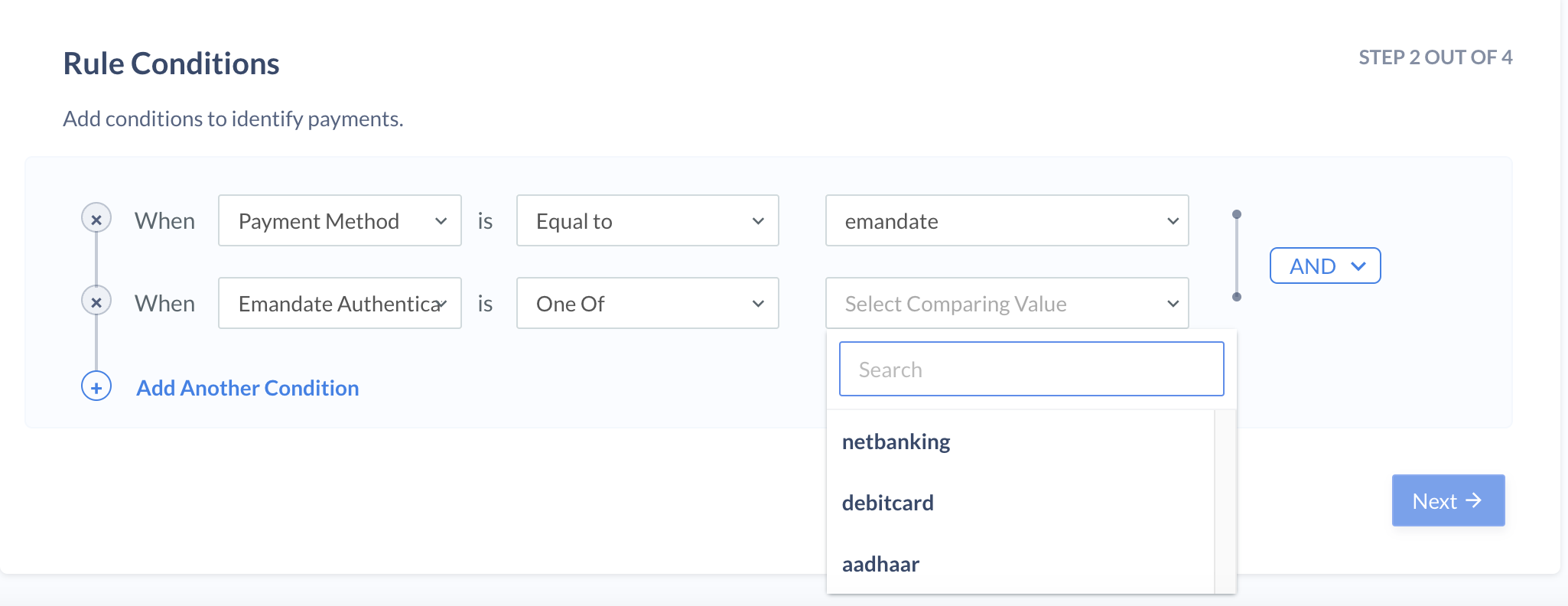
- Click Add Another Condition and enter the following rule:
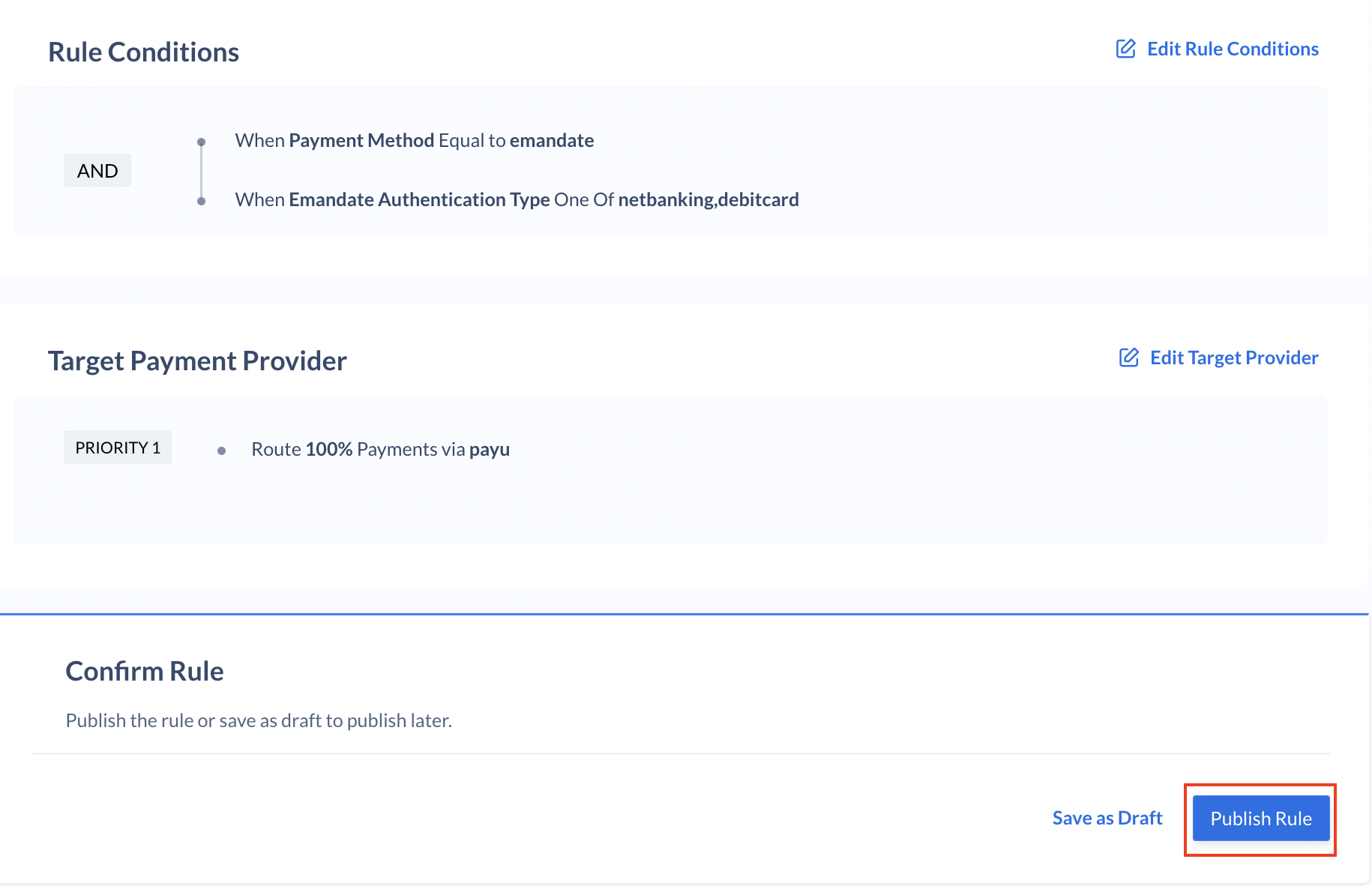
- In Select Parameter field, select Emandate Authentication Type.
- In Select Connection field, select One Of.
- In Select Comparing Value field, select netbanking or debit card as per your requirement and click Next.
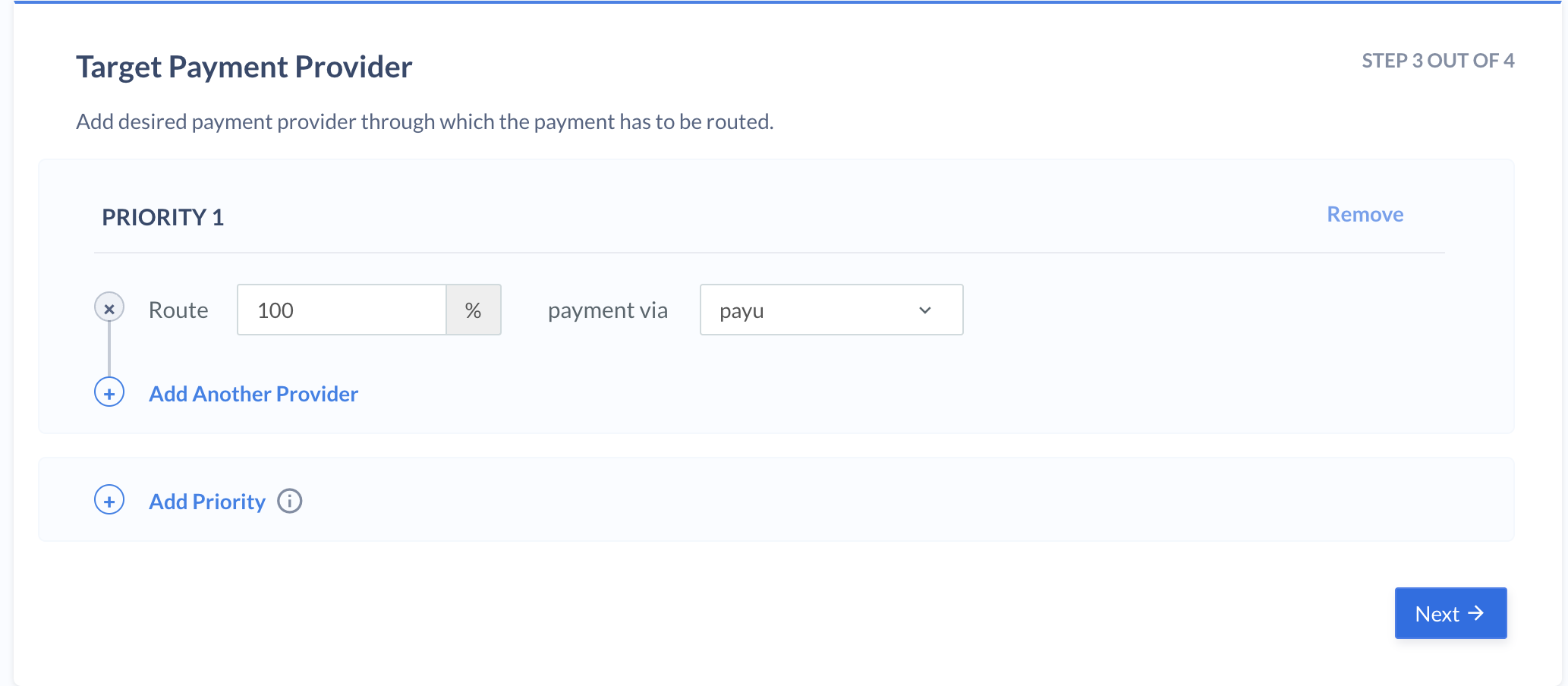
- Enter the value 100 in the Route field, select payu in the payment via drop-down, and click Next.
- Click Publish Rule.
Integrate Cards (PayU)
Prerequisites
- Write to your PayU Relationship Manager with the following requests:
- Enable seamless mode for your account. Mention that you use a technology company to handle sensitive card data.
- Enable the method Card Recurring for your account.
- Configure the webhook URL as
https://api.razorpay.com/v1/callback/payuto receive a card recurring response. - Subscribe to webhooks for all card recurring payment events.
- Provide PayU key and Salt key details.
- You should have an active Razorpay account with Optimizer enabled.
- Get in touch with your Razorpay Relationship Manager to enable Card Recurring as a payment method.
Integration Steps
Below are the steps to integrate Recurring Payments for PayU using Cards as a payment method:Step 1: Add PayU as a Payment Provider
Step 1: Add PayU as a Payment Provider
Know how to add PayU as a payment provider.
Step 2: Route Cards Transactions
Step 2: Route Cards Transactions
To route cards transactions via Optimizer, configure the rule as follows: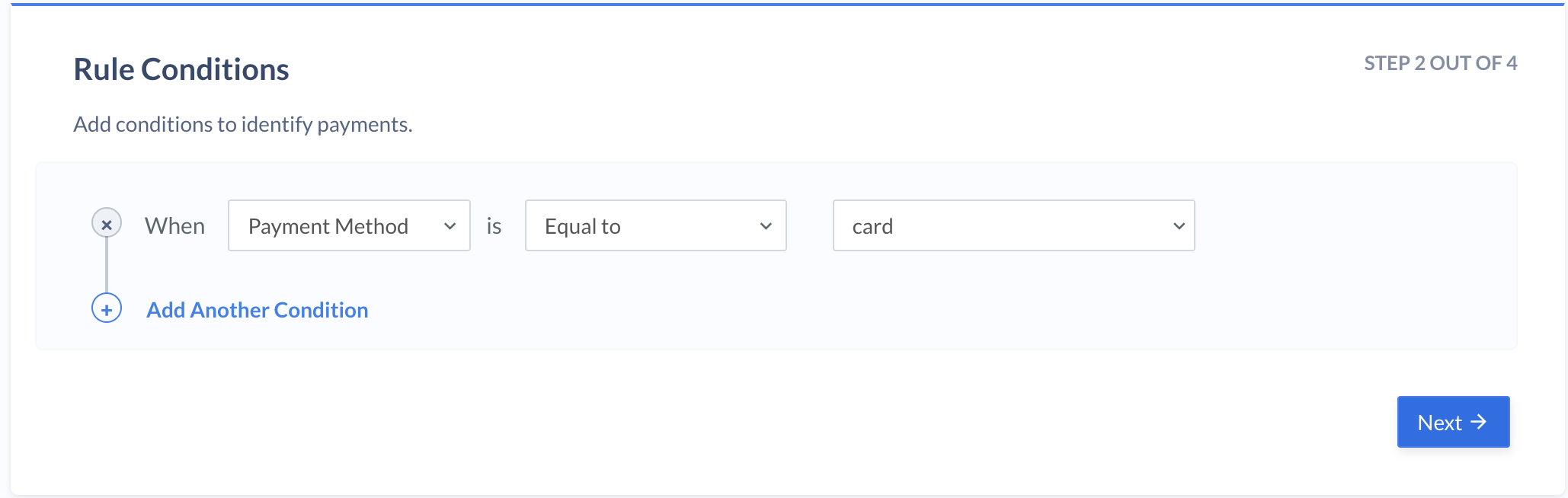
- Log in to your Dashboard.
- Go to the PAYMENT PRODUCTS section and click Optimizer.
- Click +Add New Rule and enter the Rule name and Description.
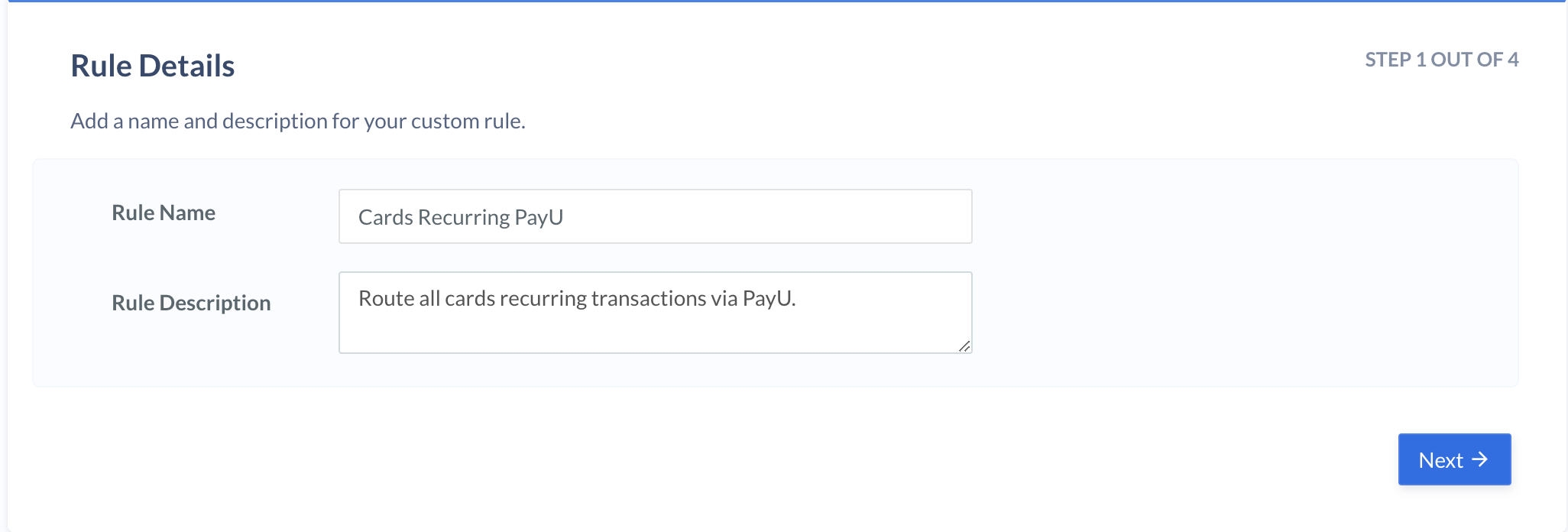
- Click Next and enter the following rule:
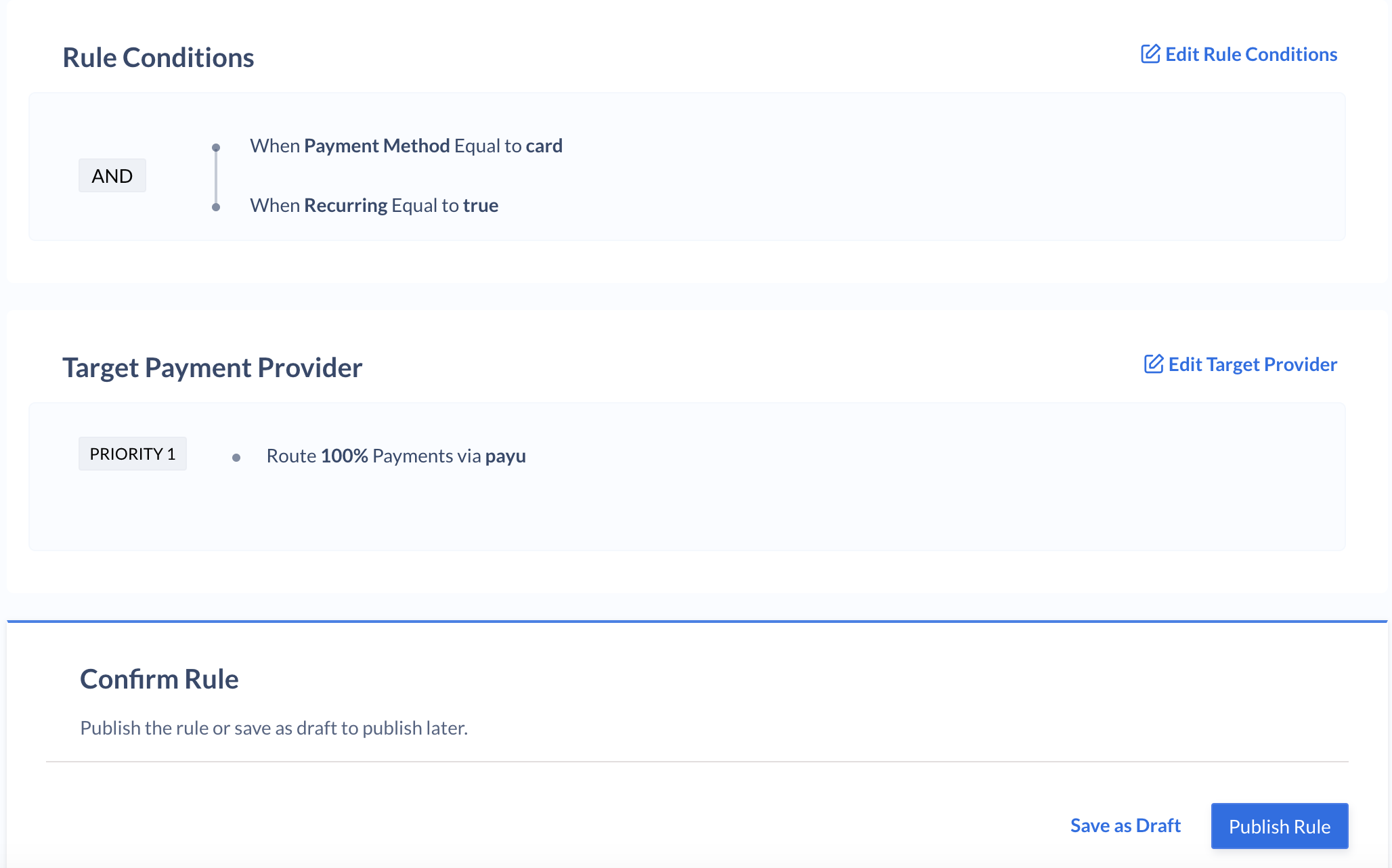
- In Select Parameter field, select Payment Method.
- In Select Connection field, select Equal to.
- In Select Comparing Value field, select card.
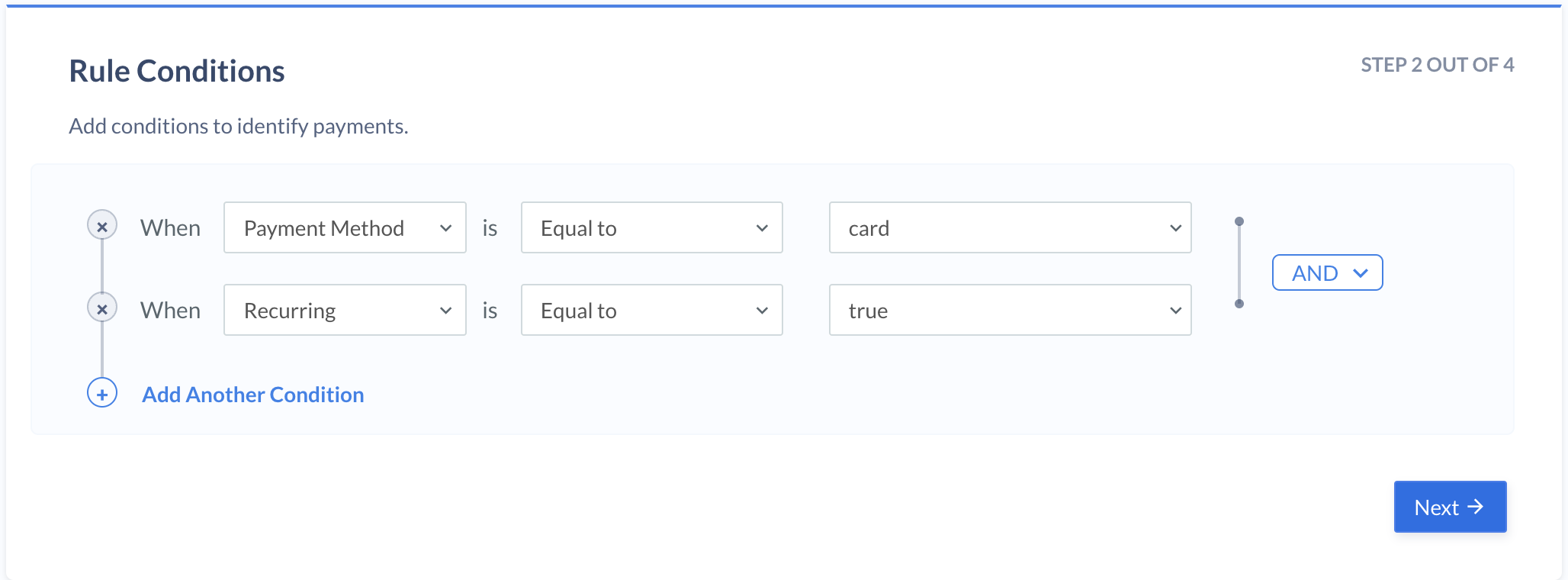
- Click Add Another Condition and enter the following rule:
- In Select Parameter field, select Recurring (card).
- In Select Connection field, select Equal to.
- In Select Comparing Value field, select true and click Next.
- Enter the value 100 in the Route field, select payu in the payment via drop-down, and click Next.
- Click Publish Rule.
Handy TipsYou can follow similar steps for UPI payments by selecting UPI as the payment method.