

Available in🇮🇳 India
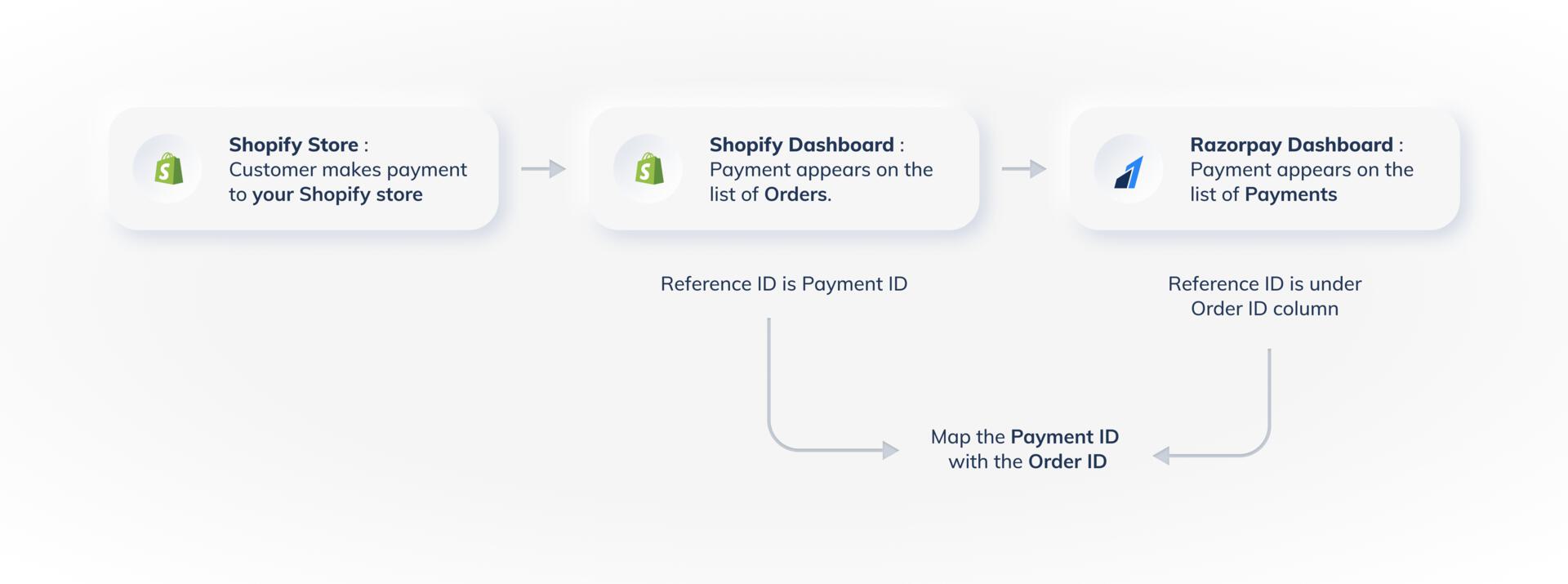
Reconciling payments made on your Shopify store with the data available on your Dashboard is a simple process.
Reconcile a Payment
Reconcile a Payment
Follow the steps below to reconcile a payment:
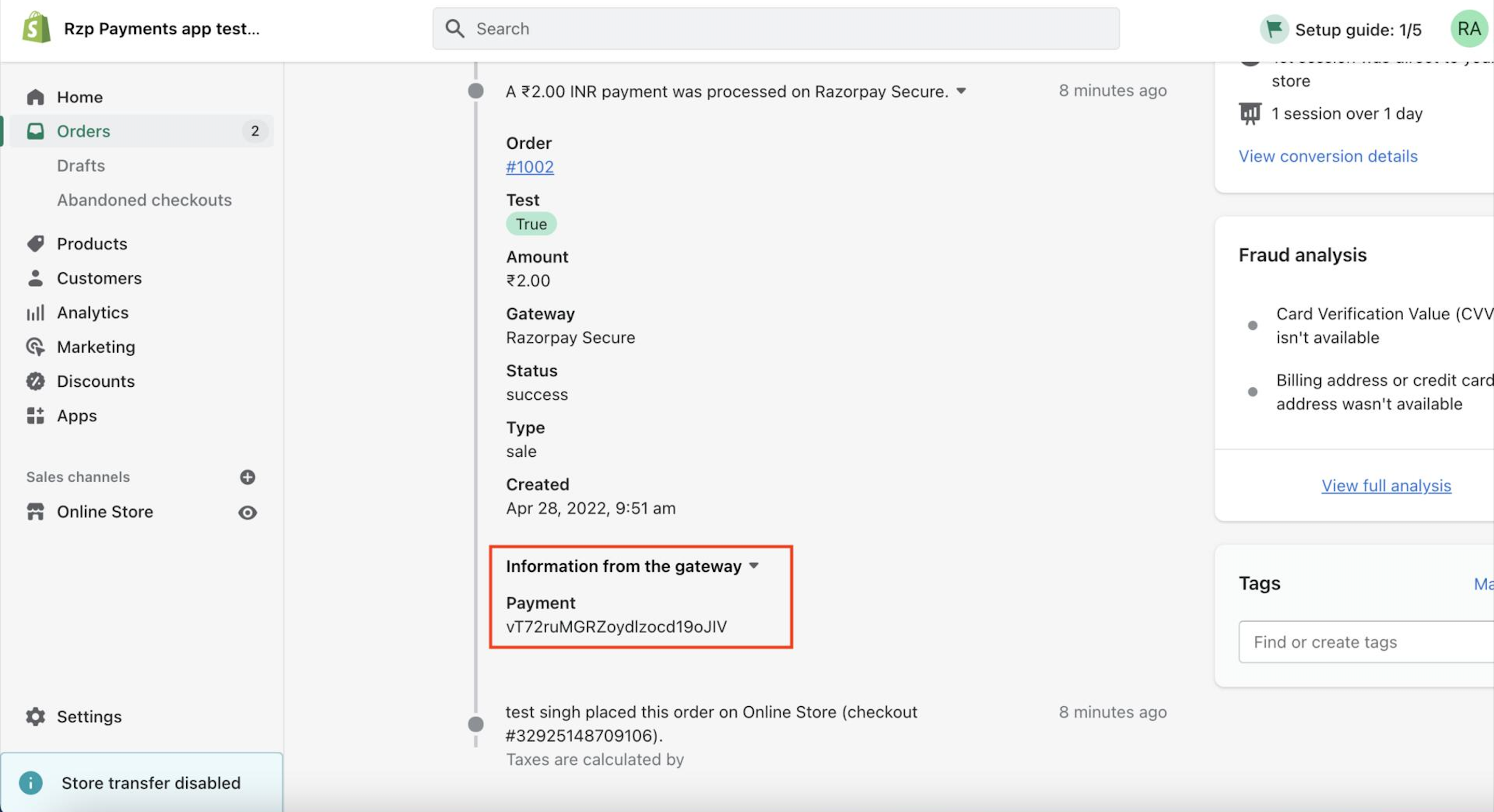
- Log in to the Shopify Dashboard and open the Orders tab. Click the drop-down to view the All-in-one Razorpay Payment Gateway payment details.
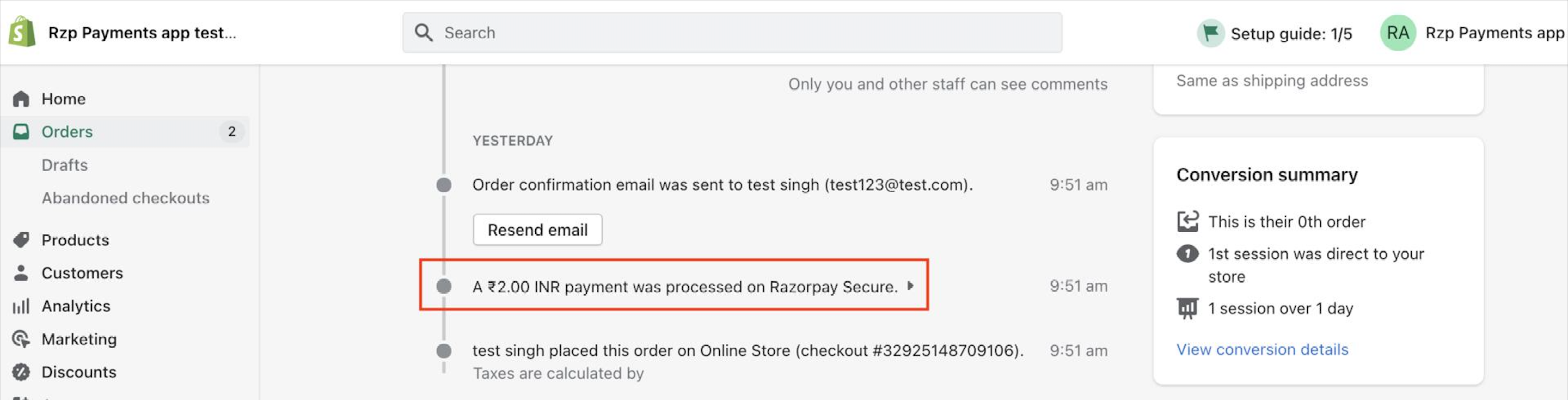
- Make a note of the payment id.
- Log in to the Dashboard and navigate to Transactions → Payments. The payment appears on the list of payments. The payment id appears under the Order Id column.
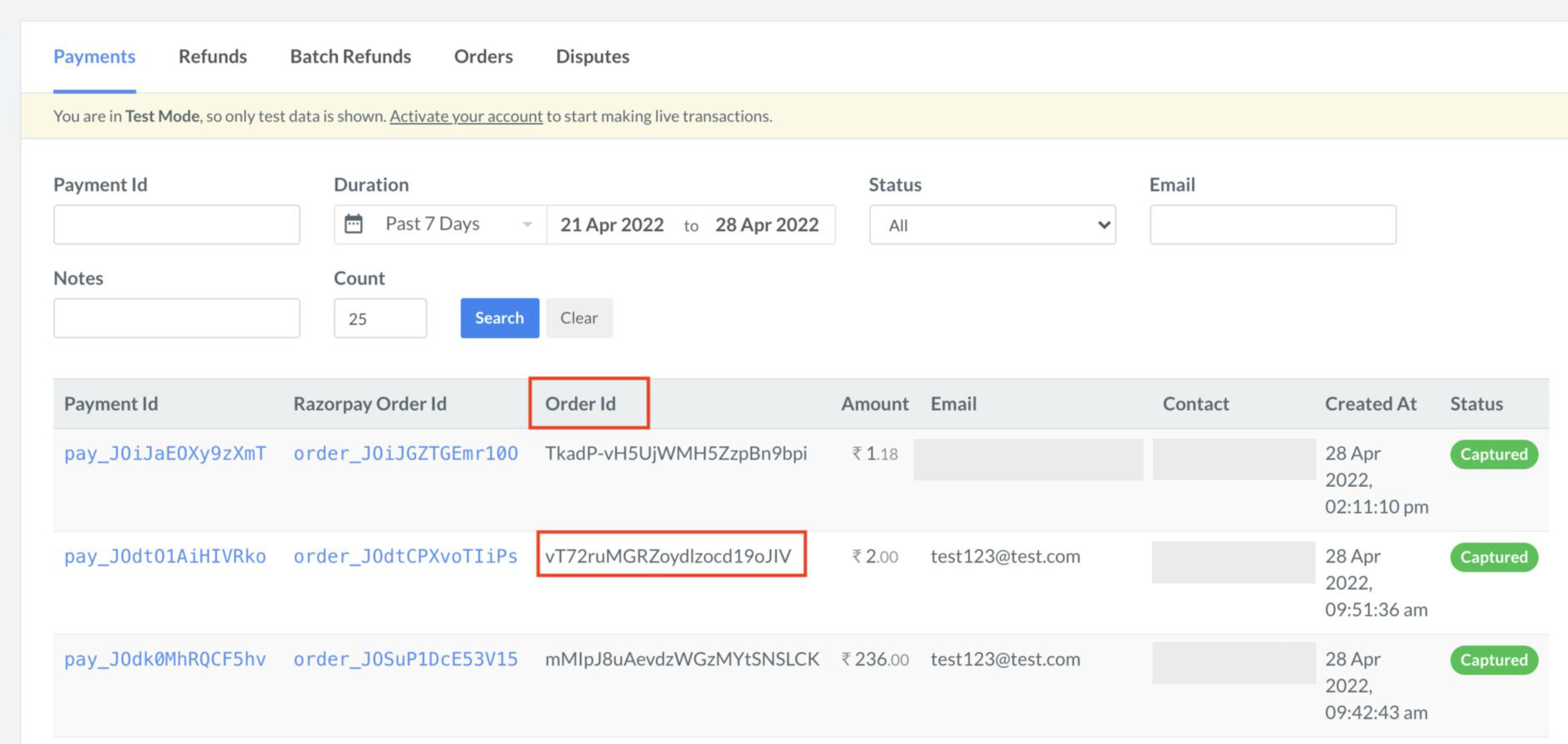
- Match the payment id (on the Shopify Dashboard) with the Order id (on the Razorpay Dashboard) to map the payments.
Reconcile Multiple Payments
Reconcile Multiple Payments
Follow the steps below to reconcile multiple payments:
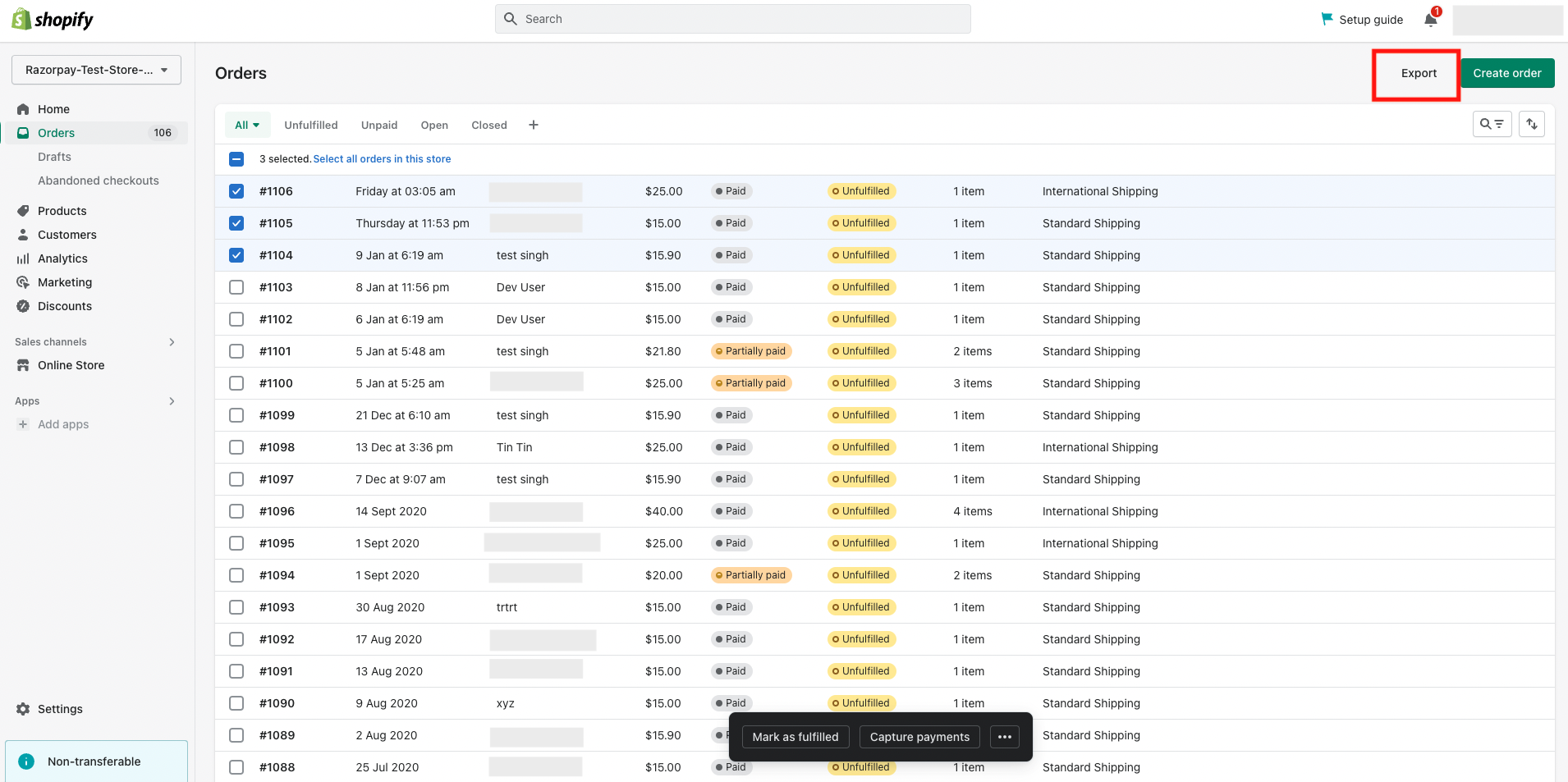
- Log in to the Shopify Dashboard and open the Orders tab.
- Select the required orders or time period.
- Click Export to export the data. The Payment References column in the file contains the payment ids.
- Log in to the Dashboard and navigate to Reports.
- Select Shopify Payments Report in the Select Report Type drop-down.
- Select the period and format.
- Click Generate Report.
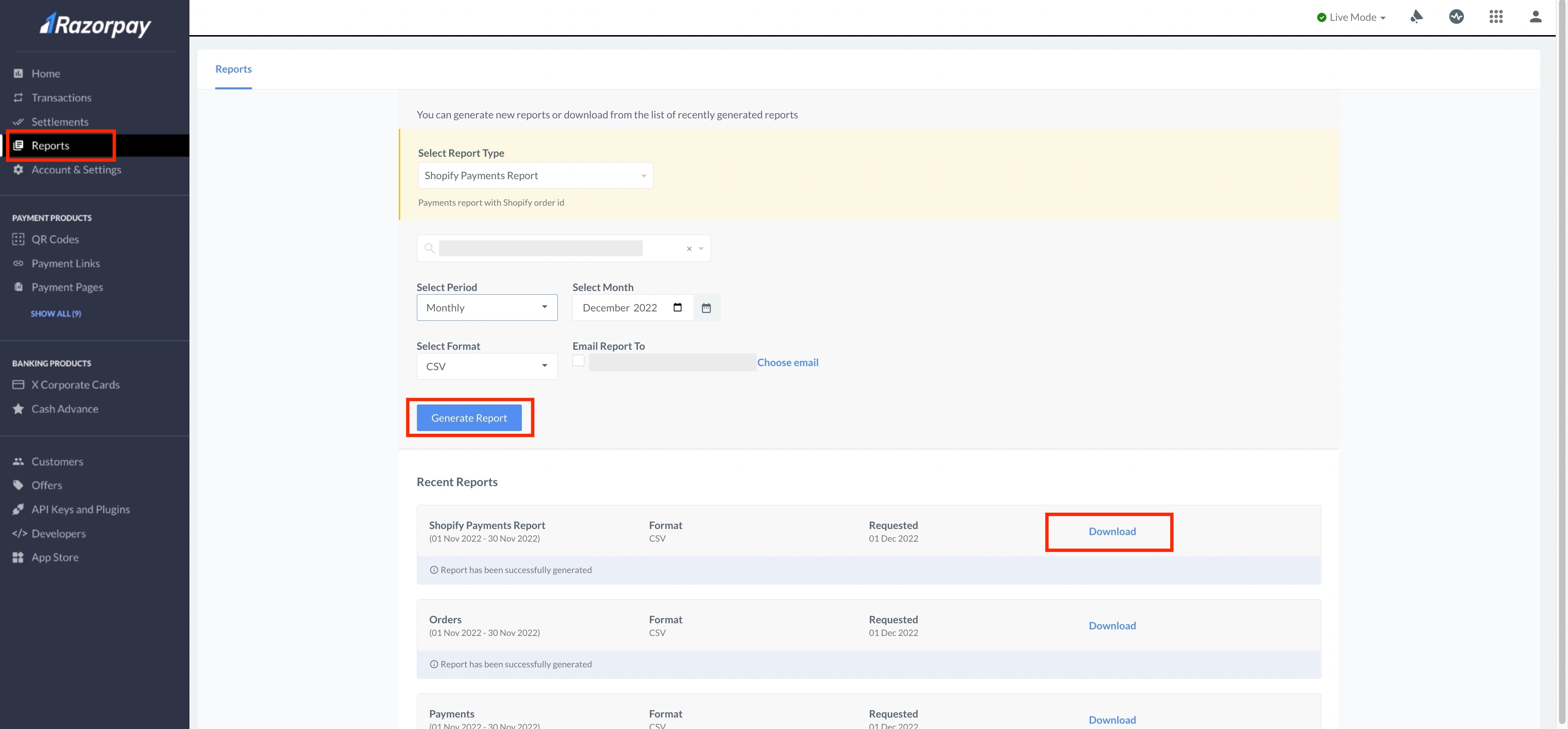
- Once the report is generated, click Download. The Order ID column in the file contains the payment ids.
- Match the Payment References column in the Shopify export with the Order ID column in the Shopify Payments Report to map the payments.