

Integration & Setup
Why can't I find the Razorpay plugin on the Shopify App Store?
Why can't I find the Razorpay plugin on the Shopify App Store?
How do I integrate All-in-one Razorpay Payment Gateway with my Shopify store?
How do I integrate All-in-one Razorpay Payment Gateway with my Shopify store?
Do I need API keys to integrate a payment app with Shopify?
Do I need API keys to integrate a payment app with Shopify?
I tried connecting All-in-one Razorpay Payment Gateway to my AxisRazorpay account but was unsuccessful. When I try to reconnect, the screen appears different. How should I proceed?
I tried connecting All-in-one Razorpay Payment Gateway to my AxisRazorpay account but was unsuccessful. When I try to reconnect, the screen appears different. How should I proceed?
-
When you try to reconnect, you will get the following screen. Click Manage.
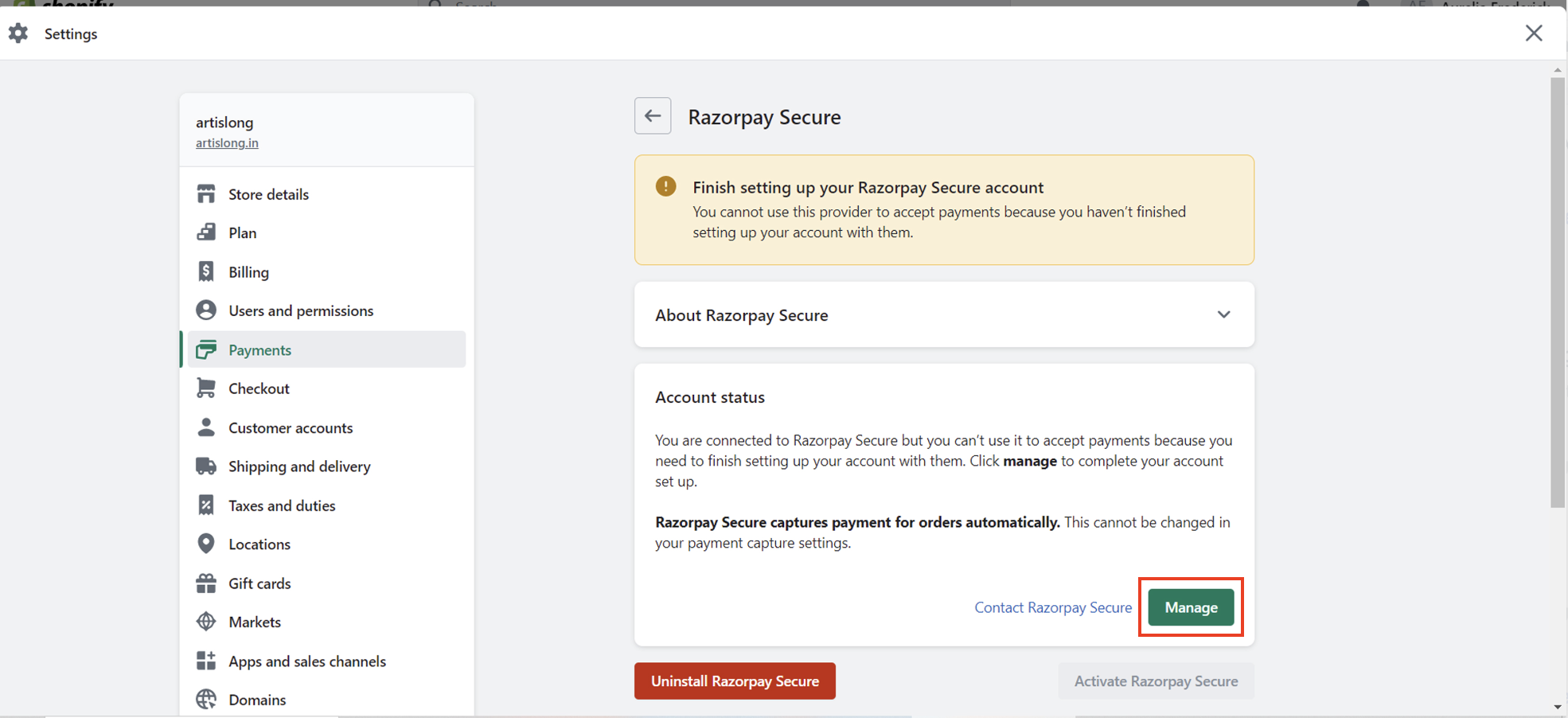
-
You will be redirected to a landing page. Click I am an existing user.

- Scroll down and click Login.
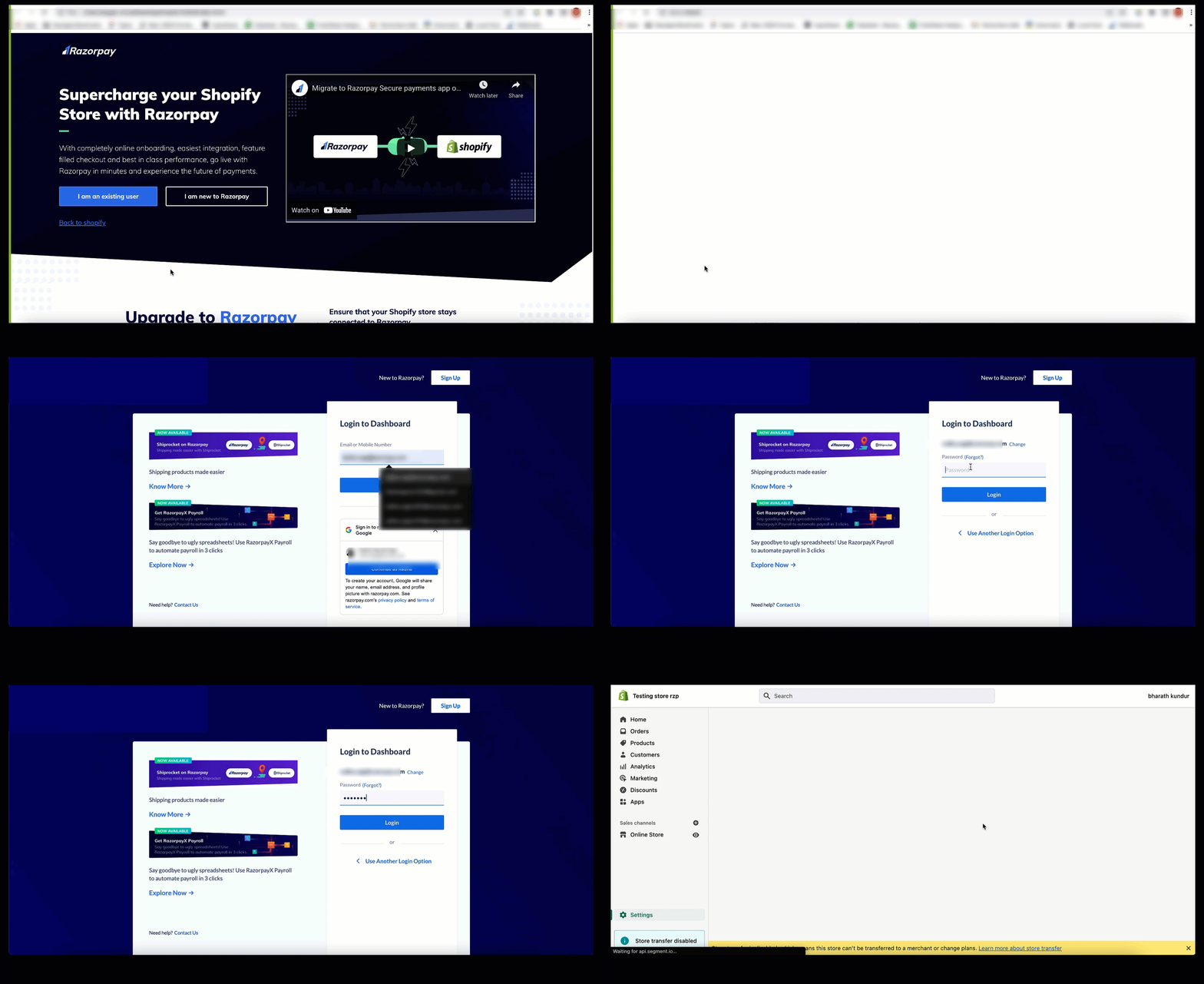
- Click Activate on the activation screen on your Shopify Dashboard.
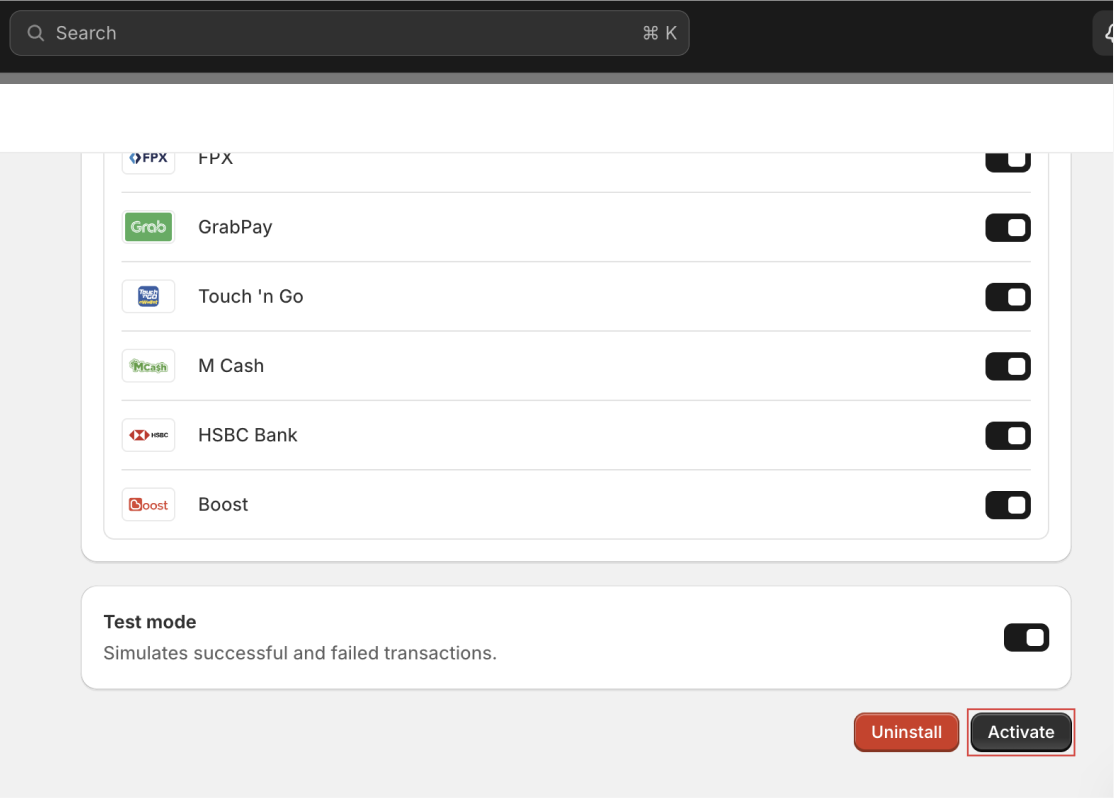
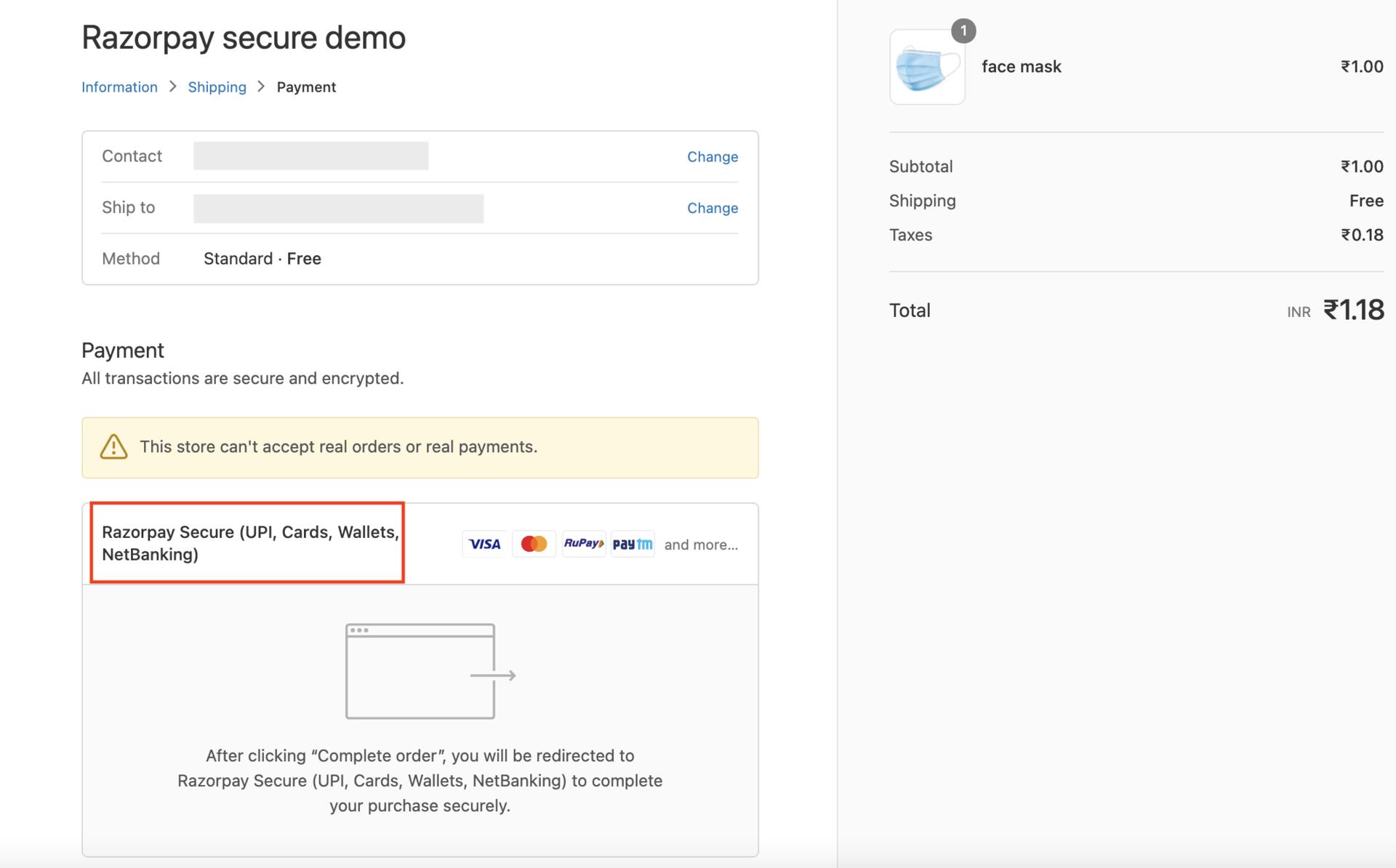 This completes your integration.
I am getting the following error message, "Email ID Mismatch." Why?
I am getting the following error message, "Email ID Mismatch." Why?
You can update the email ID on Razorpay to match the one used in Shopify. Verify that the email ID associated with owner access on Razorpay matches the one used in Shopify.
I get a blank screen when I try to log in to the account while integrating/migrating All-in-one Razorpay Payment Gateway, and I am unable to proceed further. How to proceed further?
I get a blank screen when I try to log in to the account while integrating/migrating All-in-one Razorpay Payment Gateway, and I am unable to proceed further. How to proceed further?
How do I uninstall Razorpay payment apps from Shopify?
How do I uninstall Razorpay payment apps from Shopify?
- Log in to your Shopify admin panel and navigate to Settings→Payments.
- Click Add payment methods.
- Click Search by provider and type Razorpay. This will show all the Razorpay payment apps installed on your Shopify store. Click the Razorpay app that you wish to uninstall.
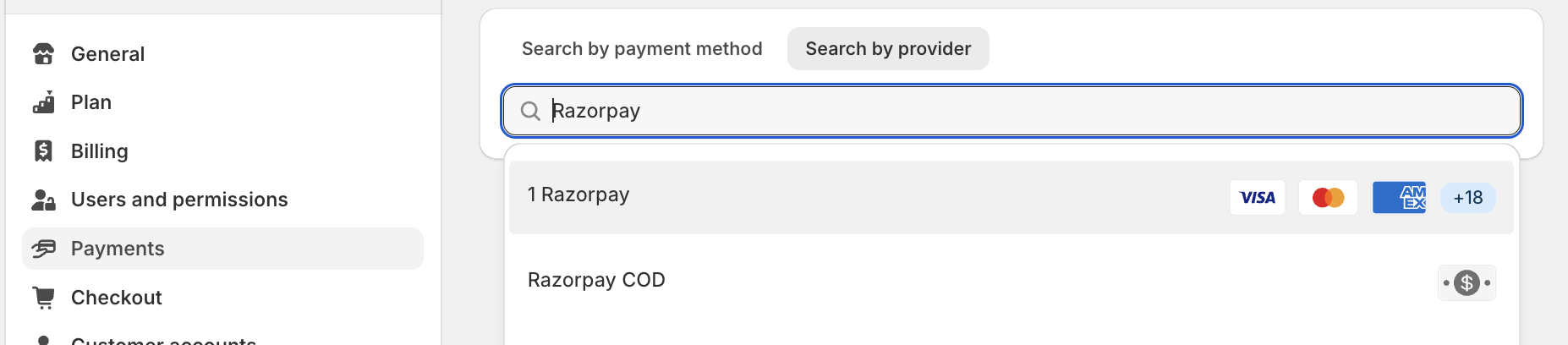
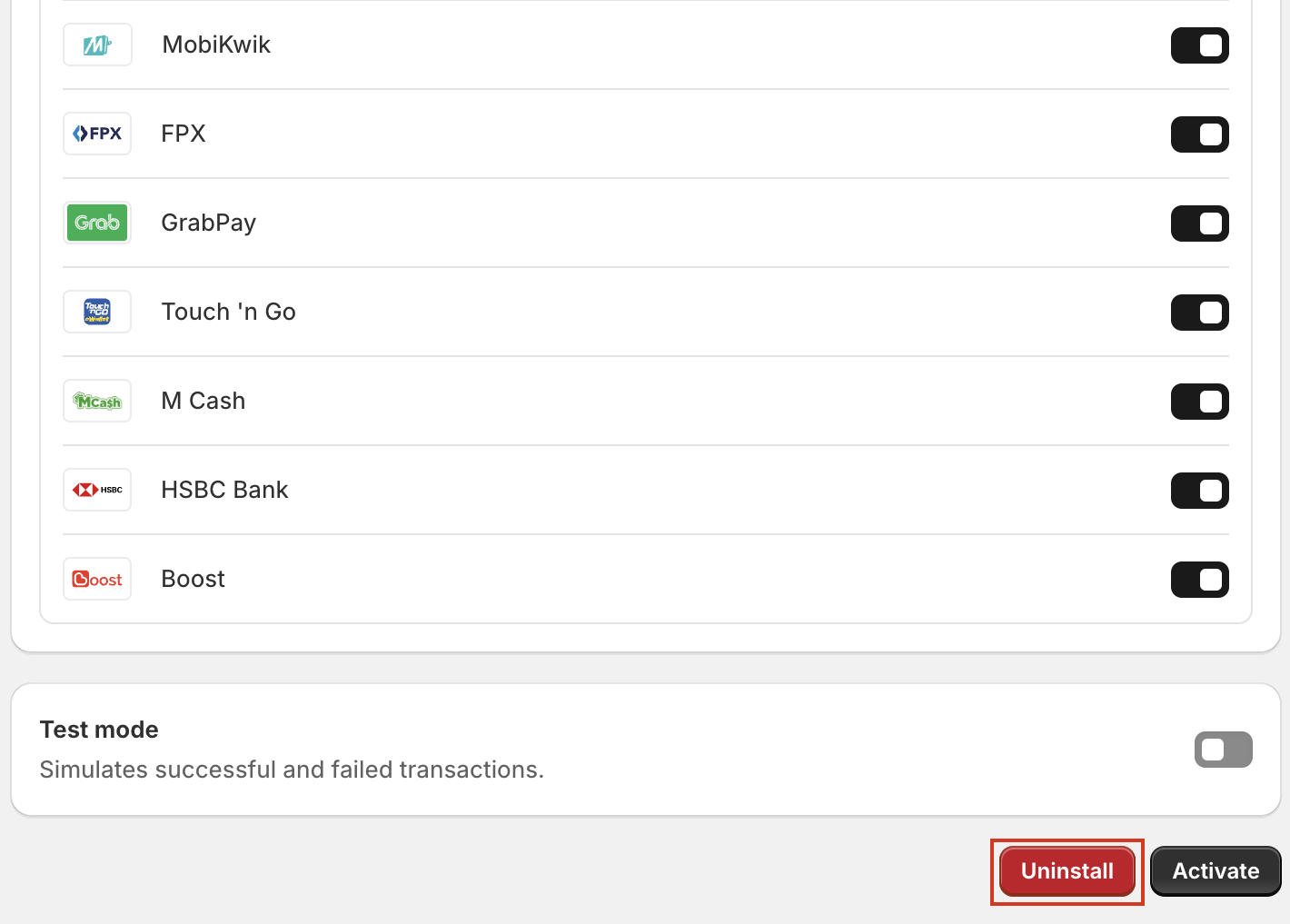
- Scroll down to the bottom and click the Uninstall button to remove the app from your Shopify store.
What should I do if I am confused between legacy and current plugin versions?
What should I do if I am confused between legacy and current plugin versions?
Our Payment Gateway stopped displaying after migrating to Shopify. How can we reactivate it?
Our Payment Gateway stopped displaying after migrating to Shopify. How can we reactivate it?
Migration to All-in-one Razorpay Payment Gateway
Why do I need to upgrade to All-in-one Razorpay Payment Gateway?
Why do I need to upgrade to All-in-one Razorpay Payment Gateway?
How do I upgrade to All-in-one Razorpay Payment Gateway?
How do I upgrade to All-in-one Razorpay Payment Gateway?
Who all need to migrate to All-in-one Razorpay Payment Gateway app?
Who all need to migrate to All-in-one Razorpay Payment Gateway app?
Who can perform the migration process for All-in-one Razorpay Payment Gateway app?
Who can perform the migration process for All-in-one Razorpay Payment Gateway app?
What changes for me as a merchant after I upgrade to All-in-one Razorpay Payment Gateway?
What changes for me as a merchant after I upgrade to All-in-one Razorpay Payment Gateway?
What if I do not deactivate the older Razorpay plugin?
What if I do not deactivate the older Razorpay plugin?
Checkout and Payment Issues
My customer is getting the following error when they make payments on my Shopify store, "There was an issue processing your payment. Try again or use a different payment method." What should I do?
My customer is getting the following error when they make payments on my Shopify store, "There was an issue processing your payment. Try again or use a different payment method." What should I do?
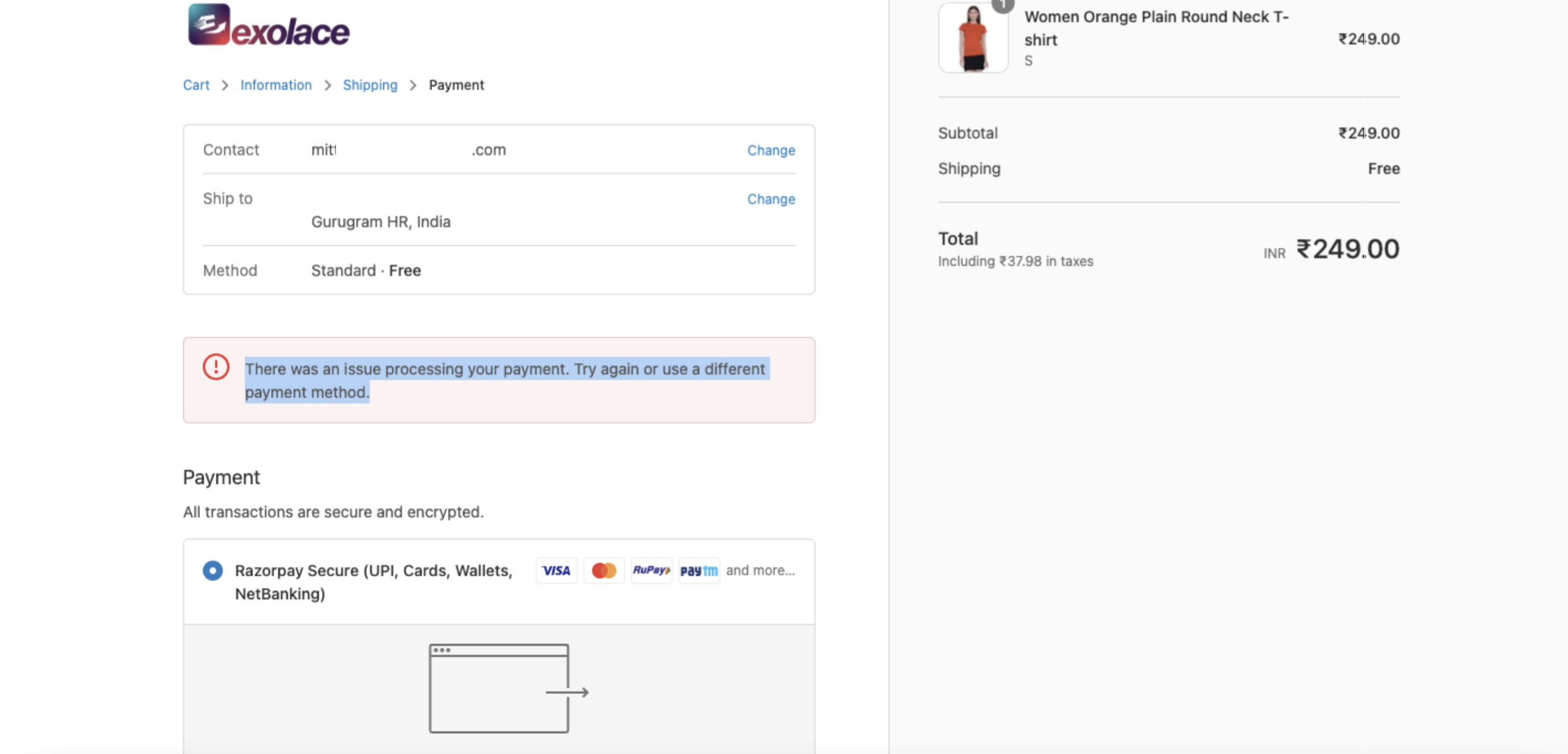 Uninstall and reinstall the All-in-one Razorpay Payment Gateway from your Shopify store to resolve the error.To uninstall the app:
- Open your Shopify store in incognito mode.
- Navigate to Settings → Payments. Click Manage on All-in-one Razorpay Payment Gateway.
- Go to Deactivate All-in-one Razorpay Payment Gateway and click Uninstall All-in-one Razorpay Payment Gateway. This uninstalls the All-in-one Razorpay Payment Gateway app.
Why is my Shopify checkout showing only Razorpay Direct (cards) instead of all payment methods?
Why is my Shopify checkout showing only Razorpay Direct (cards) instead of all payment methods?
The Razorpay payment option has disappeared from my Shopify checkout after I added another payment provider. Even after removing it, Razorpay does not show up and I see the error "This store can't accept payments right now." What should I do?
The Razorpay payment option has disappeared from my Shopify checkout after I added another payment provider. Even after removing it, Razorpay does not show up and I see the error "This store can't accept payments right now." What should I do?
- Navigate to Shopify Admin → Settings → Payments → Payment Method Customizations.
- Disable or remove all customizations listed under this section.
- Save the changes and refresh the checkout page.
How can I test a payment for All-in-one Razorpay Payment Gateway on the Shopify store?
How can I test a payment for All-in-one Razorpay Payment Gateway on the Shopify store?
After migrating to All-in-one Razorpay Payment Gateway, the checkout option for All-in-one Razorpay Payment Gateway appears at the bottom of the list of gateways. Is it possible to move the checkout option to the top of the list of gateways?
After migrating to All-in-one Razorpay Payment Gateway, the checkout option for All-in-one Razorpay Payment Gateway appears at the bottom of the list of gateways. Is it possible to move the checkout option to the top of the list of gateways?
How can I enable automated payment receipts with GST split?
How can I enable automated payment receipts with GST split?
Account Management
Can I connect two merchant ids (MIDs) to the same Shopify Store?
Can I connect two merchant ids (MIDs) to the same Shopify Store?
Can I integrate a second Razorpay account with my Shopify store?
Can I integrate a second Razorpay account with my Shopify store?
I have two ecommerce websites owned by my company. If I connect both websites to my Razorpay account, will the customers be redirected to the correct webpage after payment?
I have two ecommerce websites owned by my company. If I connect both websites to my Razorpay account, will the customers be redirected to the correct webpage after payment?
Pricing and Settlements
Will I be charged extra for integrating/migrating to All-in-one Razorpay Payment Gateway app?
Will I be charged extra for integrating/migrating to All-in-one Razorpay Payment Gateway app?
When will my funds be settled?
When will my funds be settled?
Verification and Order Processing
Should I verify a payment on Razorpay before processing an order on Shopify?
Should I verify a payment on Razorpay before processing an order on Shopify?
Features and Limitations
Can I enable Subscriptions on my Shopify store?
Can I enable Subscriptions on my Shopify store?
Does the Shopify All-in-one Razorpay Payment Gateway plugin support 3 or 0 decimal unit currencies?
Does the Shopify All-in-one Razorpay Payment Gateway plugin support 3 or 0 decimal unit currencies?
How do I integrate Meta Pixel to accept payments through Meta Ads?
How do I integrate Meta Pixel to accept payments through Meta Ads?
Can I use Razorpay Route API with my Shopify store?
Can I use Razorpay Route API with my Shopify store?