

Available in🇮🇳 India
The purpose of this feature is to allow the master account to create and manage multiple sub-accounts linked to their Current Account. The master can allocate amount limits to each sub-account. Each sub-account has its own RazorpayX Dashboard, API keys and Approval Workflows. Using this feature, businesses can create multiple sub-accounts and manage payouts for multiple use cases via a single bank account. It records the funds and makes reconciliation easier for the master as well as sub-account owners.
When a sub-account holder initiates a payout, limit on the sub-account is reduced and the money is debited from the master’s bank account. The limits assigned to the sub-accounts are static, the master has to reset the limits once the sub-account has exhausted its limit. The master account user can increase this limit anytime.
Use case
The following is a basic use case for sub-accounts:Non-Banking Financial Companies
Non-Banking Financial Companys’ (NBFCs) can use this feature to work with multiple Loan Service Provider (LSPs) on a single bank account. NBFCs can provide secure and restricted access to LSPs to enable loan disbursements to their customers and manage their payouts with sufficient checks and balances in place. In compliance with the digital lending guidelines, NBFCs can ensure that the loan disbursals flow directly from their account to the borrower’s account. However, these disbursals are triggered by the LSP on behalf of the NBFC. For both these steps to work together, the LSP needs access to initiate loan disbursals to their customers.Handy TipsYou can download reports for your sub-accounts and see the real-time limit assigned to them.
How it Works
Different features are enabled for the Master Account and Sub-Account respectively. The process is as follows:Master Account
To create a master account:- Sign Up on the RazorpayX Dashboard.
- Open a Current Account using RazorpayX.
Add Limit to Sub-Accounts
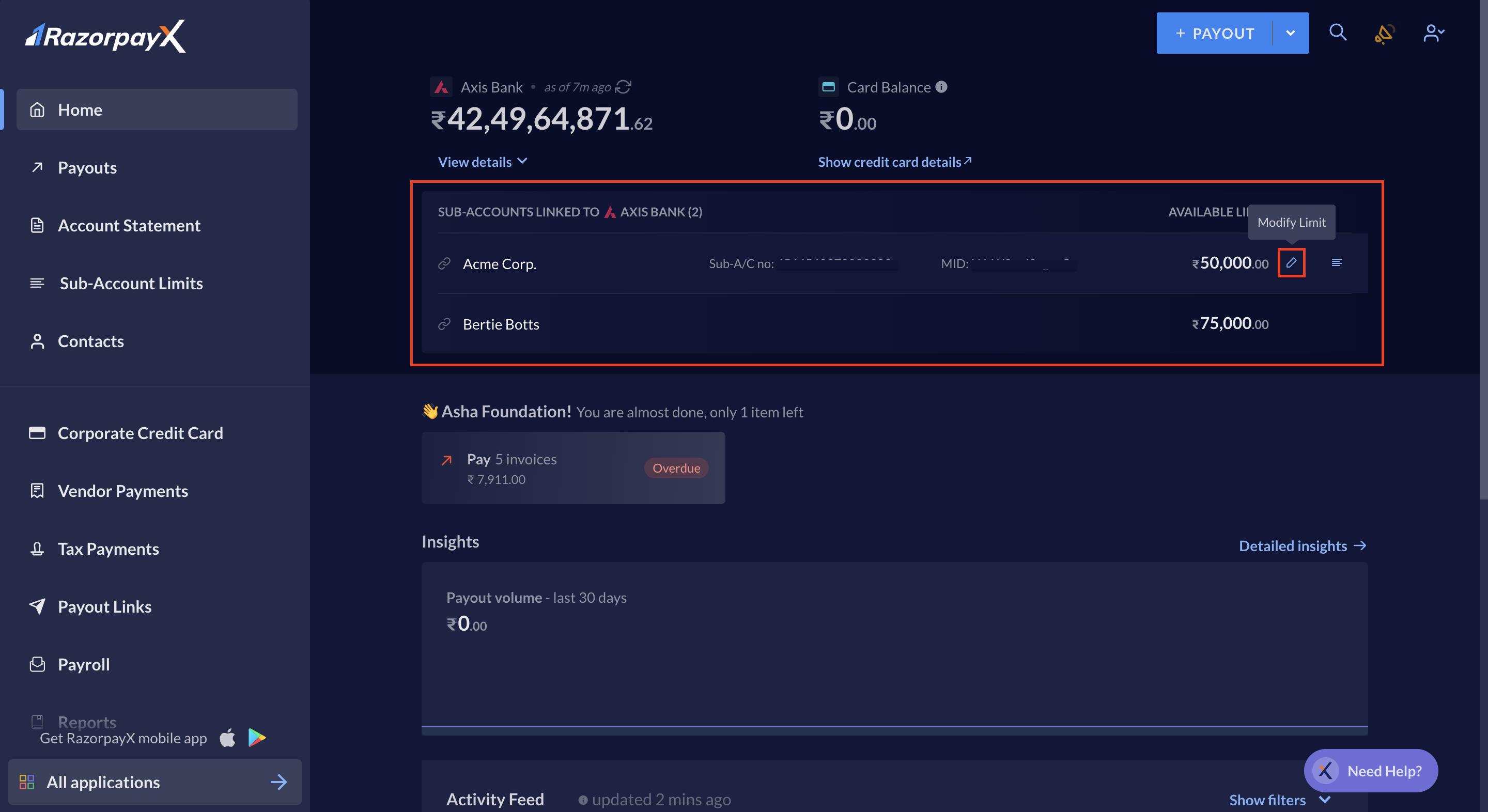
Use the master account to add limit to the sub-account via the Dashboard. To add limit to a sub-account:- Log in to the RazorpayX Dashboard.
- Hover over the sub-account for which you want to increase the limit and click on the pencil icon.
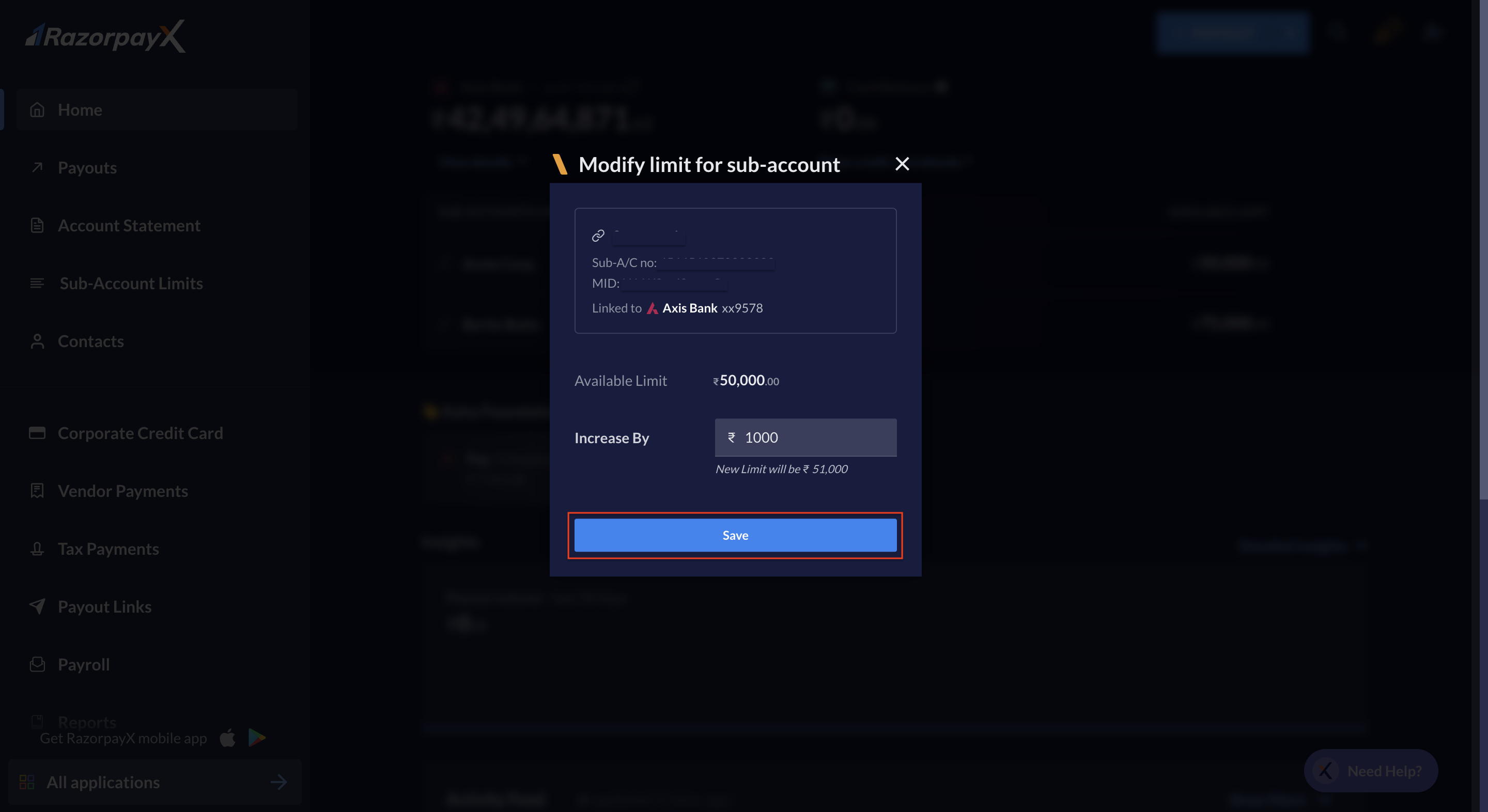
- Enter the amount you want to add to the limit and click Save.
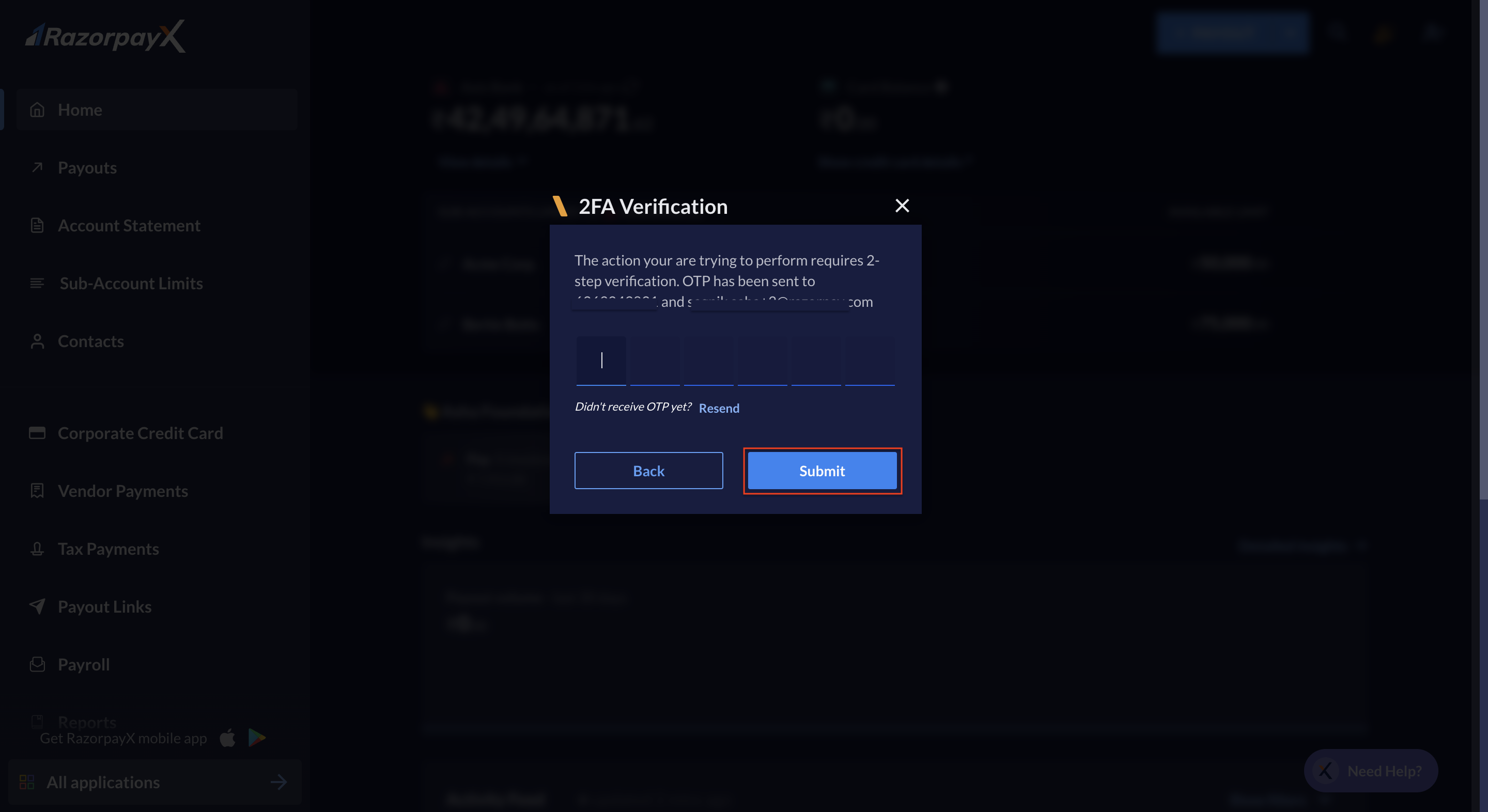
- Enter the OTP sent to your registered number and email. Click Submit.
View Past Limit of Sub-Accounts
To view the past limits assigned to the different sub-accounts:- Log in to the RazorpayX Dashboard.
- Click Sub-Account Limits on the left navigation.
- You can filter the sub-account for which you want to view the limits and choose the appropriate dates if required.
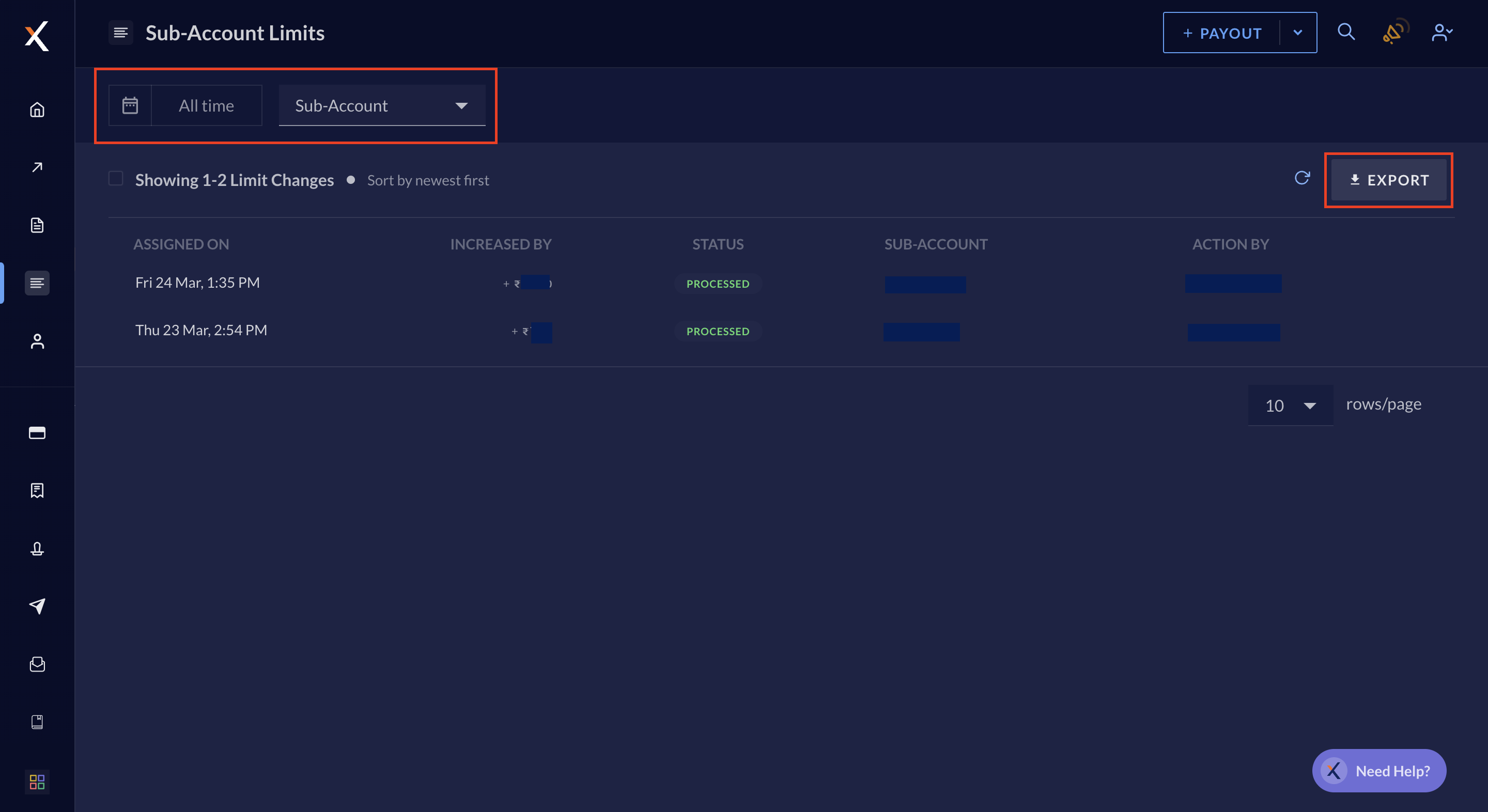
- You can also export the data as
.csvor.xlsx.
Sub-Account
The following functions are not available for sub-accounts:- AmazonPay Payouts
- Payouts to Cards via card rails
- Tax Payments
- Payroll
- The master account and sub-account have their own merchant IDs.
- The master account can track the funds for the sub-accounts.
- Only the master account can add fund limits to the sub-account.
Create a Sub-Account
To create a sub-account:- Sign Up to the RazorpayX Dashboard.
- Send an email to x.support@razorpay.com and the owner of the master account to link your account with theirs.
- Once the owner of the Master Account has approved and confirmed the debit account details for your account on the same mail, we will link the accounts.
Example
The NBFC Acme Crop. (master account holder) funds FinTech Bertie Botts (sub-account holder) with ₹1,00,000 via the add limit option.- FinTech Bertie Botts lends the fund as follows:
- ₹20,000 to Gaurav
- ₹30,000 to John
- ₹40,000 to Saurabh
- Acme Crop. can view the balance on Bertie Botts’s account (₹10,000).
- The ledger entry is made for Gaurav, John and Saurabh for Acme Crop. as well as Bertie Botts, respectively.
- The actual funds do not move from Acme Crop. to Bertie Botts. The funds are only a limit allocation assigned to the Bertie Botts.
- The actual funds flow directly from Acme Crop. to Gaurav, John and Saurabh respectively.