Available in🇮🇳 India
You can generate reports from Vendor Payments to export details of all invoices/vendors/taxes on your account.
Generate a Report
To generate a report, you can either navigate to Reports on the RazorpayX Dashboard or follow the steps below:- Log in to your RazorpayX Dashboard.
- Click Vendor Payments in the left navigation menu.
- Click View More Filters and apply the required filters.
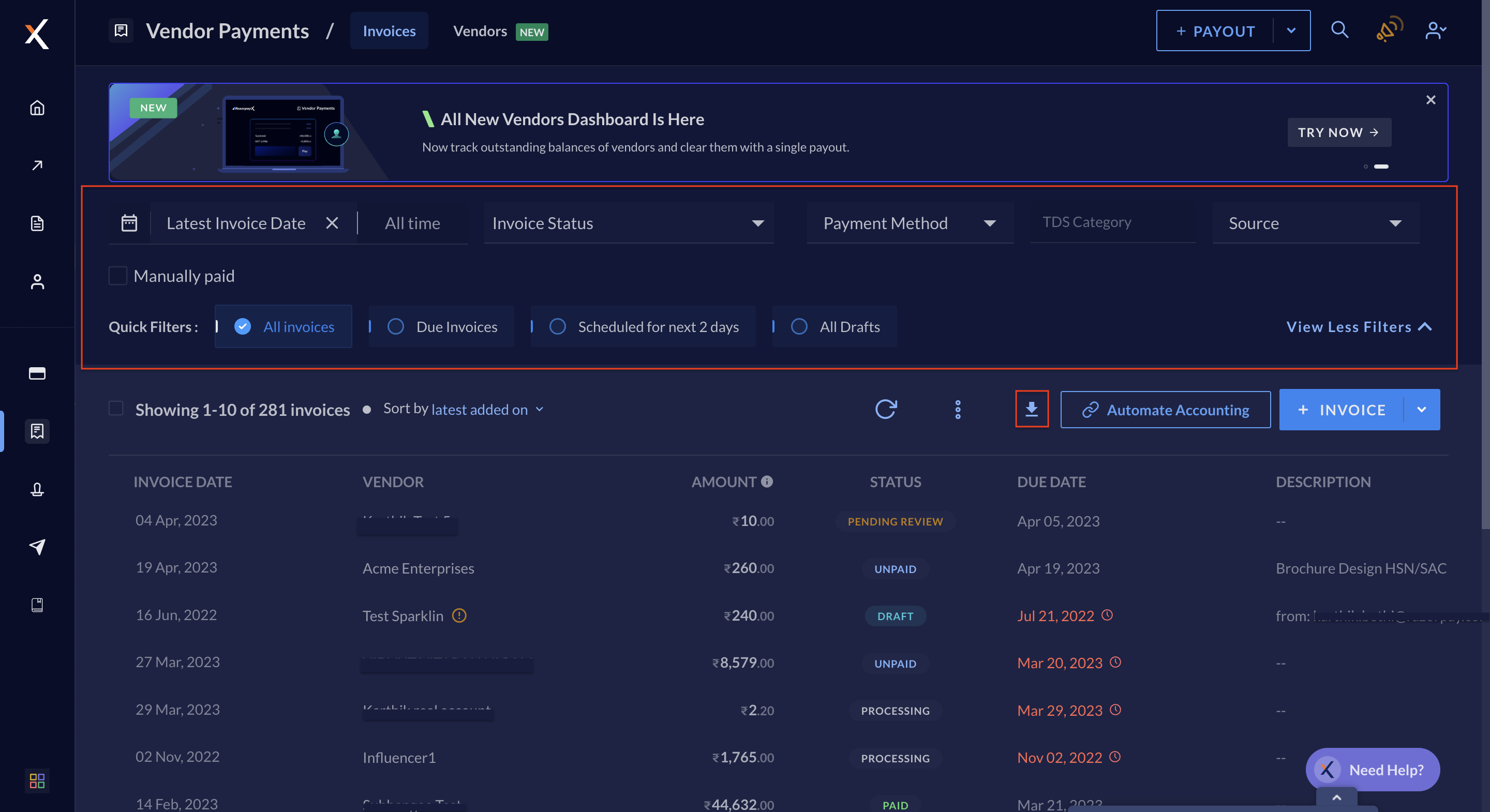
- Click the download icon.
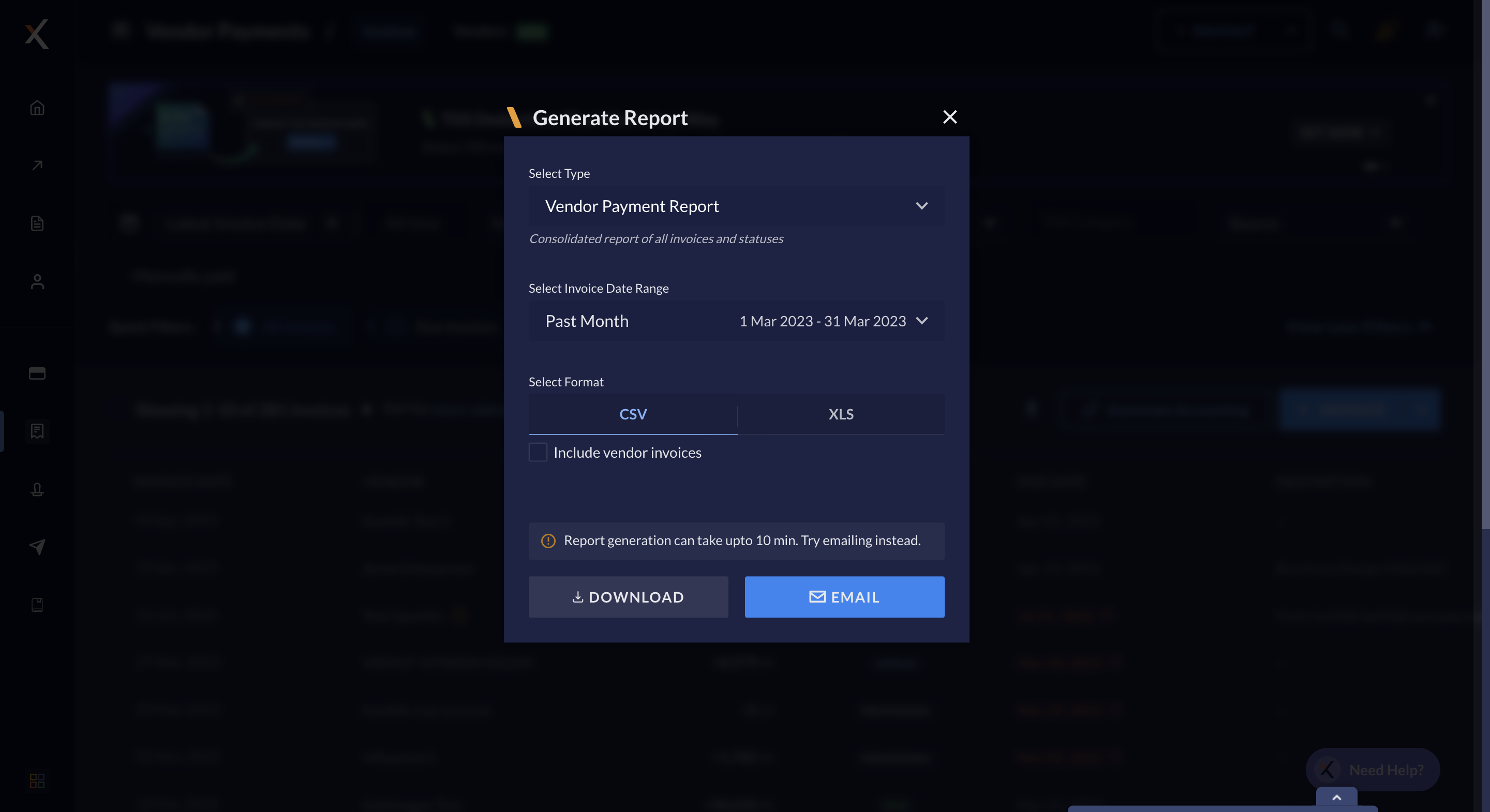
- Select the report you want to generate:
- Vendor Payments
- Payouts on Vendor Payments
- Auto TDS Calculation
- Vendors
- Select the date range/duration for which you want to download data.
- Select the Include Invoice Files option, if you want to include the uploaded invoices in the report. This is applicable only for the Vendor Payments report.
- Select the format for the report. You can download them either as
csvorxlsxfiles. - Click:
- DOWNLOAD to download the report and save it on your system. It may take up to 10 minutes.
- EMAIL to email the report to yourself or your team members.