

Available in🇮🇳 India🇸🇬 Singapore🇺🇸 United States
There are two types of balances available on the Dashboard:
Available Balance
After the deduction of fees and tax, the payments received from your customers are added to your Available Balance.- This accumulated amount is settled to your bank account as per your settlement cycle.
- We use your available balance to process chargebacks, refunds to your customers and settlements to your linked accounts.
Negative Available Balance
Negative available balance is when your available balance becomes less than zero.- If opening balance is ₹0, your negative balance is -₹500 (due to 0-500).
- If opening balance is ₹300, your negative balance is -₹200 (due to 300-500).
Reserve Balance
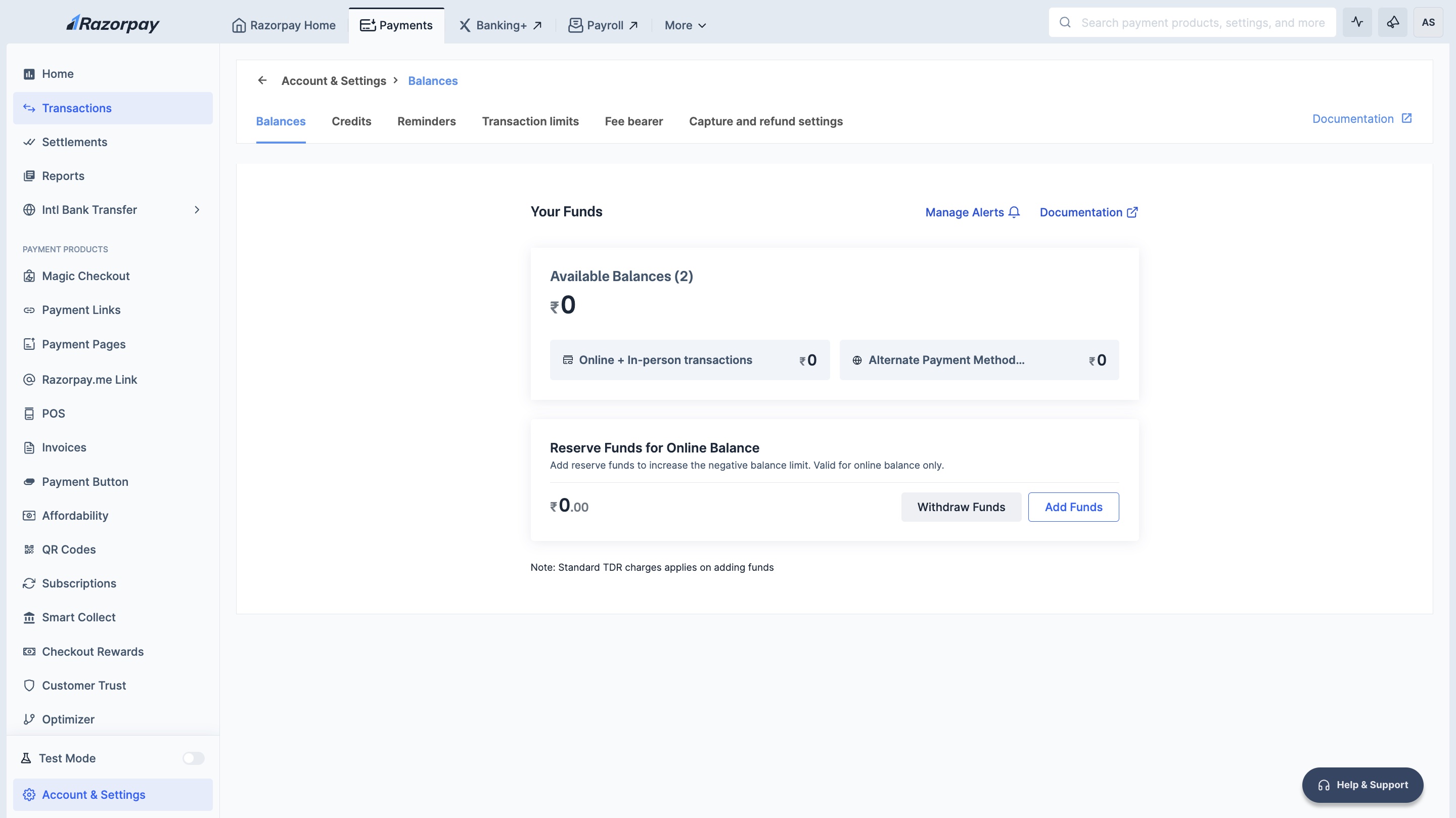
Reserve Balance allows you to process refunds or settlements to linked accounts when you do not have a sufficient available balance/have negative available balance. The amount you add as the reserve balance becomes the maximum negative limit for your account. Your transactions up to this limit do not fail.How does Reserve Balance Work
When your available balance becomes 0, we use your reserve balance to process transactions up to this limit, that is, ₹1000. Your transactions will not fail.- To increase your negative balance limit, you can add funds to your reserve balance from the Dashboard. You will have to transfer funds to your reserve balance only once in most cases.
- You can add funds to Reserve Balance using the Dashboard through either UPI or Bank Transfer.
Example of Available Balance and Reserve Balance
Let us say you have an available balance of ₹0 and a reserve balance of ₹1,000Add Funds to Reserve Balance
You can add funds to Reserve balance through UPI or bank transfer payment methods.- Add Funds Using UPI
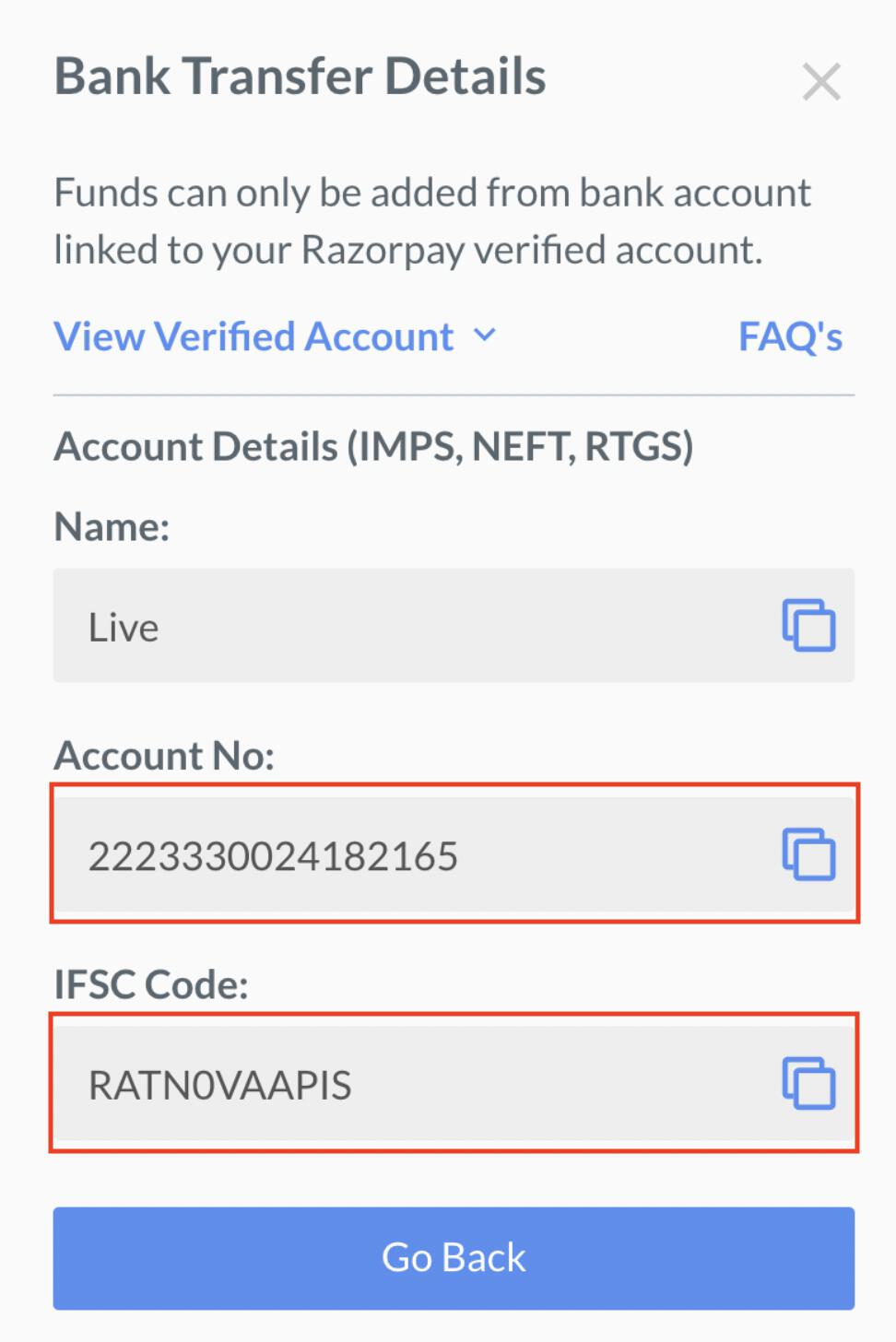
- Add Funds Using Bank Transfer
To add funds to Reserve balance using UPI:
- Log in to the Dashboard.
- Click Account & Settings in the left navigation.
- Click Balances under Payments and refunds section.
- Click Add Funds.
- Select UPI.
- Enter the description and amount to be added.
- Click Add Credits.
- Enter the email and contact number on the checkout pop-up page and click Proceed.
- Select UPI, enter UPI ID or scan the QR, click Pay Now and complete the payment.
Handy TipsIt may take 2-3 hours for the Reserve balance to reflect in your Razorpay Account.
Segregated Balances
Razorpay now supports balance segregation based on payment channel type. If you are an omni-channel business (PG + POS) or a cross-border business, your balances are maintained separately for each channel type.Benefits
Benefits
- No cross-channel fund mixing: Complete isolation between Online (Domestic transactions + International Cards), In-Person and APM International funds.
- Regulatory compliance: Adherence to RBI guidelines on fund segregation.
- Zero settlement failures: Settlements never fail due to cross-channel balance issues.
- Instant Settlements for all businesses: Instant Settlements now available for omni-channel and cross-border businesses.
- Automated POS rental collection: Device rentals deducted only from In-Person balance.
- Better visibility: Clear channel-wise and balance view.
Types of Segregated Balances
How Segregated Balances Work
With balance segregation:- Credit Operations: When a payment is captured, it is credited to the appropriate balance based on the payment channel:
- Domestic online payment → Online balance
- International card payment → Online balance
- POS transaction → In-Person balance
- International APM payment → APM (International) balance
- Debit Operations: Settlements, refunds, chargebacks and adjustments are processed only from the respective balance account. A refund for a POS payment will only debit from your PG In-Person balance.
- Independent Settlements: Each balance account has its own settlement cycle and can have Instant Settlements enabled independently.
View Segregated Balances
You can view your segregated balances on the Dashboard:- Log in to the Dashboard.
- On the Home Page, you will see separate balance cards for each active balance account.
- Navigate to Account & Settings → Balances for a detailed view.
- Current balance amount.
- Channel type (Online (Domestic transactions + International Cards), In-Person or APM International).
- Next settlement date.
- Link to view settlement history.
Handy TipsWith segregated balances, your POS operations and online payments work completely independently. A high volume of online refunds will never affect your POS settlements and vice versa.
FAQs
Can I transfer funds between my segregated balances?
Can I transfer funds between my segregated balances?
No, inter-channel fund transfers are not supported to maintain regulatory compliance and fund isolation.
How are refunds handled with segregated balances?
How are refunds handled with segregated balances?
Refunds are debited from the same balance where the original payment was credited. For example, an In-Person payment refund will debit from your In-Person balance, not your Online (Domestic transactions + International Cards) balance.
Why are international card payments in the Online balance but international APM in a separate balance?
Why are international card payments in the Online balance but international APM in a separate balance?
International card transactions flow through similar payment rails as domestic cards, so they are grouped in the Online (Domestic transactions + International Cards) balance. International Alternate Payment Methods use different payment flows and are therefore maintained in a separate APM (International) balance for proper fund isolation.
Will my Reserve Balance work with segregated balances?
Will my Reserve Balance work with segregated balances?
Reserve Balance functionality remains available. Contact our support team for specific configuration based on your balance structure.