

Available in🇮🇳 India
While signing up for a Razorpay account you are required to provide GST-related information. You can find these details recorded on the Dashboard.
View GST Details
To view GST details:- Log in to the Dashboard.
- Click Account & Settings and navigate to GST Details under Business settings section.
- The following information is listed:
- GST Number
- Registered Address
- Status
- Razorpay’s GST Number
Add or Update GST details
You can add or update your GST details from the Dashboard. Your account details like name, business name and registered address will change as per the updated GST details.Handy Tips
- This feature is available only for registered Razorpay users.
- Only users with ‘Owner’ or ‘Admin’ roles can add or update the GST details.
- Log in to the Dashboard.
- Click Account & Settings in the left navigation.
- Click GST details under Business settings section.
- To add your GST details, click Add GST details.
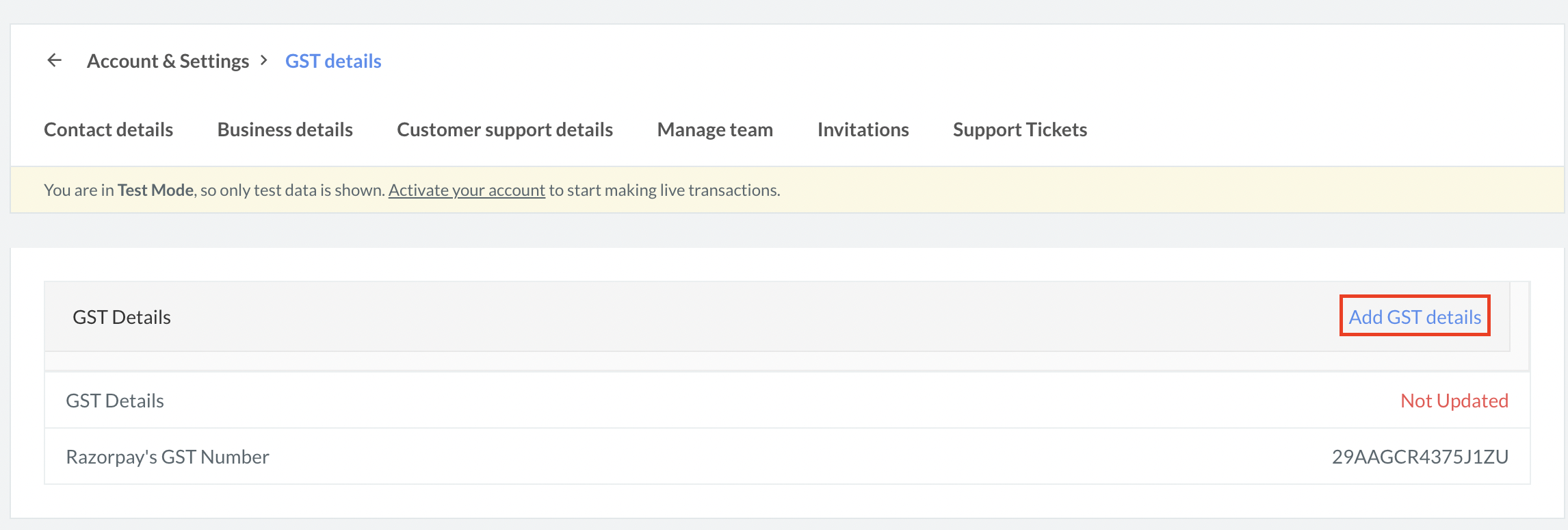
- To update your GST details, click Update GST details.
- In the Add GST details pop-up page:
- Enter the GSTIN. This will appear on the invoices sent by Razorpay.
- Upload a copy of the GSTIN Certificate and click Submit.
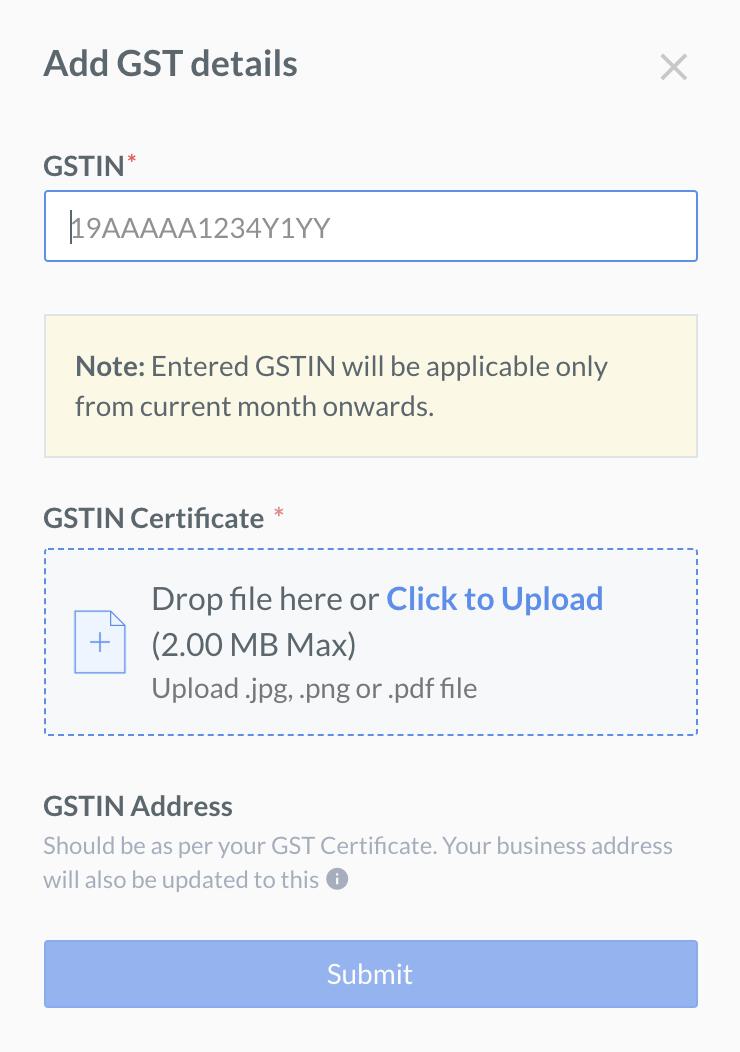 After you provide the details, our team will review the request. During the verification process, we may reach out to you for clarifications.
Frequently Asked Question (FAQs)
After updating the GST details, will the older invoices still be associated with my old GST value?
After updating the GST details, will the older invoices still be associated with my old GST value?
Yes, invoices downloaded before updating the GST details will have the older value of GSTIN associated with them.