Available in🇮🇳 India
You can share your historical order data (pre-Magic Checkout) and delivery status with Razorpay Magic Checkout for improved COD intelligence and better RTO protection. You must upload the following:
- Monthly Delivery Data for Magic Checkout orders.
- Pre-Magic Delivery Data.
Advantages
- Reduce the RTO rate in the long run.
- Get improved COD intelligence from day 1.
- Better RTO protection.
Monthly Delivery Data
You can share the monthly delivery status data for Magic Checkout orders to be eligible for RTO protection and get improved COD intelligence. If you have not integrated with logistics partners like Shiprocket, Delhivery, iThink Logistics, Unicommerce and ClickPost, you must manually upload the data.To upload the delivery statuses:
To upload the delivery statuses:
- Log in to the Dashboard and navigate to Magic Checkout.
- Select the platform of your e-commerce website, enter the relevant details and click Next.
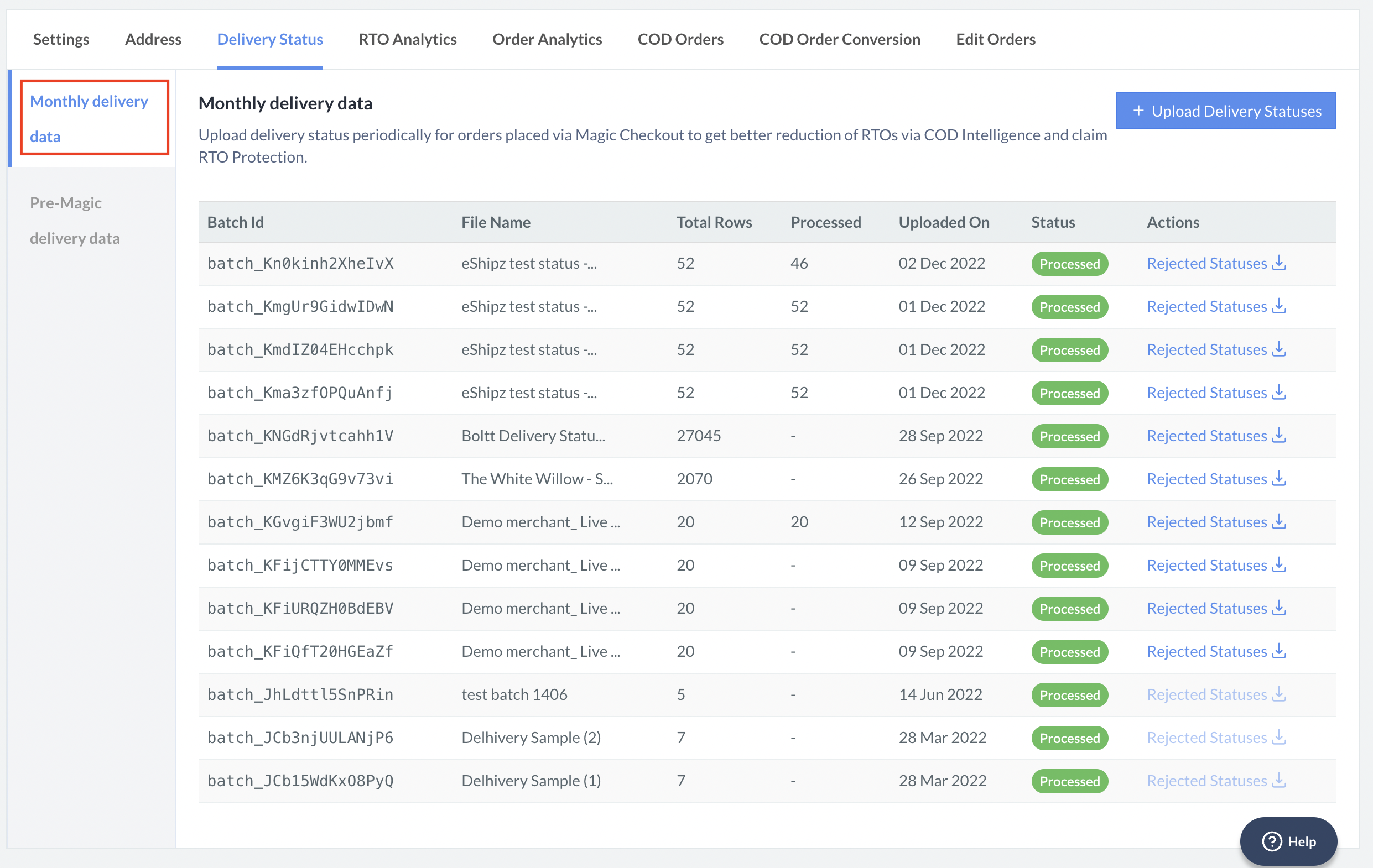
- Navigate to RTO Reduction Setup → Delivery Data Upload.
- In the RTO Reduction Setup section, navigate to the Delivery Data Upload tab.
- Click + Upload Delivery Statuses.
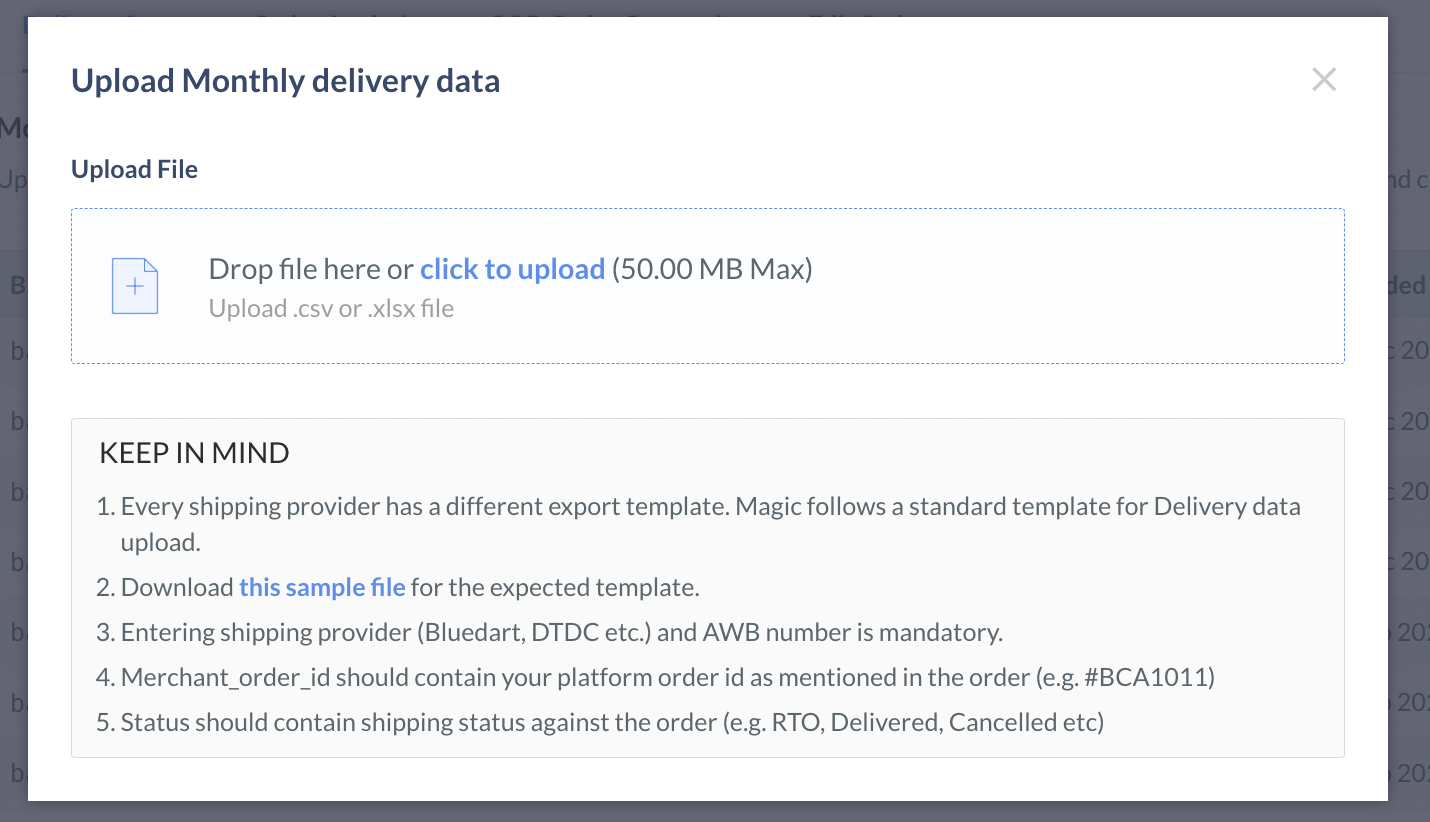
- Download the sample file for the template. Enter the Order id, Status, Shipping Charges, AWB number and Shipping Provider to claim RTO Insurance. Upload the file.
 Here is a glimpse of the sample file:
Pre-Magic Delivery Data
You can share your shipping provider’s pre-Magic Checkout order history on Razorpay Magic Checkout for the last 6 months to get improved COD intelligence and better RTO protection. Follow the steps given below to share the order history:Export Order History
Export Order History
We recommend that you upload the data for the last 6 months. Currently, Magic Checkout supports order history upload for:
Shiprocket
Shiprocket
Follow the steps given below:
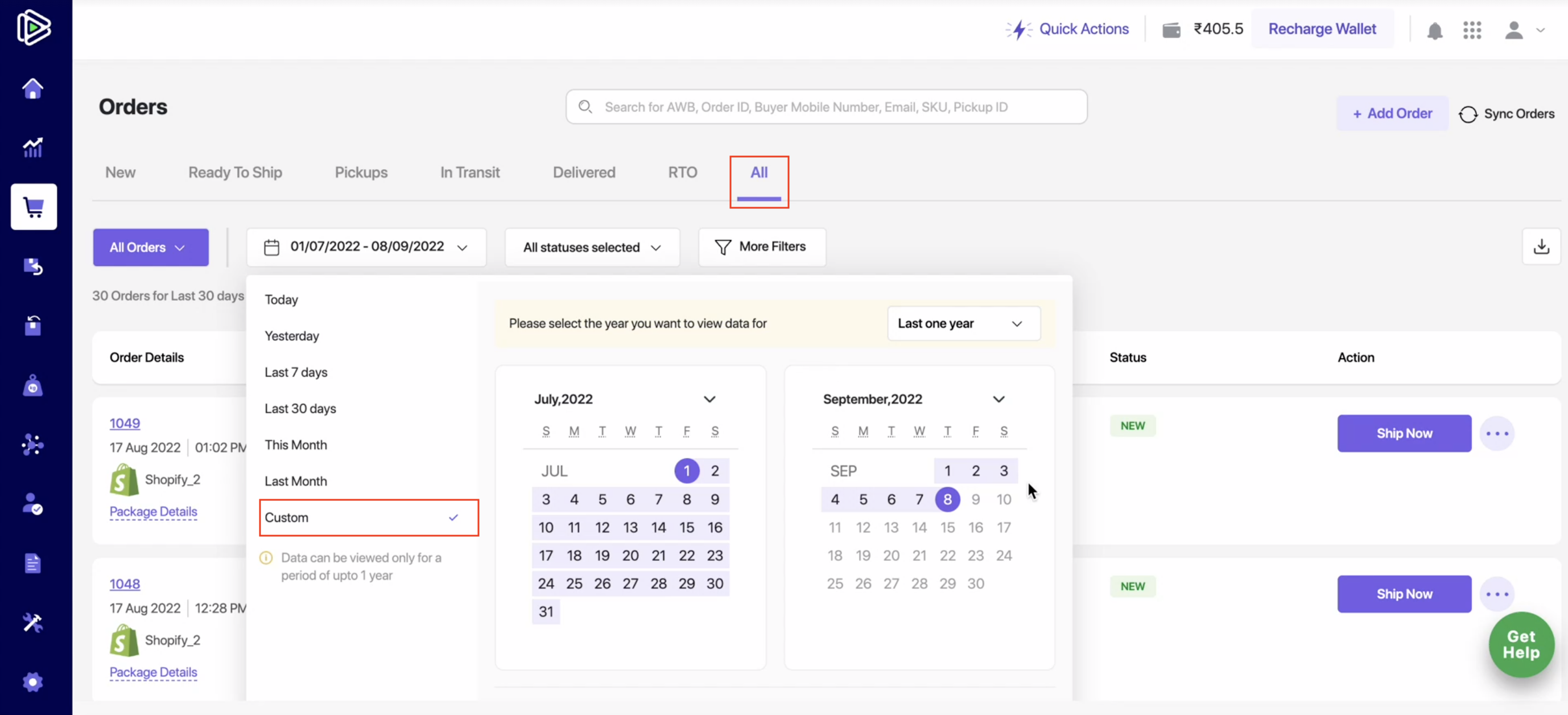
- Log in to the Shiprocket Dashboard and navigate to Orders.
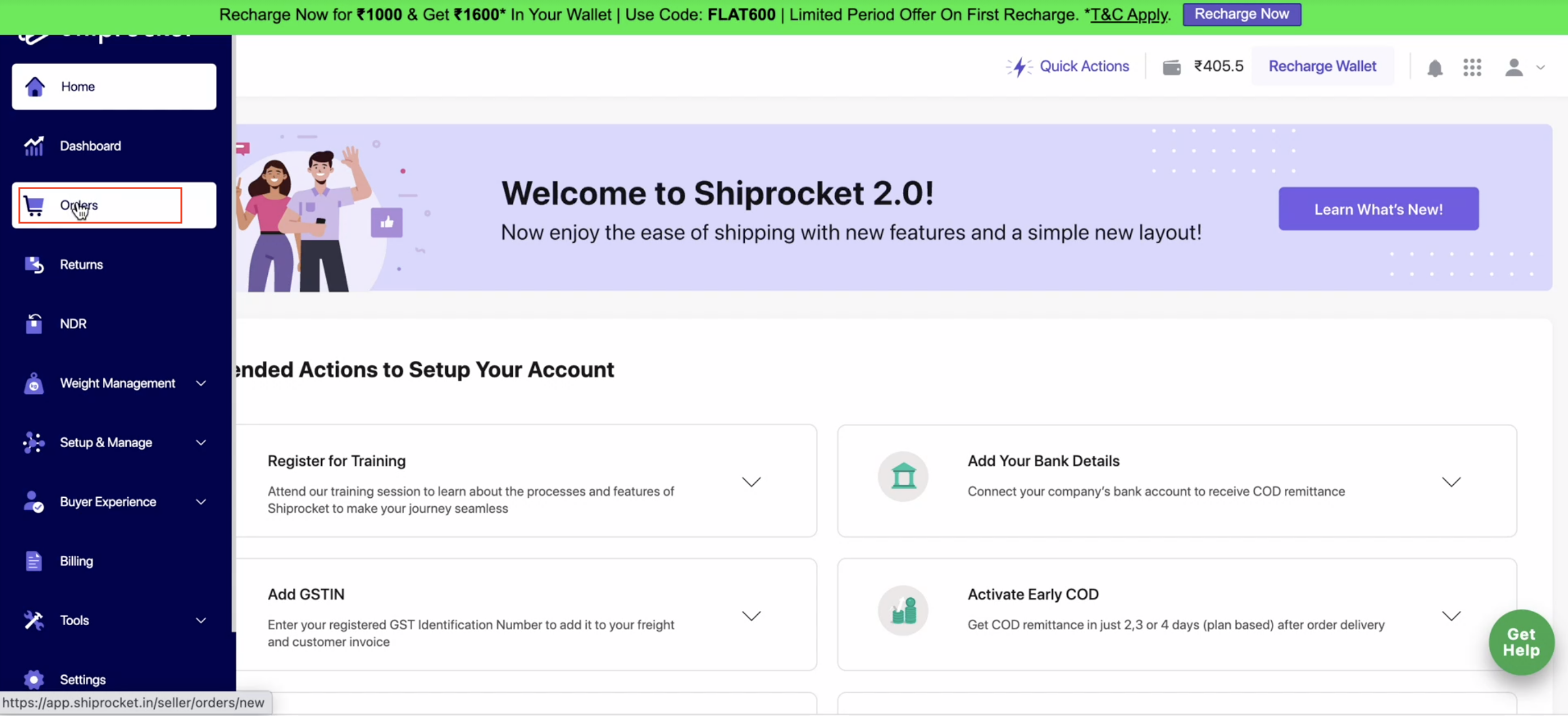
- Under All, select Custom and filter the data for the last 6 months. Click Apply.
- Click the download icon.
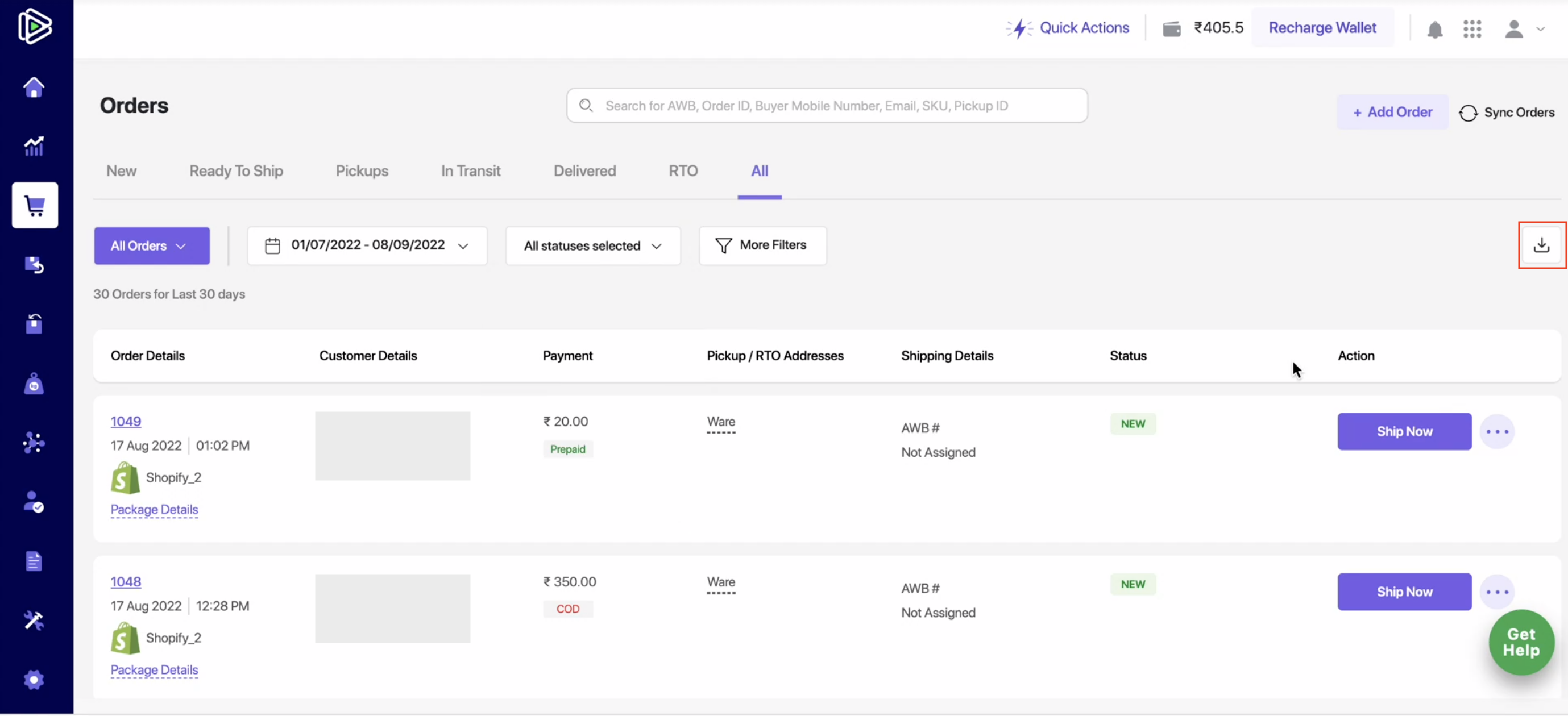 .
. - Your report is sent to your email id or you can also download it from the Reports Panel.
Delhivery *(Old Dashboard)*
Delhivery *(Old Dashboard)*
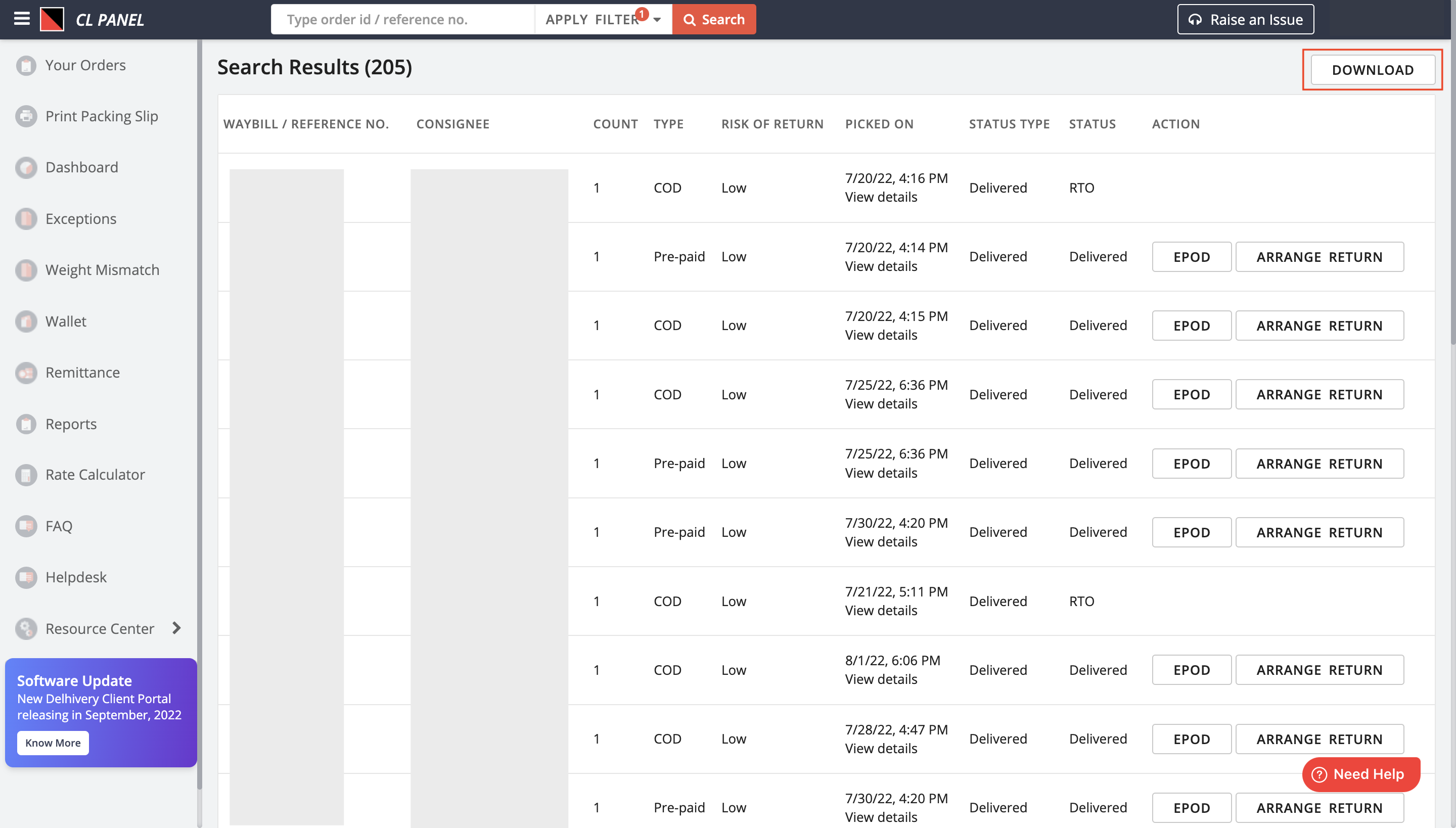
Follow the steps given below:
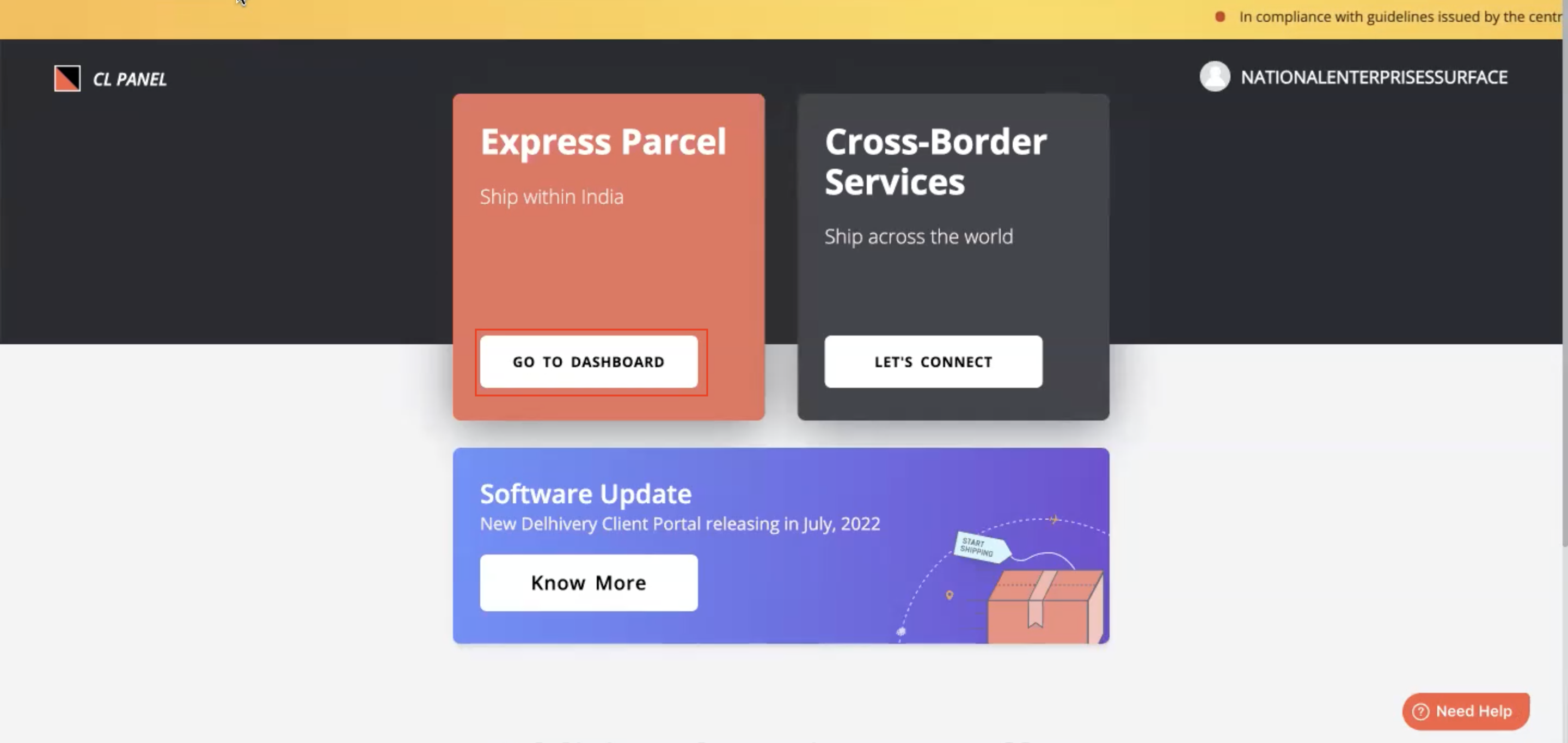
- Log in to the Delhivery Dashboard and click Go to Dashboard.
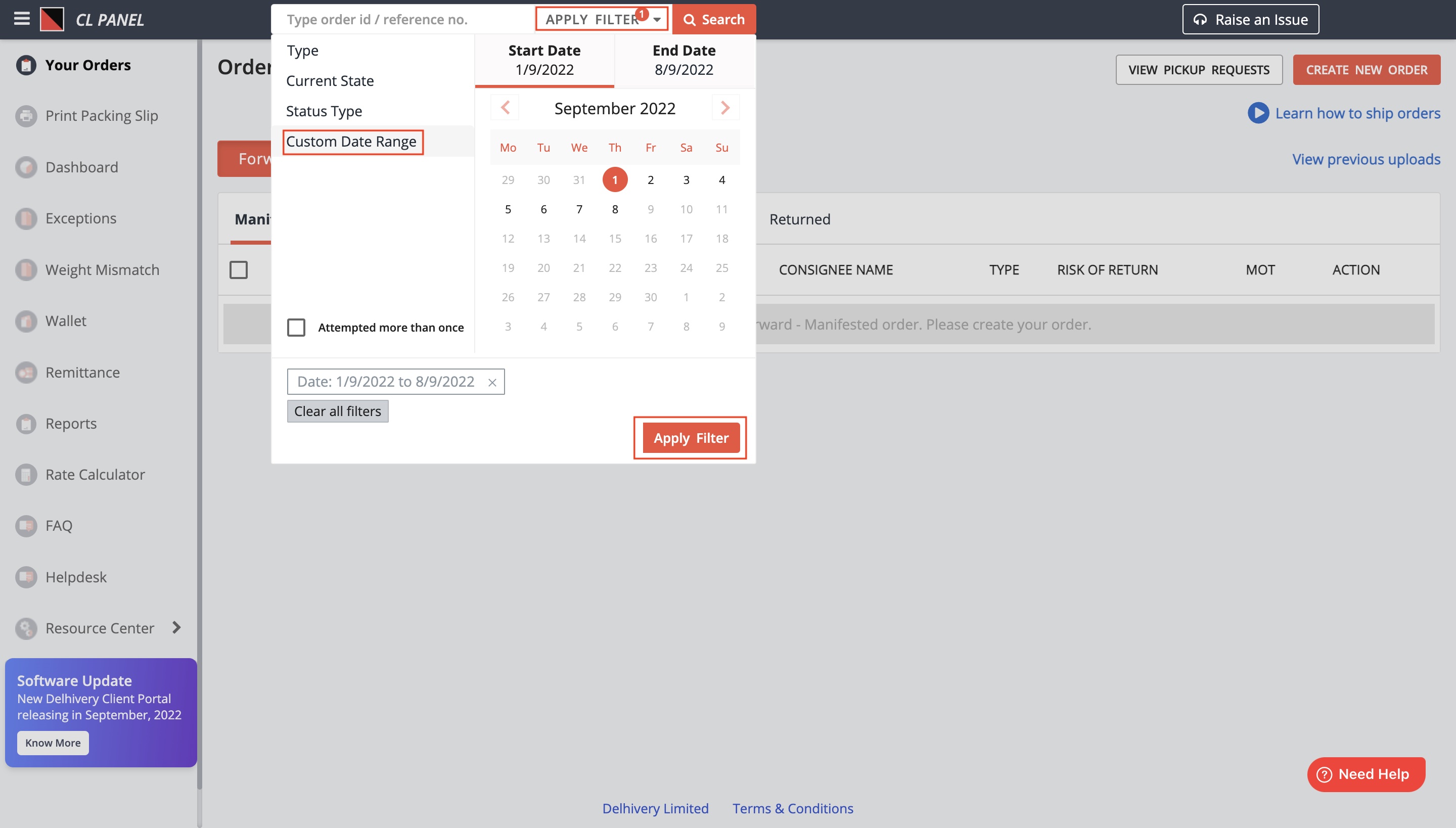
- Click APPLY FILTER.
- Click Custom Date Range and select the Start Date and the End Date. Click Apply Filter.
- Click Download.
Pickrr
Pickrr
Follow the steps given below:
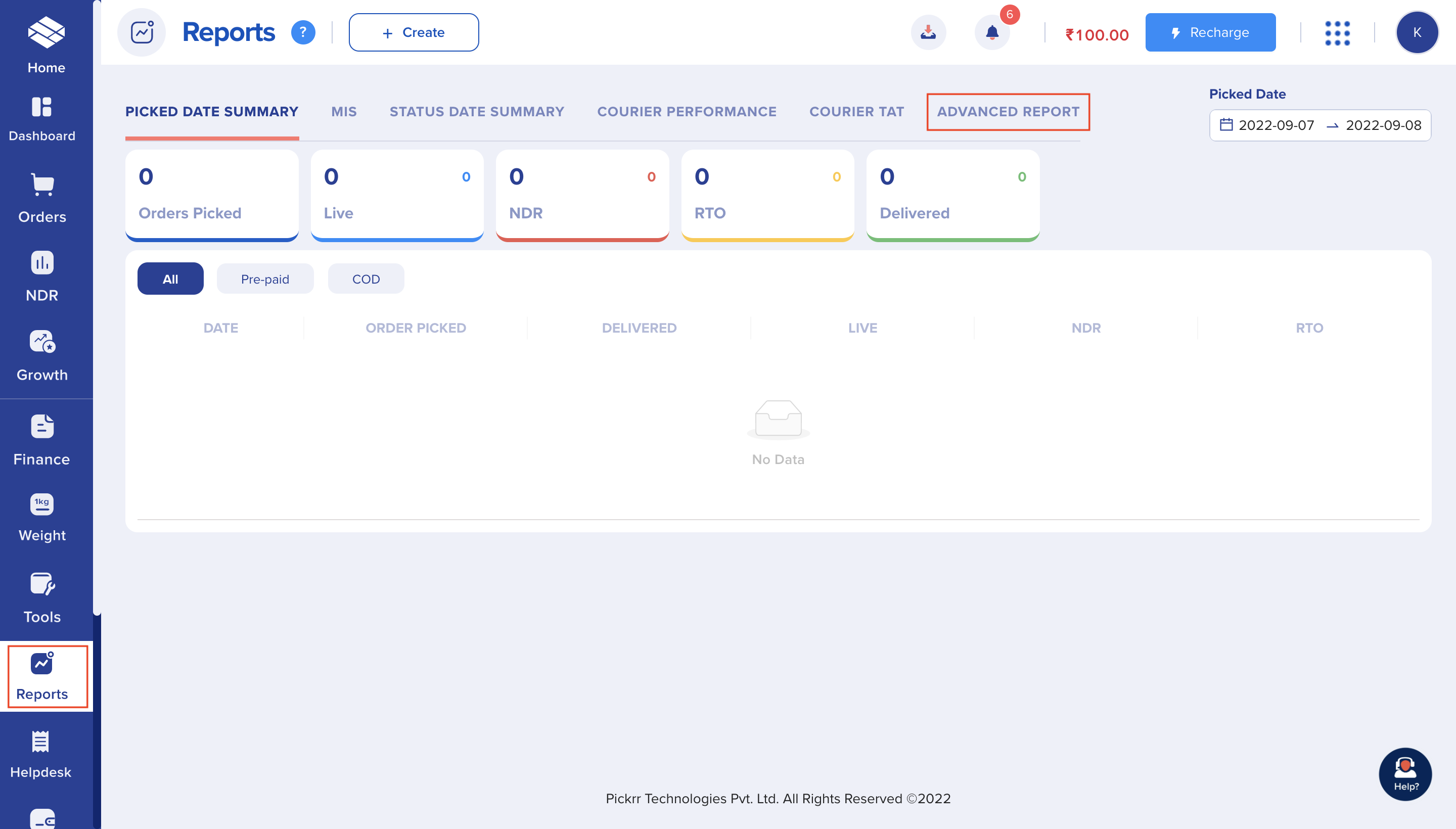
- Log in to the Pickrr Dashboard.
- Navigate to Reports → Advanced Report.
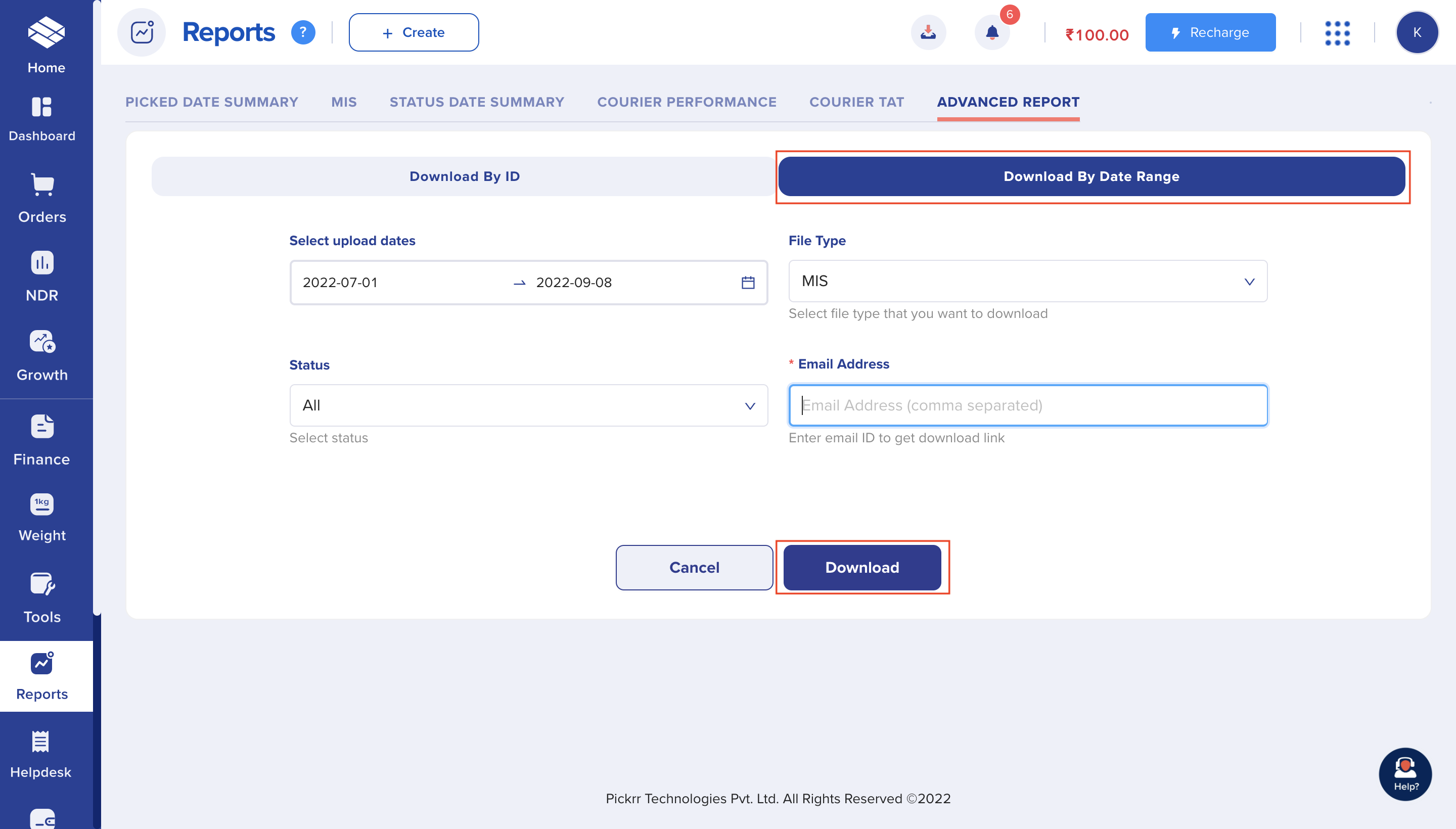
- Select Download By Data Range.
- Select upload dates.
- Select the File Type as MIS.
- Select the Status as All from the drop-down list.
- Enter your Email Address and click Download. The report download link is sent to your email ID.
Upload Order History
Upload Order History
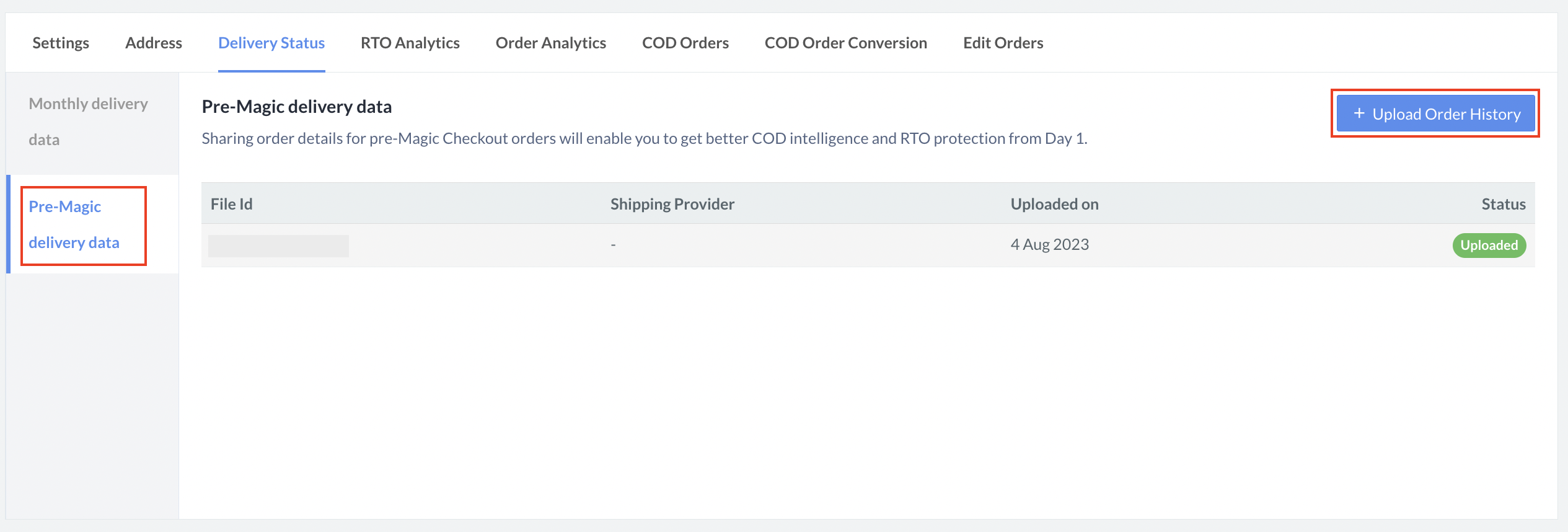
To upload order history:
- Log in to the Razorpay Dashboard and navigate to Magic Checkout.
- Select the platform of your e-commerce website, enter the relevant details and click Next.
- In the RTO Reduction Setup section, navigate to the RTO History tab.
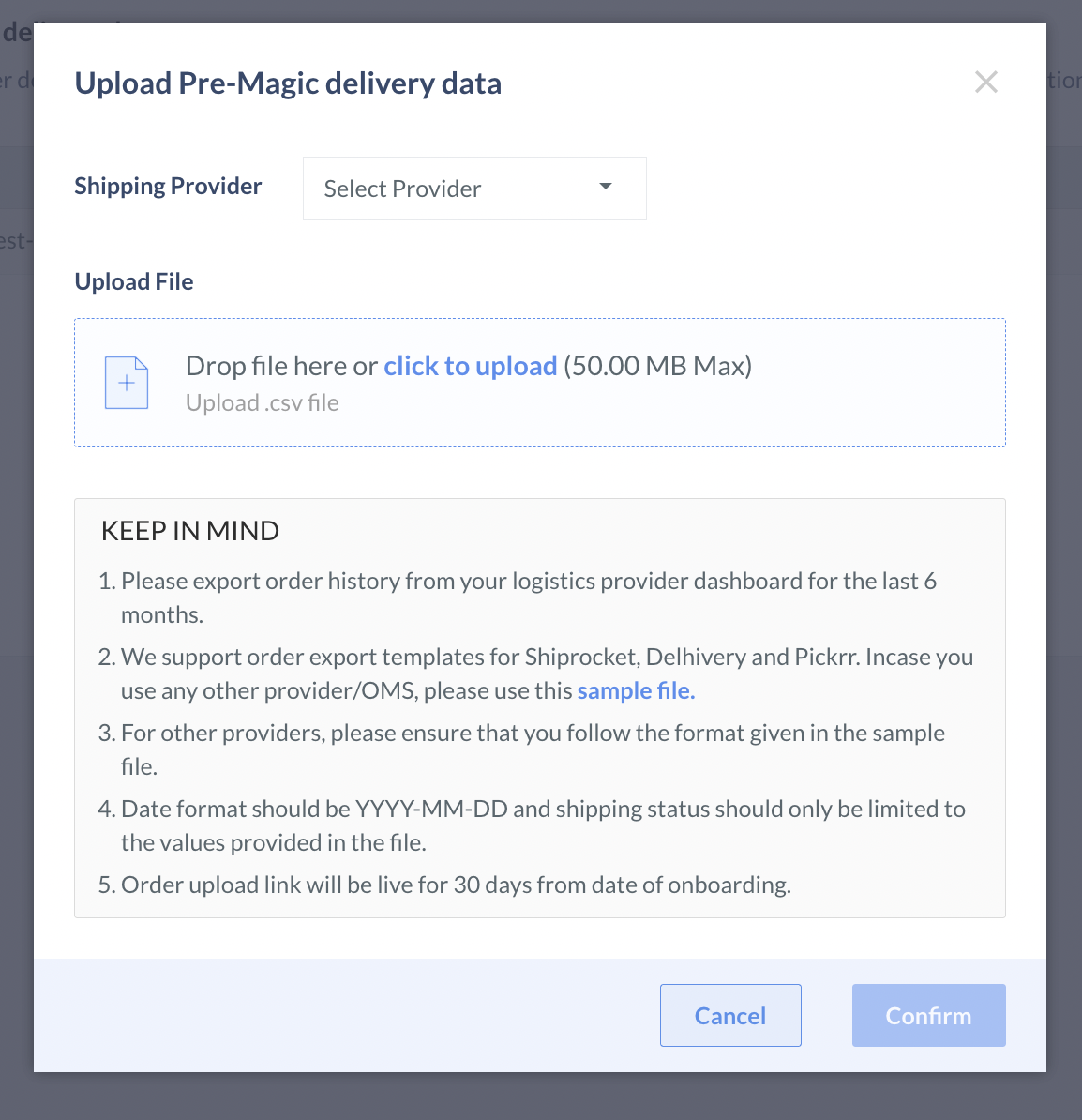
- Click + Upload Order History.
- Select the Shipping Provider from the drop-down list.
- Upload the order history file you downloaded in the previous step.
- Click Confirm.