

Available in🇮🇳 India
After axio payment method is enabled, it appears as a Cardless EMI provider under EMI on Razorpay Standard Checkout. You can highlight axio on the Razorpay Checkout using a configuration and make it more prominent.
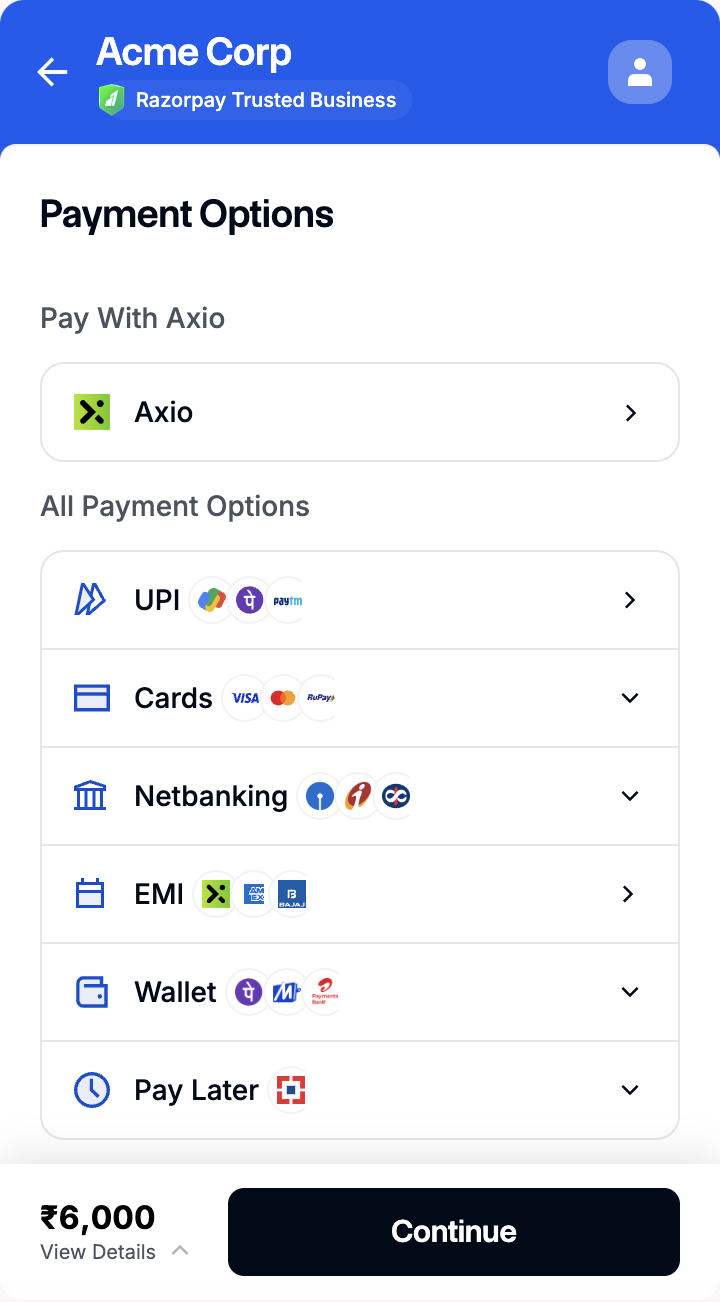 Follow these steps to highlight axio on Razorpay Checkout:
1. Configure Payment Methods
Based on how you want to control the payment methods at the Checkout, there are two different ways to pass the configuration to Checkout: Options Parameter and Global Settings.- Method 1: Options Parameter
- Method 2: Global Settings
Pass the configuration to the
options parameter of the Checkout code at run time. Use it when you want to modify the order of the payment methods for a particular set of payments while rendering the Checkout.2. Build Configuration
Using thedisplay config, you can put together all the modules, that is, blocks, sequence, preferences, hide instruments as shown below:
You can pass the display config in the Checkout options or the Orders API request using the checkout_config_id parameter.
Sample Code
Given below is the sample code to highlight axio on Standard Checkout:
Given below is the sample code to highlight axio on Standard Checkout:
Highlight axio on Standard Checkout