

Available in🇮🇳 India
Your customers can make payments using Google Pay™ at the Razorpay checkout. You can integrate and show Google Pay on any of the following platforms: Desktop Browser, Mobile Web (M-Web) and Android App.
Integration on Standard Checkout - Web and Android
If you are using Razorpay’s Standard Checkout, you do not need to make any change to integrate Google Pay on your checkout page. Razorpay will display Google Pay as an option under the UPI section on the checkout page.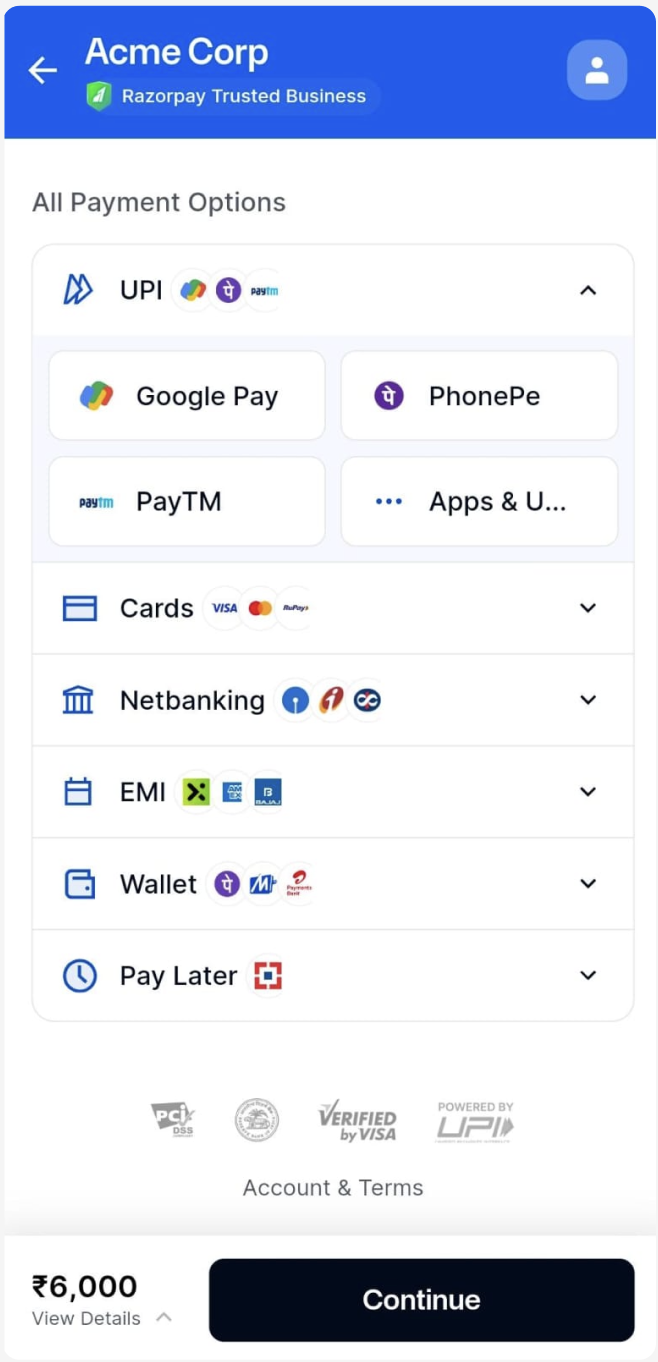
Web
- Collect Flow
- Intent Flow
On your website, all Google Pay requests are Collect requests.
- The customer selects the Google Pay option, enters their UPI handle and clicks Pay.
- A request is sent to the Google Pay app installed on their mobile device.
- The customer manually opens the Google Pay app and approves the request.
Android
- Intent-Based Integration
- Intent-Based Integration Using Google Pay SDK
- Collect-Based Integration
When using the Standard Checkout, Google Pay is shown inside the payment method UPI. The customer selects Google Pay from the list of apps and click Pay. Customers are then redirected to the Google Pay application, provided it is installed on the mobile device they are using to access checkout, where they can make the payment.
Integration on Custom Checkout
To enable Google Pay on your custom checkout:- Show Google Pay as a separate Option.
- Trigger payment when a user clicks Google Pay on your checkout.