

Available in🇮🇳 India
The RazorpayX Vendor Portal is a platform created for your vendors where they can upload the invoices and receive updates of the payment upon your invitation. You can:
- Automate the collection of invoices from different vendors in one portal, eliminating the manual process.
- Save your time and help in better tracking of the vendor payments.
accept,reject,scheduleorpaythe payment requests from vendors as per your convenience. The vendor is also notified of your action.
Following are the steps to set up and invite vendors to the Vendor Portal:
Setup Vendor Portal
To setup the Vendor Portal:- Log in to the RazorpayX Dashboard.
- Click Vendor Payments.
- Navigate to the three dots menu between the Refresh and Download icons and click Setup Vendor Portal.
- Click Setup Vendor Portal.
-
Review your public profile details that will be visible to the vendor:
- Business name
- Logo
- Phone
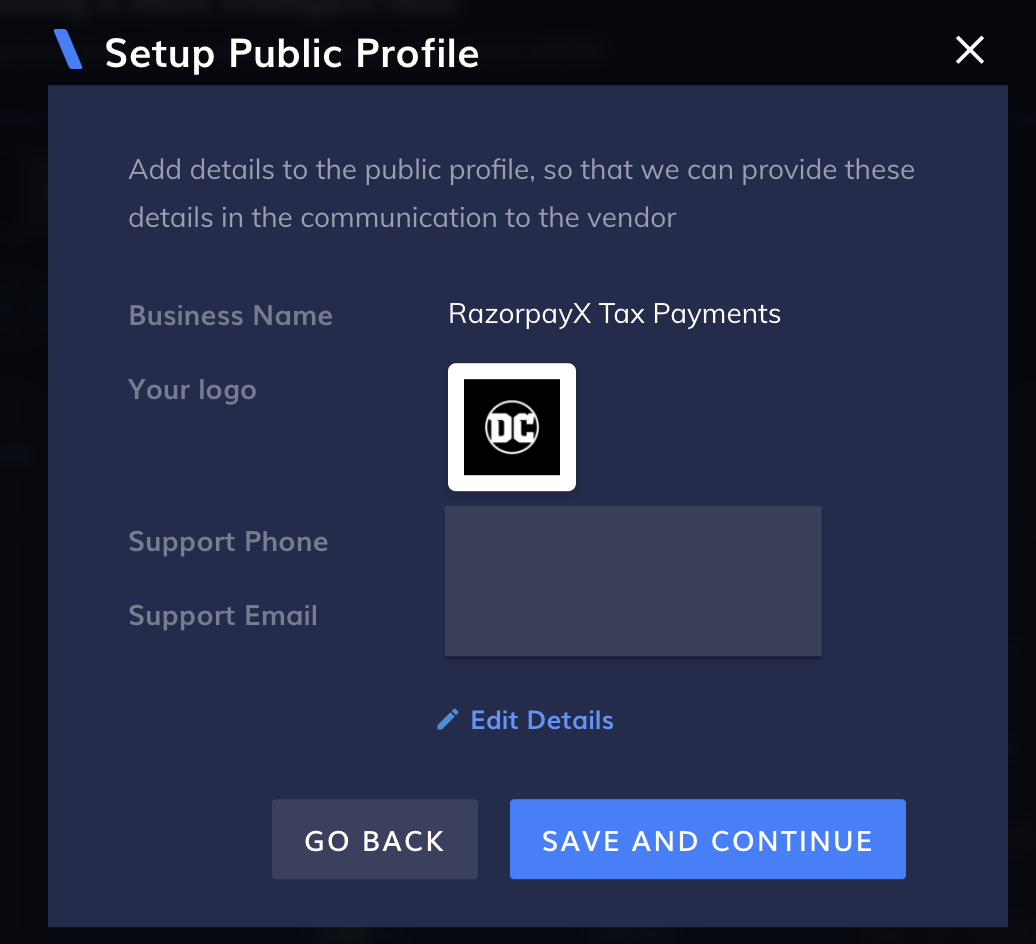
Edit details if required or click Save And Continue. - You can either Invite all vendors or Select vendors from the contact list. Only the Contact type saved as vendor is eligible to use the portal.
Invite Vendors
After you set up the portal, you can invite your vendors.- On your RazorpayX Dashboard, navigate to Menu → Contacts.
- Using Quick Filters, choose
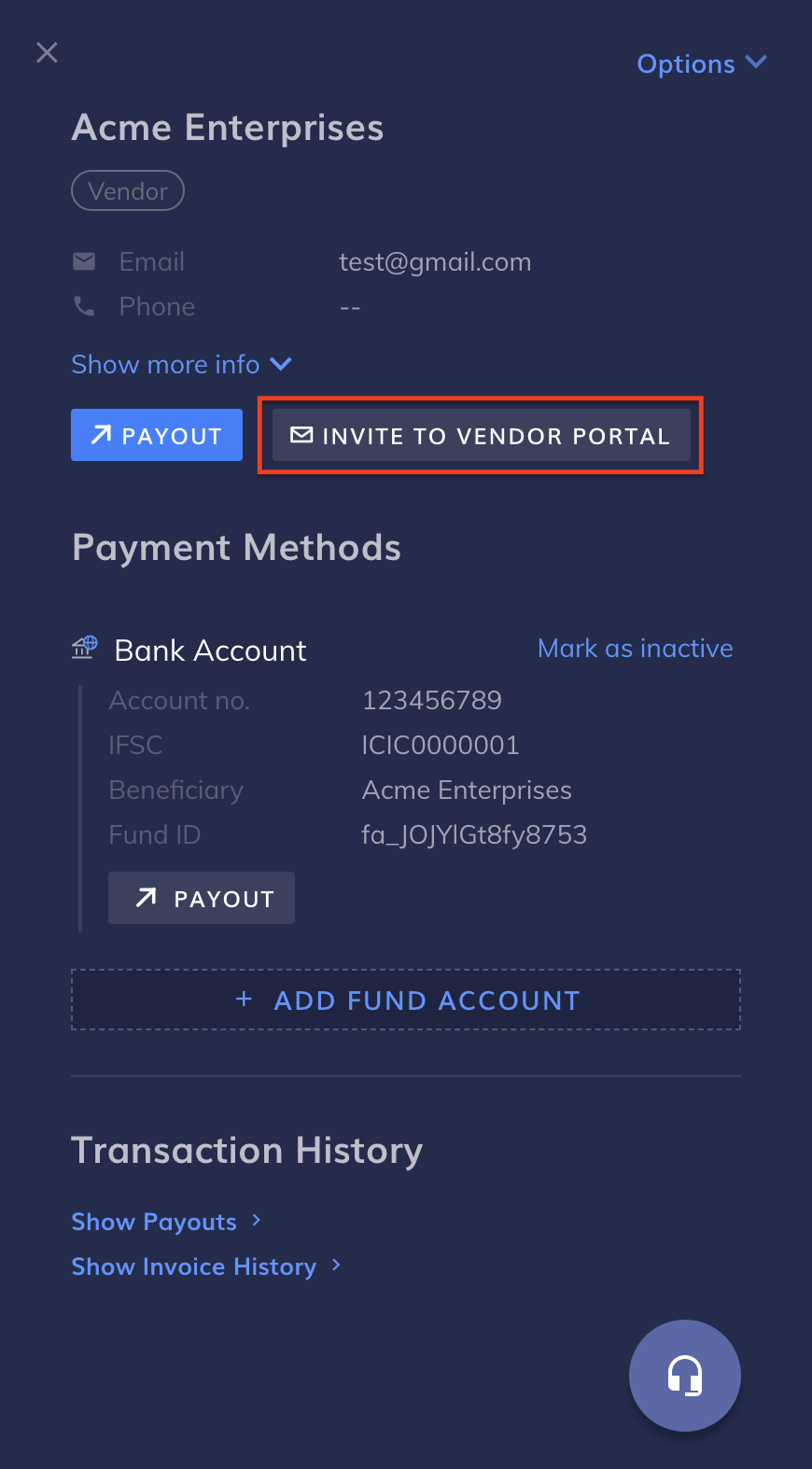
vendoras the contact type. - Select the contact that you want to invite to the portal. In the pop-up that appears to the right, click Invite To Vendor Portal, as shown.
Handy TipsCheck and share the url: https://razorpay.com/docs/x/vendor-payments/portal with your vendors for them to see the activities they can perform on the portal.
Disable Portal
- Select and open the
vendorcontact of whom you want to disable the portal. - Click Options.
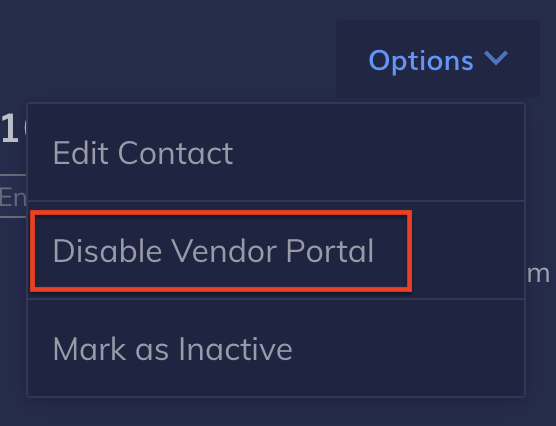
- Click Disable Vendor Portal.
Invoice Status
When the vendor makes a payment request, it is visible on your dashboard, under Vendor Payments. Watch this video to know how to accept or reject invoices uploaded by your vendors, or read on.- Log in to the RazorpayX Dashboard.
- Click Vendor Payments.
- Click View More Filters on the top right. Find Source and select From Vendor Portal to view only those invoices uploaded by vendors.
- New requests have
PENDING REVIEWstatus. Hover over the the payment to ACCEPT or REJECT the invoice. You can also click on the invoice to ACCEPT INVOICE or REJECT the payment. - PAY instantly or SCHEDULE the payment for later, based on your convenience.
pending review to unpaid. When you make the payment, unpaid status moves to paid. If you have made the payment outside of RazorpayX Vendor Payment App, you can come back to this invoice and mark it as paid.