

Available in🇮🇳 India
As a business owner, you may come across situations wherein you have to make payouts to multiple vendors or multiple payouts to vendor(s). You can use the Bulk Payouts feature to create multiple payouts in such cases. Apart from processing payouts, you can perform the following tasks:
- Make a payout to an existing fund account.
- Create a new contact and fund account to make a payout.
Create Bulk Payout
Watch the video to know how to create bulk payouts on RazorpayX Dashboard.
To create bulk payouts:
- Log in to the RazorpayX Dashboard.
- Click Payouts on the left navigation menu and select Bulk on the top menu.
- Click + Bulk Payouts.
Handy TipsAlternatively, you can click the drop-down next to +PAYOUTS and select Bulk Payouts.
- Download the template (
.xlsxor.csv). Or download it from the Dashboard:
How to download templates from the Dashboard?
How to download templates from the Dashboard?
- Click Download Template.
- Select the Payment method relevant to you from the drop-down menu. You can select from:
- UPI
- NEFT/IMPS/RTGS
- Amazonpay Wallet
- Select the beneficiary information available. You can choose from:
- Beneficiary details (Bank details, UPI, Wallet no.)
- RazorpayX Fund Account ID (For existing contacts)
- Choose
.xlsxor.csvformat and click Download.
Handy TipsWe recommend you to choose
.xlsx format to see validations so that you can avoid errors during file upload.- Fill in the details based on the validations in the template.
- Drag and drop your updated file or click Browse and select the file to upload from your system.
- Once the file is successfully uploaded, click Next.
- Select the Payout Purpose and the account you want to Debit From.
- You can edit the Batch Name if required.
- Click Next to make the payouts or schedule the payouts.
- Enter the OTP sent to the registered mobile number and email id to confirm the payout and create the batch. If Approval Workflow is enabled, click Send for Approval in the final step.
Handy TipsUsing this feature, you can make upto 50,000 payouts at once.
processing status. Hover over the file name to View Payouts and their status or click on the respective file name to find details on the right pane.
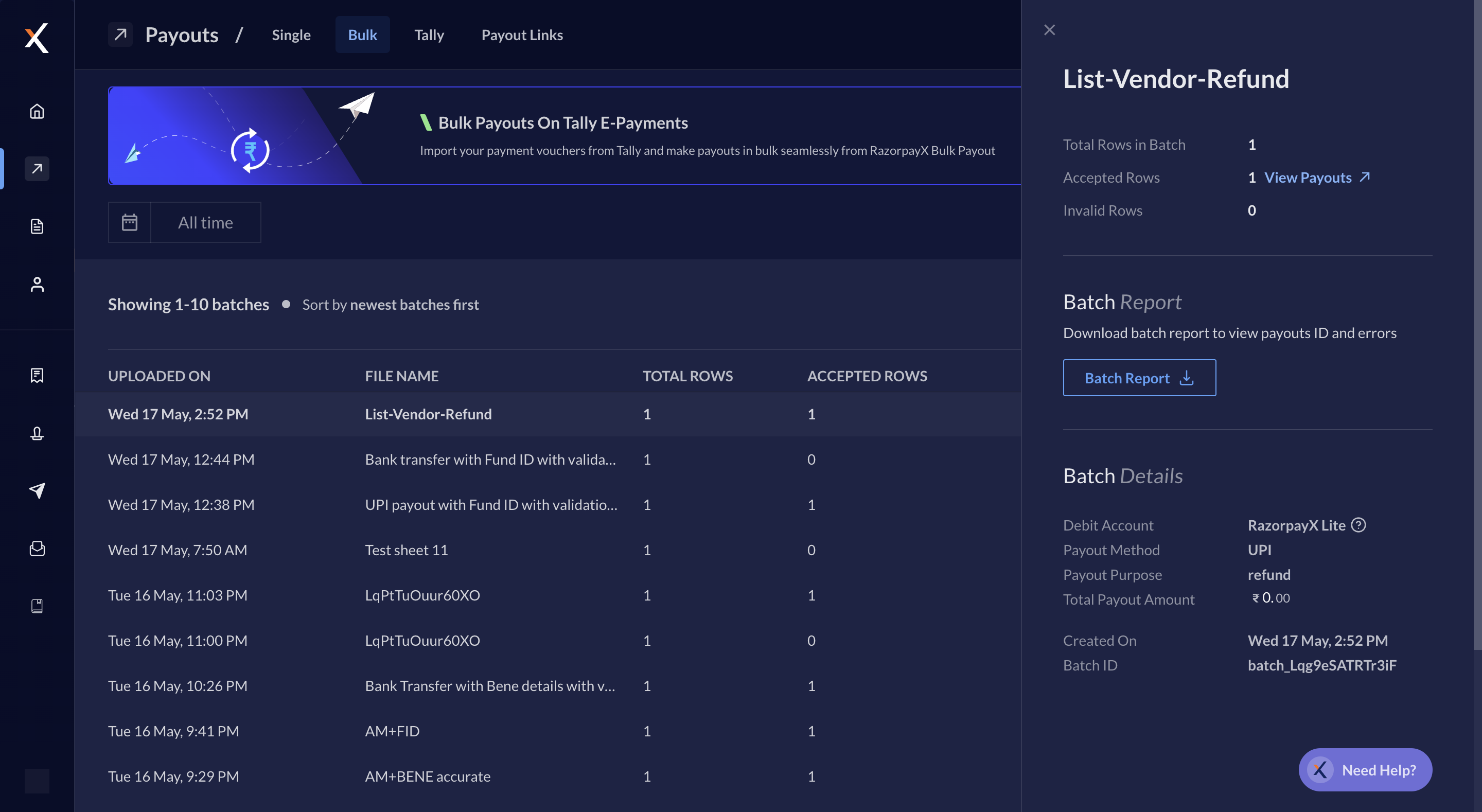
Bulk Payouts batch processing vs Payouts Processing
Bulk Payouts batch processing vs Payouts Processing
After the file is processed, you can see the accepted rows and invalid rows.
- ACCEPTED ROWS: These rows contain payouts that were successfully created.
- INVALID ROWS: These rows were not processed due to some errors. You can download the batch report from the left pane (given below) to view the errors.
Bulk Payouts Templates
Bulk Payouts Templates are available in.xlsx and .csv. You can find the templates here.
Instructions to fill the Template
- Fill all the mandatory columns.
- Hover over the empty cells to see the validation criteria (applicable for .xlsx files only).
- If you are copy-pasting data using an internal tool, use these shortcuts:
- MacOS : Cmd+Opt+V, then press V again
- WindowsOS : Ctrl+Alt+V then press V again
File Requirement
Payouts Requirement
Example
If you have chosen
If you have chosen
Razorpay Fund Account ID details along with UPI as the payout method, the Fund Account ID provided by Razorpay for the respective contact must be linked to a UPI account.Resolve Errors
The template throws errors in case the in-sheet validation fails. Ensure you follow the instructions to fill the template to avoid errors.Download Templates
XLSX Templates
XLSX Templates
These templates are available in
.xlsx format.CSV Templates
CSV Templates
These templates are available in
.csv format.