

Available in🇮🇳 India
CAMSPay is a Payment Gateway and Aggregator that enables businesses to securely accept a variety of digital payments for both one-time purchases and recurring transactions (like subscriptions or loan payments).
Follow the steps below to onboard CAMSPay as a payment provider.
Prerequisites
Prerequisites
- This payment provider is available only with Optimizer. Ensure you have Optimizer enabled for your Razorpay account.
- The gateway credentials (for example, Merchant Id, Checksum Key and Encryption Keys) must be provided to you by the CAMSPay platform. You will need these for the integration.
Handy TipsNo additional configuration is required on your businesses end for CAMSPay integration.
Add CAMSPay as Payment Provider
To add CAMSPay as a payment provider:
To add CAMSPay as a payment provider:
- Log in to your Dashboard and select Optimizer.
- Click Payment Provider → Add Provider.
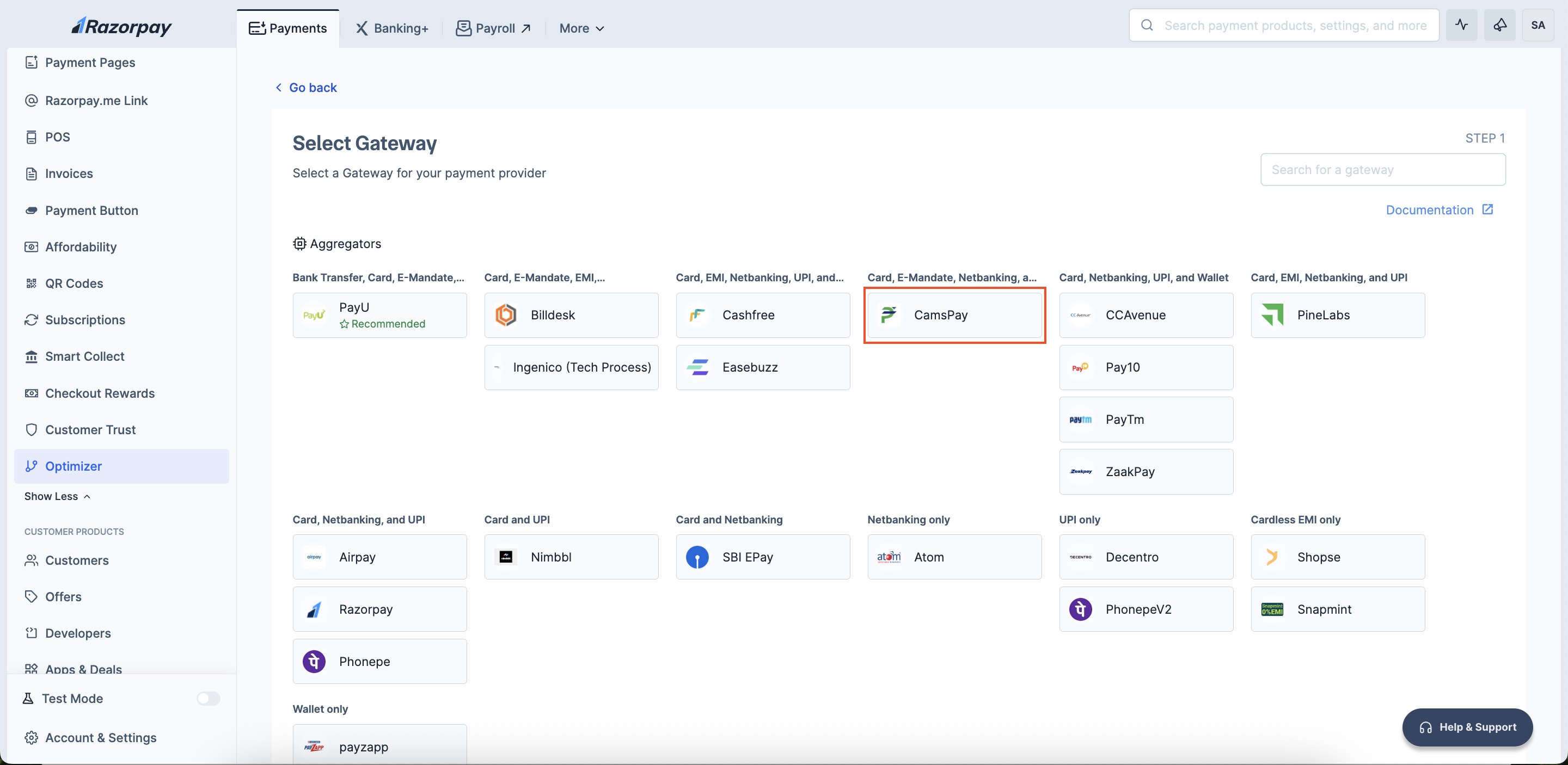
- Navigate to Card, E-Mandate, Netbanking, and UPI → CAMSPay.
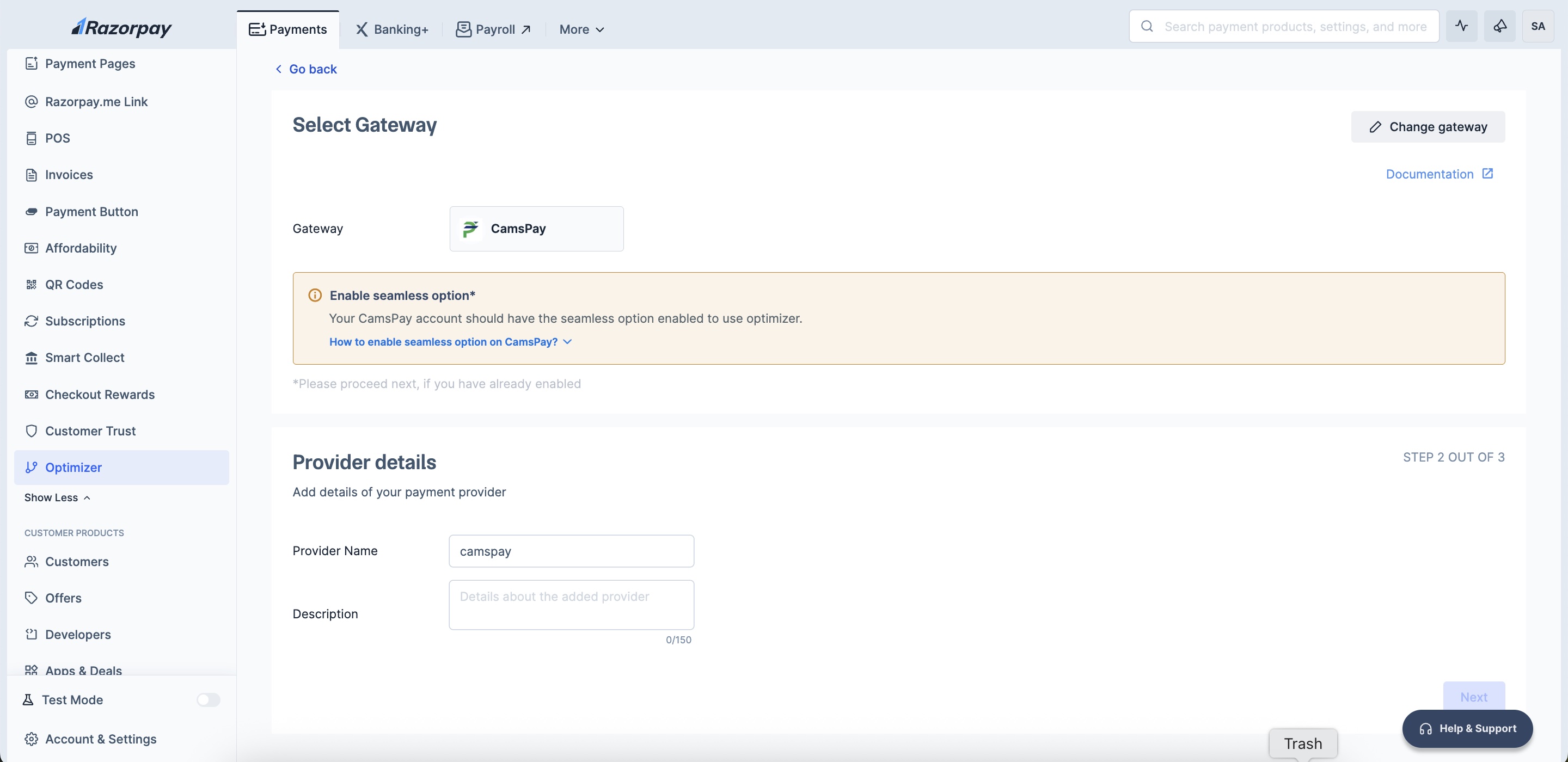
- Enter your Provider Details and click Next.
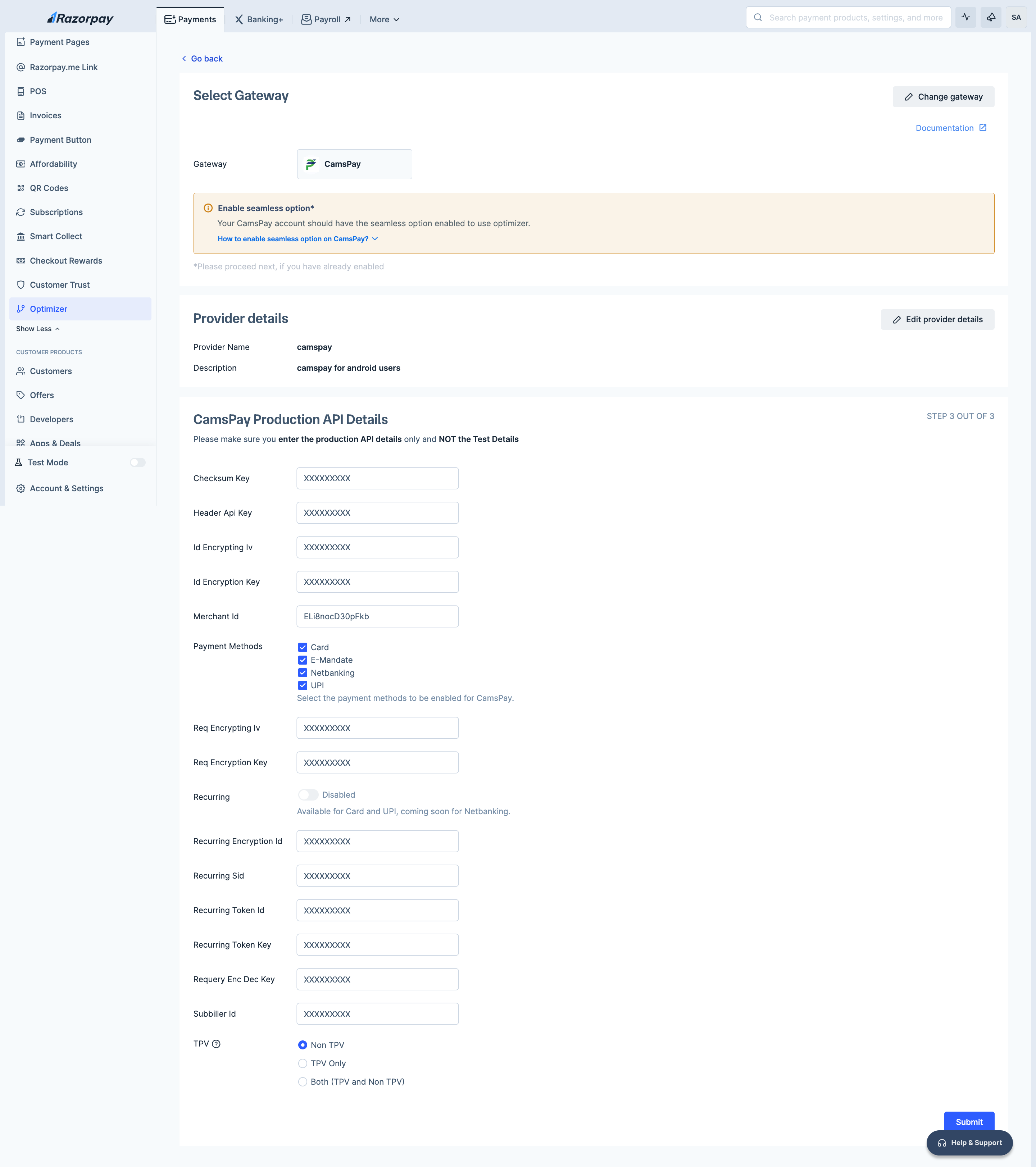
- Add your CAMSPay Production API Details and click Submit.
Configure Custom Rule
Add custom rule to route your transactions via CAMSPay:
Add custom rule to route your transactions via CAMSPay:
- Log in to your Dashboard and click Optimizer.
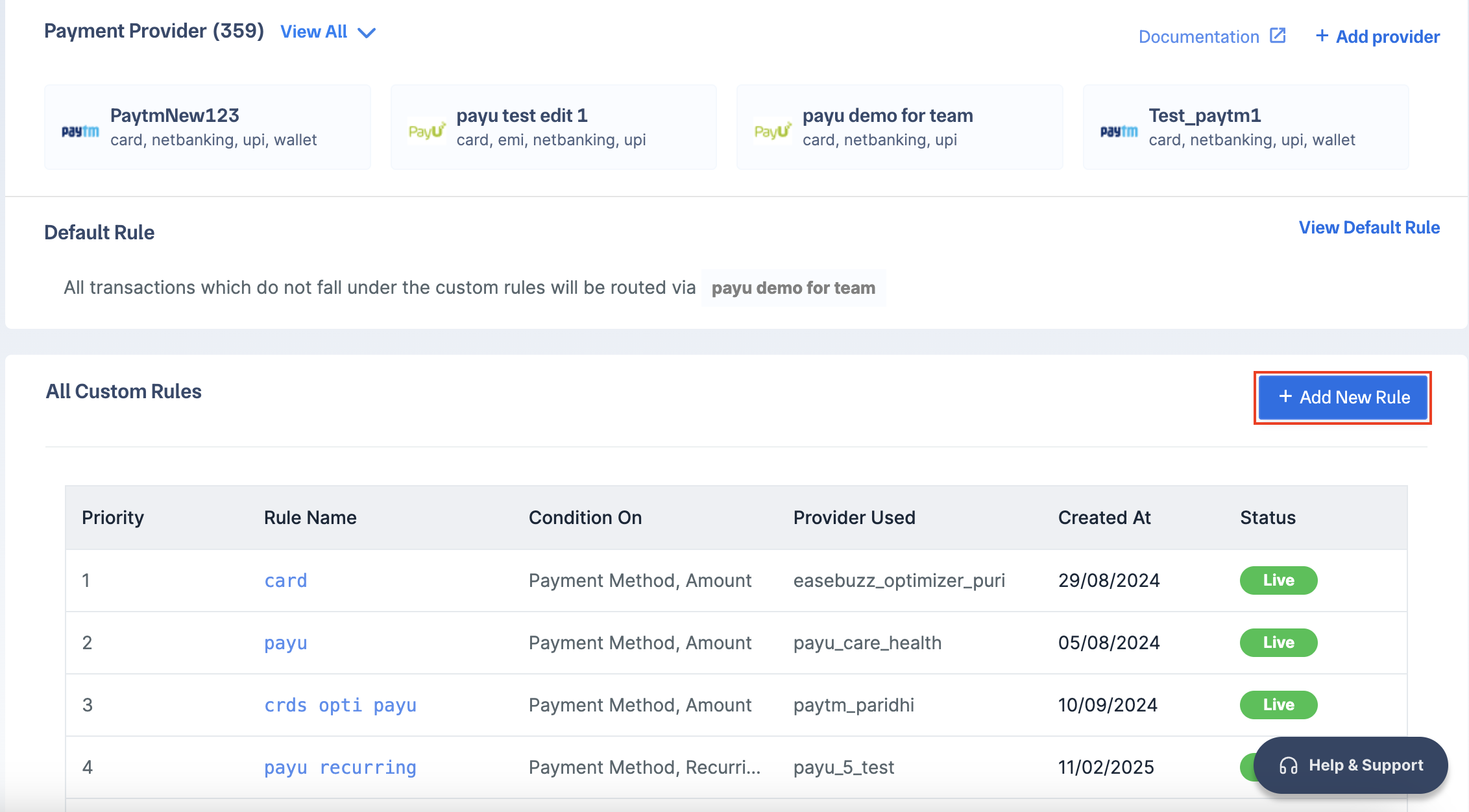
- Click + Add New Rule.
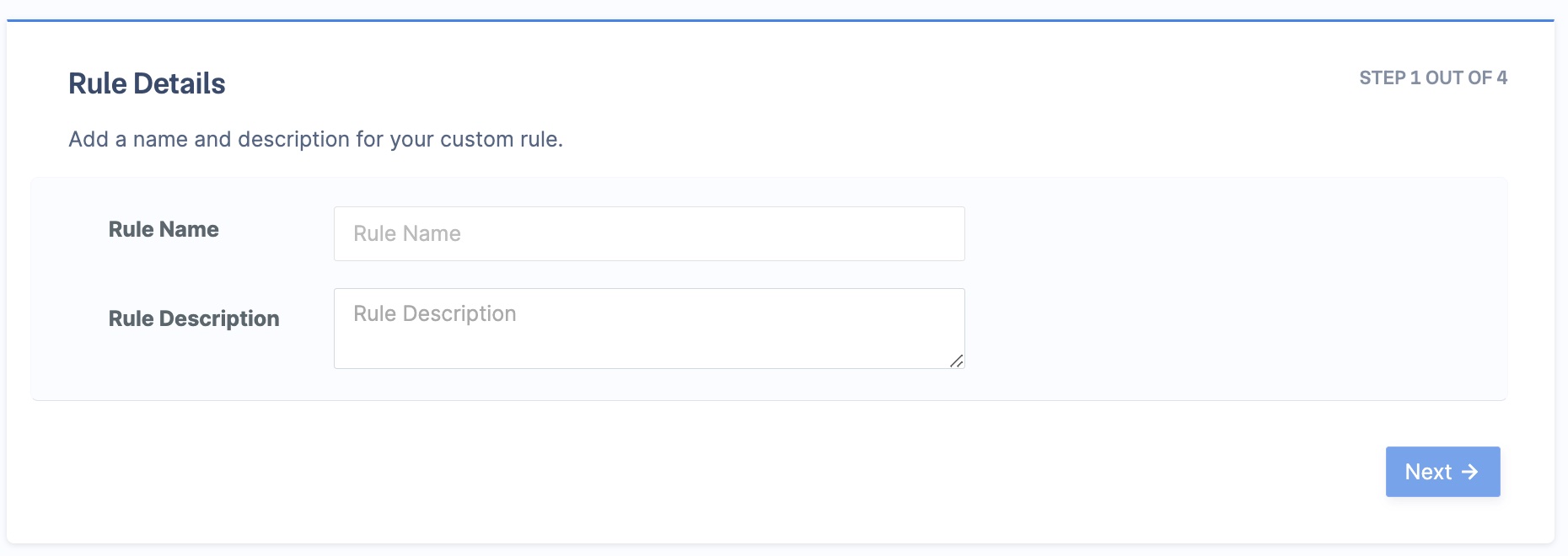
- Enter the Rule Name and Rule Description. Click Next.
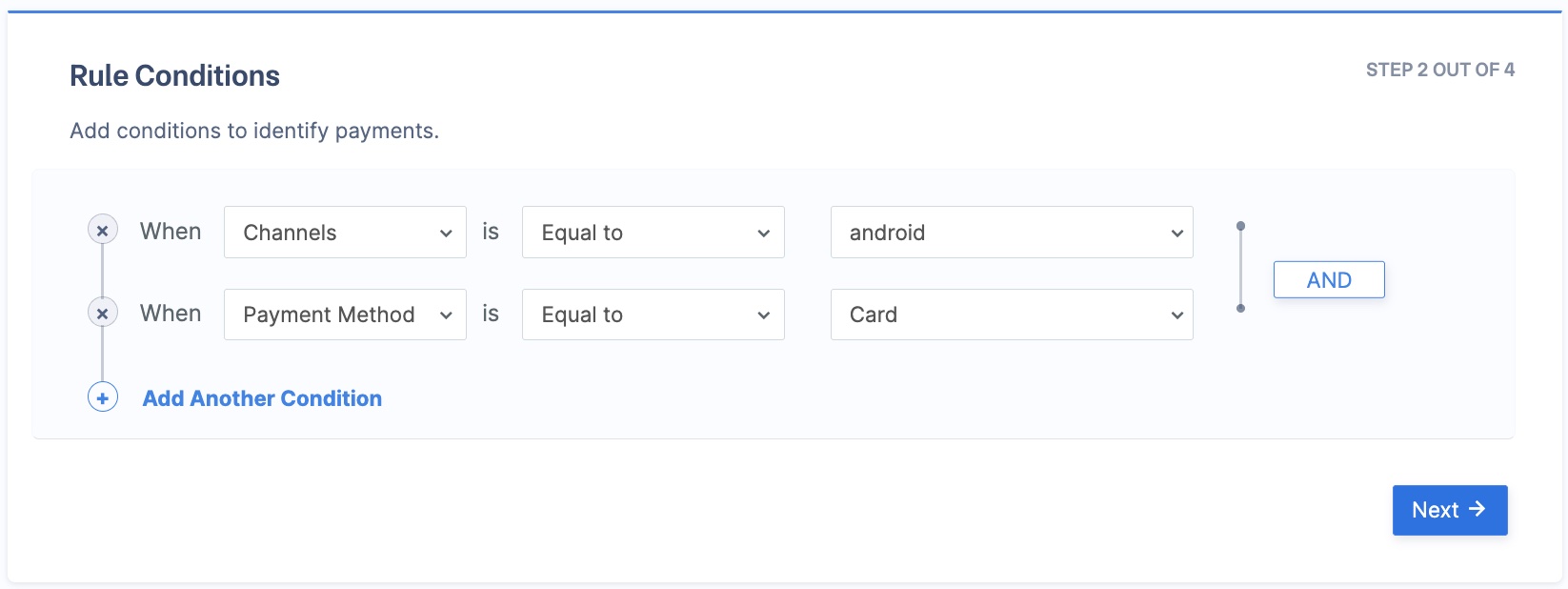
- Select the rule conditions as follows:
- Condition 1:
- When -
Channel - is -
Equal to Android
- When -
- AND (Add another condition)
- Condition 2:
- When -
Payment Method - is -
Equal to Card
- When -
- Condition 1:
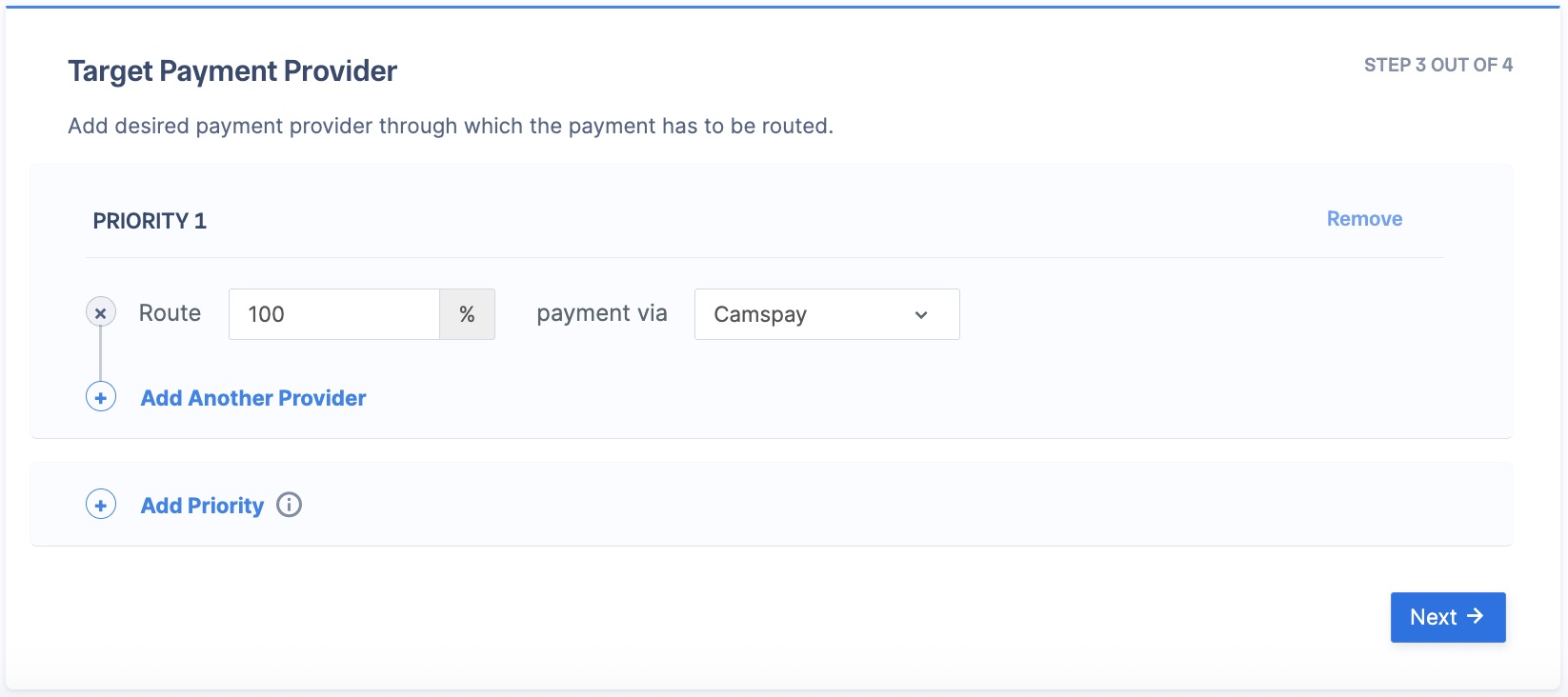
- In the Route section, enter 100, and select CAMSPay in the payment via section. Click Next.
- Click Publish Rule.
Best Practices
Please note these best practices before routing all or some of your traffic to a new gateway via Optimizer:Live and Test Mode Rules
Live and Test Mode Rules
Rules you set up in test or live mode on your Razorpay Dashboard apply in live mode. However, test mode credentials will not automatically copy to live mode.
Sanity Test at Razorpay
Sanity Test at Razorpay
For basic integration testing, contact Razorpay. We will attempt a small test payment to confirm your credentials are correct.