

Available in🇮🇳 India
Simpl PayLater and Pay-in-3 is a flexible BNPL option that lets customers split their purchases into three equal, interest-free installments. Payments are completed instantly at checkout without entering card details or OTPs. Simpl bills the total amount in three parts over a set period. For businesses, it helps enhance user experience, reduce cart drop-offs, and boost conversions while encouraging customer loyalty through convenient, no-cost payment flexibility.
Follow the steps below to onboard Simpl as a payment provider.
Prerequisites
Prerequisites
Make sure you have Optimizer enabled for your Razorpay account.
Handy TipsNo additional configuration is required on your businesses end for Simpl integration.
Integration Requirements
Before you go live with Simpl on Optimizer, add PayLater as a payment method on the Razorpay Dashboard.Configure PayLater (Simpl) as a payment method
Configure PayLater (Simpl) as a payment method
- On the Razorpay Dashboard, navigate to Account & Settings.
- Select PayLater from the list of payment methods.
- Look for Simpl and click Request. Know more about how to request for a payment method.
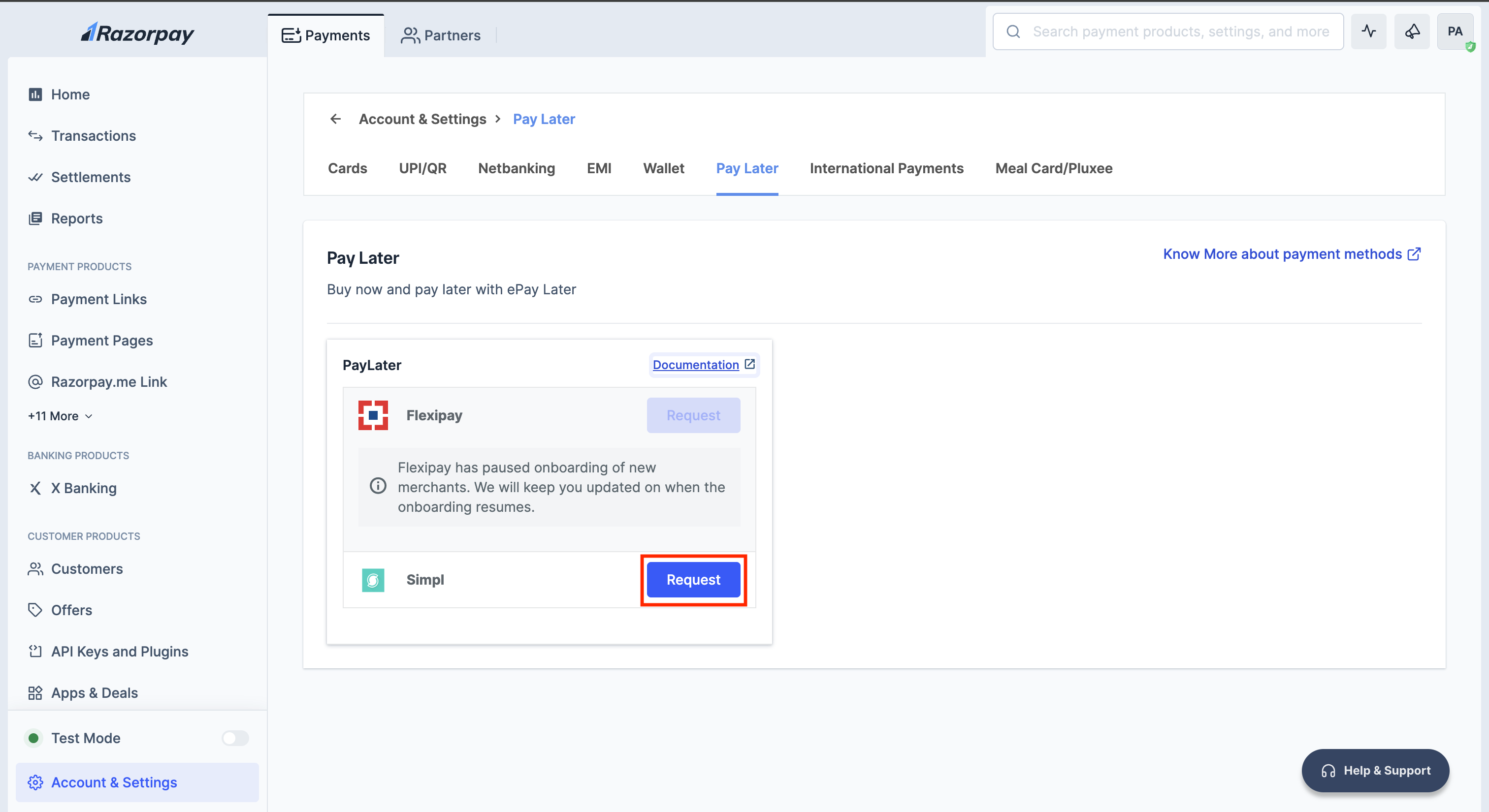
Add Simpl as Payment Provider
To add Simpl as a payment provider:
To add Simpl as a payment provider:
- Log in to your Dashboard.
- Go to the PAYMENT PRODUCTS section and click Optimizer.
- In the top-right section, click Add Provider.
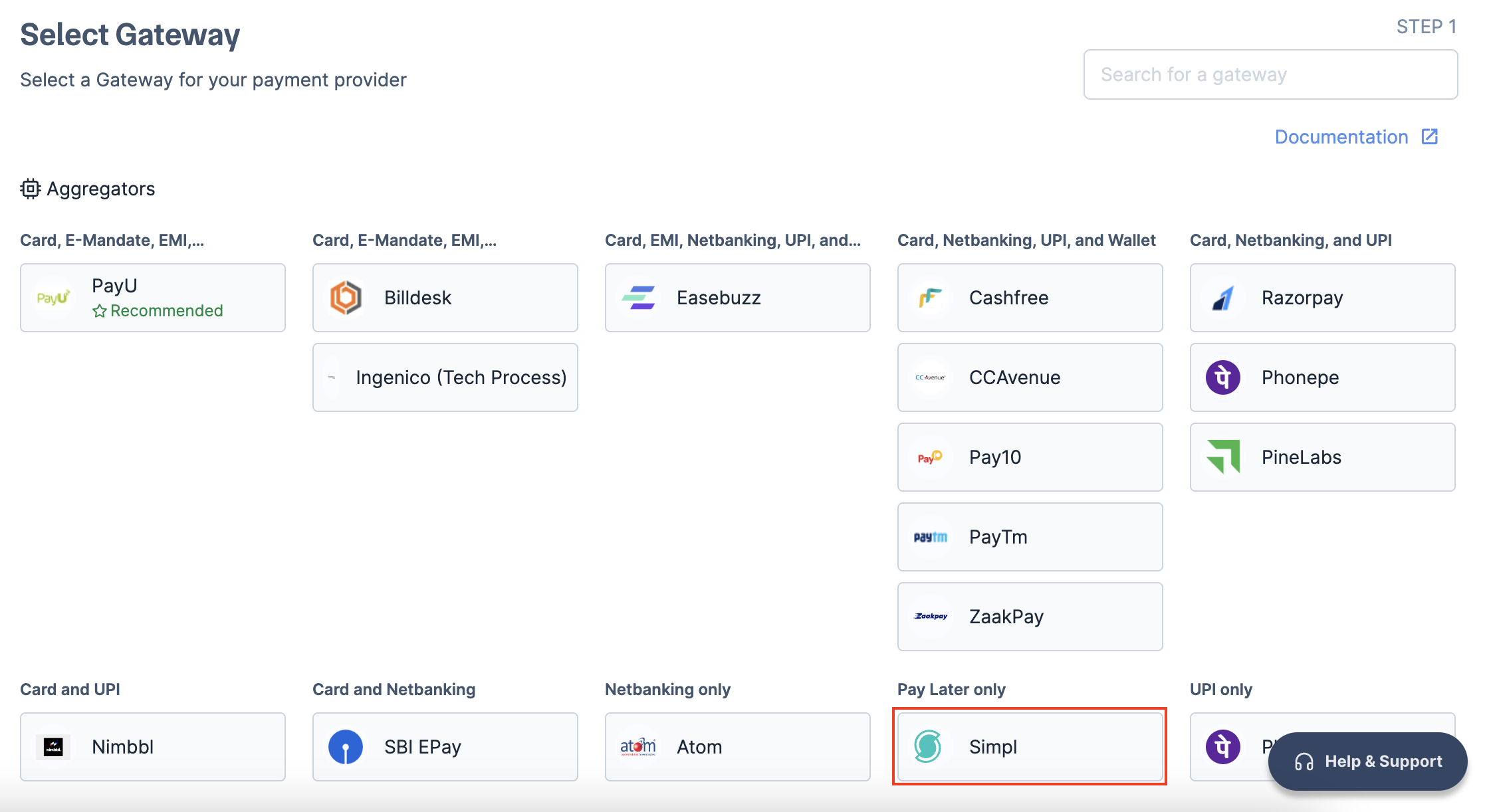
- Select Simpl in the list of gateways available.
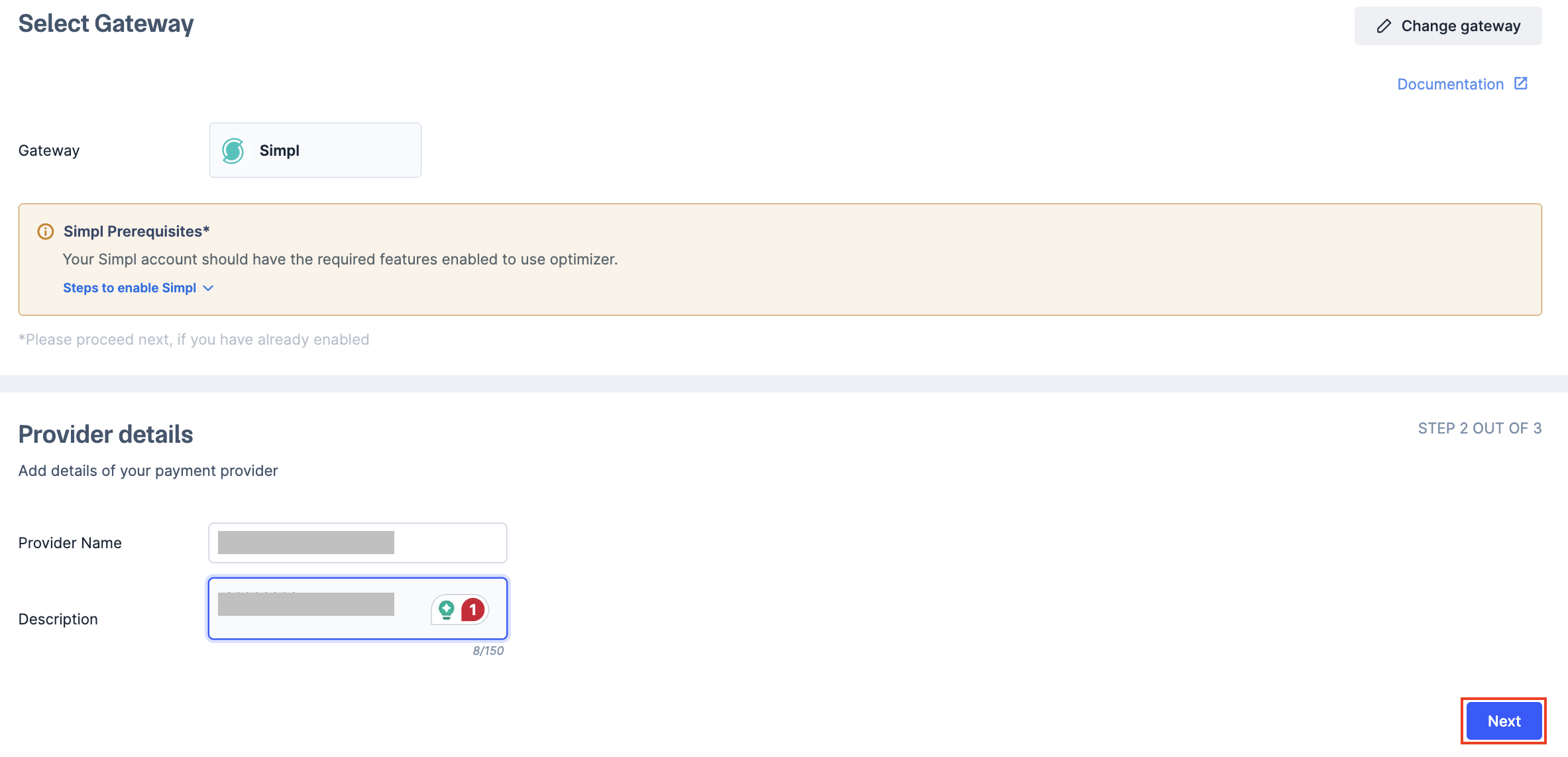
- Enter the provider name and description and click Next.
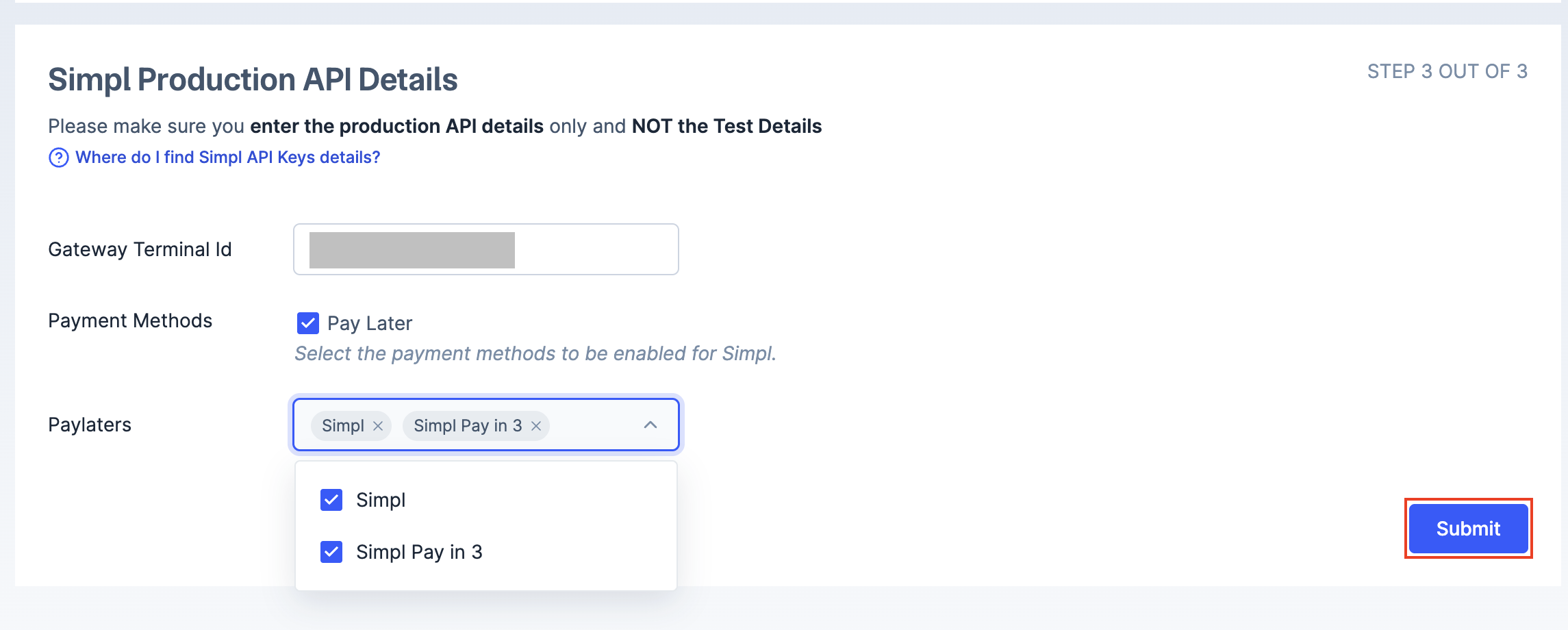
- Enter your Gateway Terminal Id.
- Select Simpl from the Paylaters dropdown under the payment method section, and click Submit.
Configure Custom Rule
To route your transactions via Simpl:
To route your transactions via Simpl:
- Log in to your Dashboard.
- Go to the PAYMENT PRODUCTS section and click Optimizer.
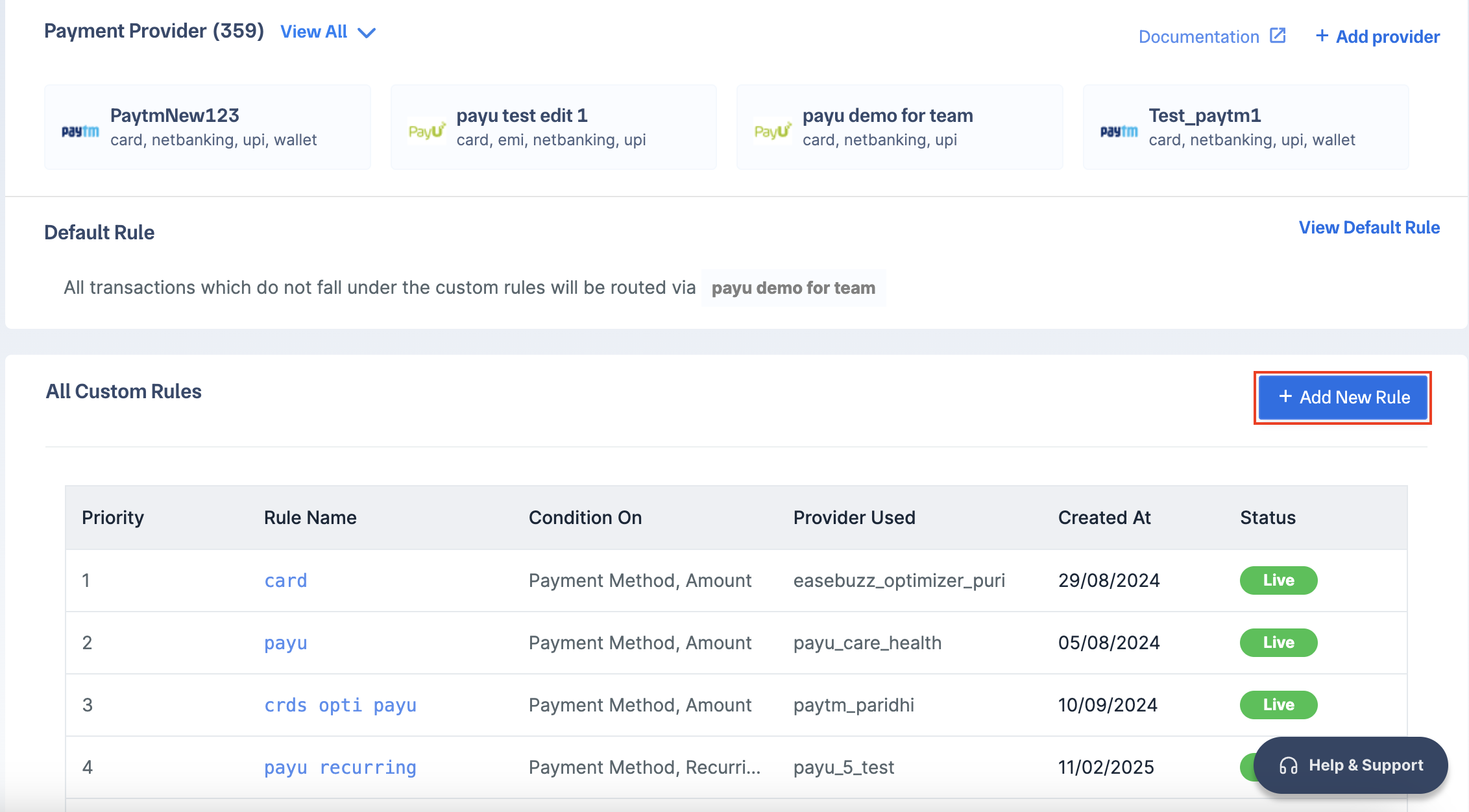
- Click + Add New Rule.
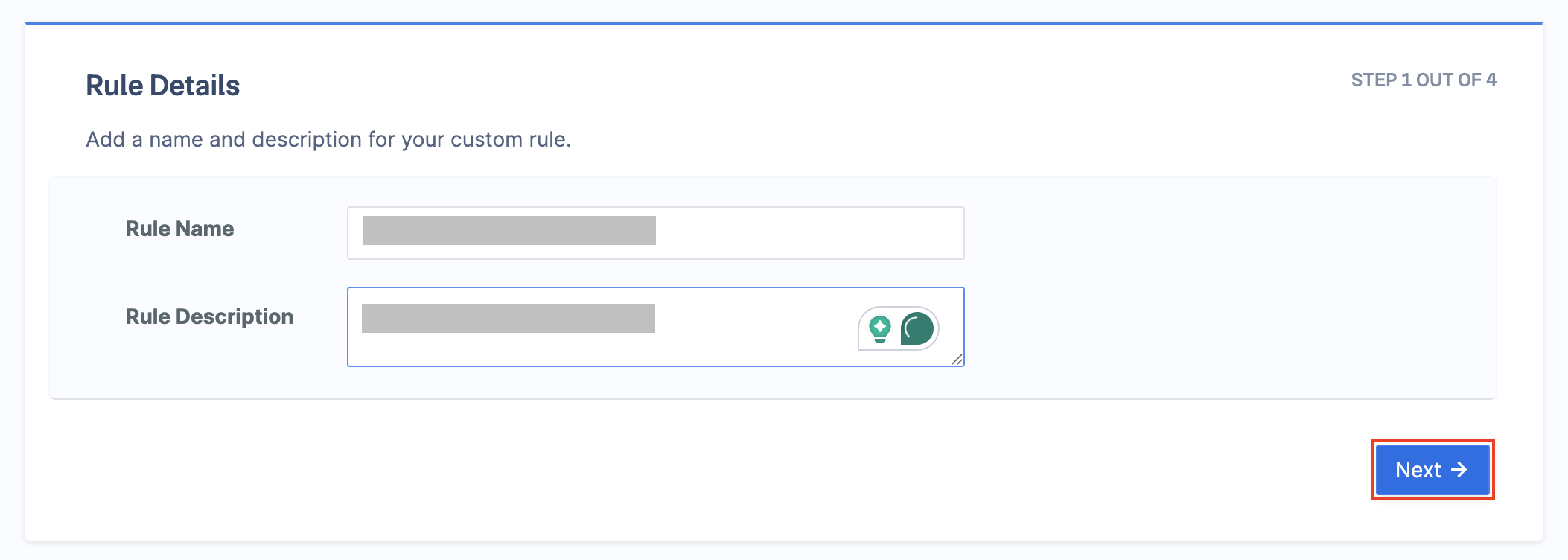
- Enter the Rule Name and Rule Description, then click Next.
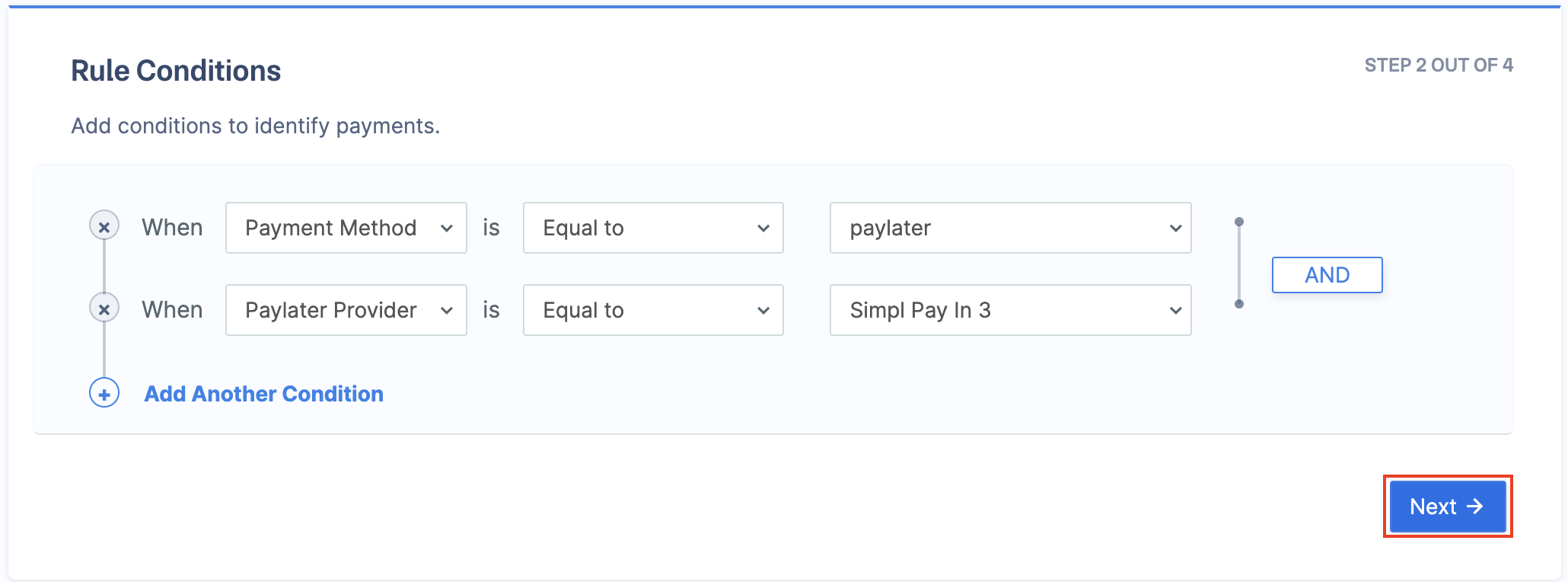
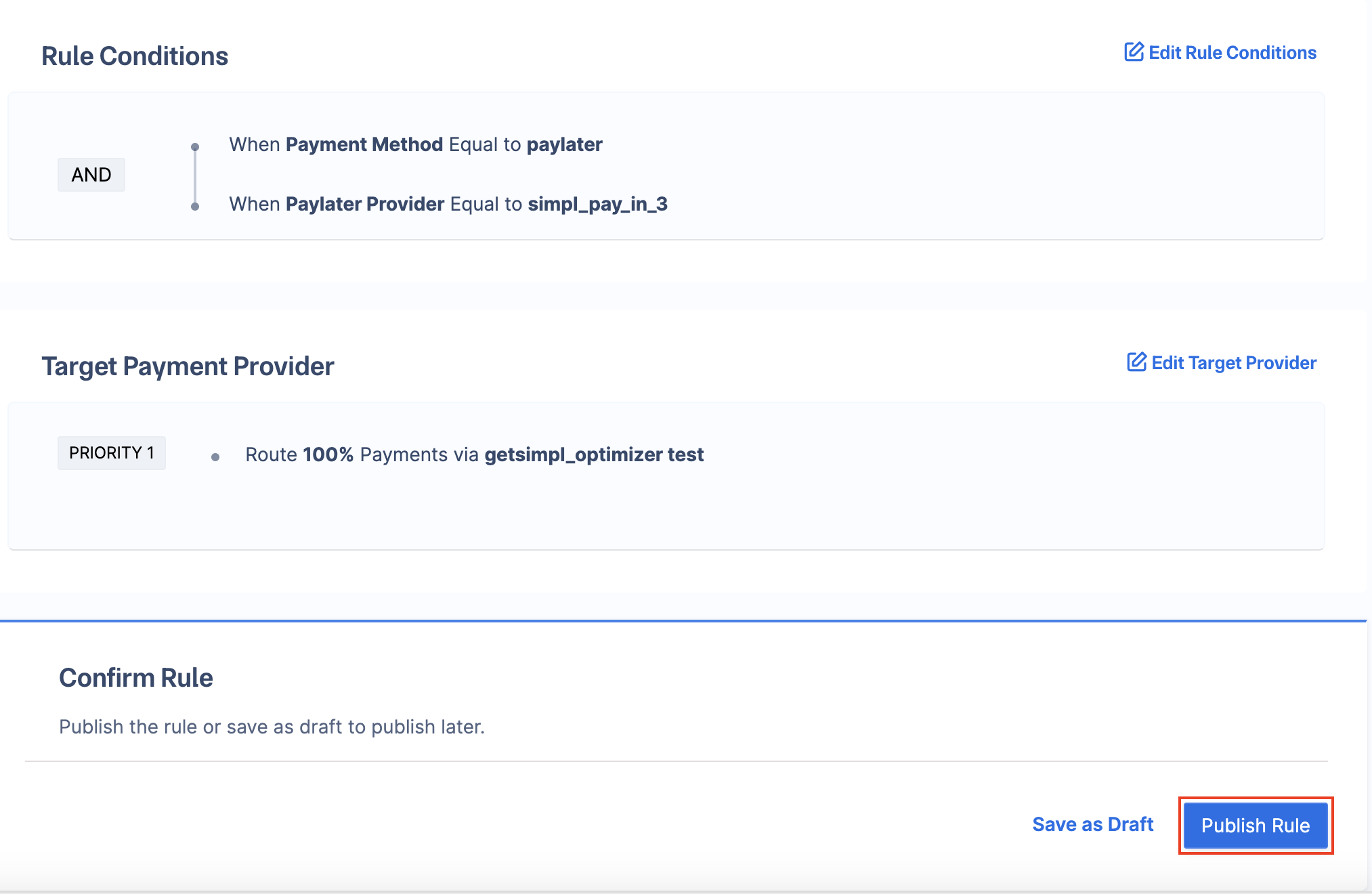
- Select the rule conditions as follows:
- When - Select
Payment Method. - is - Select
Equal to. - Select Comparing Value - Select
paylater.
- When - Select
- Click Add Another Condition and select the rule conditions as follows:
- When - Select
PayLater Provider. - is - Select
Equal to. - Select Comparing Value - Select
Simpl Pay in 3.
- When - Select
- Click Next.
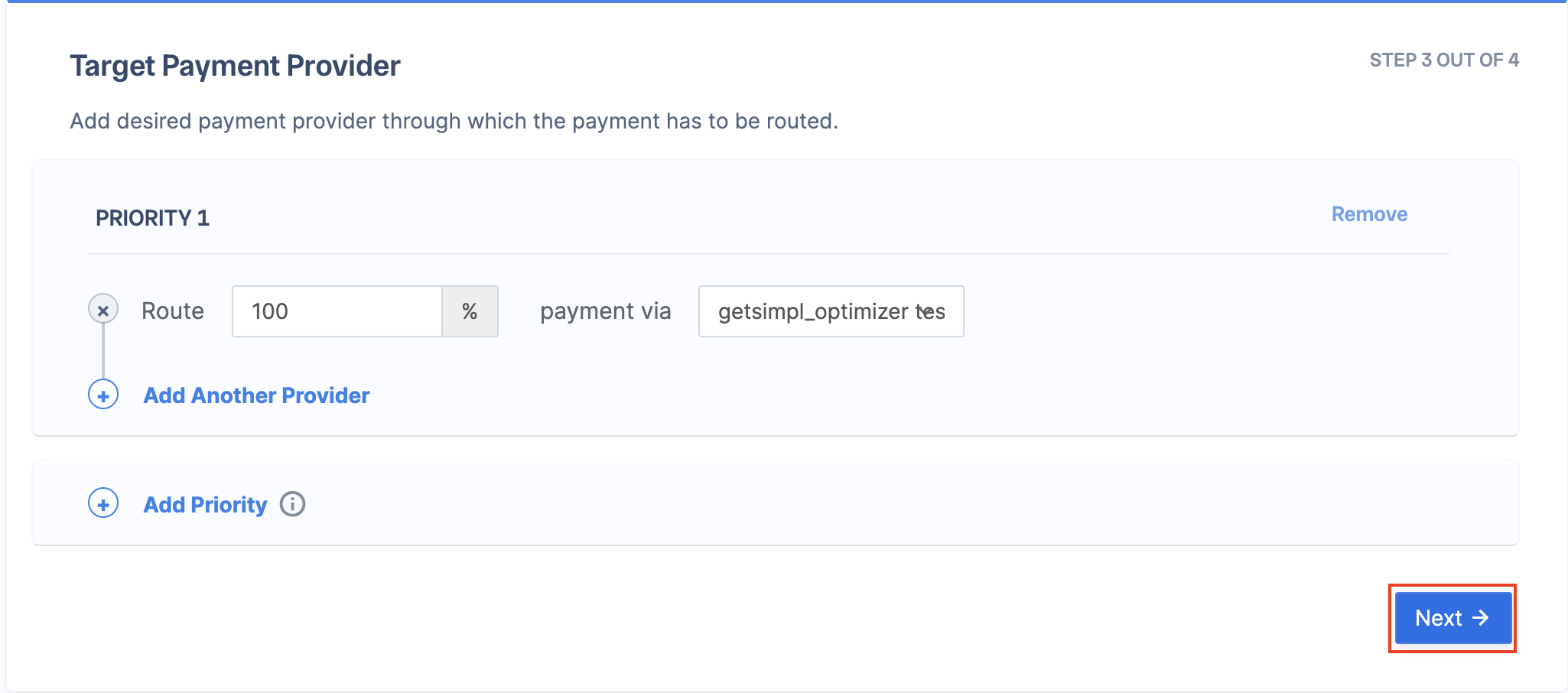
- In the Route section, enter 100, select Simpl in the Payment Via section, and click Next.
- Click Publish Rule.
Best Practices
Before routing all traffic or some traffic to a new gateway via Optimizer, the following best practices are recommended:Live and Test Mode Rules
Live and Test Mode Rules
All rules configured in live or test mode on the Razorpay Dashboard will reflect in live mode. However, credentials added in test mode will not be automatically replicated in live mode.
Sanity Test at Razorpay
Sanity Test at Razorpay
You can reach out to Razorpay for basic sanity testing of the integration. Razorpay will try a test payment of a small value and ensure that the credentials are correct.