

Prerequisites
- Create a Razorpay account.
- Generate API Keys from the Dashboard. To go live with the integration and start accepting real payments, generate Live Mode API Keys and replace them in the integration.
1. Build Integration
2. Test Integration
3. Go-live Checklist
1. Build Integration
1 Enable/Disable Magic Checkout and Cash on Delivery
1 Enable/Disable Magic Checkout and Cash on Delivery
- Enable Magic Checkout
- Enable Cash on Delivery Payment Method
2 Create Promotions and Shipping Info API Endpoints
2 Create Promotions and Shipping Info API Endpoints
- Log in to the Dashboard and navigate to Magic Checkout.
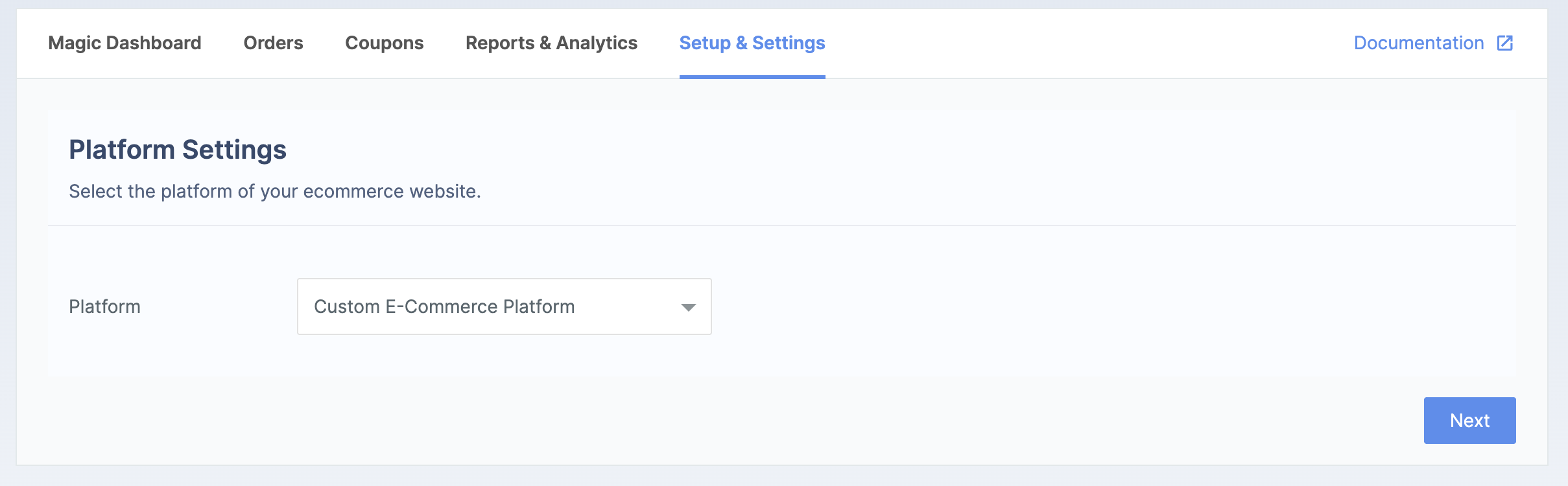
- In the Platform Setup, select Custom E-Commerce Platform from the drop-down list and click Next.
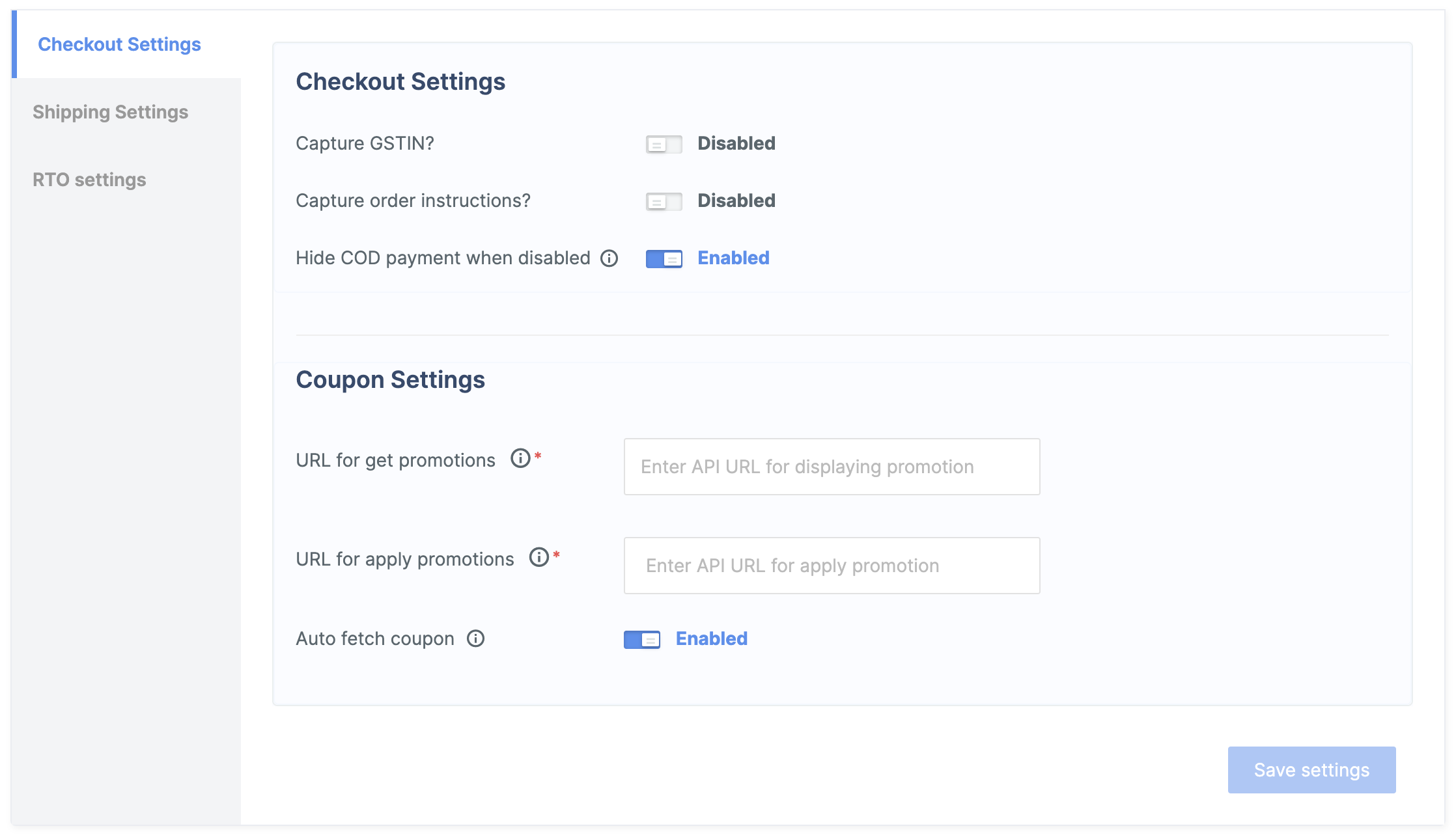
- In the Setup & Settings section, click Checkout Settings.
- In the Coupon Settings section, enter the following:
- URL for get promotions: The API URL should return a list of promotions applicable to the specified order_id and customer. Magic Checkout uses this endpoint to fetch these promotions from your server and display them to your customers in the checkout modal.
- URL for apply promotions: The API URL validates the promotion code applied by the customer and should return the discount amount. Magic Checkout uses this endpoint to apply promotions via your server.
- Click Save settings.
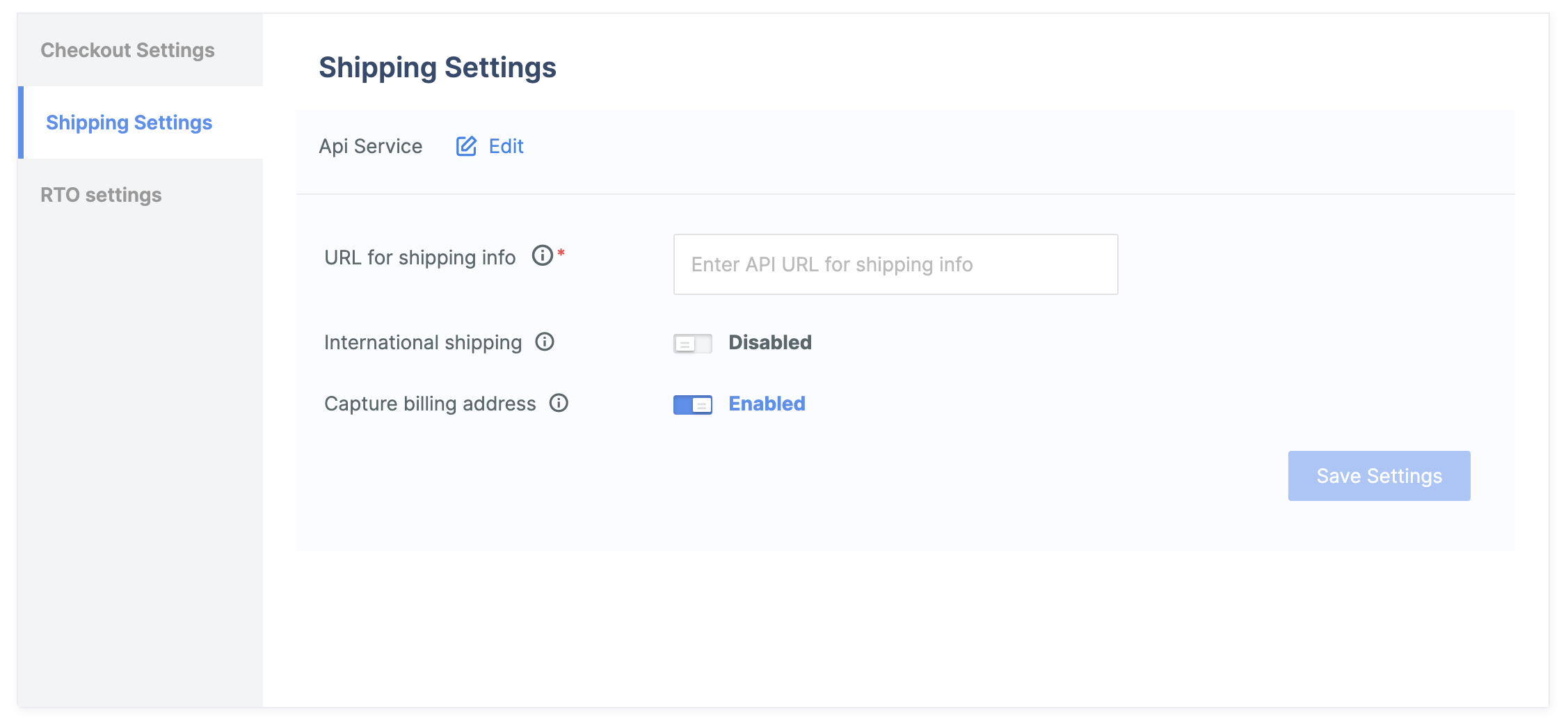
- Navigate to Shipping Setup.
- Select API as the Shipping Service type from the drop-down list.
- Enter the URL for shipping info. The API URL should return shipping serviceability, COD serviceability, shipping fees and COD fees for a given list of customer addresses. Magic Checkout uses this endpoint to retrieve shipping information from your server.
- Click Save Settings.
3 Install Razorpay Android Standard SDK
3 Install Razorpay Android Standard SDK
4 Initialise Razorpay Android Standard SDK
4 Initialise Razorpay Android Standard SDK
setKeyId() method of the Checkout class to dynamically add your API key id. You can generate your API keys from the Razorpay Dashboard.To ensure the Checkout form loads quickly, call the preload() method early in your payment flow. The time taken to load resources may vary based on your network bandwidth.5 Create an Order
5 Create an Order
order_id received in response to the checkout code.Request Parameters
Request Parameters
amount mandatory
: integer The transaction amount, expressed in the currency subunit, such as paise (in case of INR). For example, for an actual amount of ₹299.35, the value of this field should be 29935.currency mandatory
: string The currency in which the transaction should be made. See the list of supported currencies. Default is INR. Length must be of 3 characters.receipt mandatory
: string Your receipt id for this order should be passed here. Maximum length of 40 characters.notes optional
: object Key-value pair that can be used to store additional information about the entity. Maximum 15 key-value pairs, 256 characters (maximum) each. For example, "note_key": "Beam me up Scotty".line_items_total mandatory
: integer Total of offer_price for all line items added to the cart, in paise. For example, if a shoe worth ₹8,000 and a shirt worth ₹10,000 are added, the line_item_total will be 1800000. This amount is post-tax.line_items mandatory
: array This will have the details about the specific items added to the cart.sku mandatory
: string Unique product id defined by you. It can be alphanumeric.variant_id mandatory
: string Unique variant id defined by you. It can be alphanumeric.price mandatory
: integer Price of the product in paise.offer_price mandatory
: integer Final price charged to the customer in paise, after applying any adjustments, such as product discounts.price and offer_price will be the same.quantity mandatory
: integer Number of units added in the cart.name mandatory
: string Name of the product.description mandatory
: string Description of the product.weight optional
: integer Weight of the product in grams.dimensions optional
: object The dimensions of the product.length optional
: string The length of the product in centimeters.width optional
: string The width of the product in centimeters.height optional
: string The height of the product in centimeters.image_url mandatory
: string The URL of the product image. This parameter is mandatory if you want to display product images on our iframe.product_url optional
: string URL of the product’s listing page.notes optional
: object Key-value pair that can be used to store additional information about the entity. Maximum 15 key-value pairs, 256 characters (maximum) each. For example, "note_key": "Beam me up Scotty".Response Parameters
Response Parameters
id
: string The unique identifier of the order.amount
: integer Payment amount in the smallest currency sub-unit. For example, if the amount to be charged is ₹299, then pass 29900 in this field.partial_payment
: boolean Indicates whether the customer can make a partial payment. Possible values:true: The customer can make partial payments.false(default): The customer cannot make partial payments.
amount_paid
: integer The amount paid against the order.amount_due
: integer The amount pending against the order.currency
: string ISO code for the currency in which you want to accept the payment. The default length is 3 characters.receipt
: string Receipt number that corresponds to this order. Can have a maximum length of 40 characters and has to be unique.status
: string The status of the order. Possible values:created: When you create an order it is in thecreatedstate. It stays in this state till a payment is attempted on it.attempted: An order moves fromcreatedtoattemptedstate when a payment is first attempted on it. It remains in theattemptedstate till one payment associated with that order is captured.paid: After the successful capture of the payment, the order moves to thepaidstate. No further payment requests are permitted once the order moves to thepaidstate. The order stays in thepaidstate even if the payment associated with the order is refunded.
attempts
: integer The number of payment attempts, successful and failed, that have been made against this order.notes
: json object Key-value pair that can be used to store additional information about the entity. Maximum 15 key-value pairs, 256 characters (maximum) each. For example, "note_key": "Beam me up Scotty".created_at
: integer Indicates the Unix timestamp when this order was created.line_items_total
: integer Total of offer_price for all line items added to the cart, in paise.Error Response Parameters
Error Response Parameters
Pre-discount Handling
Pre-discount Handling
amount and line_items_total by the same amount:6 Interact with Shipping Info API
6 Interact with Shipping Info API
POST /your-server-url/shipping-info-api-pathRequest Parameters
Request Parameters
order_id mandatory
: string Unique identifier of the order created previously.razorpay_order_id mandatory
: string Unique identifier for the order returned by Checkout.email optional
: string Customer’s email address.contact mandatory
: string Customer’s phone number.addresses mandatory
: array Customer’s address details.id mandatory
: string Unique identifier of the customer’s address.zipcode mandatory
: string Customer’s ZIP code.state_code optional
: string The code of the state where the customer resides.country mandatory
: string Country where the customer resides. The length cannot exceed 2 characters.Response Parameters
Response Parameters
addresses mandatory
: array Customer’s address details.id mandatory
: string Unique identifier of the customer’s address.zipcode mandatory
: string Customer’s ZIP code.country mandatory
: string Country where the customer resides. The length cannot exceed 2 characters.shipping_methods mandatory
: array Details regarding the shipping methods.id mandatory
: string Unique identifier of the shipping method.description
: integer Brief description of the shipping method.name mandatory
: string Name of the shipping method.serviceable mandatory
: boolean Indicates whether you deliver orders to the zipcode entered by the customer. This is based on the ZIP codes you have added in the serviceability setting on the Razorpay Dashboard. Possible values:true: Orders can be delivered to the added ZIP codes.false: Orders cannot be delivered to the added ZIP codes.
shipping_fee mandatory
: integer Shipping charge in paise applicable to be paid by the customer.cod mandatory
: boolean Indicates whether you support cash on delivery on this order.true: COD payment method is supported.false: COD payment method is not supported.
cod_fee mandatory : integer Cash on Delivery fee charged in paise. This amount is based on the COD settings configured in your Razorpay Dashboard.cod field is false, set the cod_fee field to 0.7 Interact with Get Promotions API
7 Interact with Get Promotions API
order_id and customer.POST /your-server-url/create-promotions-api-pathRequest Parameters
Request Parameters
order_id mandatory
: string Unique identifier of the order created previously.contact optional
: string Customer’s phone number.email optional
: string Customer’s email address.Response Parameters
Response Parameters
promotions mandatory
: array Details of the promotions created.code mandatory
: string Unique identifier of the promotion.summary mandatory
: string Summary about the promotion. For example, 10% off on total cart value.description optional
: string Brief description of the promotion. For example, 10% on total cart value upto ₹300.7.1 Interact with Apply Promotions API
7.1 Interact with Apply Promotions API
POST /your-server-url/create-promotions-api-pathRequest Parameters
Request Parameters
order_id mandatory
: string Unique identifier of the order created previously.contact optional
: string Customer’s phone number.email optional
: string Customer’s email address.code mandatory
: string Promotion code used to avail discount on checkout.Response Parameters
Response Parameters
promotion mandatory
: object Used to pass all offer or discount-related information, including promotion code discount, method discount and so on.reference_id mandatory
: string Identifier of the offer you create.code optional
: string Promotion code used to avail discount on checkout.type optional
: string Type of offer. Possible values:coupon: A discount applied by customers during checkout. For example, customers can use a coupon likeDiwali Sale 500 Offto get ₹500 off the total cart value.offer: A promotion you create for your customers. For example, you create an offerBuy 4 t-shirts and get 2 free. In this case, when customers add 4 t-shirts to their cart, the 2 additional t-shirts will be automatically added for free.
value optional
: integer The offer value that needs to be applied in paise. For example, if you want to offer a discount of ₹500, enter 50000.value_type optional
: string The type of value like:fixed_amount: A fixed amount discount value in the currency of the order. For example, ₹500.percentage: A percentage discount value. For example, 10%.BXGY: Buy X and Get Y. For example, if you buy 2 t-shirts, you a get a cap for free or at a discounted value.
value_type, the amount specified in the value parameter is applied as-is. For example, if value_type is percentage and the value is 5000, 5000 is considered in currency subunits (paise).description optional
: string Description of the promotion applied. For example, New Year Sale Offer.Error Code, Description and Next Steps
Error Code, Description and Next Steps
8 Initiate Payment and Display Checkout Form
8 Initiate Payment and Display Checkout Form
Checkout and pass the payment details and options as a JSONObject. Ensure that you add the order_id generated in Step 5.TAG has private access in androidx.fragment.app.FragmentActivity’. You can resolve this by adding the following code:Checkout.open() launches the Checkout form where the customer completes the payment and returns the payment result via appropriate callbacks on the PaymentResultListener.Payment Options in JSONObject:
All available options in the Standard Web Checkout are also available in Android.Checkout Options
Checkout Options
key mandatory
: string API key id generated from the Dashboard.amount mandatory
: integer The amount to be paid by the customer in currency subunits. For example, if the amount is ₹500, enter 50000.currency mandatory
: string The currency in which the payment should be made by the customer. Length must be of 3 characters.name mandatory
: string Your Business/Enterprise name shown on the Checkout form. For example, Acme Corp.description optional
: string Description of the purchase item shown on the Checkout form. It should start with an alphanumeric character.image optional
: string Link to an image (usually your business logo) shown on the Checkout form. Can also be a base64 string if you are not loading the image from a network.order_id mandatory
: string Order id generated via Orders API.prefill
: object You can prefill the following details at Checkout.- Autofill customer contact details, especially phone number to ease form completion. Include customer’s phone number in the
contactparameter of the JSON request’sprefillobject. Format: +(country code)(phone number). Example: “contact”: “+919000090000”. - This is not applicable if you do not collect customer contact details on your website before checkout, have Shopify stores or use any of the no-code apps.
name optional
: string Cardholder’s name to be prefilled if customer is to make card payments on Checkout. For example, Gaurav Kumar.email optional
: string Email address of the customer.contact optional
: string Phone number of the customer. The expected format of the phone number is + {country code}{phone number}. If the country code is not specified, 91 will be used as the default value. This is particularly important while prefilling contact of customers with phone numbers issued outside India. Examples:- +14155552671 (a valid non-Indian number)
- +919977665544 (a valid Indian number).
If 9977665544 is entered,+91is added to it as +919977665544.
method optional
: string Pre-selection of the payment method for the customer. Will only work if contact and email are also prefilled. Possible values:cardnetbankingwalletupicod
notes optional
: object Set of key-value pairs that can be used to store additional information about the payment. It can hold a maximum of 15 key-value pairs, each 256 characters long (maximum).show_coupons optional
: boolean Determines whether to show the coupons to customer on the checkout. Possible values:true(default): Enables the Coupon feature.false: Disables the Coupon feature.
theme
: object Thematic options to modify the appearance of Checkout.color optional
: string Enter your brand colour’s HEX code to alter the text, payment method icons and CTA (call-to-action) button colour of the Checkout form.backdrop_color optional
: string Enter a HEX code to change the Checkout’s backdrop colour.modal
: object Options to handle the Checkout modal.backdropclose optional
: boolean Indicates whether clicking the translucent blank space outside the Checkout form should close the form. Possible values:true: Closes the form when your customer clicks outside the checkout form.false(default): Does not close the form when customer clicks outside the checkout form.
escape optional
: boolean Indicates whether pressing the escape key should close the Checkout form. Possible values:true(default): Closes the form when the customer presses the escape key.false: Does not close the form when the customer presses the escape key.
handleback optional
: boolean Determines whether Checkout must behave similar to the browser when back button is pressed. Possible values:true(default): Checkout behaves similarly to the browser. That is, when the browser’s back button is pressed, the Checkout also simulates a back press. This happens as long as the Checkout modal is open.false: Checkout does not simulate a back press when browser’s back button is pressed.
confirm_close optional
: boolean Determines whether a confirmation dialog box should be shown if customers attempts to close Checkout. Possible values:true: Confirmation dialog box is shown.false(default): Confirmation dialog box is not shown.
ondismiss optional
: function Used to track the status of Checkout. You can pass a modal object with ondismiss: function()\{\} as options. This function is called when the modal is closed by the user. If retry is false, the ondismiss function is triggered when checkout closes, even after a failure.animation optional
: boolean Shows an animation before loading of Checkout. Possible values:true(default): Animation appears.false: Animation does not appear.
callback_url optional
: string Customers will be redirected to this URL on successful payment. Ensure that the domain of the Callback URL is allowlisted.redirect optional
: boolean Determines whether to post a response to the event handler post payment completion or redirect to Callback URL. callback_url must be passed while using this parameter. Possible values:true: Customer is redirected to the specified callback URL in case of payment failure.false(default): Customer is shown the Checkout popup to retry the payment with the suggested next best option.
customer_id optional
: string Unique identifier of customer. Used for:- Local saved cards feature.
- Static bank account details on Checkout in case of Bank Transfer payment method.
remember_customer optional
: boolean Determines whether to allow saving of cards. Can also be configured via the Dashboard. Possible values:true: Enables card saving feature.false(default): Disables card saving feature.
timeout optional
: integer Sets a timeout on Checkout, in seconds. After the specified time limit, the customer will not be able to use Checkout.readonly
: object Marks fields as read-only.contact optional
: boolean Used to set the contact field as read-only. Possible values:true: Customer will not be able to edit this field.false(default): Customer will be able to edit this field.
email optional
: boolean Used to set the email field as read-only. Possible values:true: Customer will not be able to edit this field.false(default): Customer will be able to edit this field.
name optional
: boolean Used to set the name field as read-only. Possible values:true: Customer will not be able to edit this field.false(default): Customer will be able to edit this field.
hidden
: object Hides the contact details.contact optional
: boolean Used to set the contact field as optional. Possible values:true: Customer will not be able to view this field.false(default): Customer will be able to view this field.
email optional
: boolean Used to set the email field as optional. Possible values:true: Customer will not be able to view this field.false(default): Customer will be able to view this field.
send_sms_hash optional
: boolean Used to auto-read OTP for cards and netbanking pages. Applicable from Android SDK version 1.5.9 and above. Possible values:true: OTP is auto-read.false(default): OTP is not auto-read.
allow_rotation optional
: boolean Used to rotate payment page as per screen orientation. Applicable from Android SDK version 1.6.4 and above. Possible values:true: Payment page can be rotated.false(default): Payment page cannot be rotated.
retry optional
: object Parameters that enable retry of payment on the checkout.enabled
: boolean Determines whether the customers can retry payments on the checkout. Possible values:true(default): Enables customers to retry payments.false: Disables customers from retrying the payment.
max_count
: integer The number of times the customer can retry the payment. We recommend you to set this to 4. Having a larger number here can cause loops to occur.config optional
: object Parameters that enable checkout configuration.display
: object Child parameter that enables configuration of checkout display language.language
: string The language in which checkout should be displayed. Possible values:en: Englishben: Bengalihi: Hindimar: Marathiguj: Gujaratitam: Tamiltel: Telugu
fragment’s parent activity implements the PaymentResultListener interface.9 Handle Success and Error Events
9 Handle Success and Error Events
PaymentResultListener or PaymentResultWithDataListener to receive callbacks for the payment result.PaymentResultListenerprovides onlypayment_idas the payment result.PaymentResultWithDataListenerprovides additional payment data such as email and contact of the customer, along with theorder_id,payment_id,signatureand more.
.java file. This should be added at the beginning of the file.Error Codes
Error Codes
onPaymentError method:9.1 Erase User Data from SDK
9.1 Erase User Data from SDK
10 Store Fields in Your Server
10 Store Fields in Your Server
Success Callback
Success Callback
- You need to store these fields in your server.
- You can confirm the authenticity of these details by verifying the signature in the next step.
razorpay_payment_id
: string Unique identifier for the payment returned by Checkout only for successful payments.razorpay_order_id
: string Unique identifier for the order returned by Checkout.razorpay_signature
: string Signature returned by the Checkout. This is used to verify the payment.11 Verify Payment Signature
11 Verify Payment Signature
To verify the `razorpay_signature` returned to you by the Checkout form:
To verify the `razorpay_signature` returned to you by the Checkout form:
-
Create a signature in your server using the following attributes:
order_id: Retrieve theorder_idfrom your server. Do not use therazorpay_order_idreturned by Checkout.razorpay_payment_id: Returned by Checkout.key_secret: Available in your server. Thekey_secretthat was generated from the Dashboard.
-
Use the SHA256 algorithm, the
razorpay_payment_idand theorder_idto construct a HMAC hex digest as shown below:
- If the signature you generate on your server matches the
razorpay_signaturereturned to you by the Checkout form, the payment received is from an authentic source.
Generate Signature on Your Server
Generate Signature on Your Server
Post Signature Verification
Post Signature Verification
12 Verify Payment Status
12 Verify Payment Status
captured. Refer to the payment capture settings page to know how to capture payments automatically.You can track the payment status in three ways:
You can track the payment status in three ways:
- Verify Status from Dashboard
- Subscribe to Webhook Events
- Poll APIs
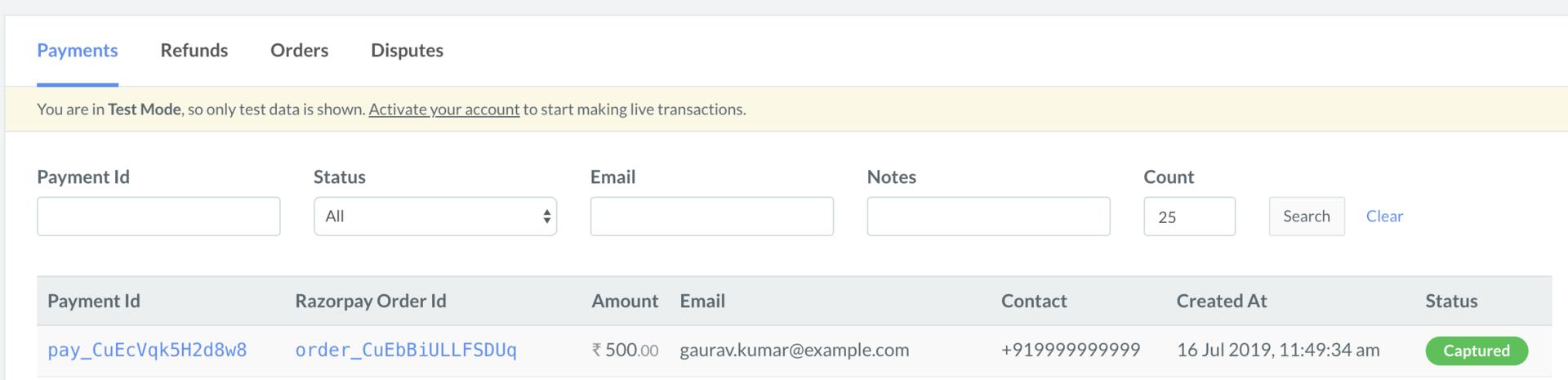
- Log in to the Razorpay Dashboard and navigate to Transactions → Payments.
- Check if a Payment Id has been generated and note the status. In case of a successful payment, the status is marked as Captured.
13 Perform Post Payment Processing
13 Perform Post Payment Processing
Fetch an Order
Fetch an Order
GET v1/orders/:id- Prepaid orders:
paid. - COD orders:
placed.
Path Parameter
Path Parameter
id mandatory
: string Unique identifier of the order to be retrieved.Response Parameters
Response Parameters
id
: string Unique identifier of the order. For example, order_R1yDkxyIuKXXXX.entity
: string Type of entity. Value is order.amount
: integer Total order amount in the smallest currency unit (paise).amount_paid
: integer Amount paid towards the order in paise. For prepaid orders, this shows the actual amount paid. For COD orders, this is 0 until payment is collected.amount_due
: integer Outstanding amount due in paise. For prepaid orders, this shows any remaining balance. For COD orders, this equals the amount field until payment is collected.currency
: string The 3-letter ISO currency code. For example, INR.receipt
: string Receipt identifier for internal reference. For example, #30567.offers
: array Array of offer IDs applied to the order.status
: string Current status of the order. Possible values:placed: Order placed but payment pending (COD orders).paid: Order placed and payment completed (prepaid orders).cancelled: Order cancelled.refunded: Order refunded.
attempts
: integer Number of payment attempts made for this order. For example, 1.notes
: object Custom notes added to the order containing integration-specific data.cart_id
: string Shopping cart identifier.storefront_id
: string Storefront system identifier.shopify_order_id
: string Shopify order reference.flits_cart_token
: string Flits integration token (optional).created_at
: integer Unix timestamp indicating when the order was created. For example, 1756045901.description
: string|null Order description. Returns null if no description is provided.checkout
: string|null Checkout identifier. Returns null if not applicable.promotions
: array Array of promotion objects applied to the order.code
: string Promotion code used. For example, orderOff.type
: string Type of promotion. For example, cart_value.value
: integer Discount value in paise. For example, 10000 for ₹100.description
: string Human-readable promotion description.reference_id
: string Internal reference for the promotion.cod_fee
: integer Cash on Delivery charges in paise. For COD orders, this contains the fee amount (for example, 5000 for ₹50). For prepaid orders, this is 0.shipping_fee
: integer Shipping charges in paise. For example, 700 for ₹7.customer_details
: object Customer information.contact
: string Customer’s phone number.email
: string Customer’s email address.shipping_address
: object Complete shipping address information.city
: string City name.contact
: string Contact number for delivery.country
: string Country code. For example, in.id
: string Address identifier (optional).line1
: string Address line 1.line2
: string Address line 2.name
: string Recipient name.state
: string State name.tag
: string Address tag. For example, Home.type
: string Address type. Value is shipping_address.zipcode
: string Postal code.billing_address
: object Complete billing address information.city
: string City name.contact
: string Contact number for billing.country
: string Country code. For example, in.id
: string Address identifier (optional).line1
: string Address line 1.line2
: string Address line 2.name
: string Account holder name.state
: string State name.tag
: string Address tag. For example, Home.type
: string Address type. Value is billing_address.zipcode
: string Postal code.line_items_total
: integer Total value of line items in paise before adding shipping fees and COD fees, after applying promotions. For example, 60000 for ₹600.tax_details
: object Tax information.total_tax
: integer Total tax amount in paise. For example, 4128.taxes_included
: boolean Indicates whether taxes are included in the item prices. Possible values:true: Taxes are included in item prices.false: Taxes are separate from item prices.
Fetch a Payment
Fetch a Payment
GET v1/payments/:idPath Parameter
Path Parameter
id mandatory
: string Unique identifier of the payment to be retrieved.Response Parameters
Response Parameters
id
: string Unique identifier of the payment. For example, pay_R1yFlWQar3XXXX.entity
: string Type of entity. Value is payment.amount
: integer Payment amount in the smallest currency unit (paise). For COD payments, this includes the COD fee (for example, 55700 for ₹557). For prepaid payments, this equals the captured amount (for example, 90630 for ₹906.30).currency
: string The 3-letter ISO currency code. For example, INR.status
: string Current status of the payment. Possible values:pending: Payment pending collection (COD orders).captured: Payment successfully captured (prepaid orders).authorized: Payment authorized but not captured.failed: Payment attempt failed.
order_id
: string Unique identifier of the associated order. For example, order_R1yDkxyIuKXXXX.invoice_id
: string|null Unique identifier of the associated invoice. Returns null if no invoice is linked.international
: boolean Indicates whether this is an international payment. Possible values:true: International payment.false: Domestic payment.
method
: string Payment method used. Possible values include:codupicardnetbankingwallet
amount_refunded
: integer Amount refunded in paise. For example, 0 indicates no refund has been processed.refund_status
: string|null Current refund status. Returns null if no refund is applicable. Possible values:partial: Partial refund processed.full: Full refund processed.
captured
: boolean Indicates whether the payment has been captured. Possible values:true: Payment has been captured.false: Payment has not been captured.
description
: string|null Payment description. Returns null if no description is provided.card_id
: string|null Unique identifier of the card used for payment. Returns null for non-card payments.bank
: string|null Bank identifier for netbanking payments. Returns null for other payment methods.wallet
: string|null Wallet provider identifier. Returns null for non-wallet payments.vpa
: string|null Virtual Payment Address for UPI payments. For example, gaurav.kumar@exampleupi. Returns null for non-UPI payments.email
: string Customer’s email address.contact
: string Customer’s phone number.notes
: object Custom notes added to the payment containing integration-specific data.cart_id
: string Shopping cart identifier.storefront_id
: string Storefront system identifier.flits_cart_token
: string Flits integration token (optional).optimizer_provider_name
: string Payment optimizer provider name (optional).fee
: integer|null Processing fee charged in paise. For example, 0 indicates no fee. Returns null for COD payments.tax
: integer|null Tax amount on processing fee in paise. For example, 0 indicates no tax. Returns null for COD payments.error_code
: string|null Error code if payment failed. Returns null for successful payments.error_description
: string|null Human-readable error description. Returns null for successful payments.error_source
: string|null Source of the error. Returns null for successful payments.error_step
: string|null Step at which error occurred. Returns null for successful payments.error_reason
: string|null Reason for the error. Returns null for successful payments.acquirer_data
: object Data from the payment acquirer.rrn
: string Retrieval Reference Number from the acquirer (optional).upi_transaction_id
: string UPI transaction identifier from the acquirer (optional).created_at
: integer Unix timestamp indicating when the payment was created. For example, 1756046099.receiver_type
: string|null Type of receiver for the payment. Returns null if not applicable.upi
: object UPI-specific payment details (only present for UPI payments).vpa
: string Virtual Payment Address used for the UPI payment.2. Test Integration
After the integration is complete, a Pay button appears on your webpage/app. Click the button and make a test transaction to ensure the integration is working as expected. You can start accepting actual payments from your customers once the test transaction is successful. You can make test payments using one of the payment methods configured at the Checkout.Supported Payment Methods
Supported Payment Methods
Netbanking
You can select any of the listed banks. After choosing a bank, Razorpay will redirect to a mock page where you can make the paymentsuccess or a failure. Since this is Test Mode, we will not redirect you to the bank login portals.Check the list of supported banks.UPI
You can enter one of the following UPI IDs:success@razorpay: To make the payment successful.failure@razorpay: To fail the payment.
Cards
You can use the following test cards to test transactions for your integration in Test Mode.Domestic Cards
Use the following test cards for Indian payments:International Cards
Use the following test cards to test international payments. Use any valid expiration date in the future in the MM/YY format and any random CVV to create a successful payment.Wallet
You can select any of the listed wallets. After choosing a wallet, Razorpay will redirect to a mock page where you can make the paymentsuccess or a failure. Since this is Test Mode, we will not redirect you to the wallet login portals.Check the list of supported wallets.3. Go-live Checklist
Check the go-live checklist for Razorpay Magic Checkout integration. Consider these steps before taking the integration live.1 Accept Live Payments
1 Accept Live Payments
- Log in to the Razorpay Dashboard and switch to Live Mode on the menu.
- Navigate to Account & Settings → API Keys → Generate Key to generate the API Key for Live Mode.
- Download the keys and save them securely.
- Replace the Test API Key with the Live Key in the Checkout code and start accepting actual payments.
2 Payment Capture
2 Payment Capture
authorized, you need to capture it to settle the amount to your bank account as per the settlement schedule. Payments that are not captured are auto-refunded after a fixed time.- Auto-capture Payments (Recommended)
- Manually Capture Payments
3 Set Up Webhooks
3 Set Up Webhooks