

Available in🇮🇳 India
RazorpayX provides enhanced security and protection through Two-Factor Authentication (2FA) for all users of the Dashboard.
Usually, to log in to the RazorpayX Dashboard, users enter their email address and password. When you enable 2FA on an account, users are prompted to enter a one-time password (OTP) when logging in. They receive an OTP on their registered mobile number.
By setting this additional layer of security, you can ensure that only the intended user has access to your Dashboard, thus preventing malicious attacks or misuse of your sensitive business data.
Enabling 2FA for Users on Dashboard
To add this additional layer of security, you must enable 2FA. You can enable it- All team members: As the account owner, you can enforce 2FA for all users (team members) linked to your account.
- Your account only: As a user, you can set up 2FA for your account only.
2FA for All Team Members
As an owner, you can enforce 2FA for all users (team members) linked to your account. To enable 2FA for all your team members:- Log in to your RazorpayX Dashboard.
- Navigate to My Account & Settings → Manage Team.
- In the Team Members tab, enable the Two-Factor Authentication for the team option by toggling it to ENABLED.
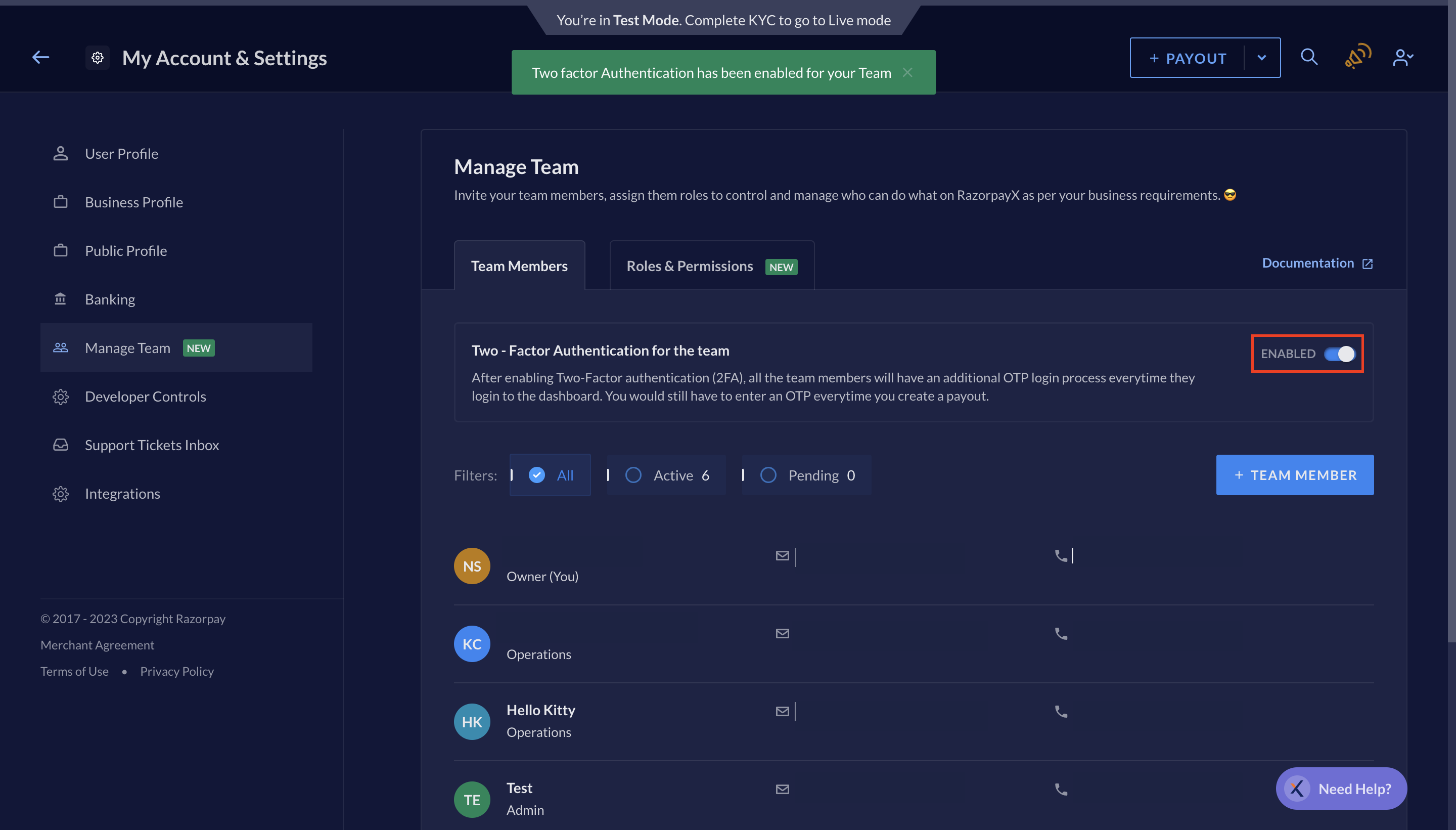
- Enter the OTP sent to your registered mobile device.
- Enter your account password and confirm.
2FA for Your Account Only
You can enable 2FA for your account only. To enable 2FA for your account only:- Log in to your RazorpayX Dashboard.
- Navigate to My Account & Settings → User Profile.
- Enable the Two-Factor Authentication option in the section under User Role.
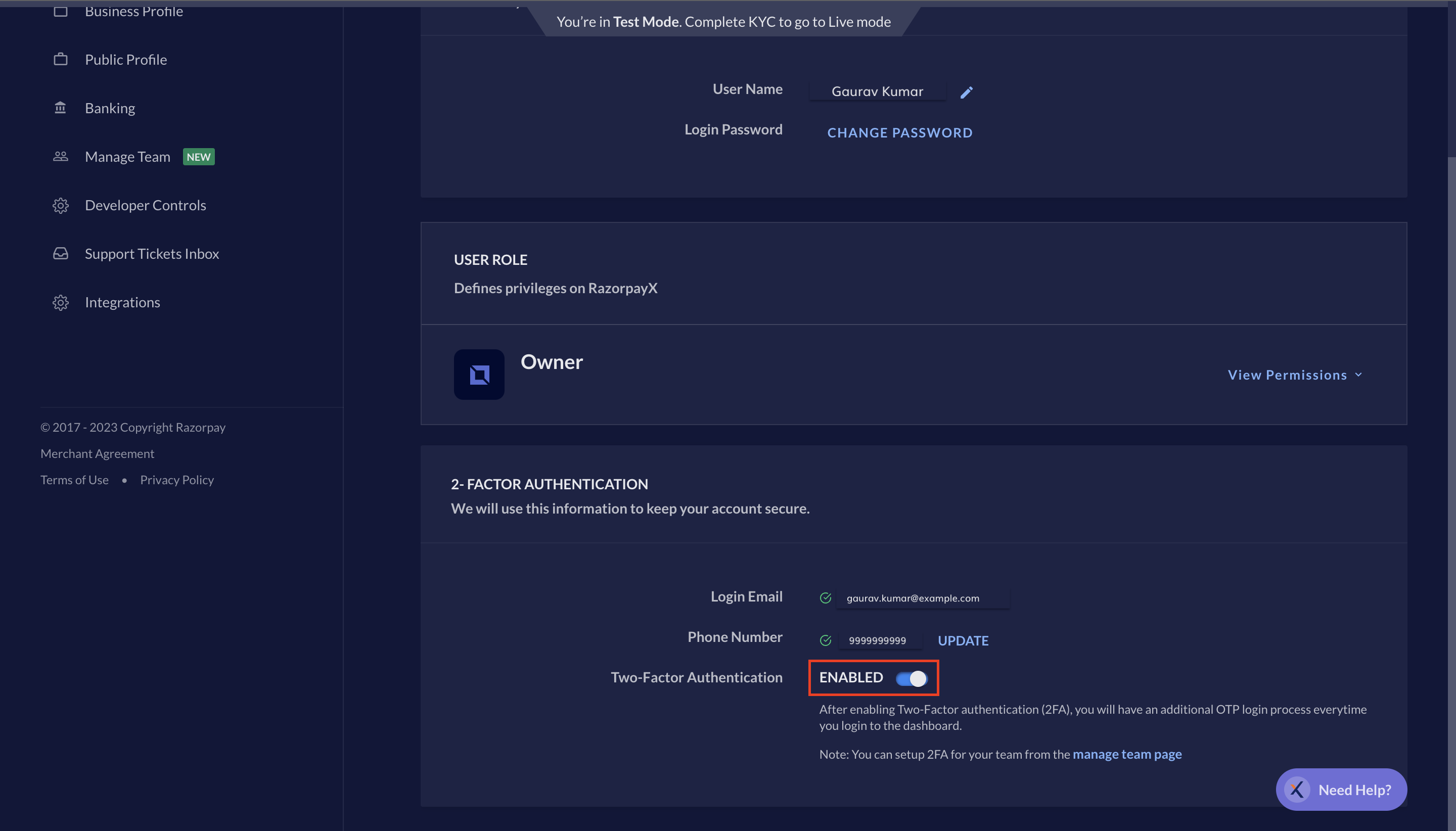
- Enter the OTP sent to your registered mobile device.
- Enter your account password and confirm.